Basics Terms
Course
Simsol is a course based learning management system. Instructor share their course then student purchase course and obtain knowledge or skills in this platform. Instructor creates the course for the students in their expertise. A course has many resources, assignments, quizzes, several lectures, several sections, live classes, discussion. Instructor can also earn by selling the course. on the other side, student gain knowledge and upgrade their skills by watching the courses and completing the assignments and quizzes.
Section & Lectures
In one single course instructor can create multiple section and multiple section has multiple lessons.
Curriculum
A curriculum consists of the "Roadmap" of any course. In Simsol, the curriculum will help you overview the course details. A course curriculum will help your students get external info and a course summary.
After purchasing course student show many things:
For example:
Tag
In Simsol, you can add multiple keywords for a course. These all keywords are individual tags. Showing related courses based on tags and even course searching can happen with it.
Admin
In Simsol, an admin has to perform a large number of activities. In this platform admin can do anything. An admin is responsible for every curriculum activity.
Student
In Simsol, Student can purchase course and obtained gain knowledge from course and upgrade their skills and after completed the course will get certificates.
How to Begin a Career as an Instructor
To become an instructor, there are some procedures to complete.
Instructions given here:
Instructor
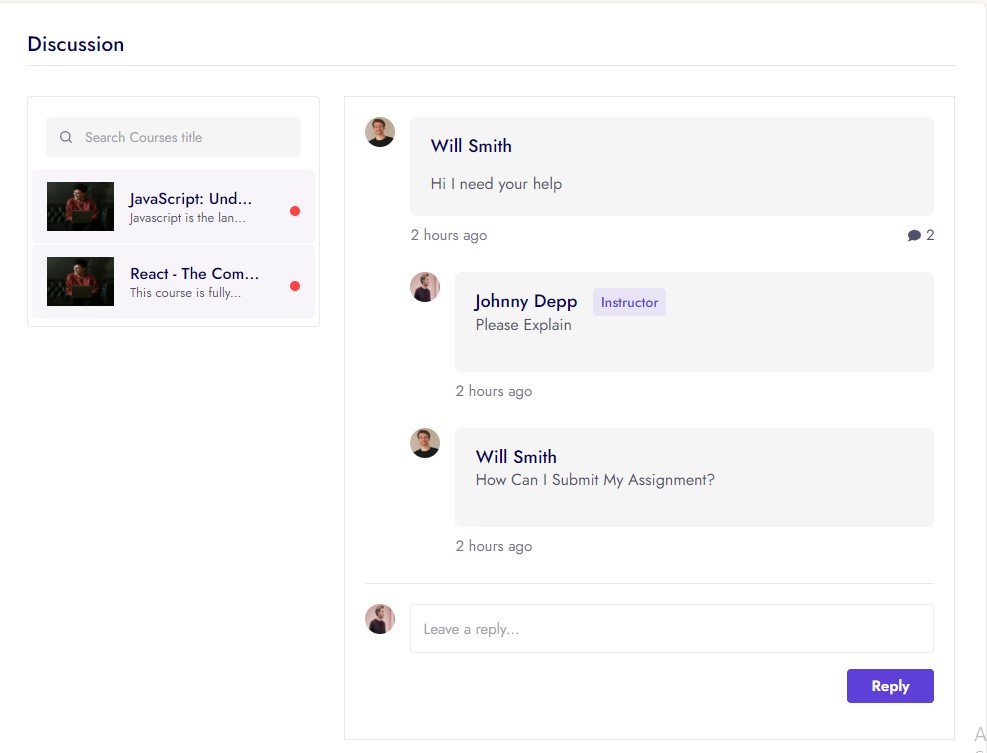
In Simsol, an instructor can create and sell courses. Instructors can add, update, delete their course materials like lessons, quizzes, resources, assignments. Can take live classes, can discuss with their enrolled students. Instructors can earn income by sharing a percentage of the course price after selling the course on this platform. Instructor can withdraw his/her income from instructor panel.
Category
You can classify courses so that your students can find the course more quickly. You can add several categories and sub-categories according to the courses.
Credentials For Demo
Student Account Activities
Browse The course in Simsol
The finest user experience is provided by Simsol. This learning management system allows user to view the course details and curriculum without create an account. You must take the following steps:
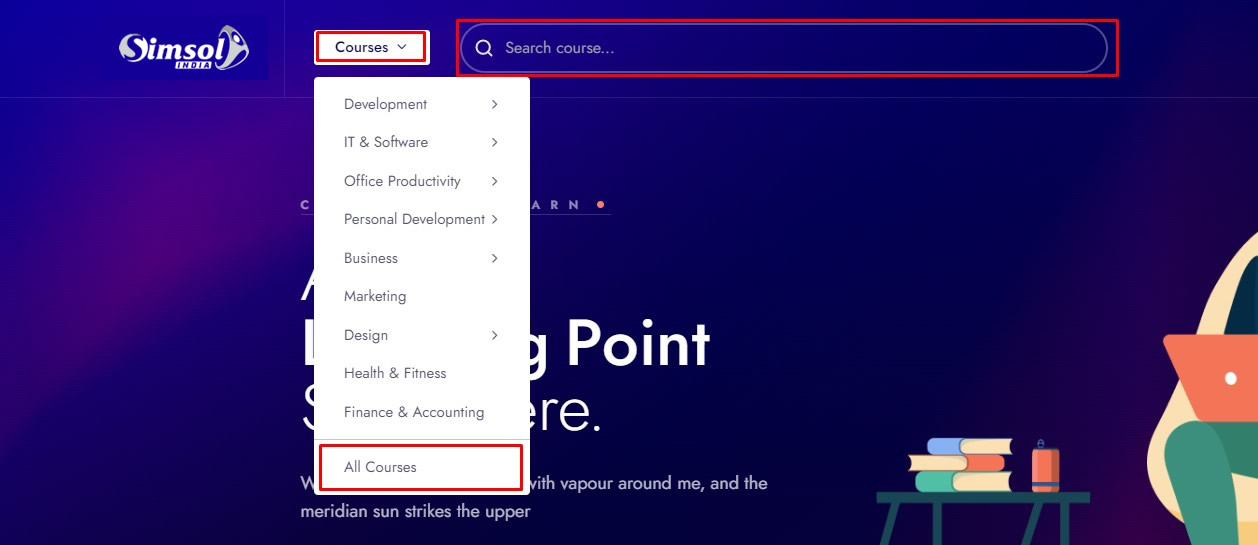
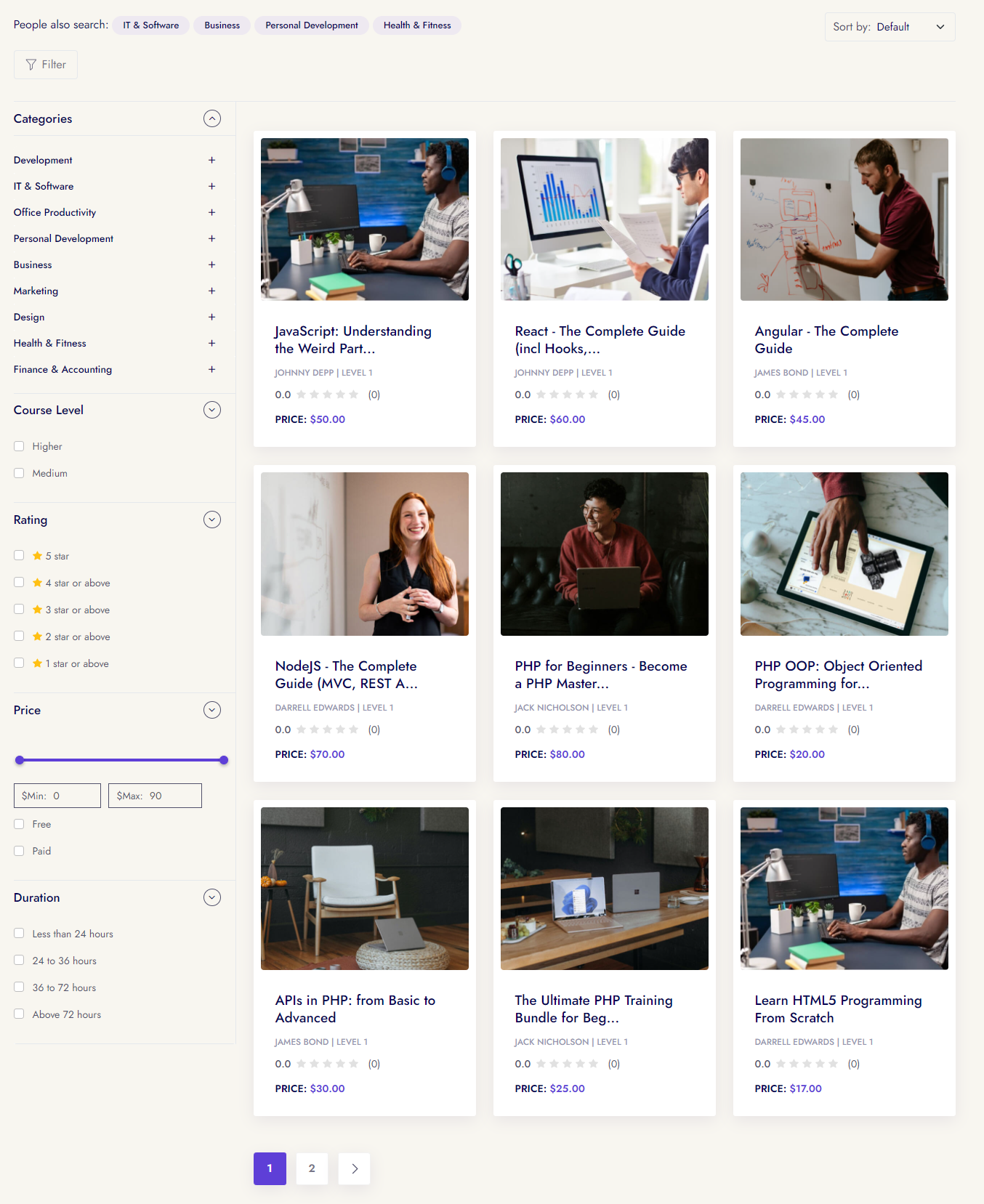
A user can browse a course from the welcome page, they can filter the course based one:
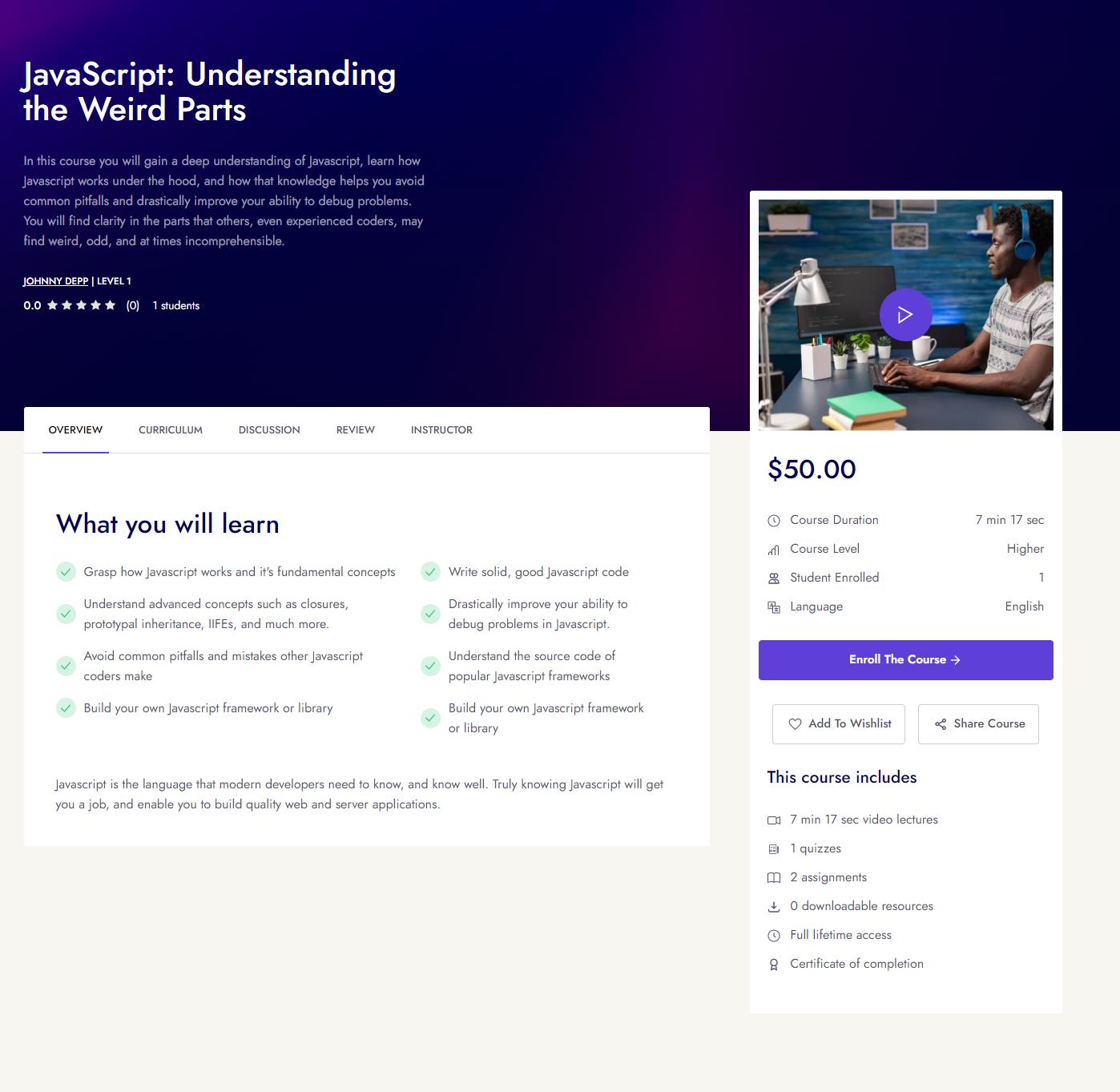
Then a student click any course and see the course details. For example, you can see
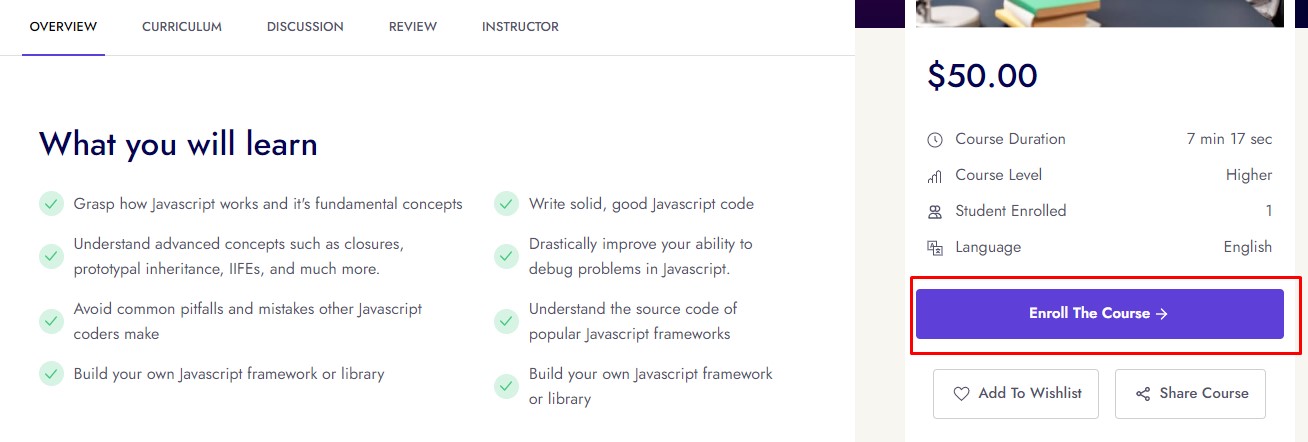
How to purchase a course
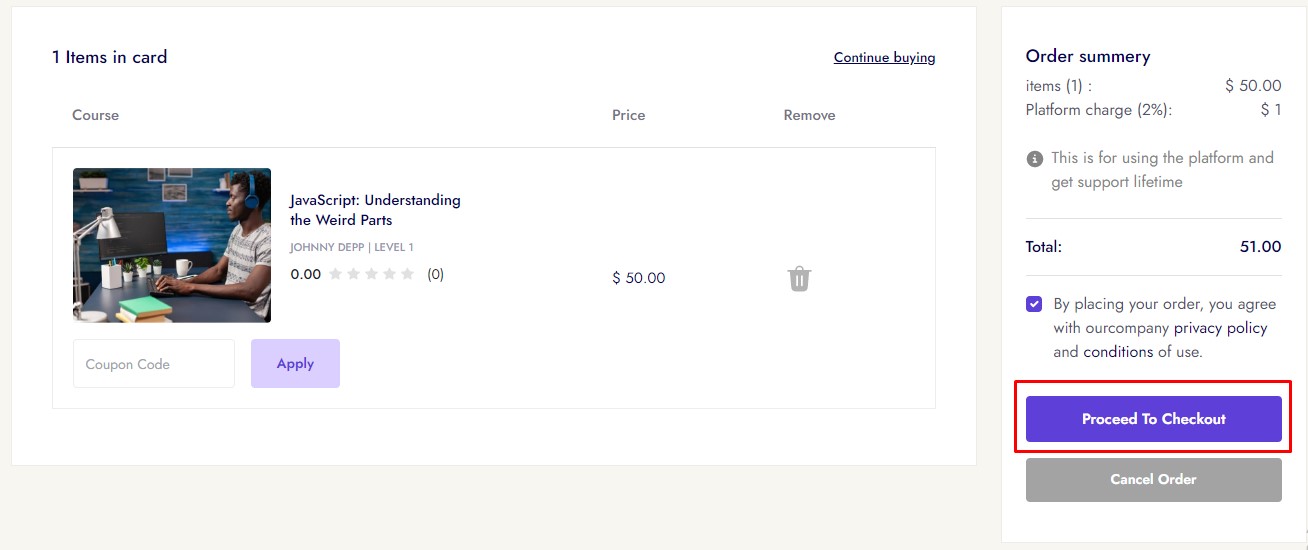
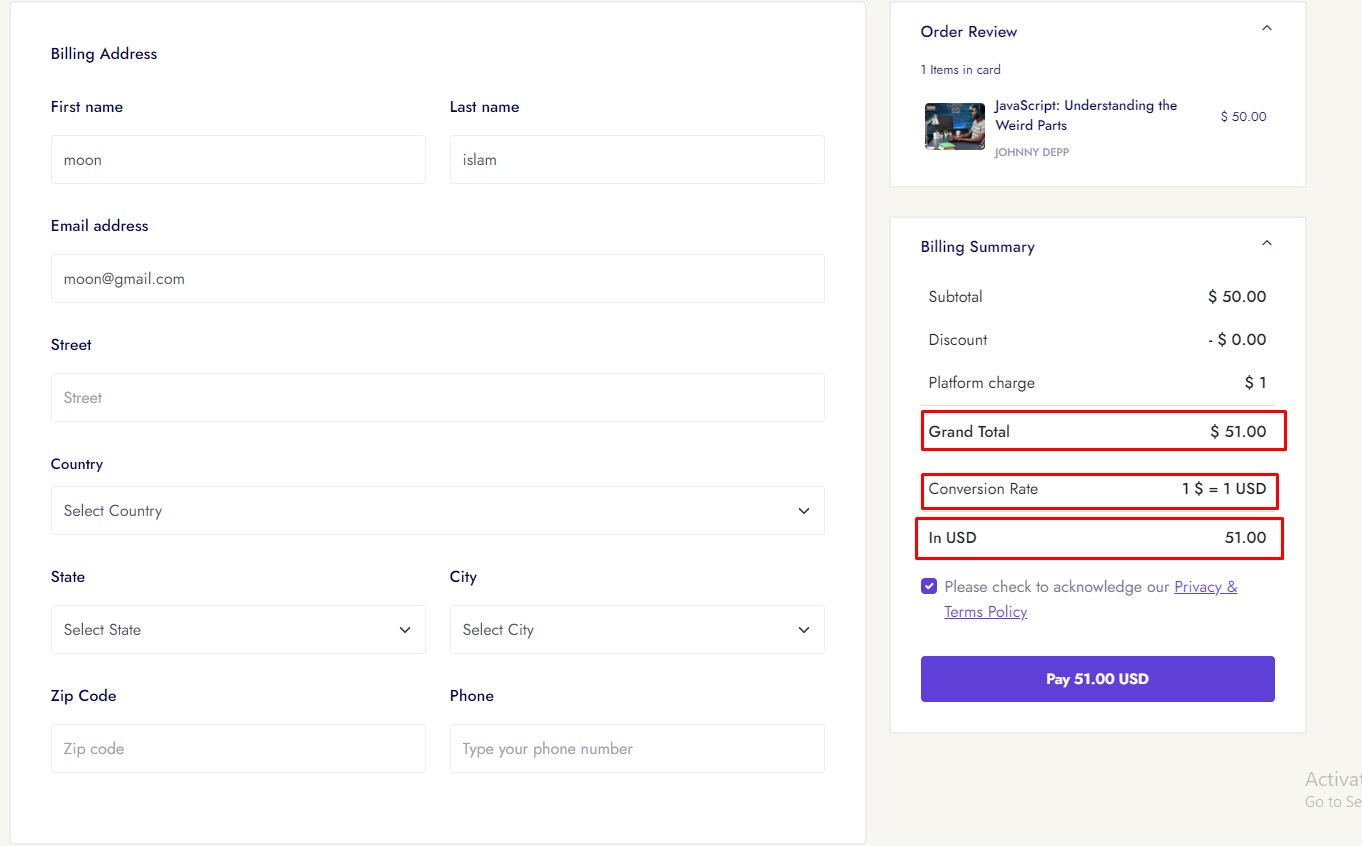
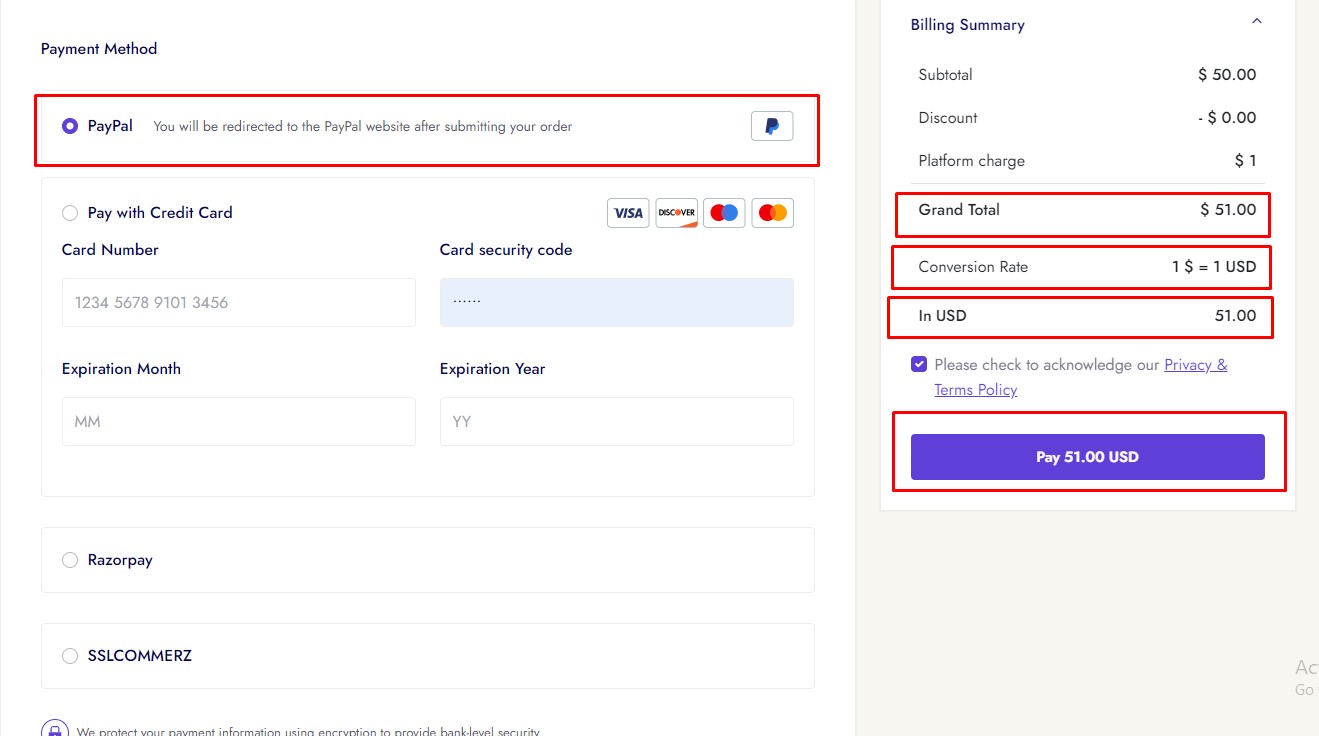
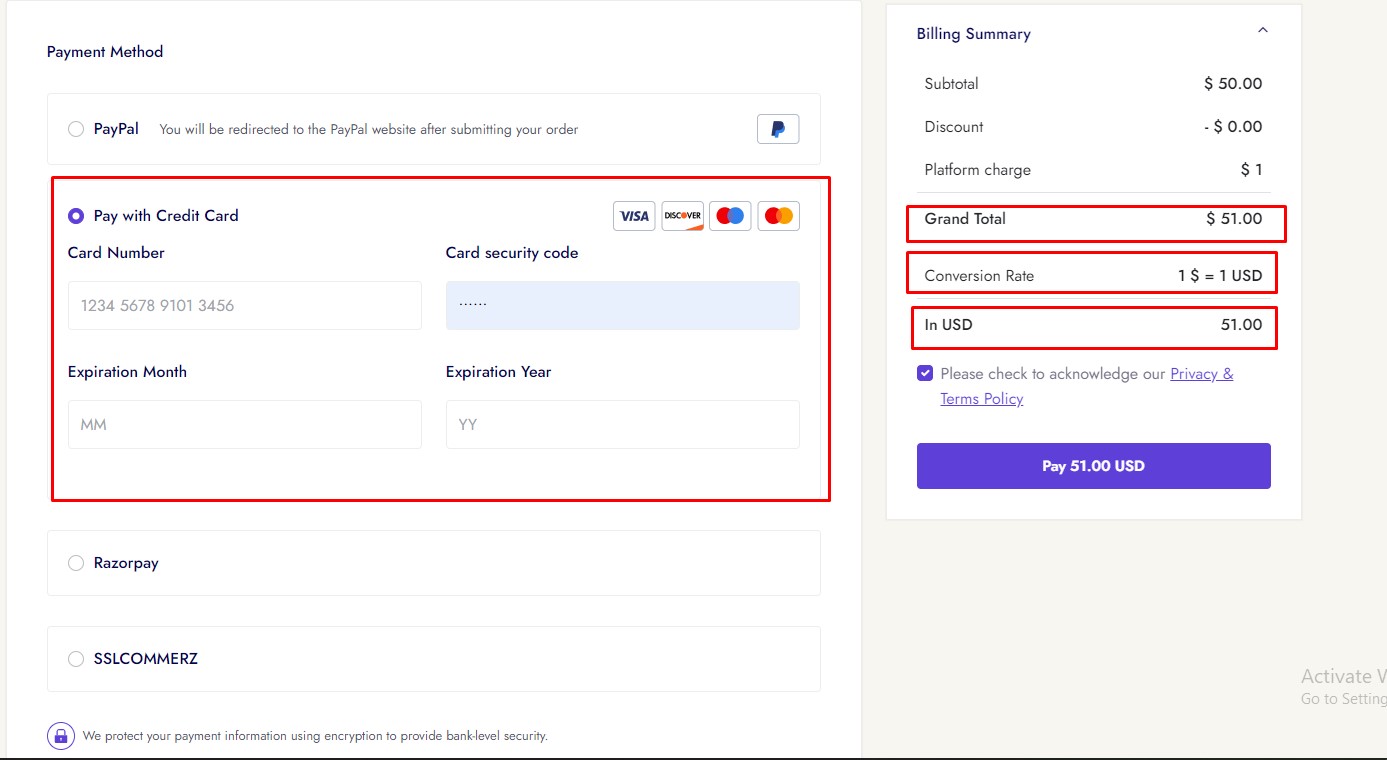
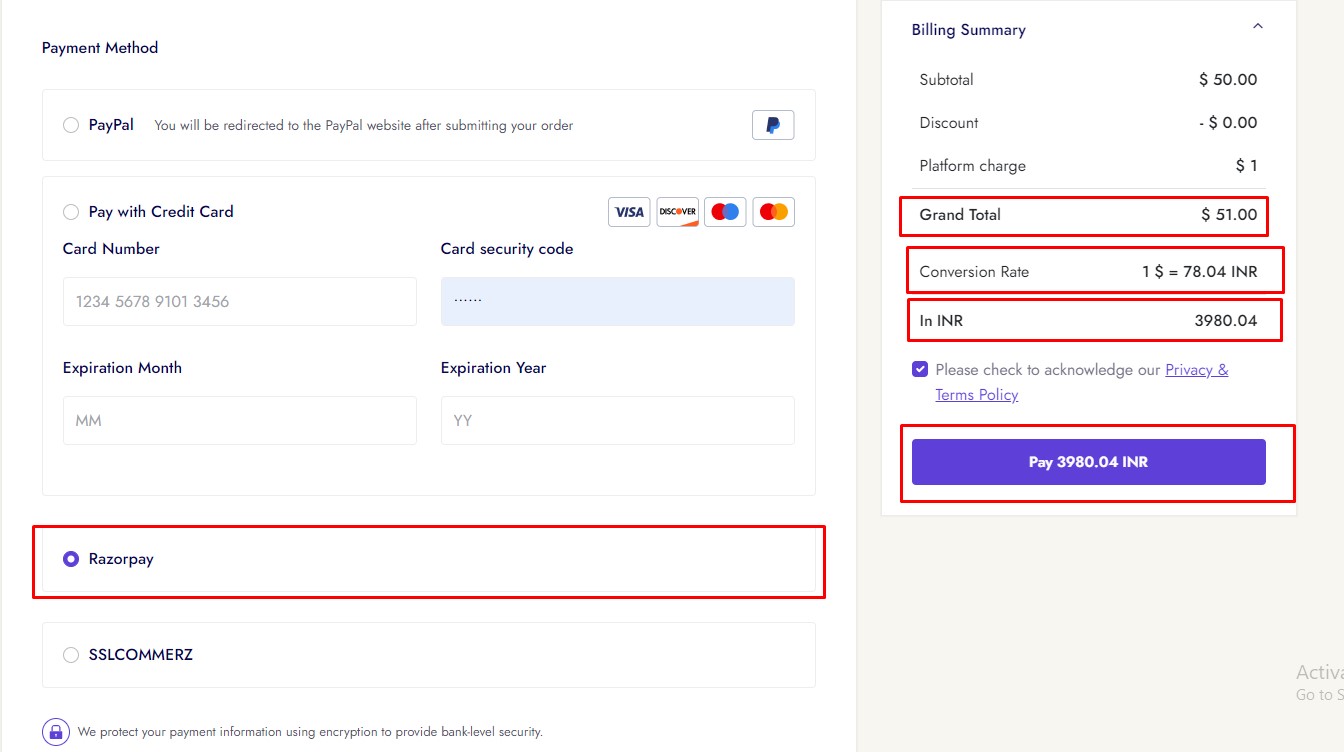
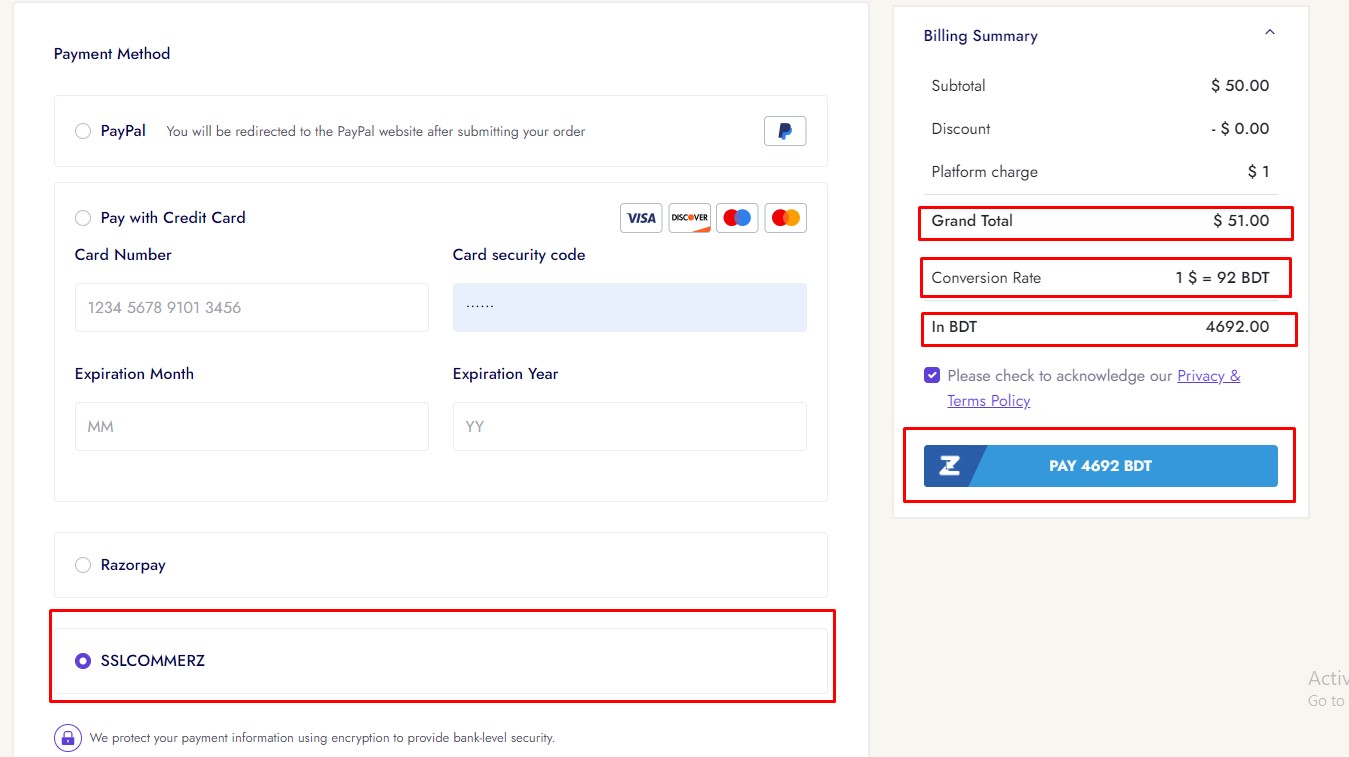
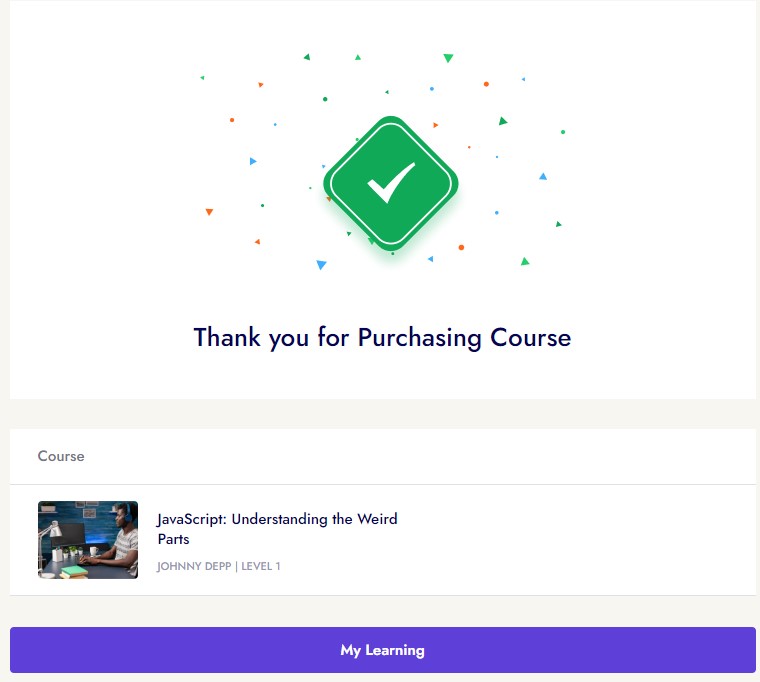
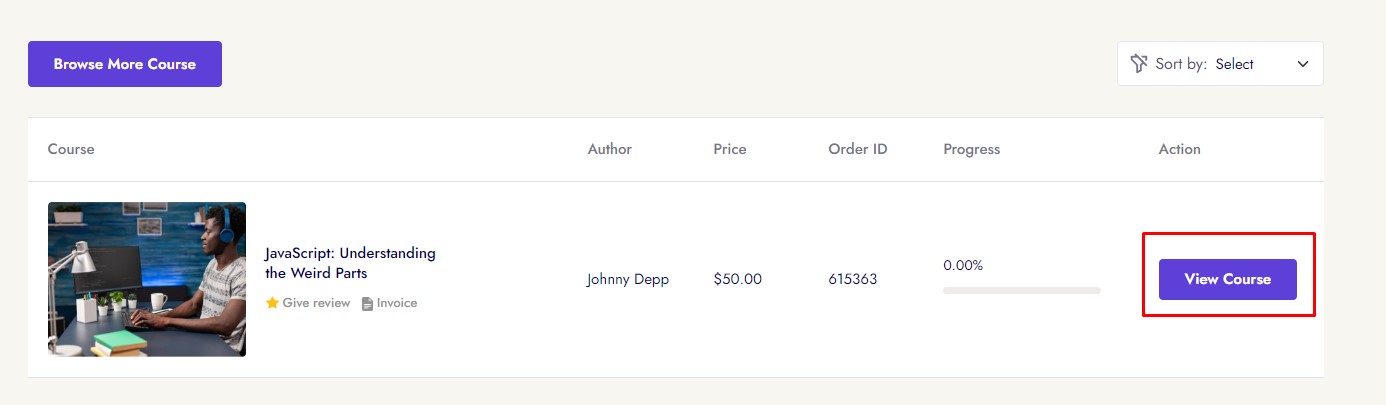
To purchase a course a user follow some criteria:
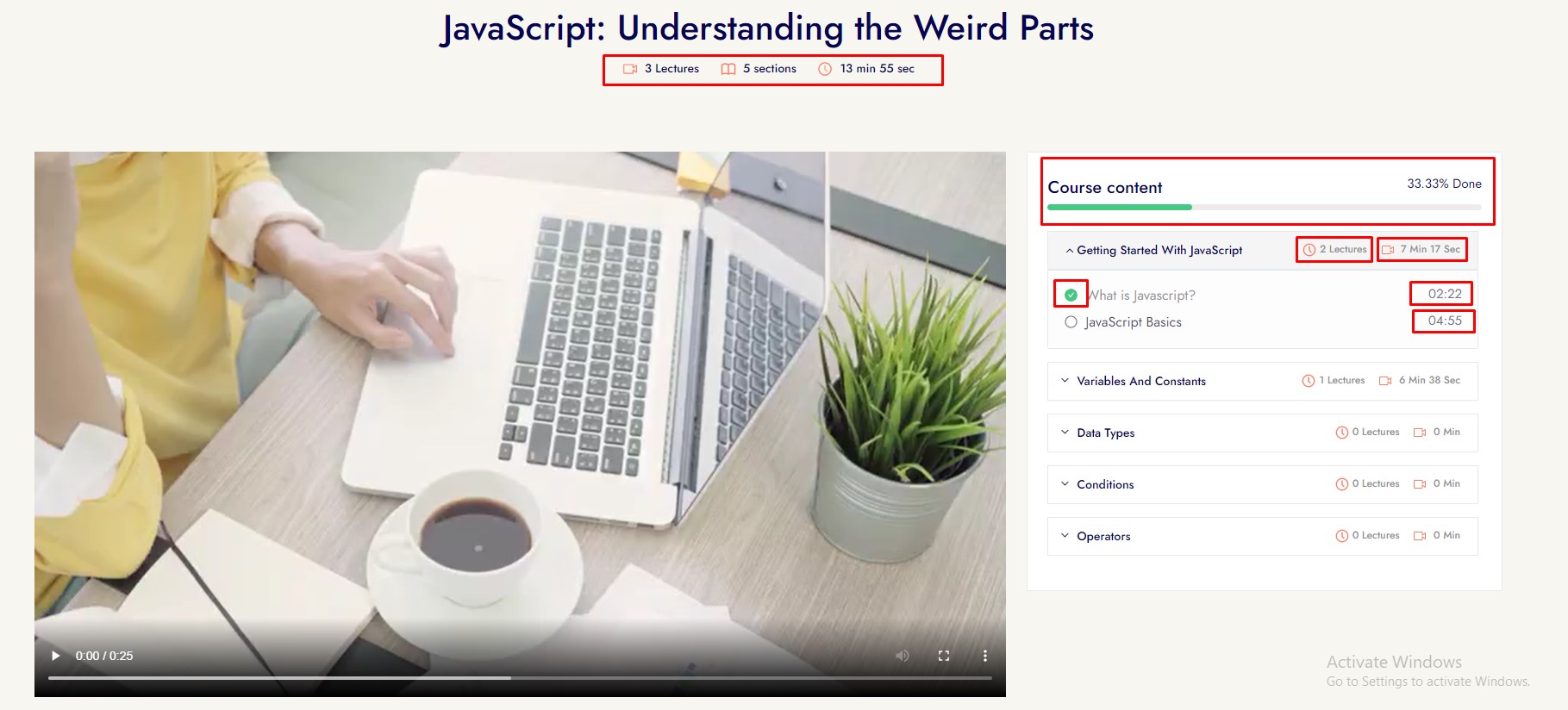
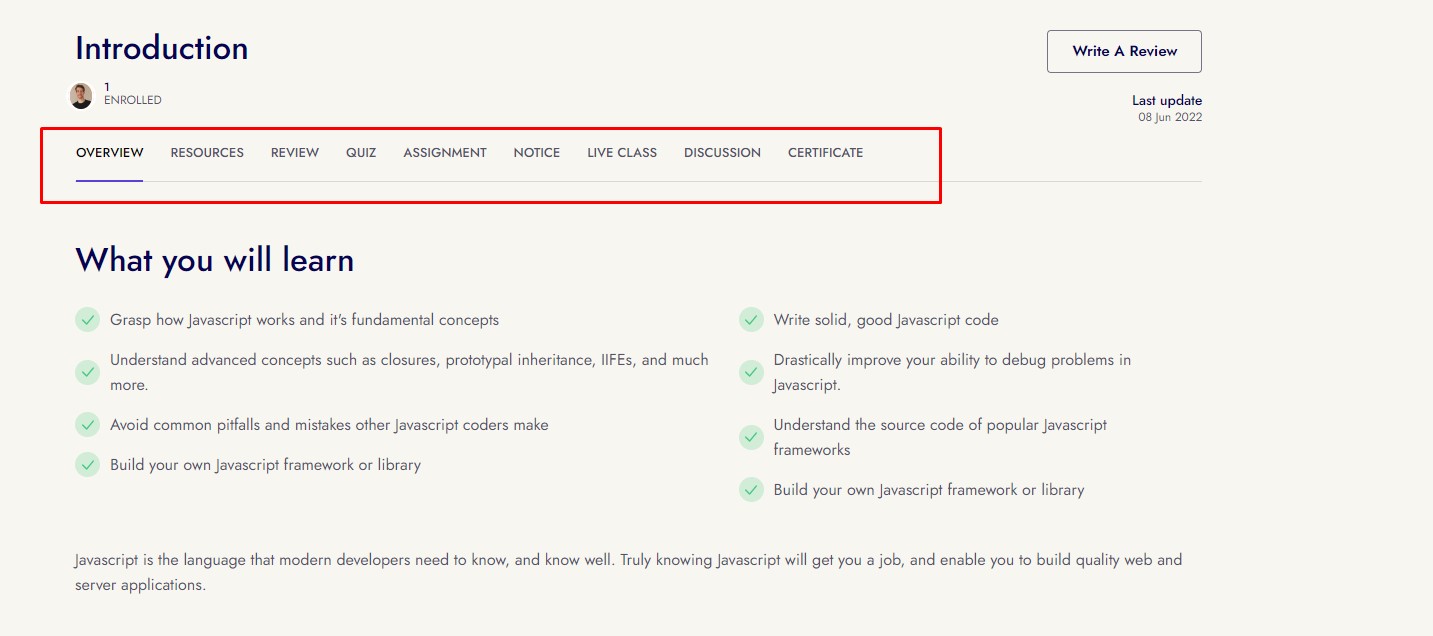
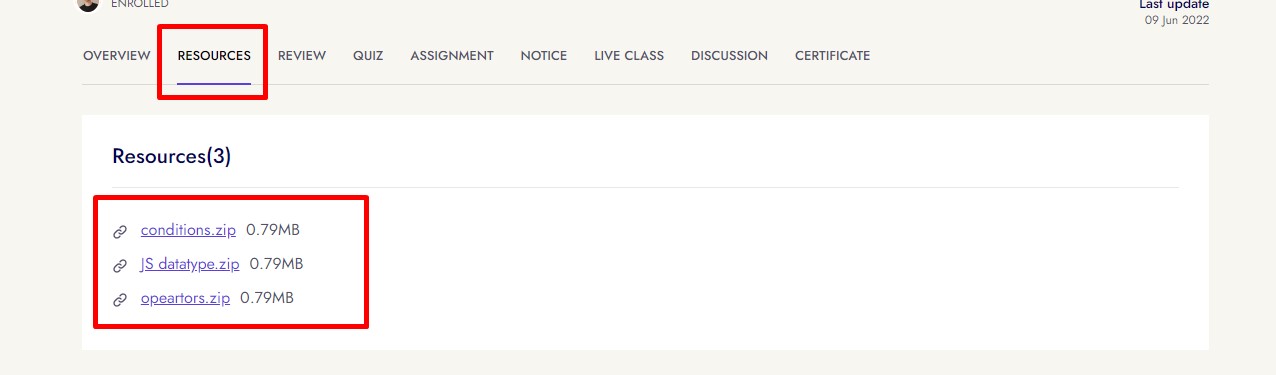
Course resources
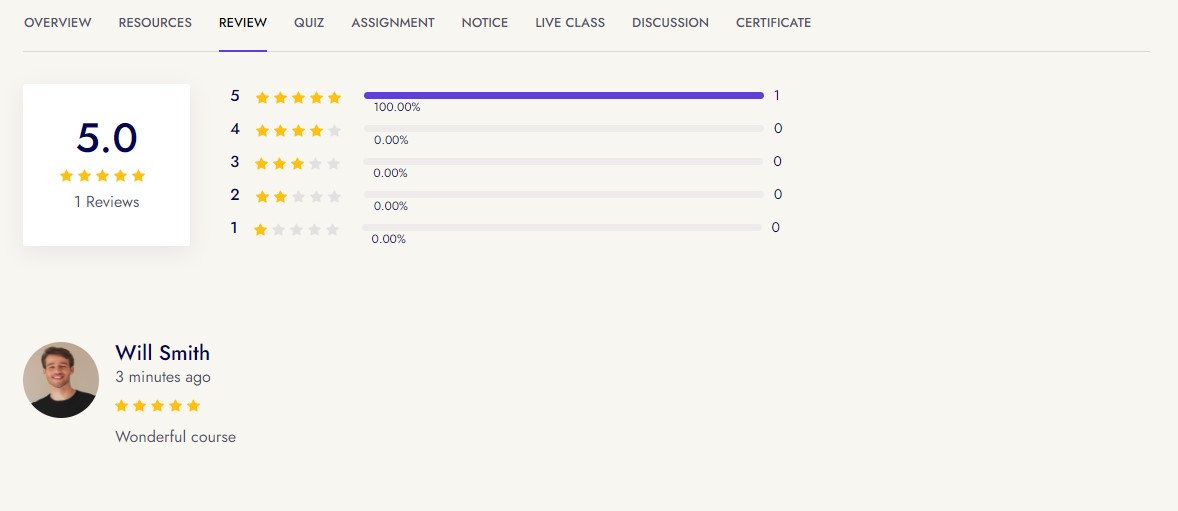
Course Review
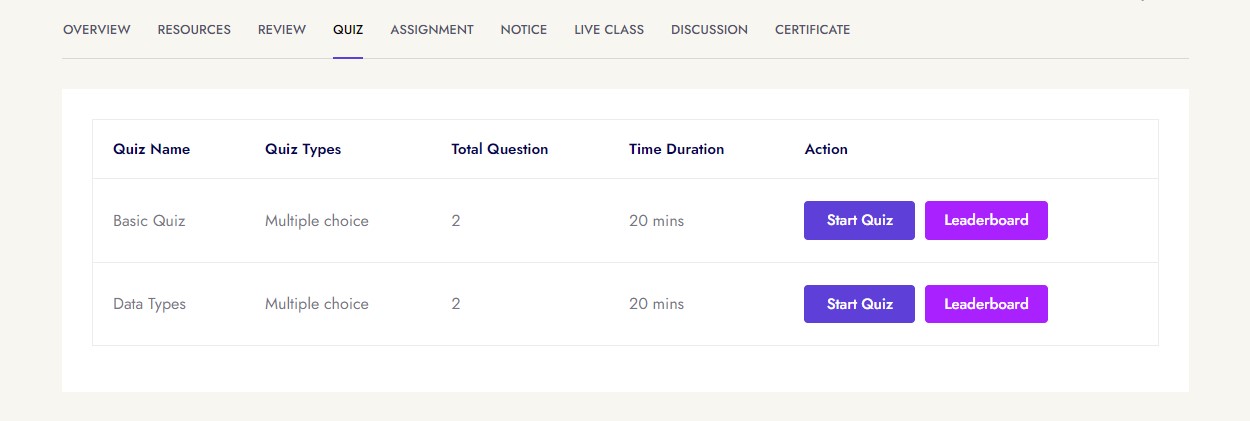
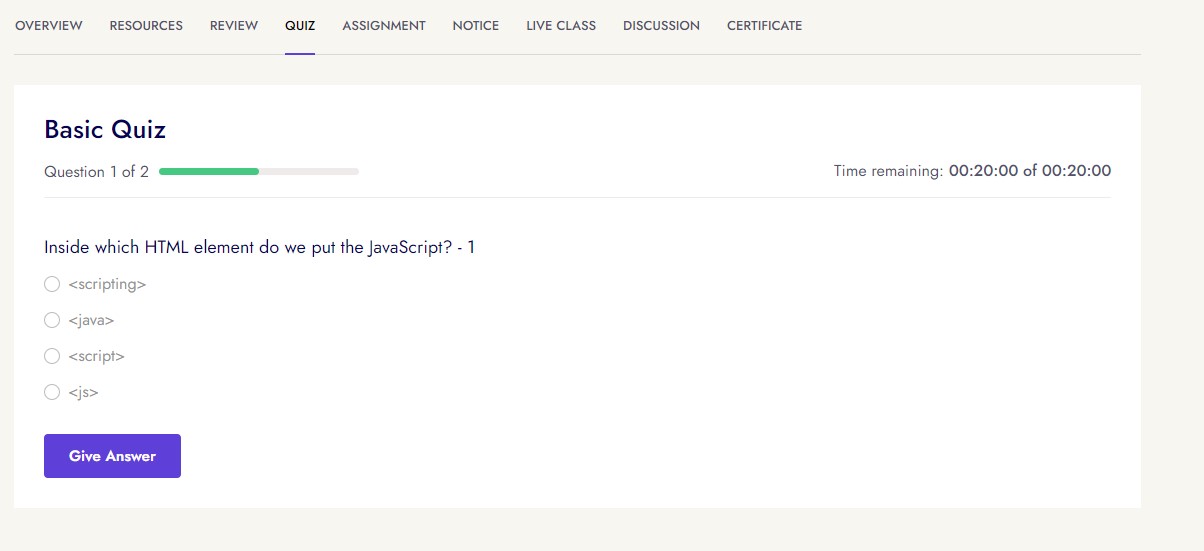
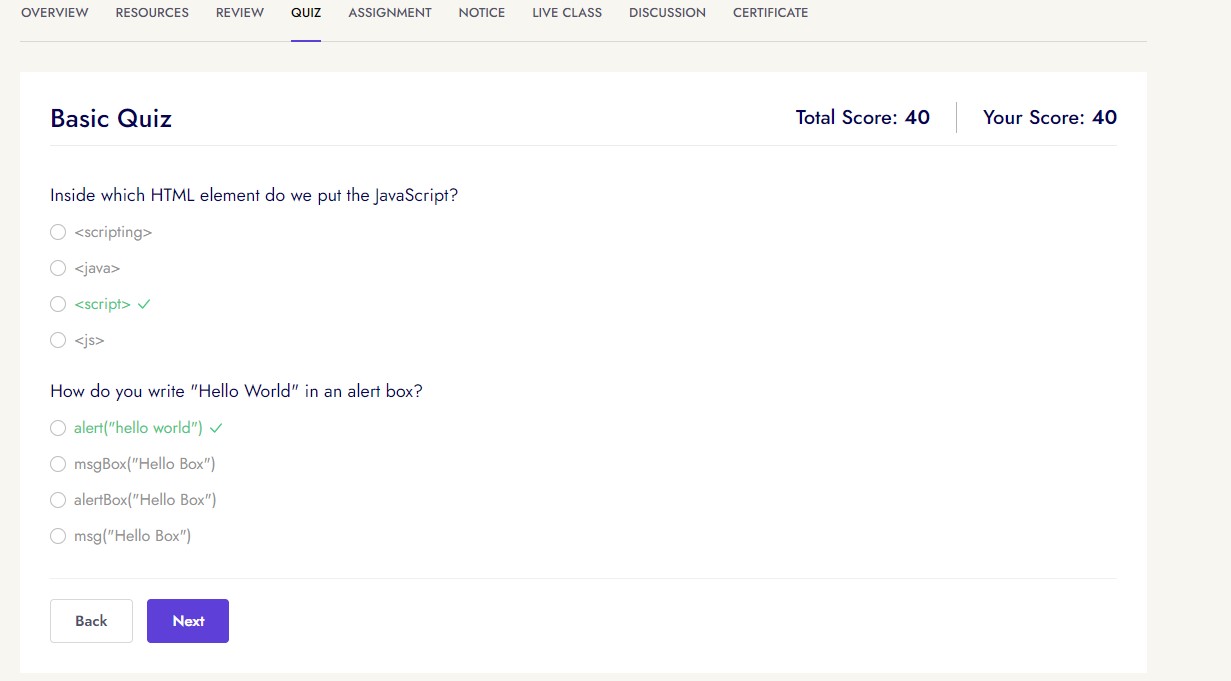
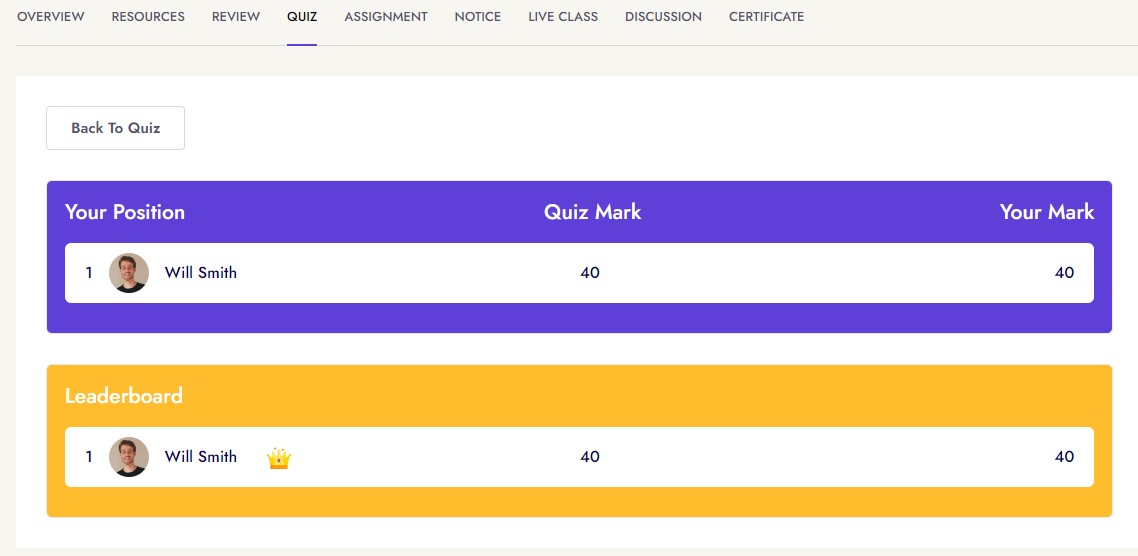
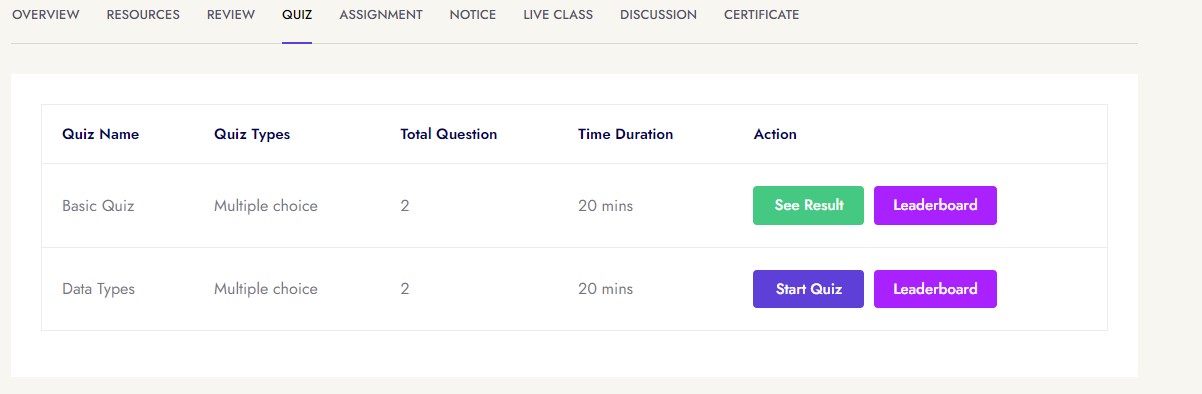
Course Quiz
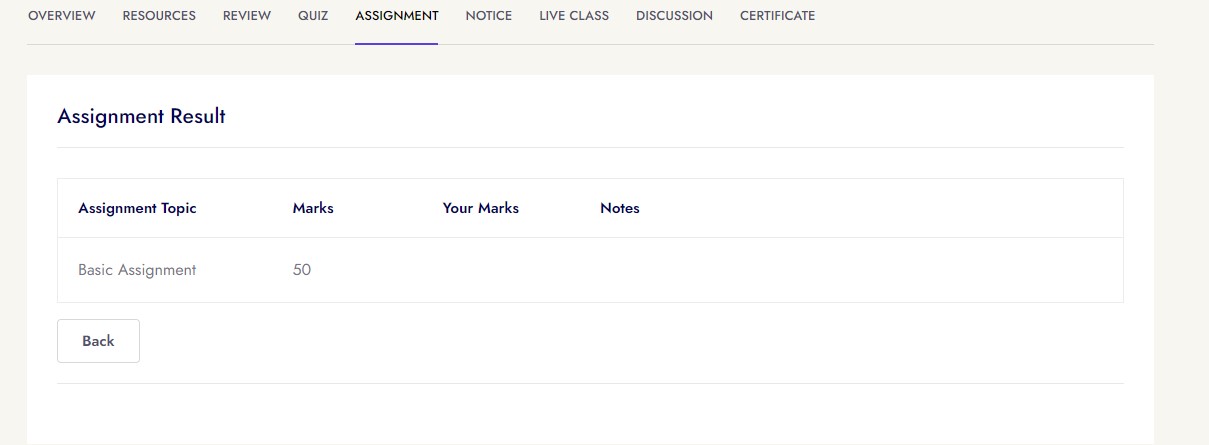
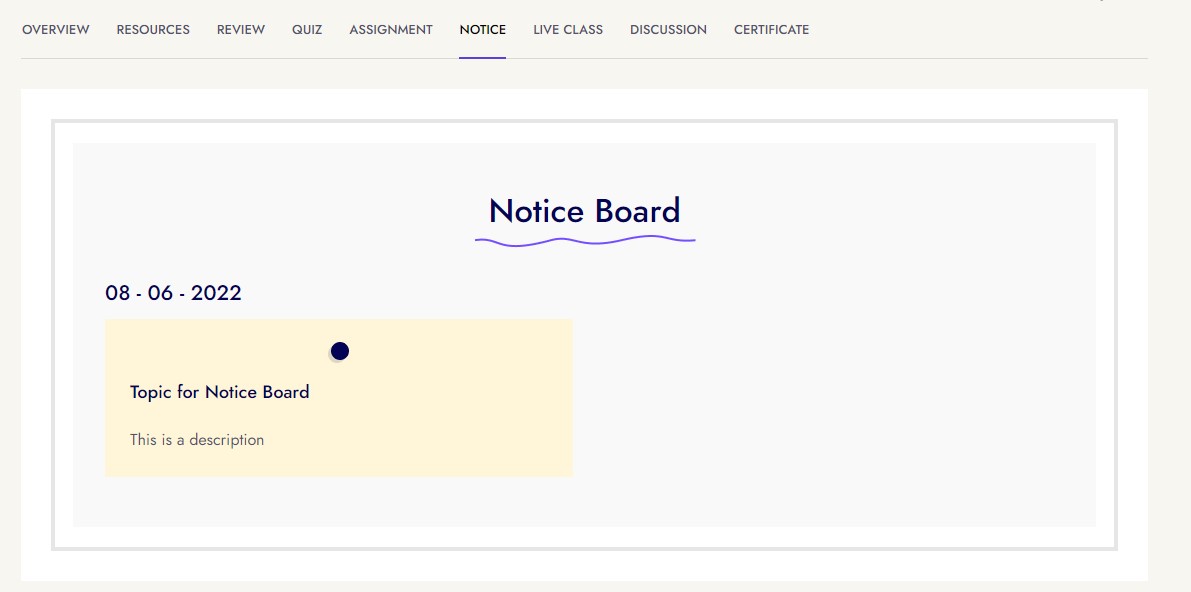
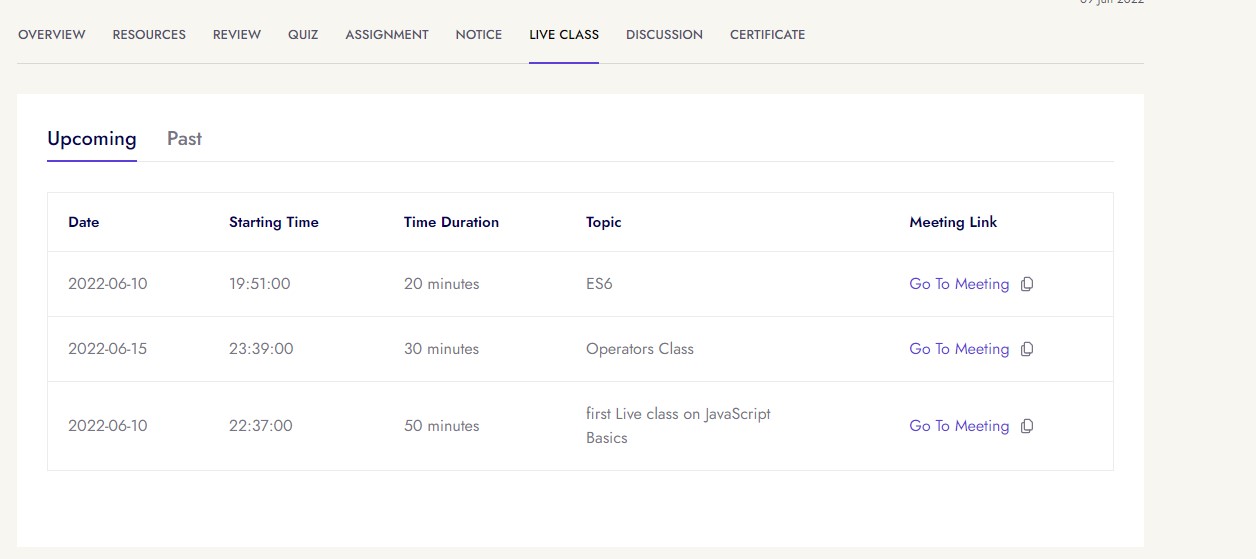
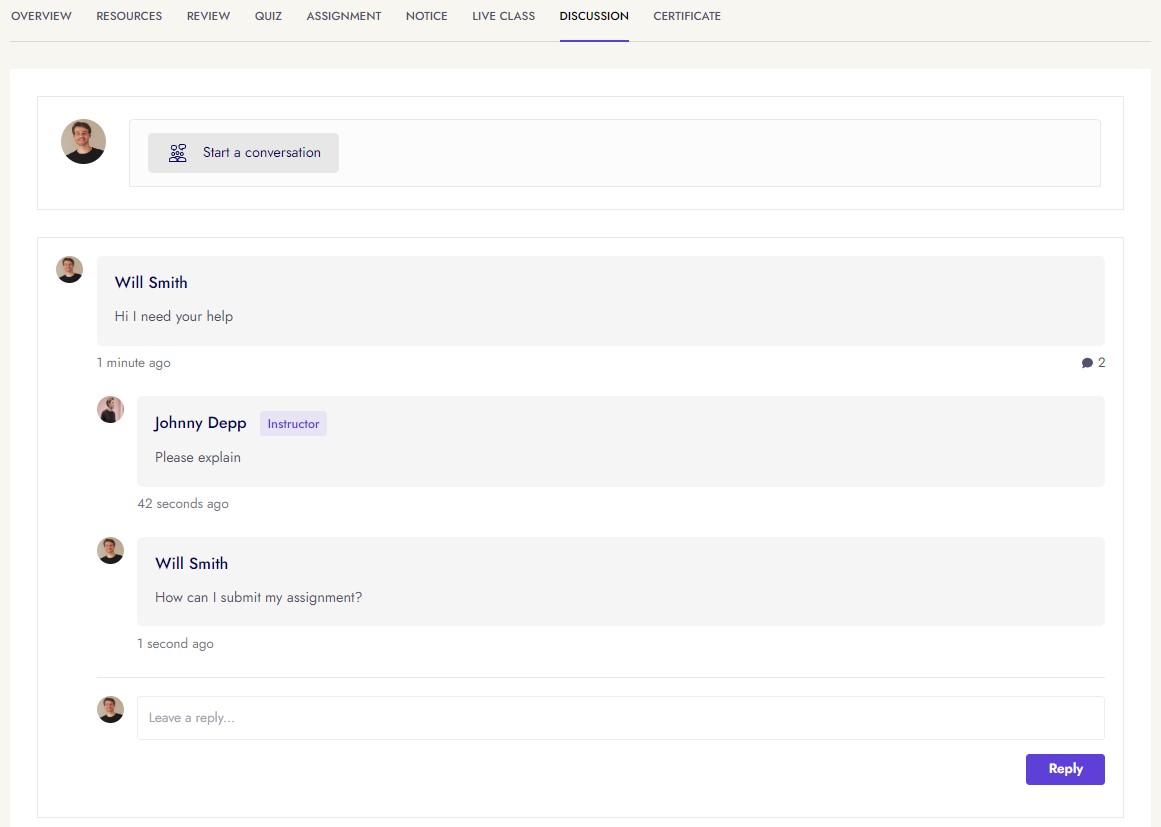
Some demo images given here
Course Assignment
Course Notice
Course Live Classes
Course Discussion
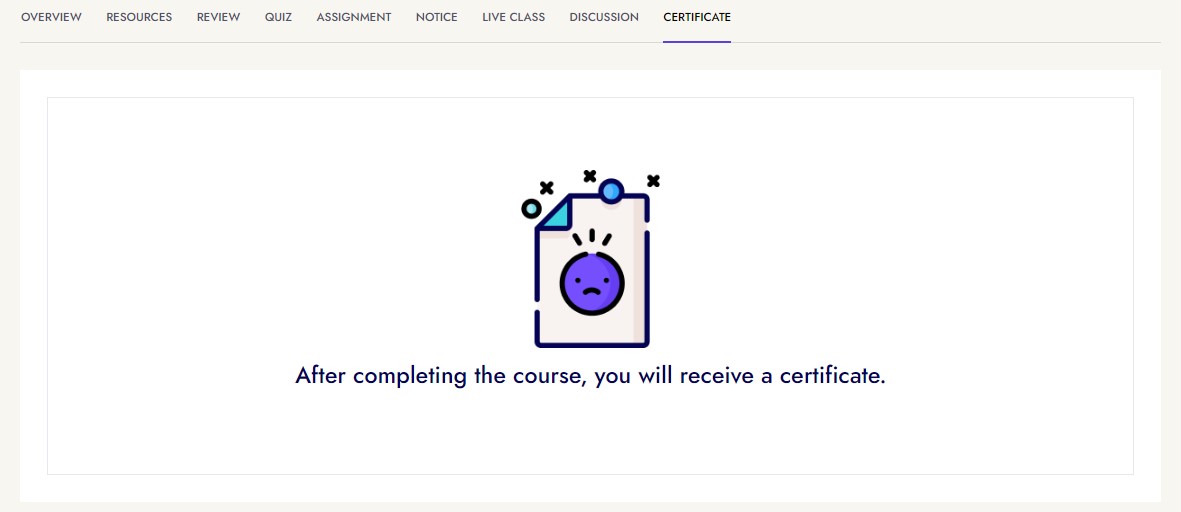
Course Certificate
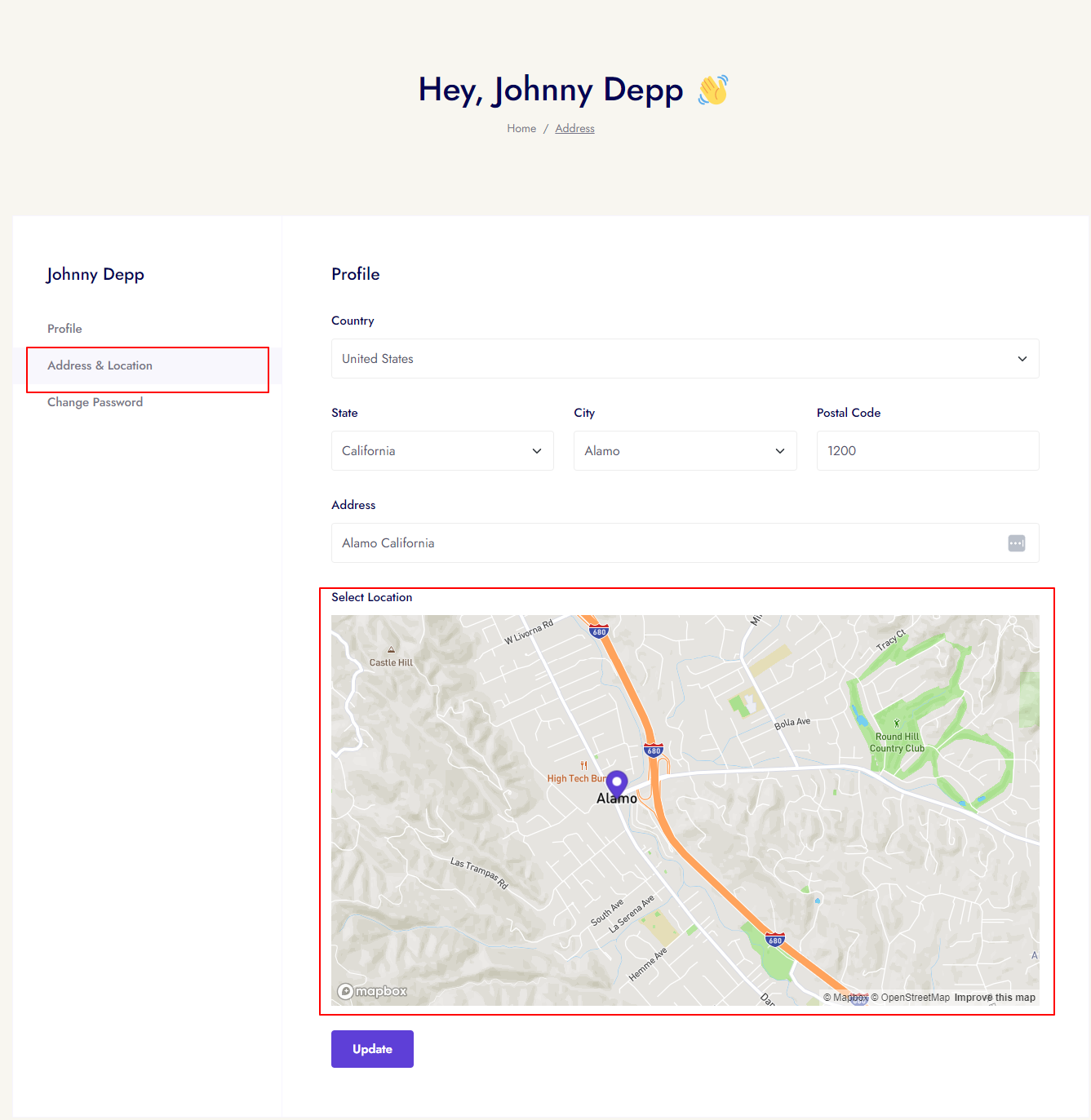
Geolocation search
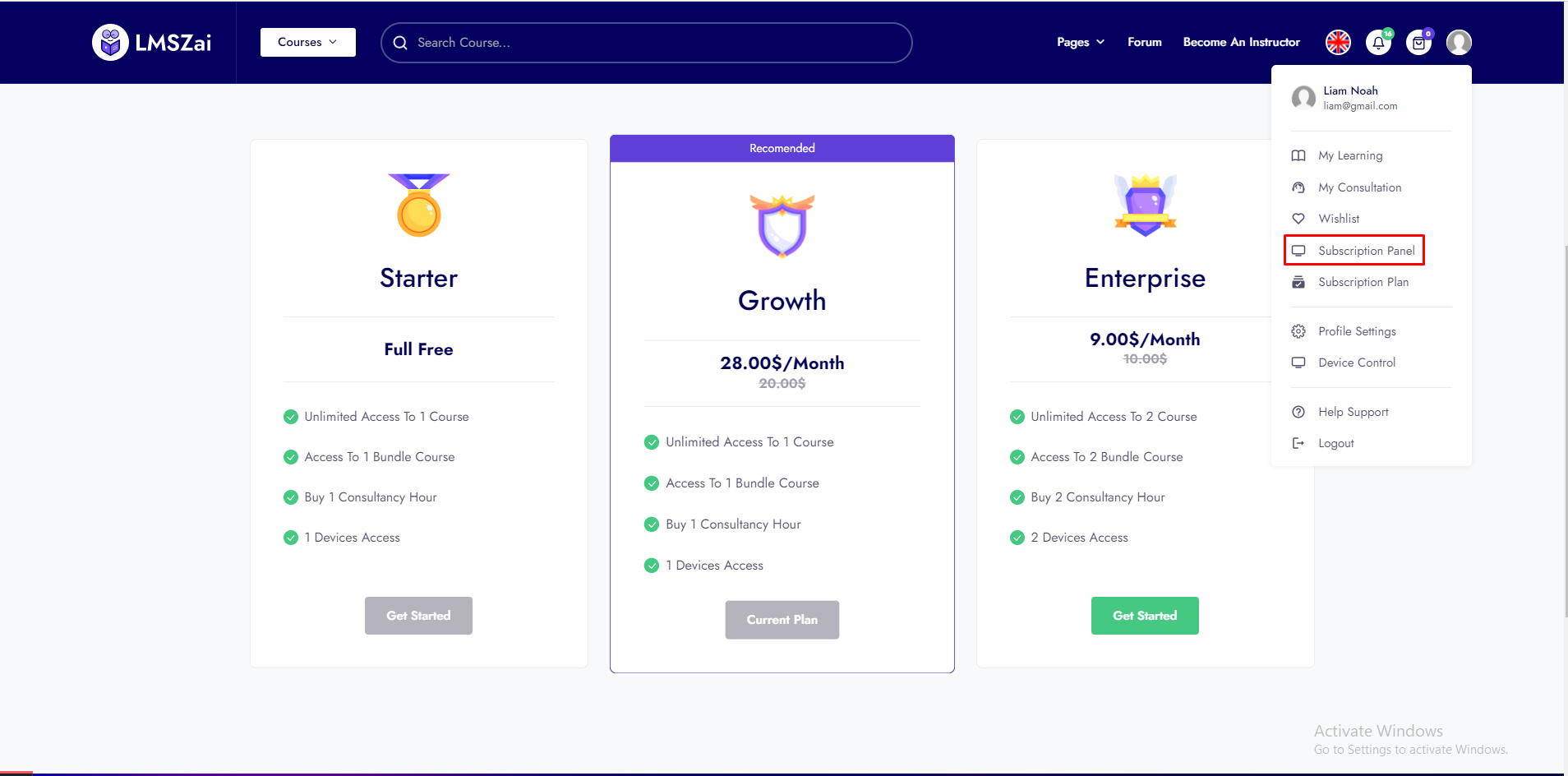
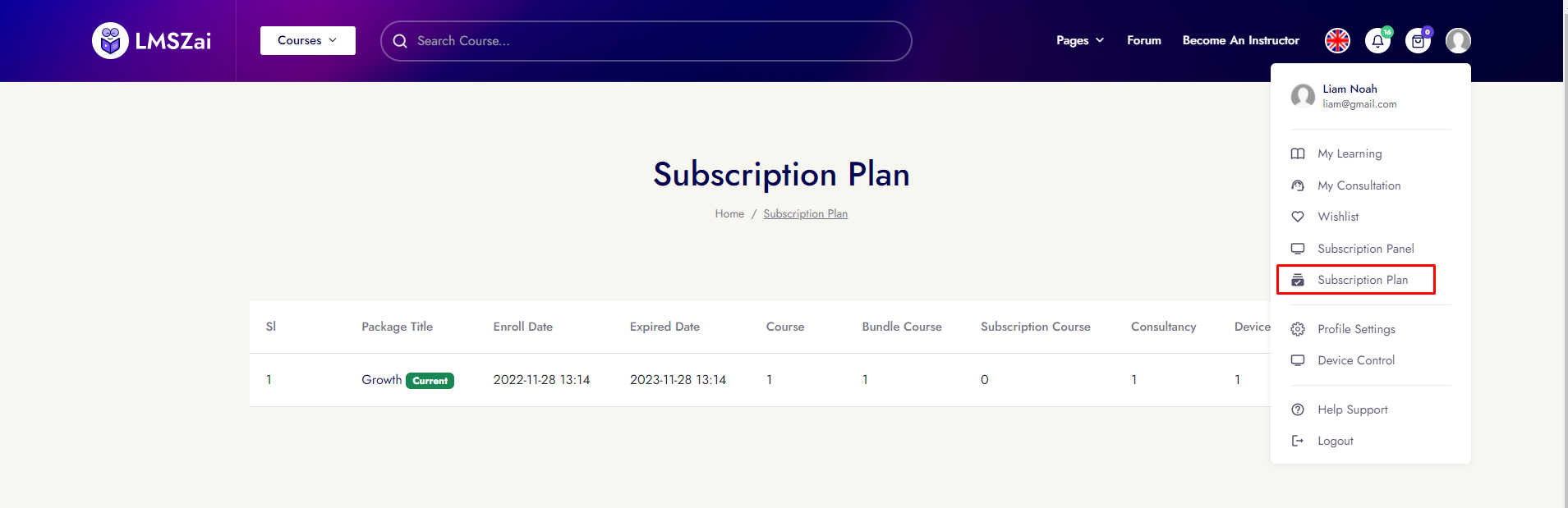
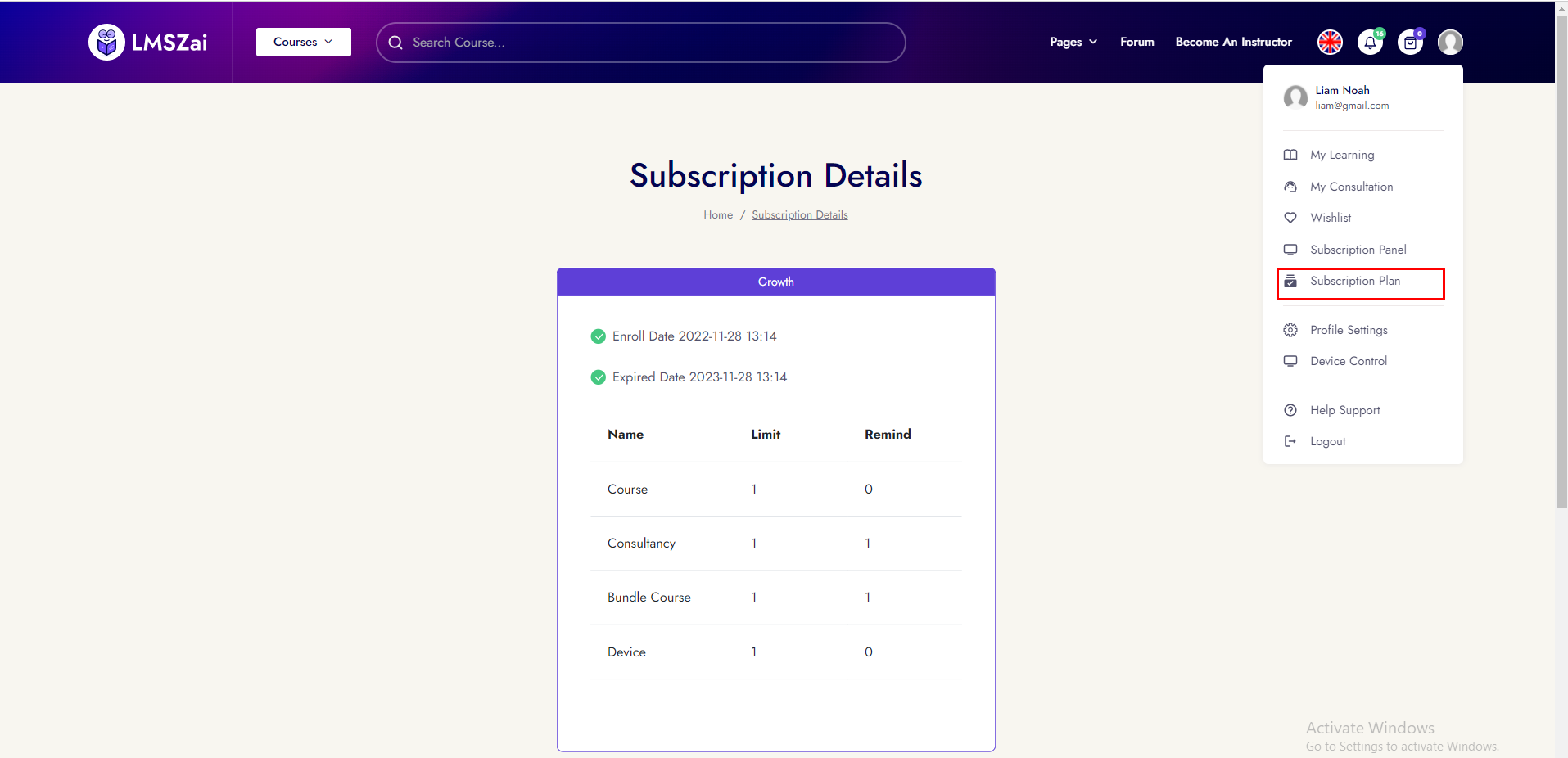
Subscription Module
Instructor Account Activities
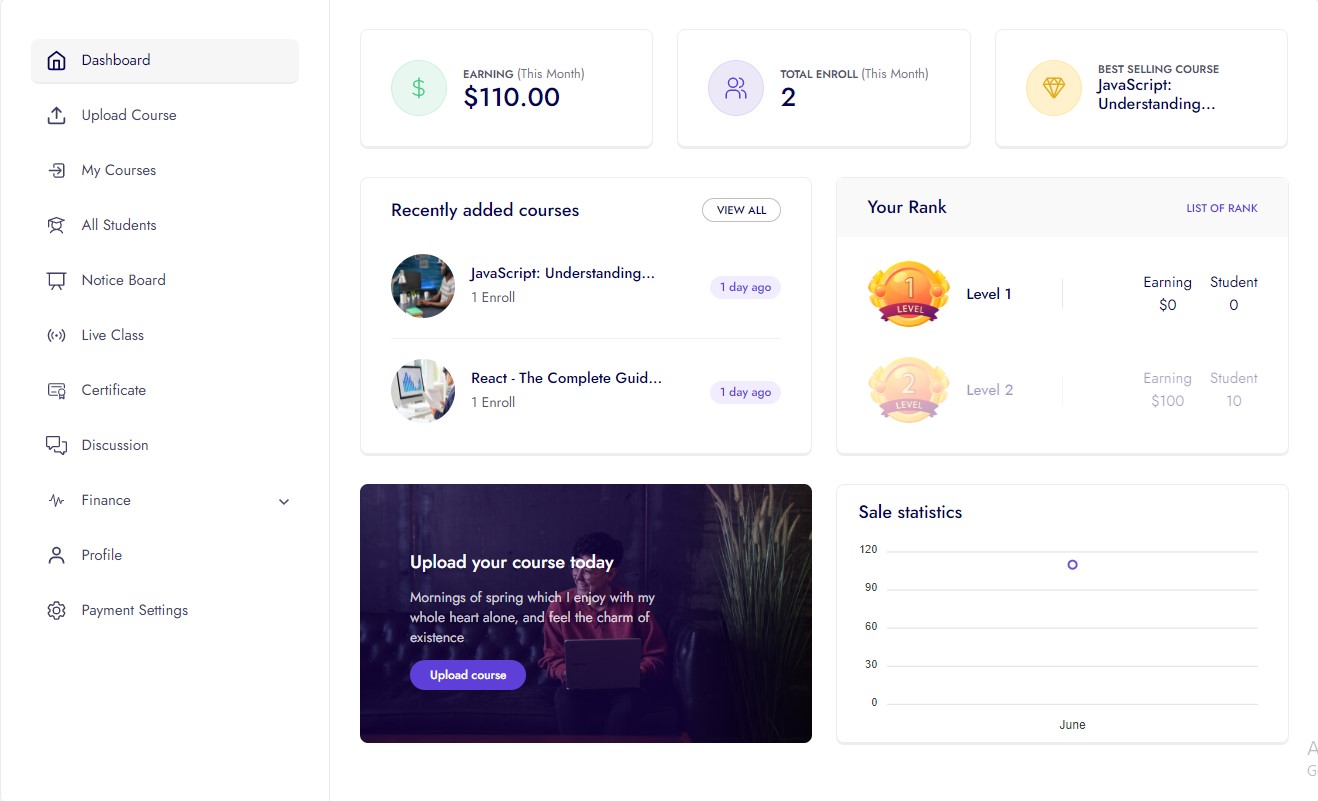
Instructor Dashboard
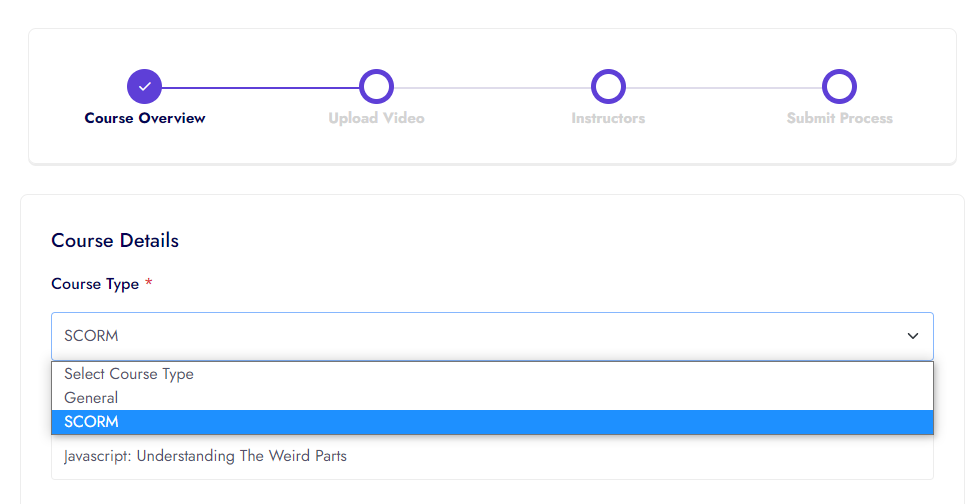
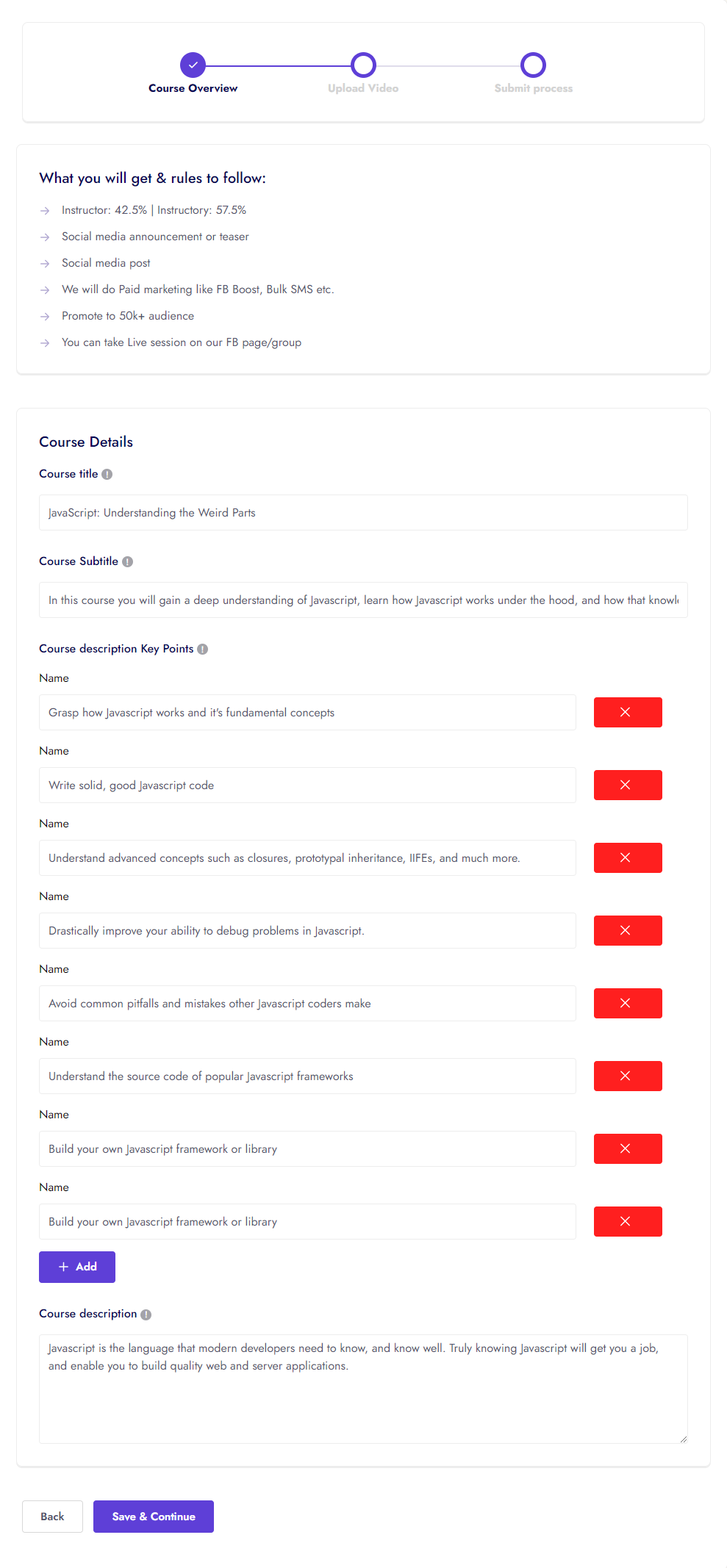
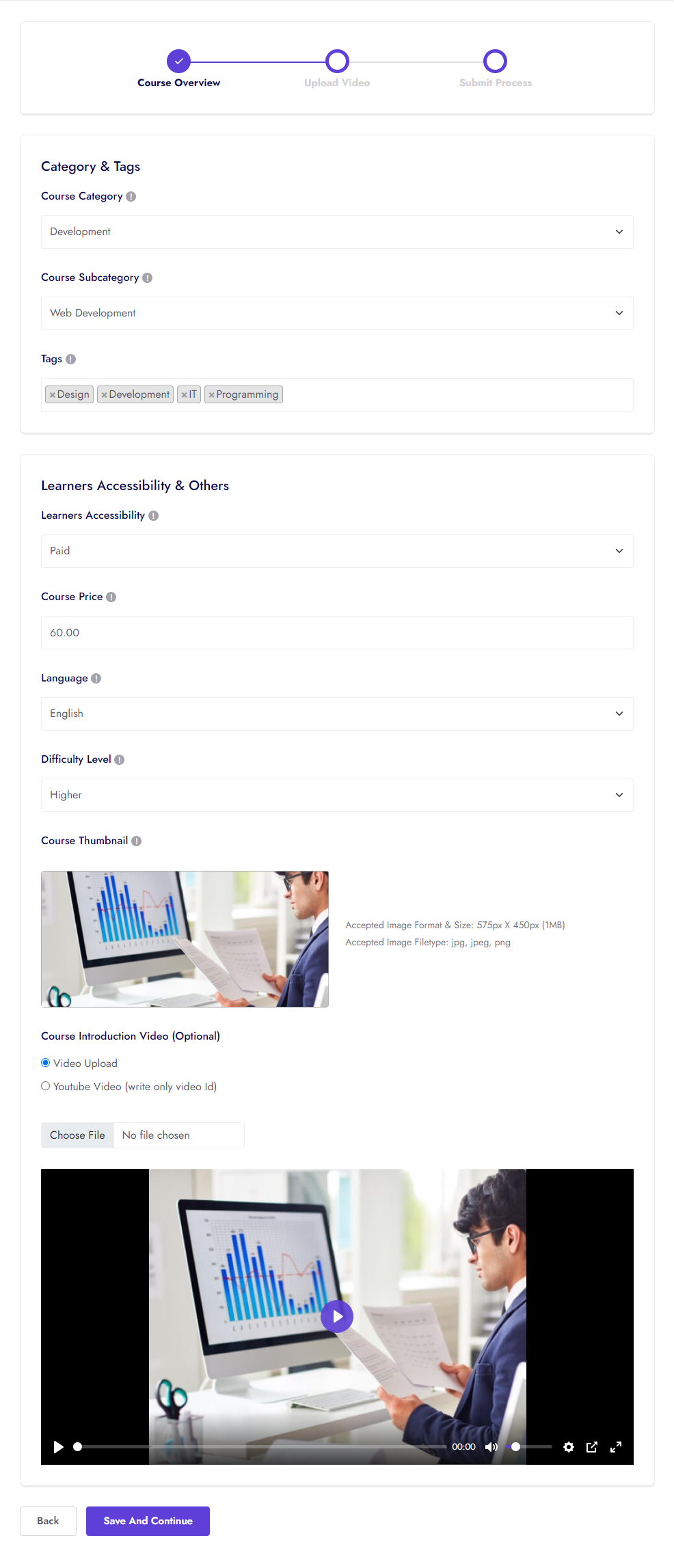
Upload Courses
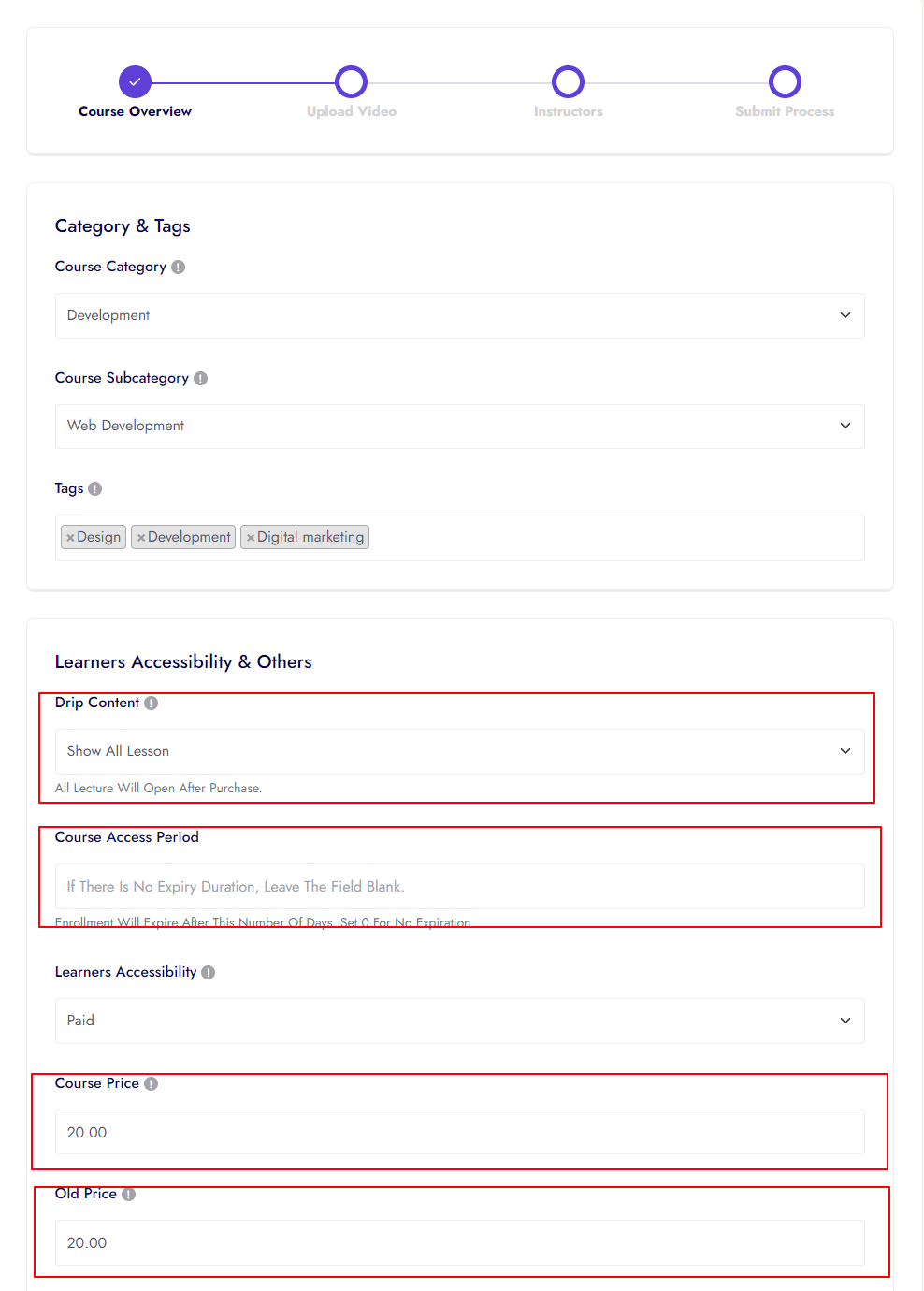
Course drip content, access period and old price
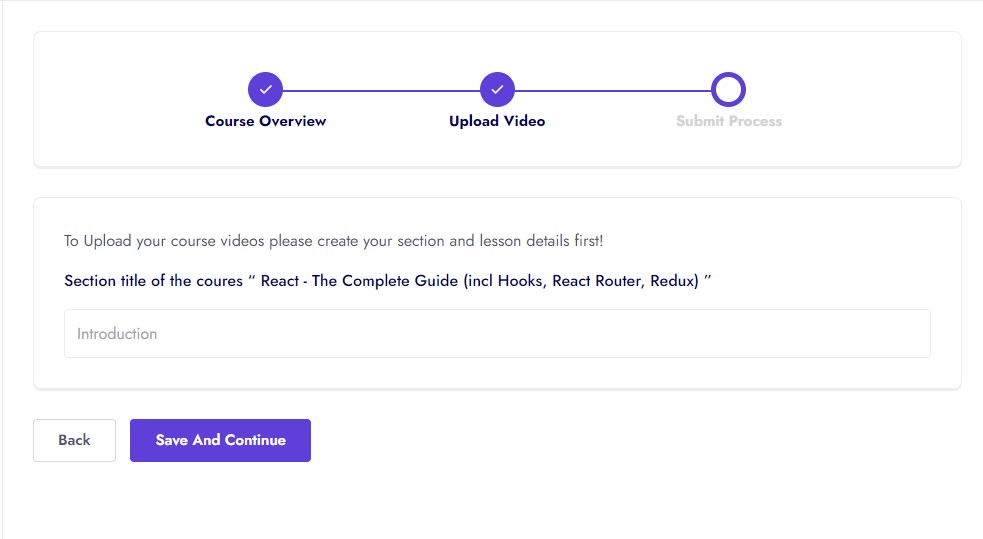
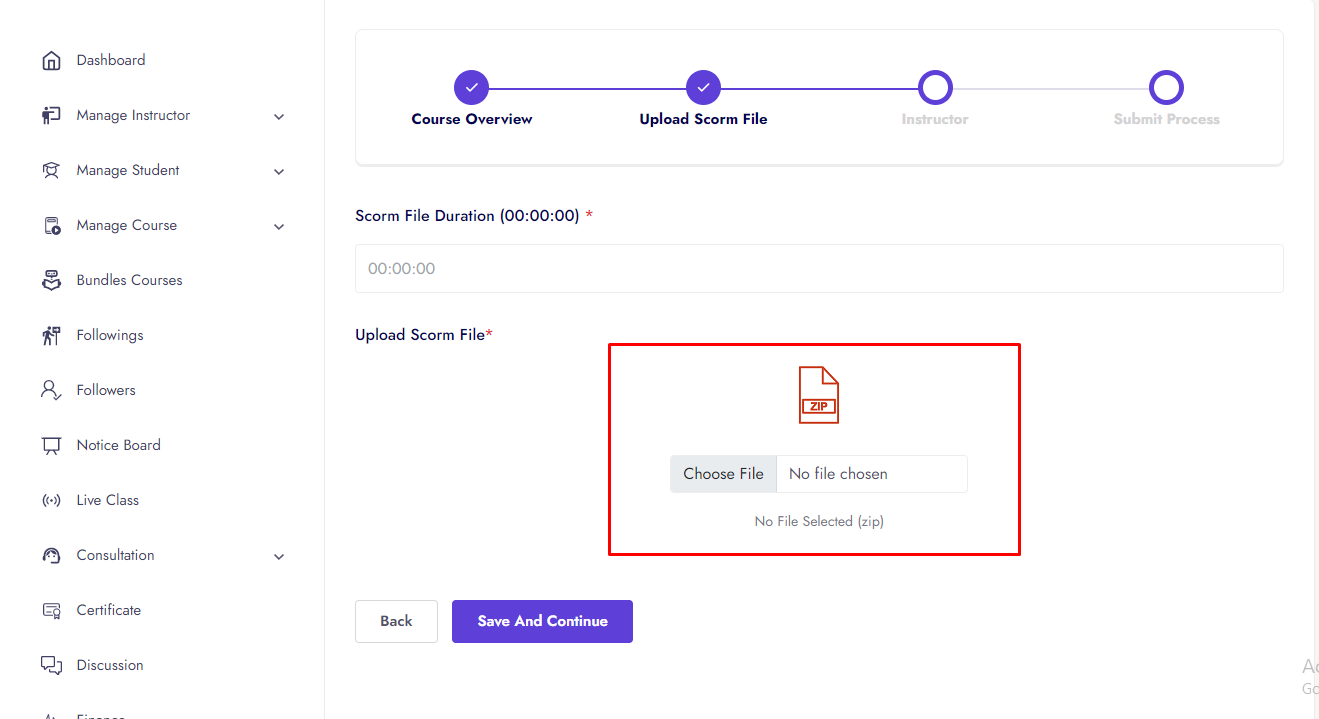
Note:If instructor do not upload any lesson, he/she can't go to next process.
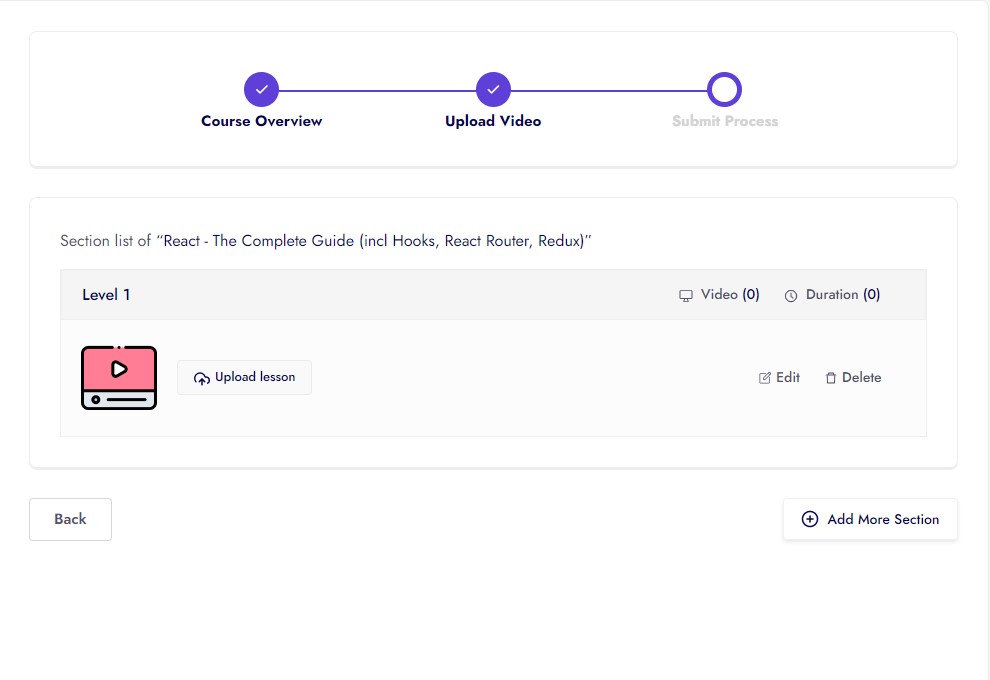
Instructor can upload 8 different types lesson.
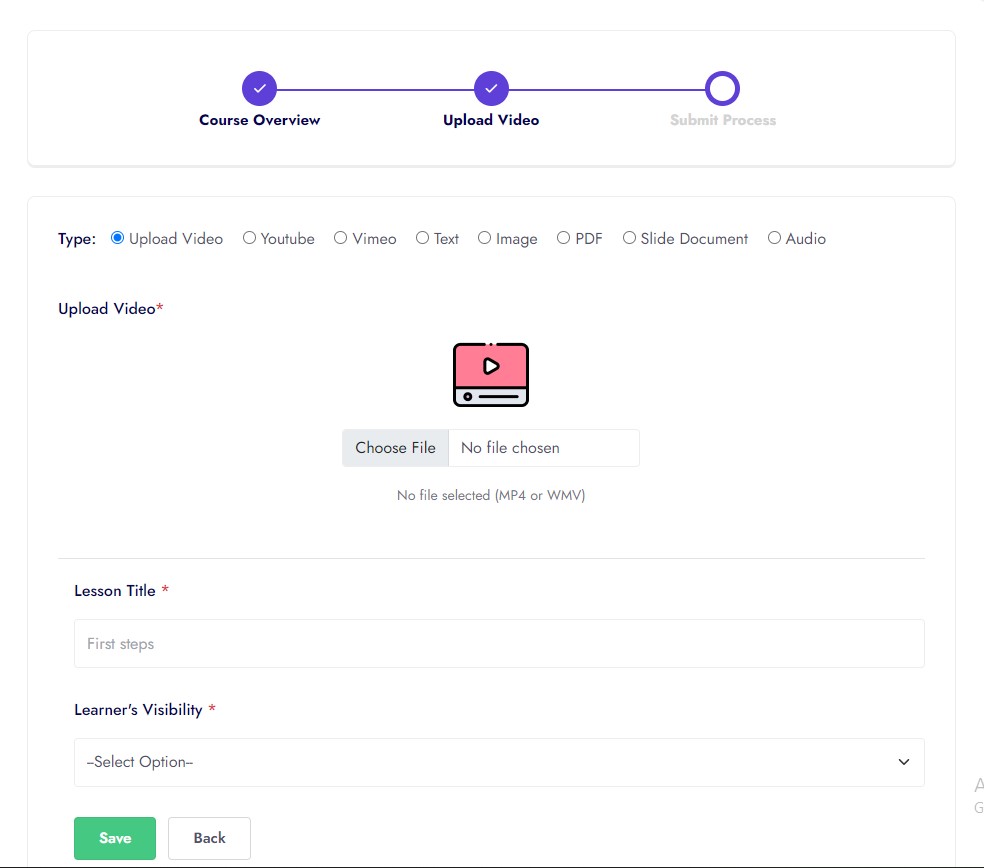
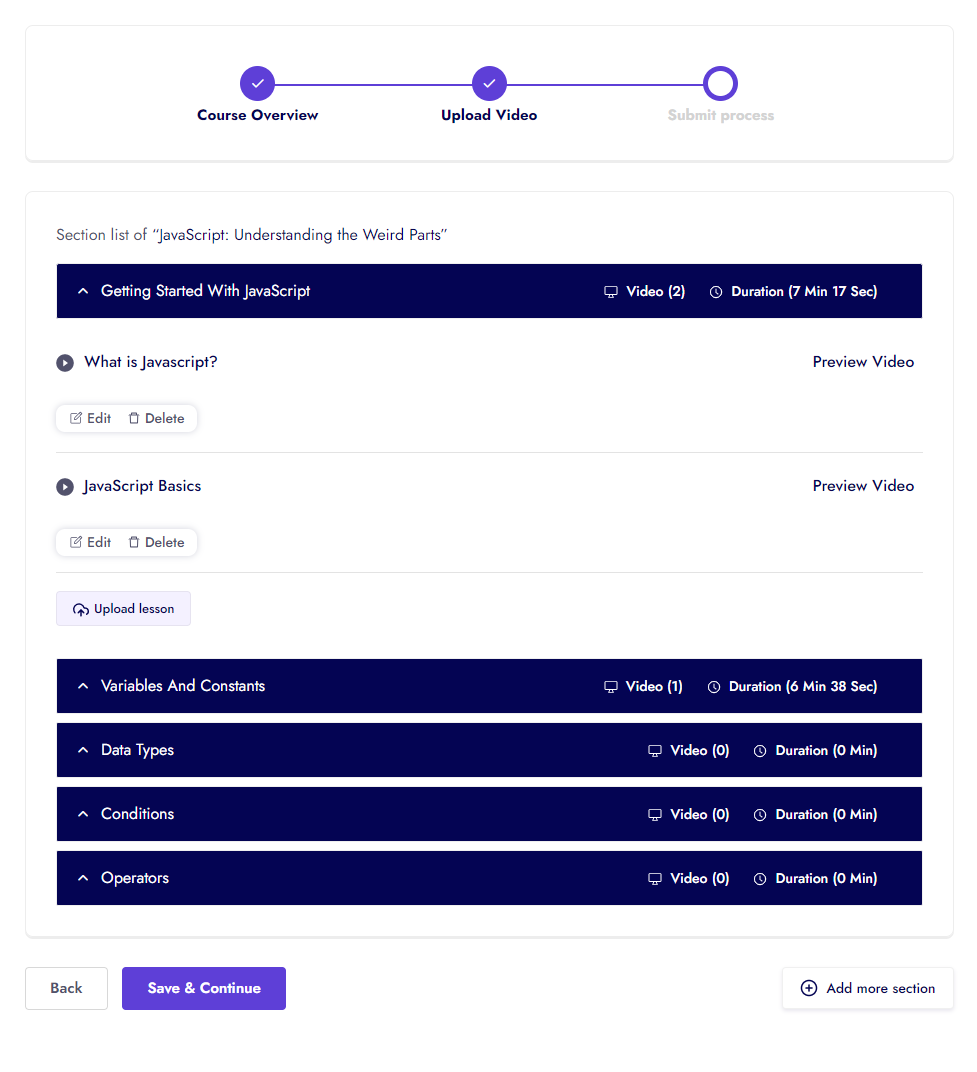
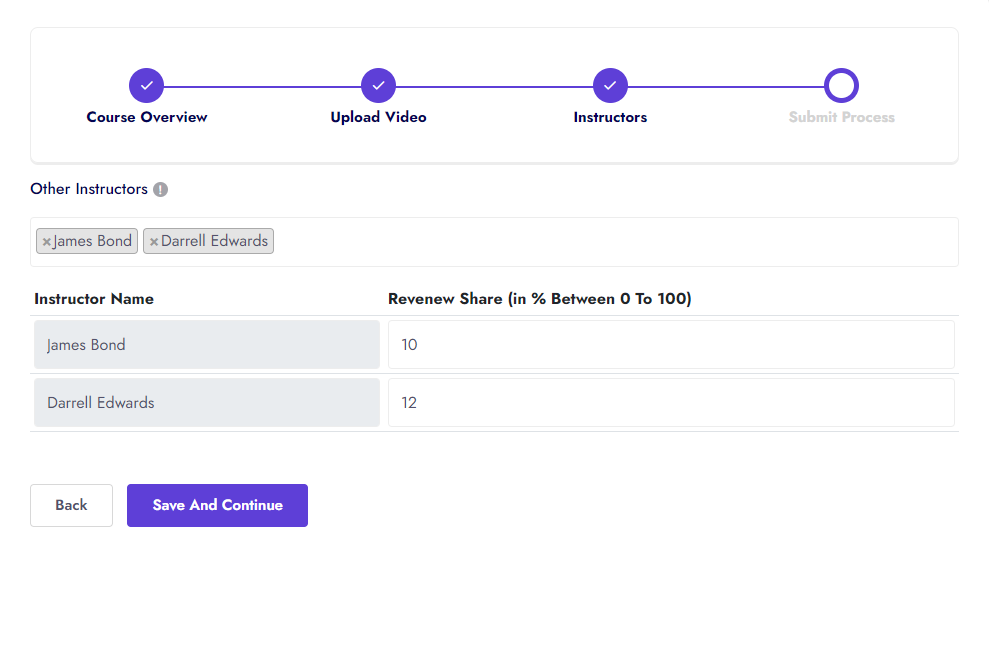
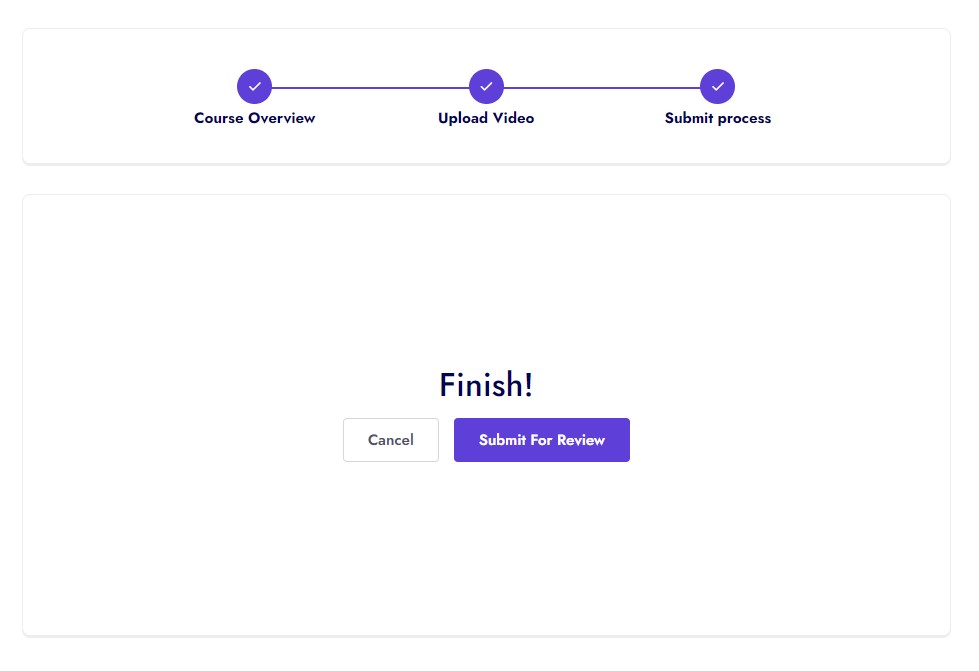
Instructor can iSpring, SCORM all version, xAPI (The Experience API), cmi5 (a companion to xAPI), AICC Course
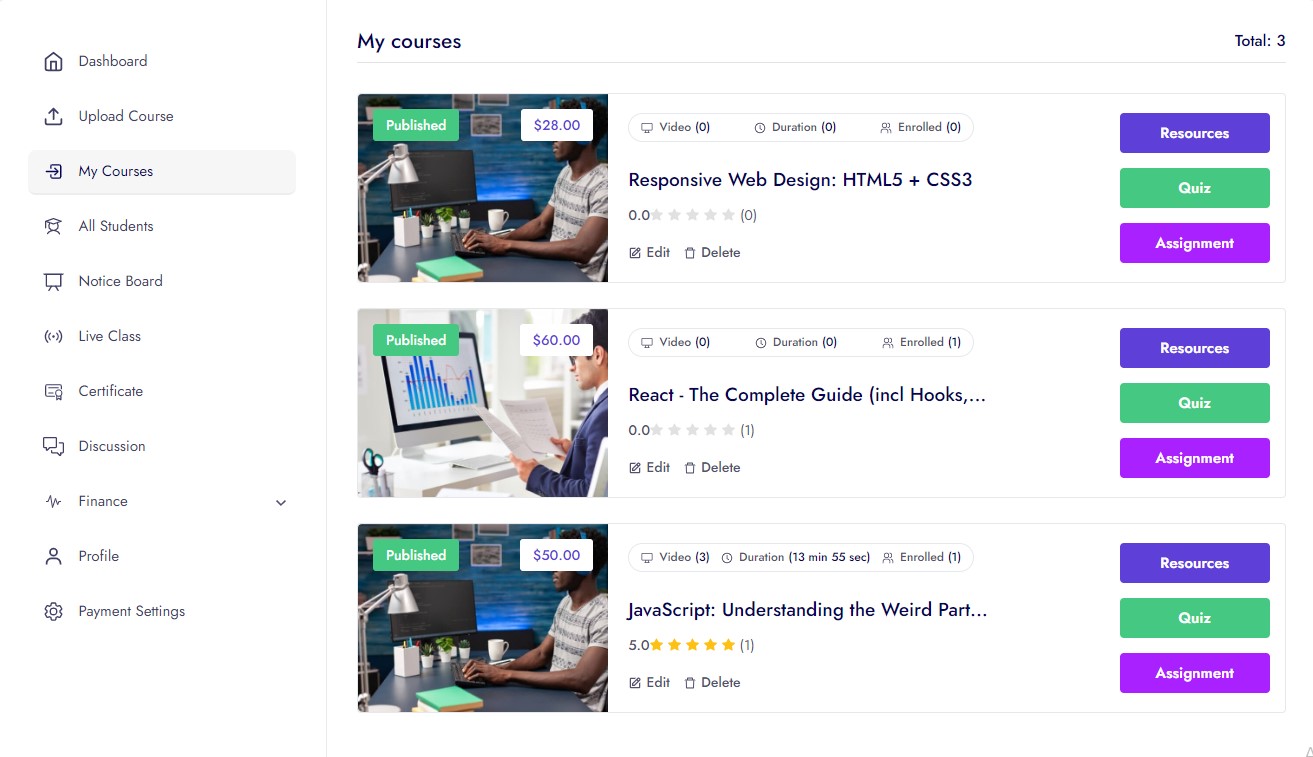
My Courses
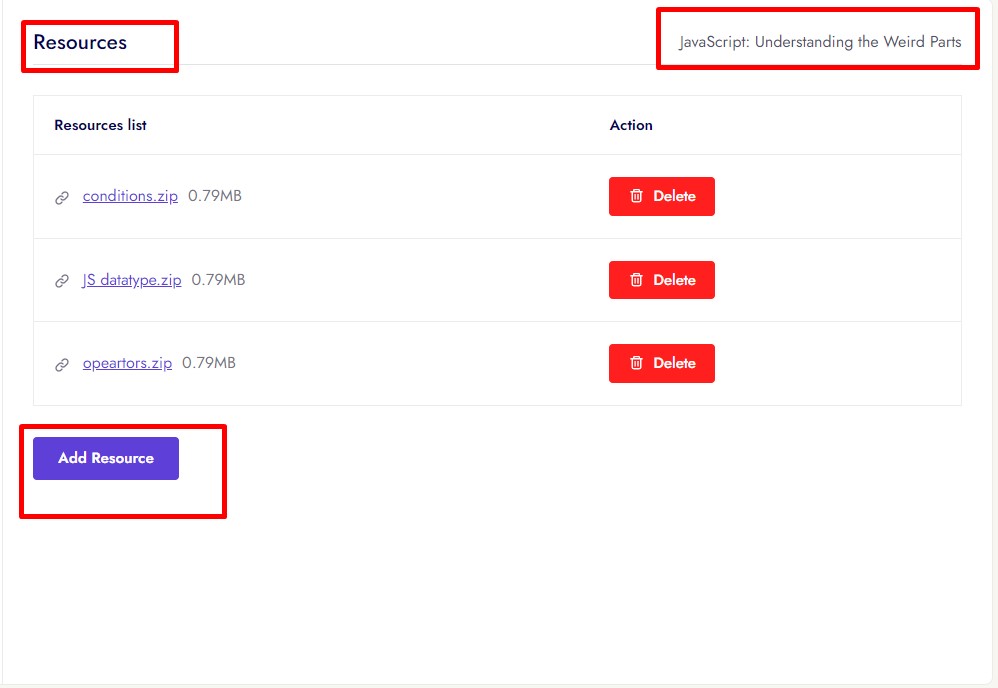
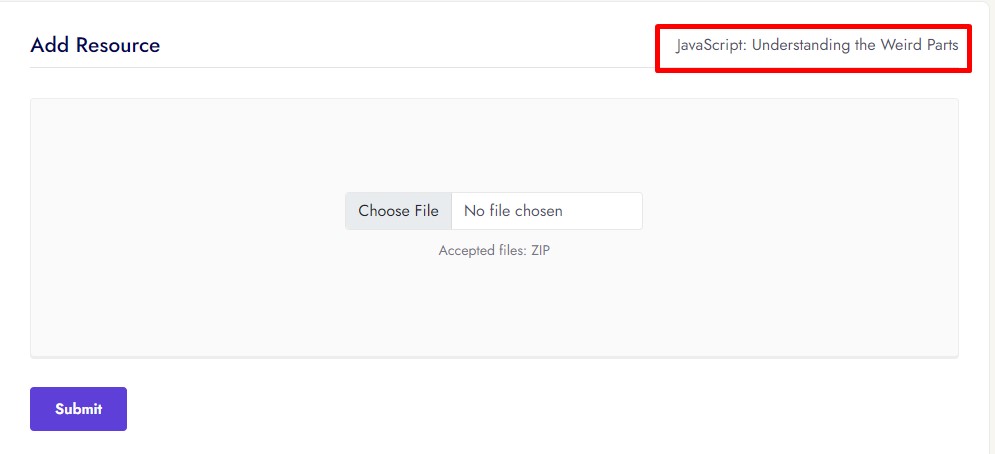
Courses Resources
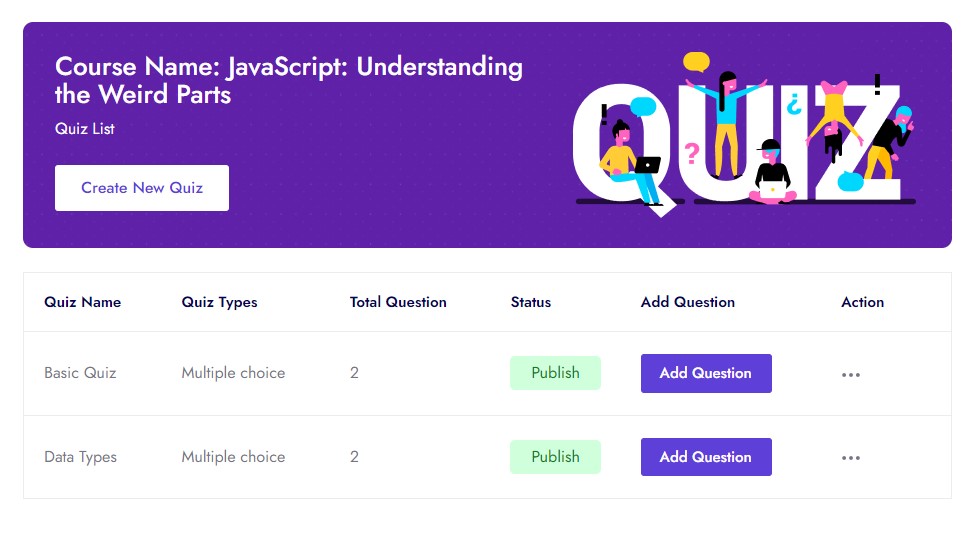
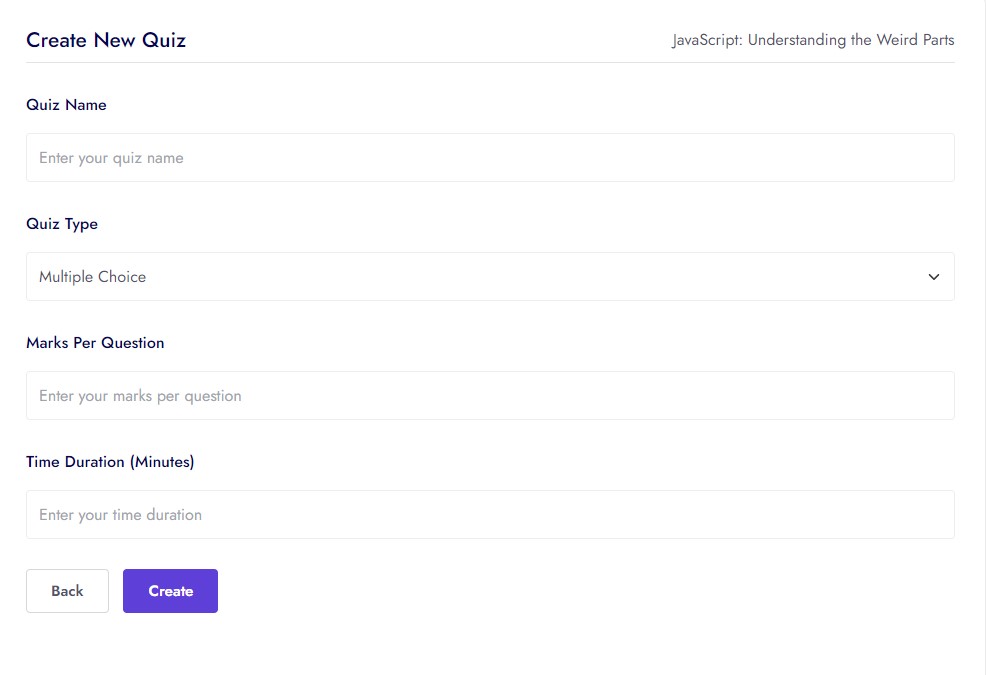
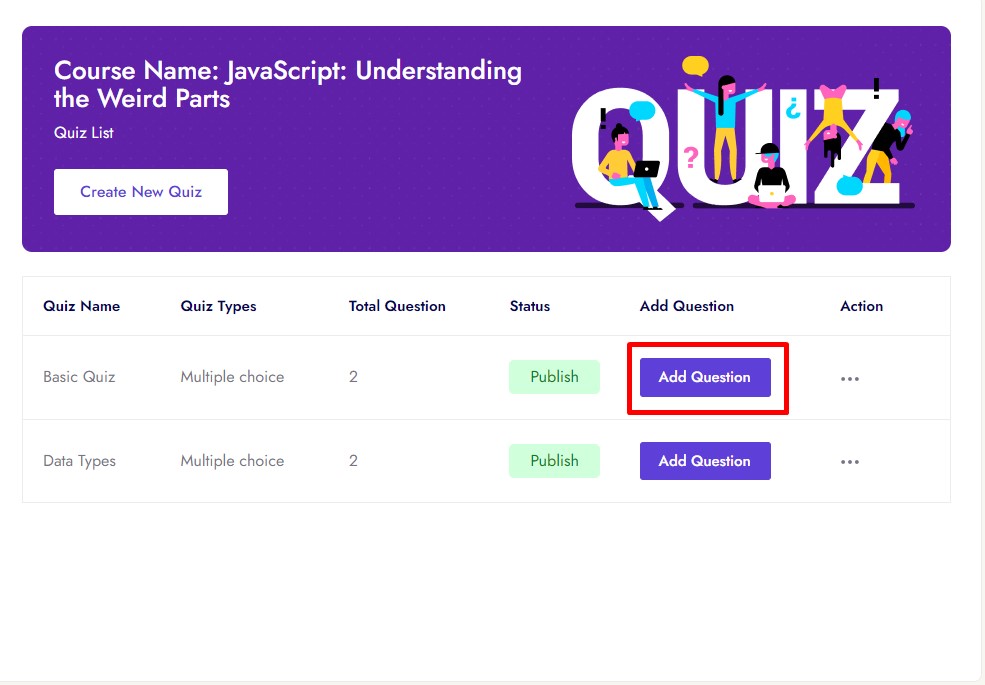
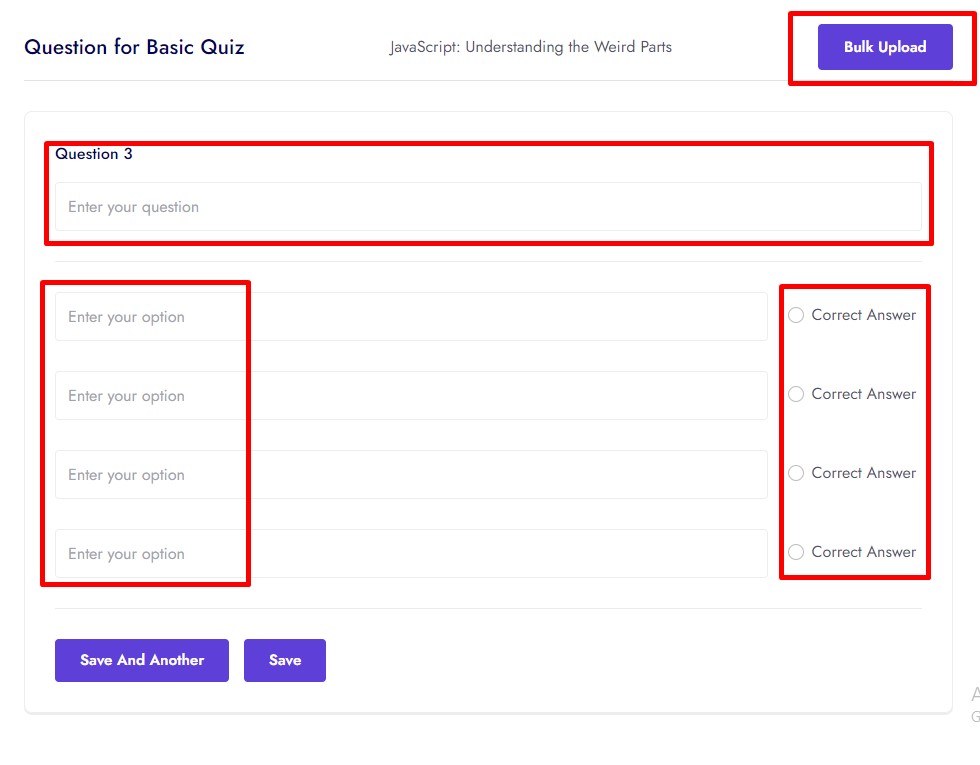
Courses Quiz
Quiz has 2 types
- 1. Multiple Choice
- 2. True-False
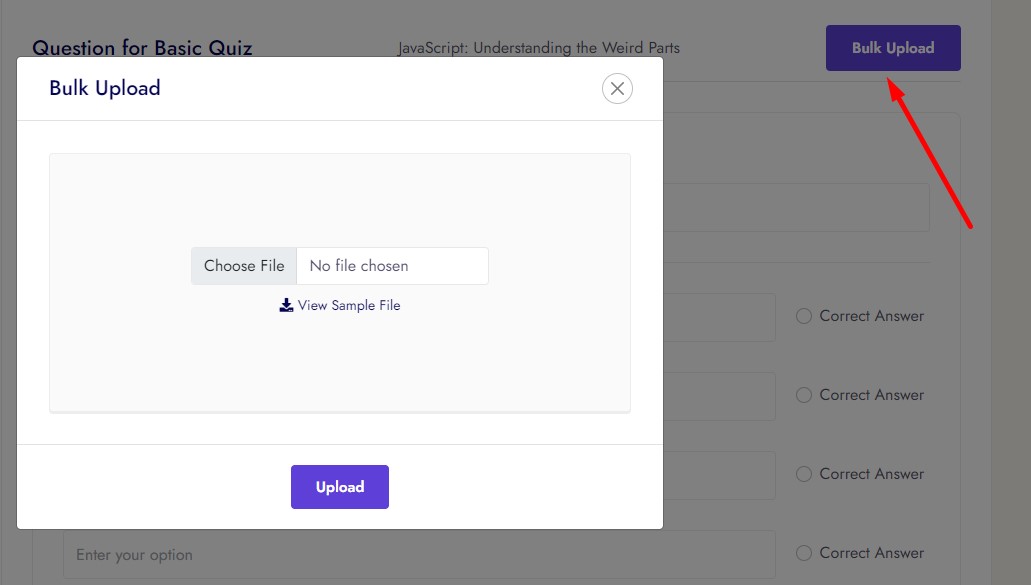
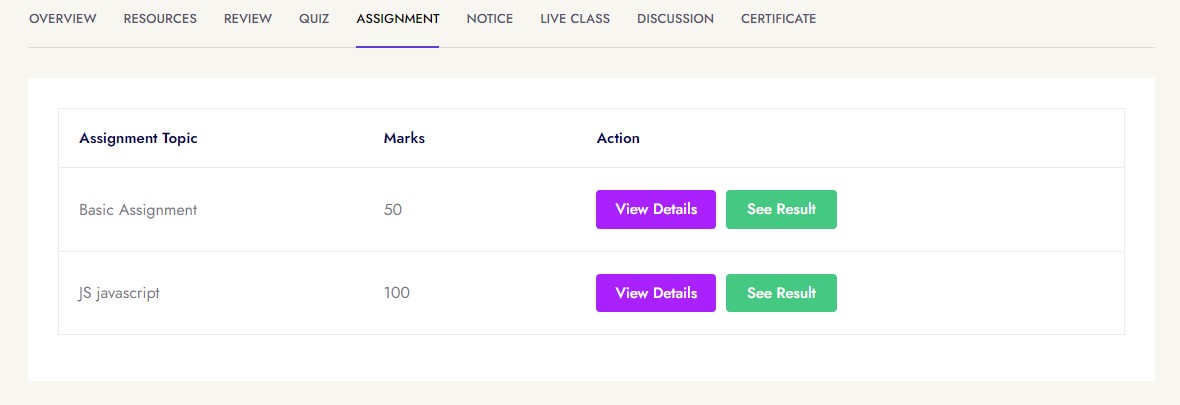
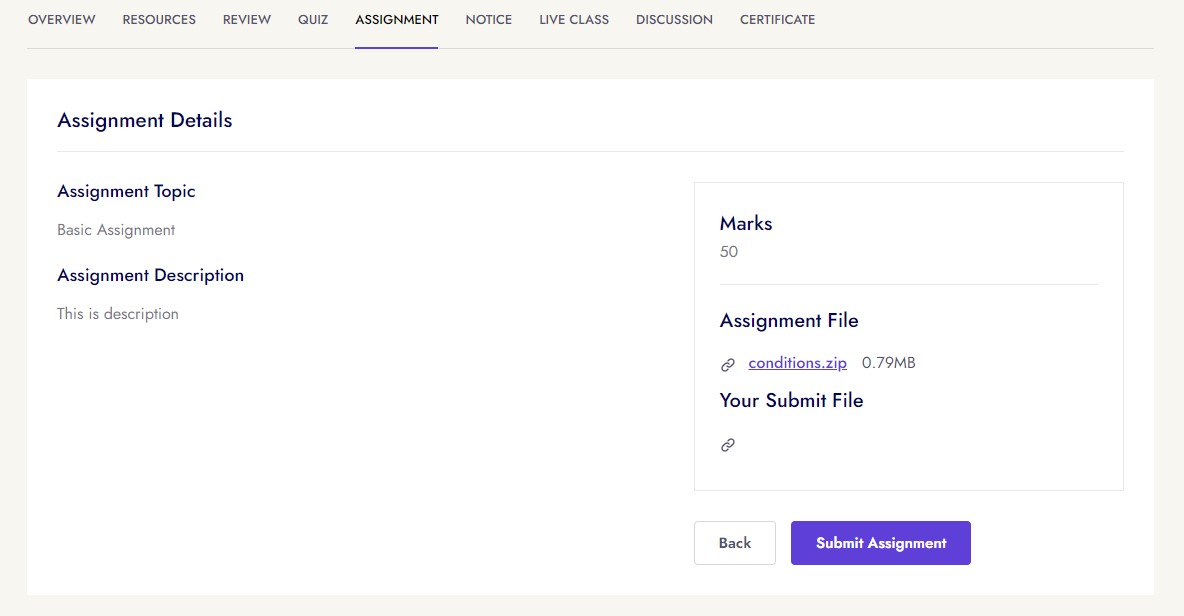
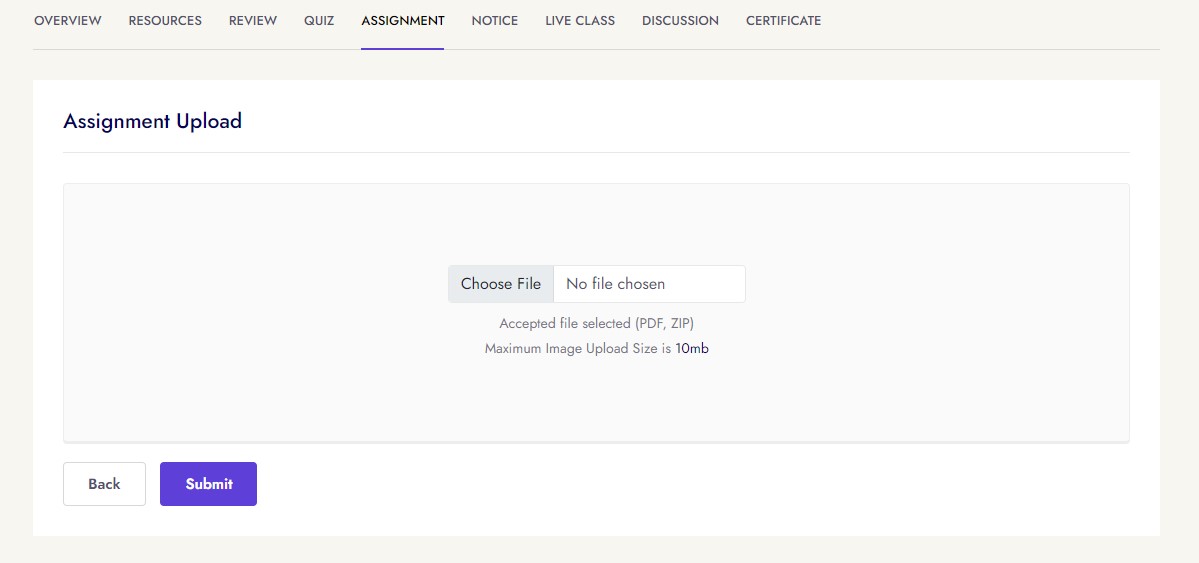
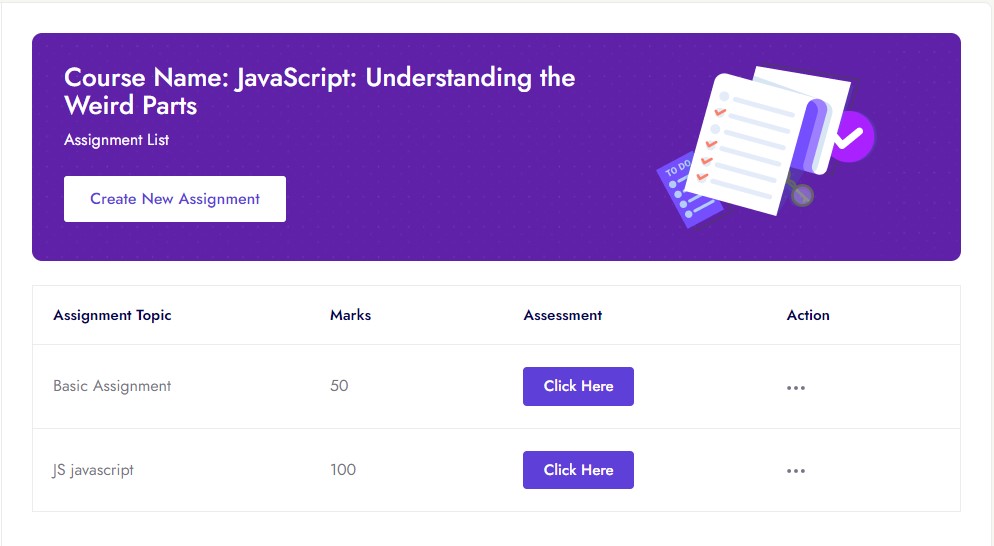
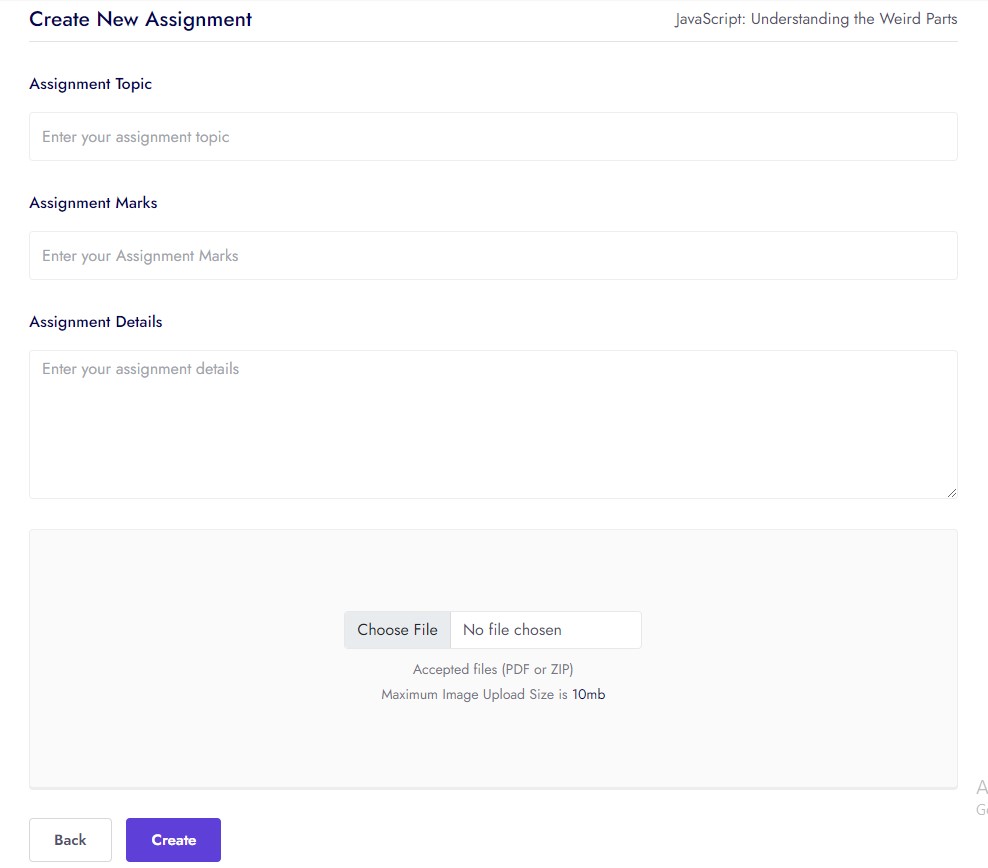
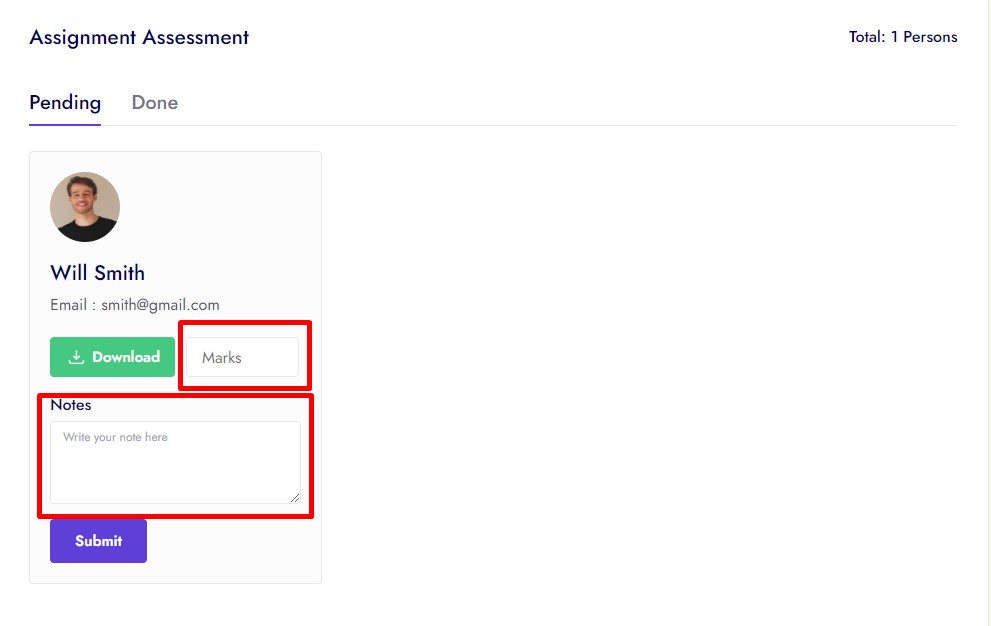
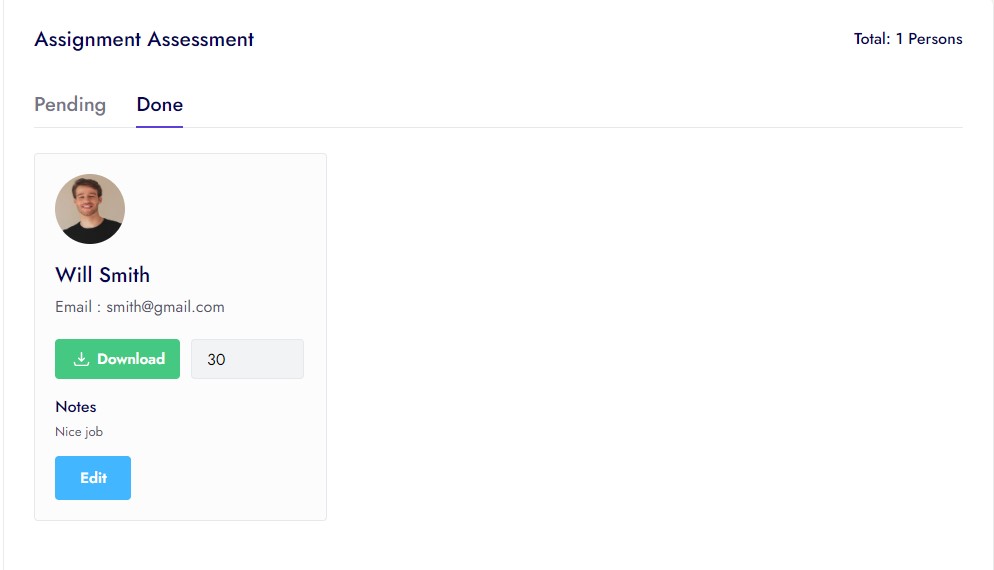
Courses Assignment
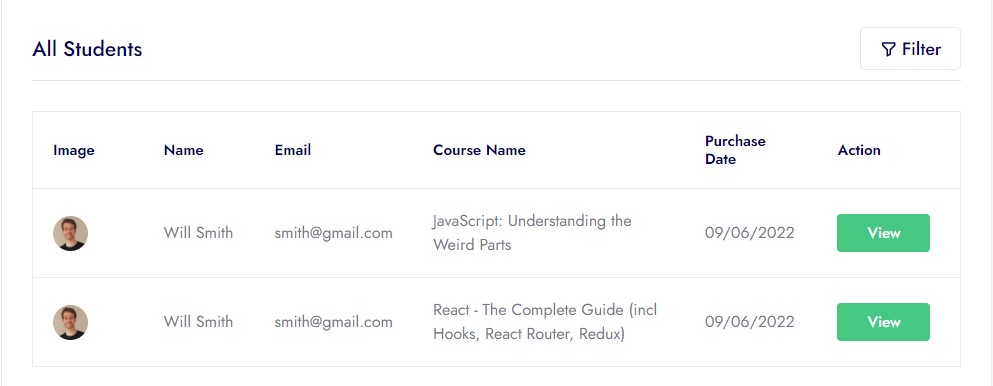
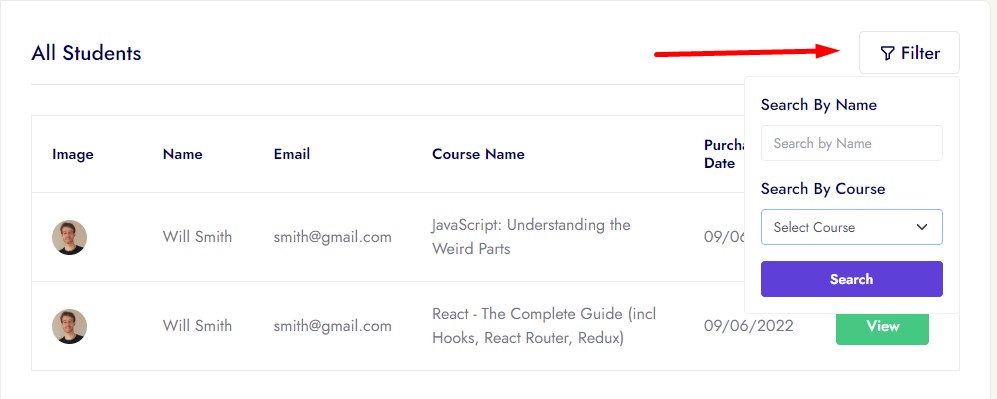
All Student
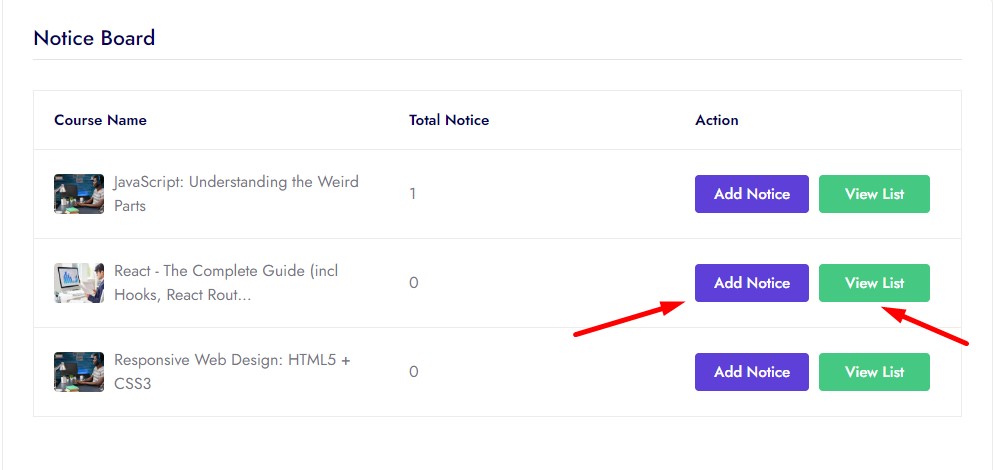
Notice Board
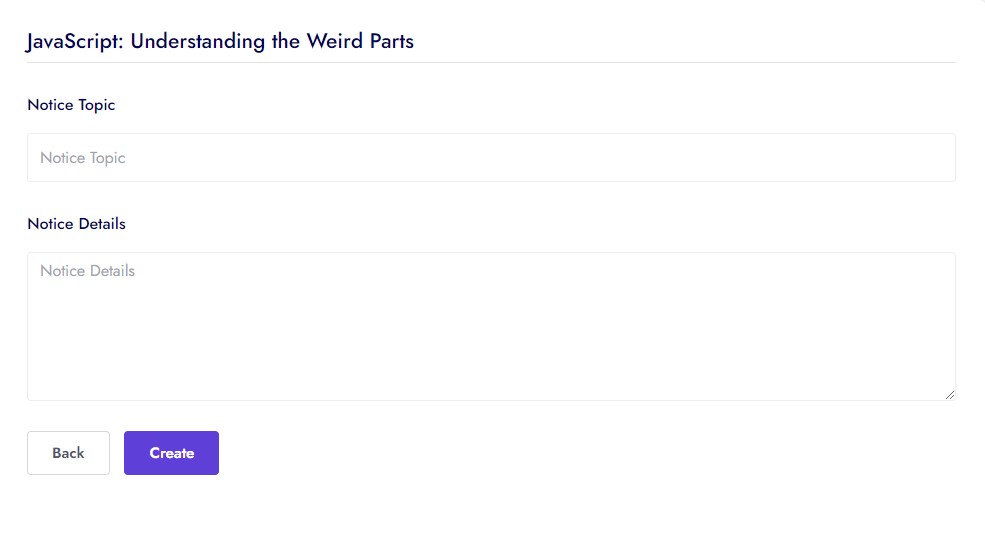
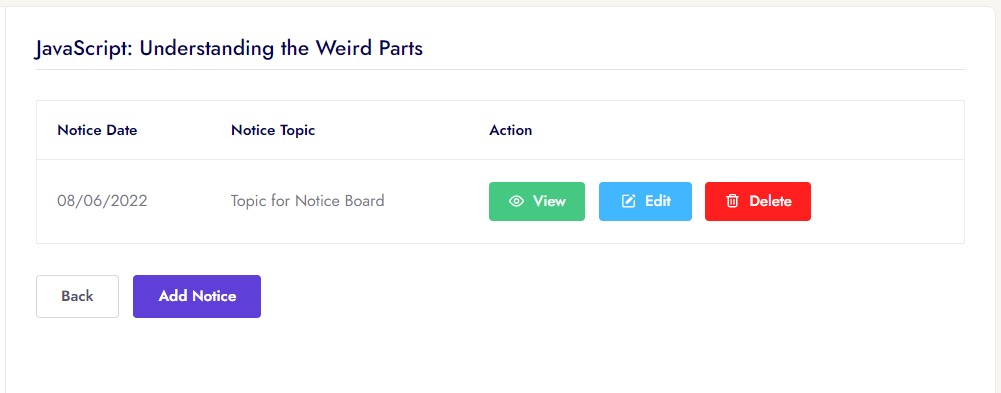
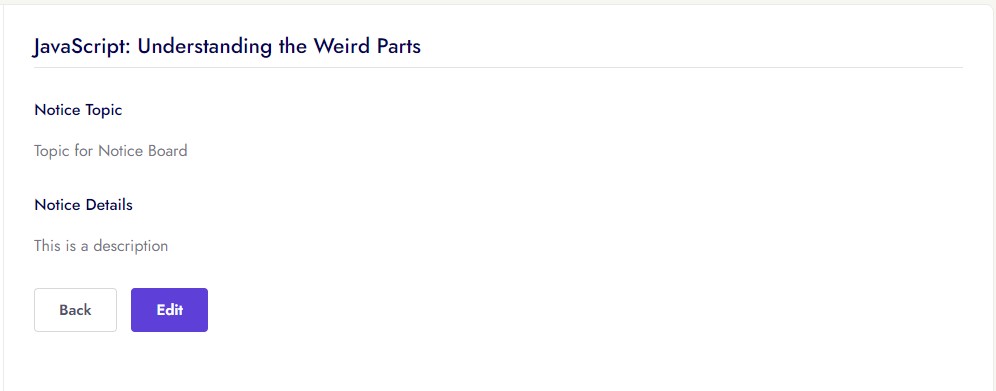
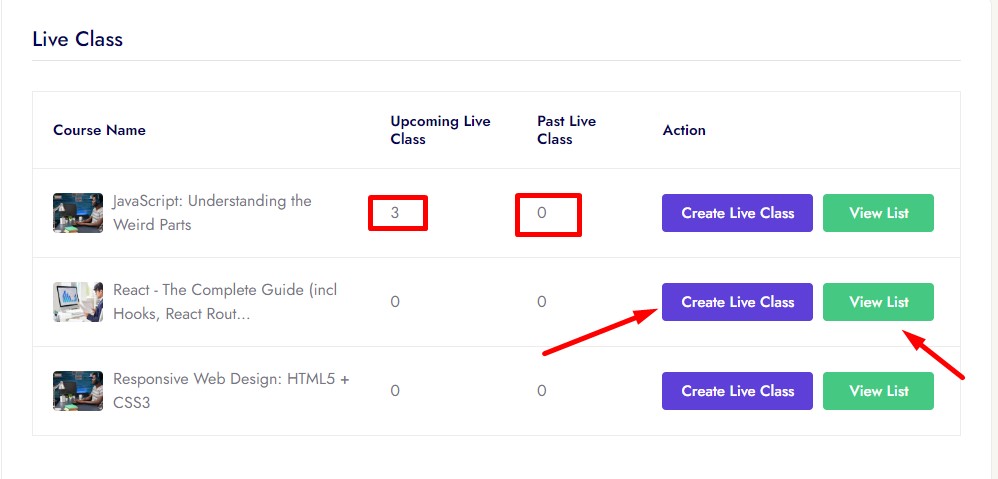
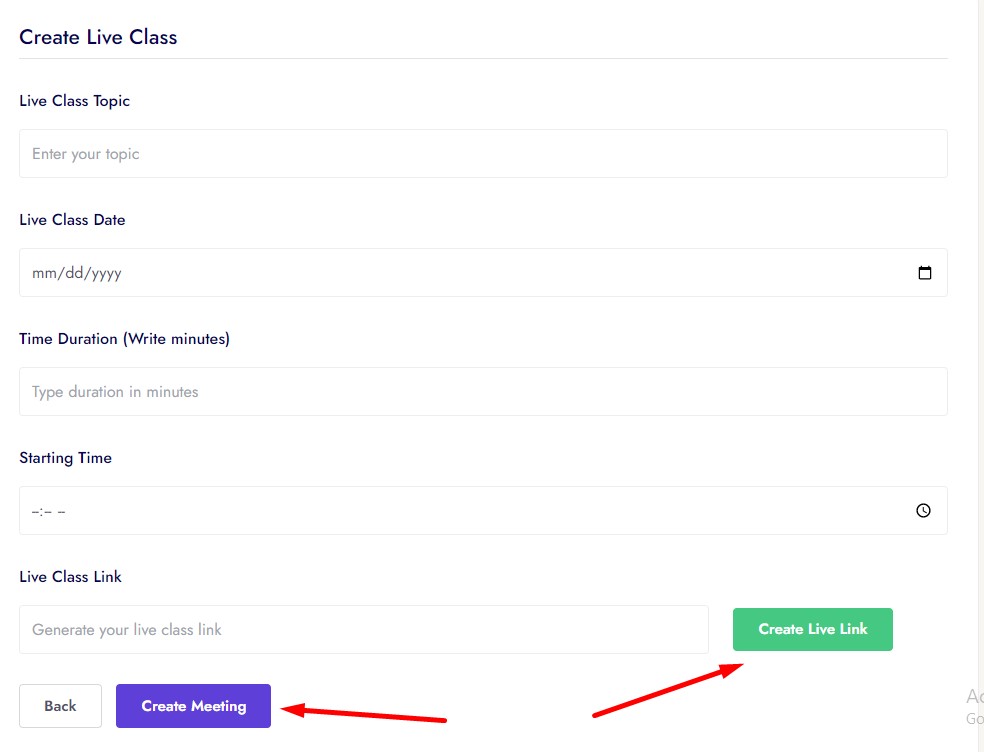
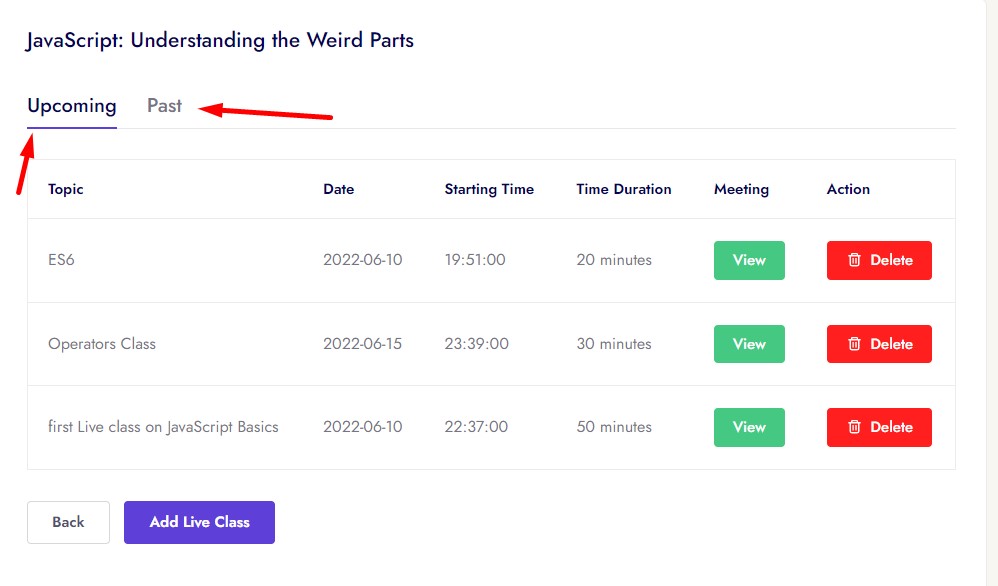
Live Class
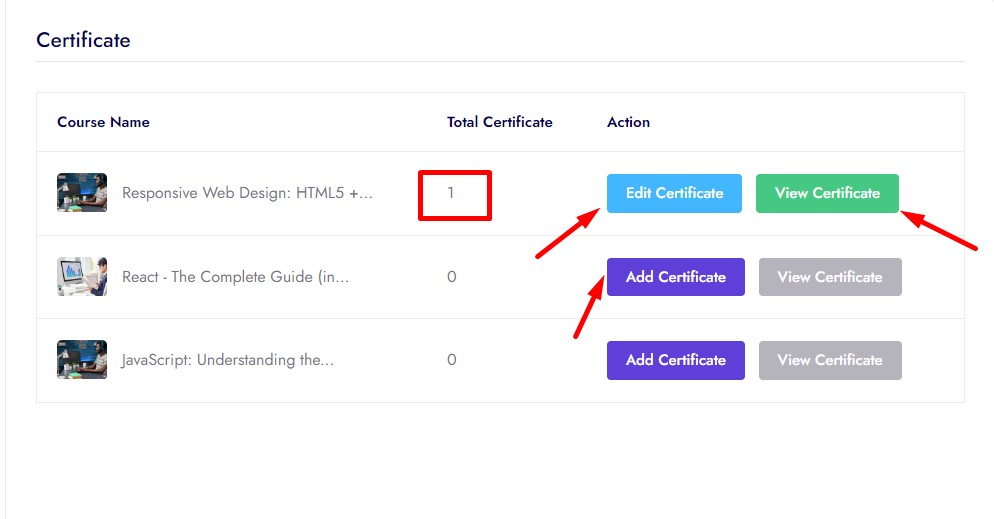
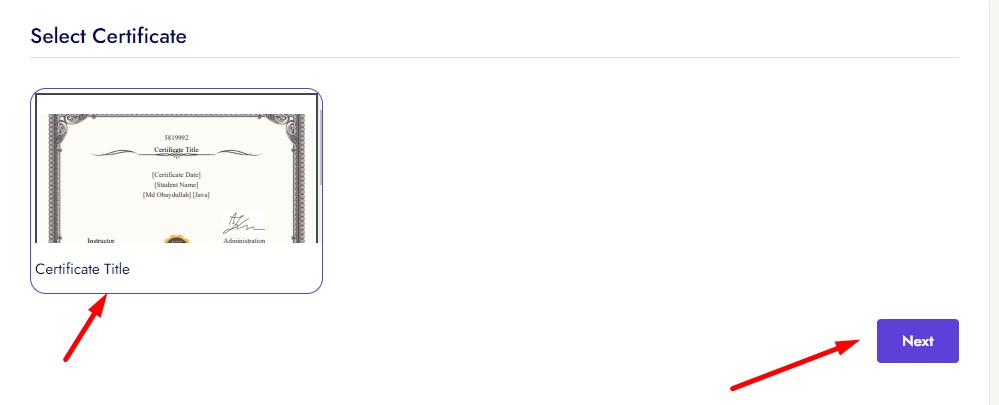
Certificate
Discussion
Finance
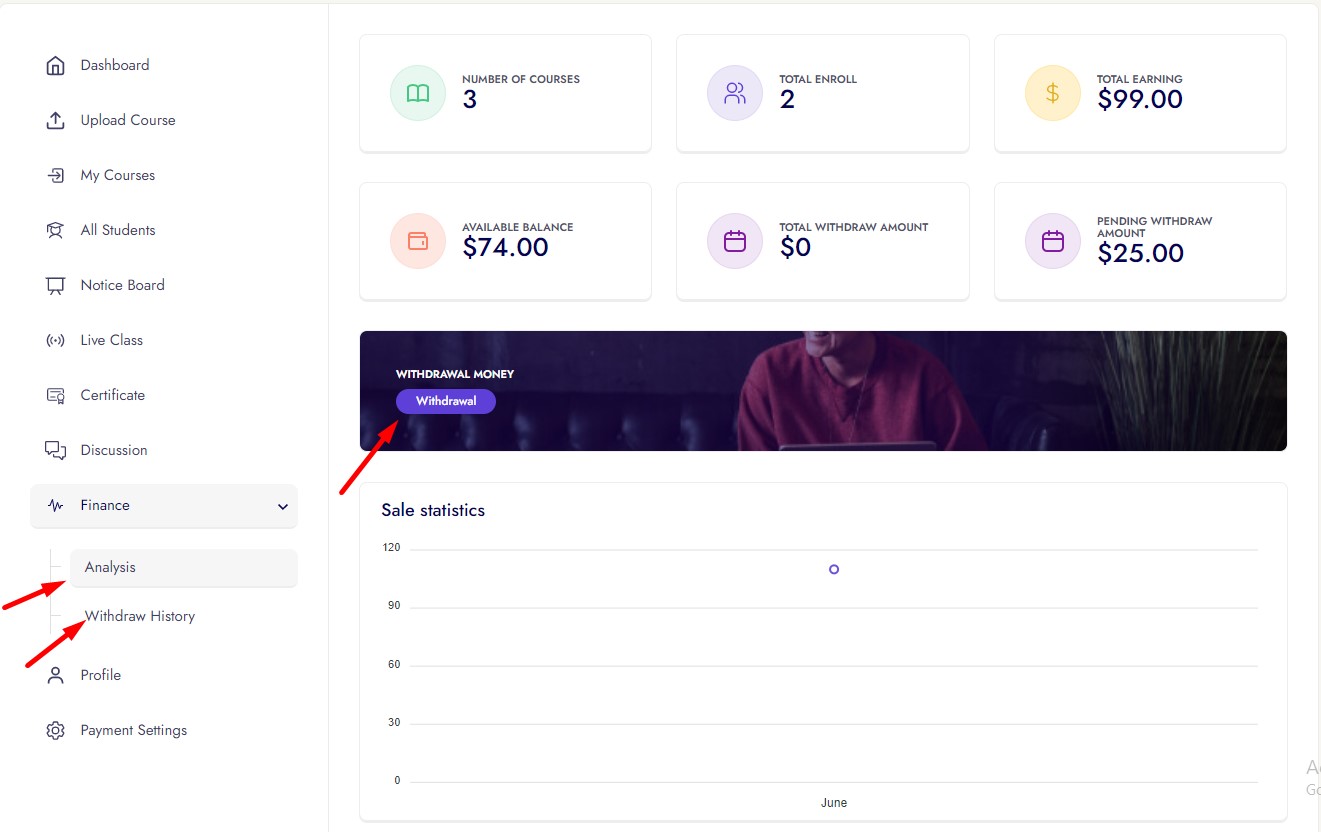
Instructor can see how mane student enrolled his/her course, total courses, total earning, total available balance, withdraw money, request withdraw amount, can withdraw from here and sales per month sales statistics.
Finance has 2 options
Analysis
Withdraw History
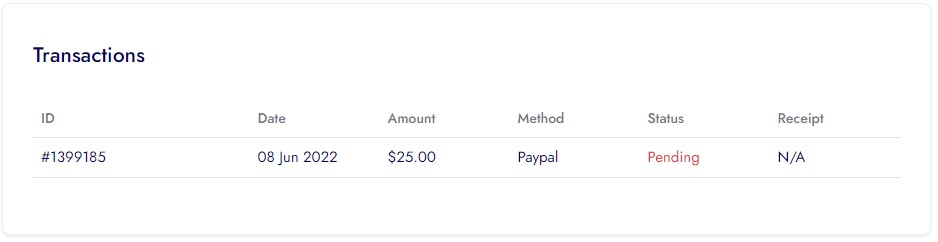
Profile
Instructor can update his profile from here
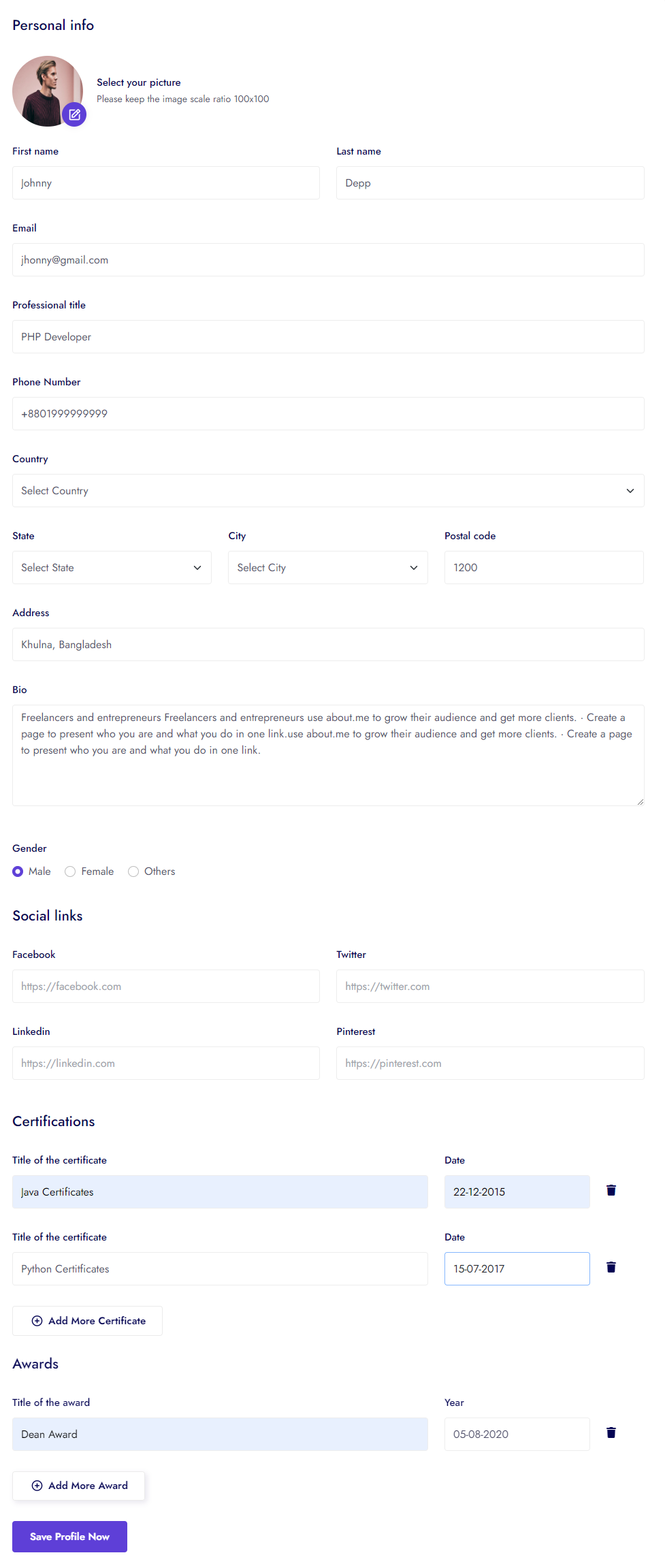
Geolocation Search
Instructor can update his geolocation
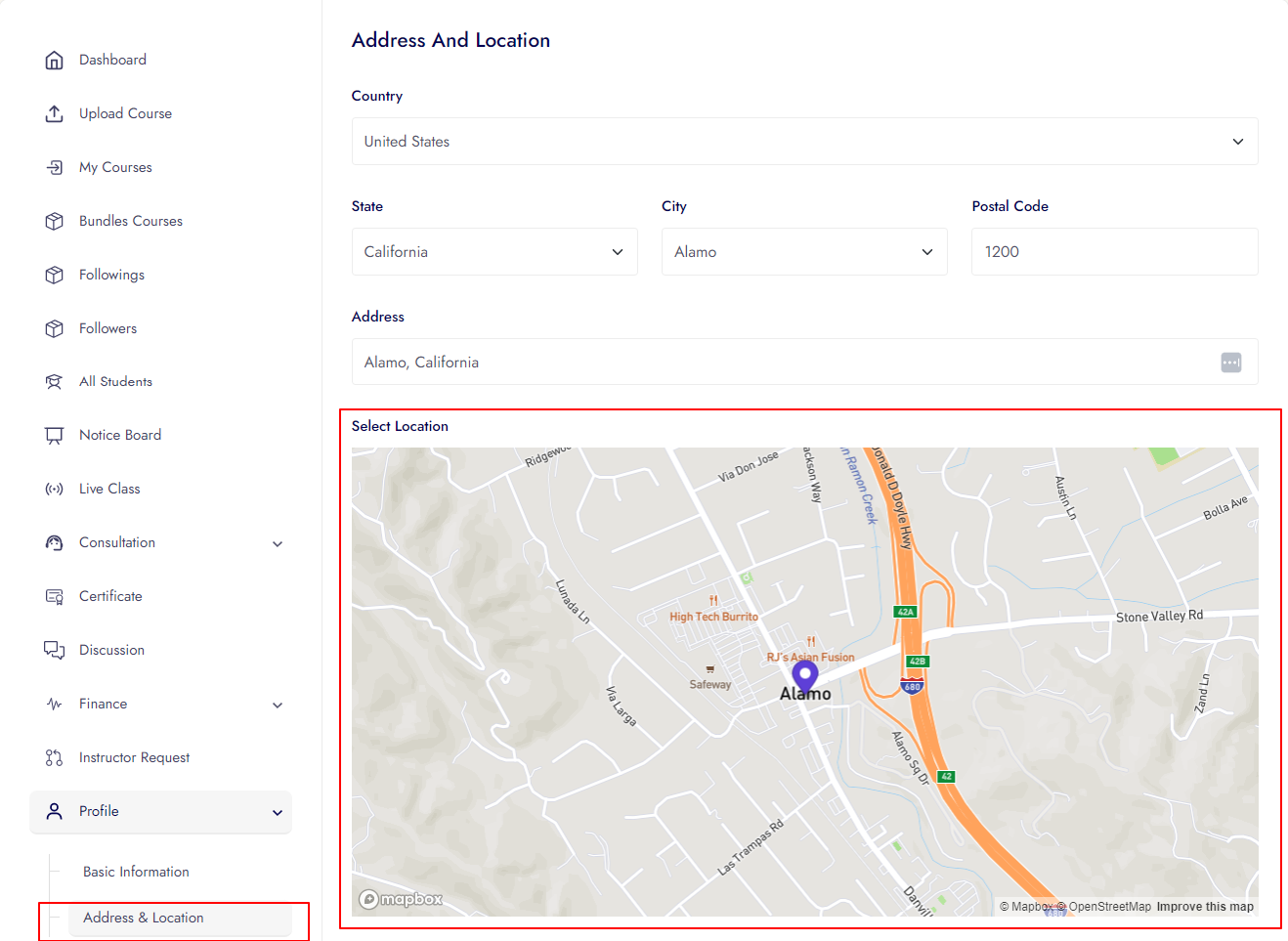
Saas Module
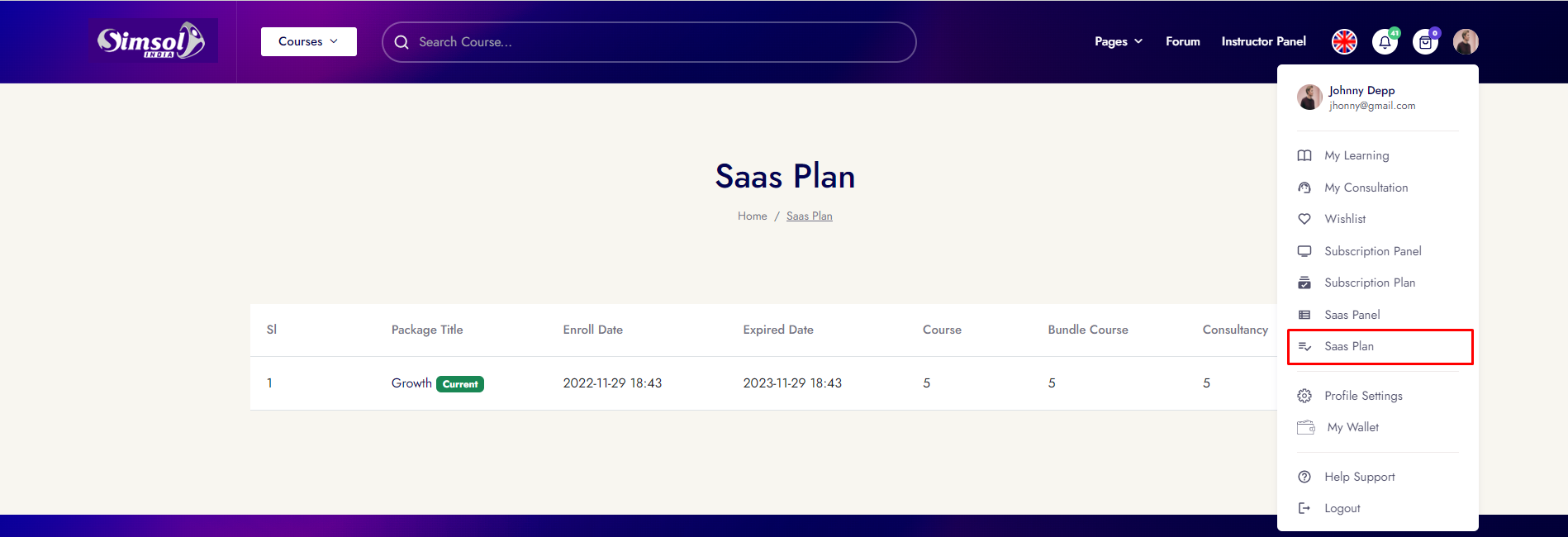
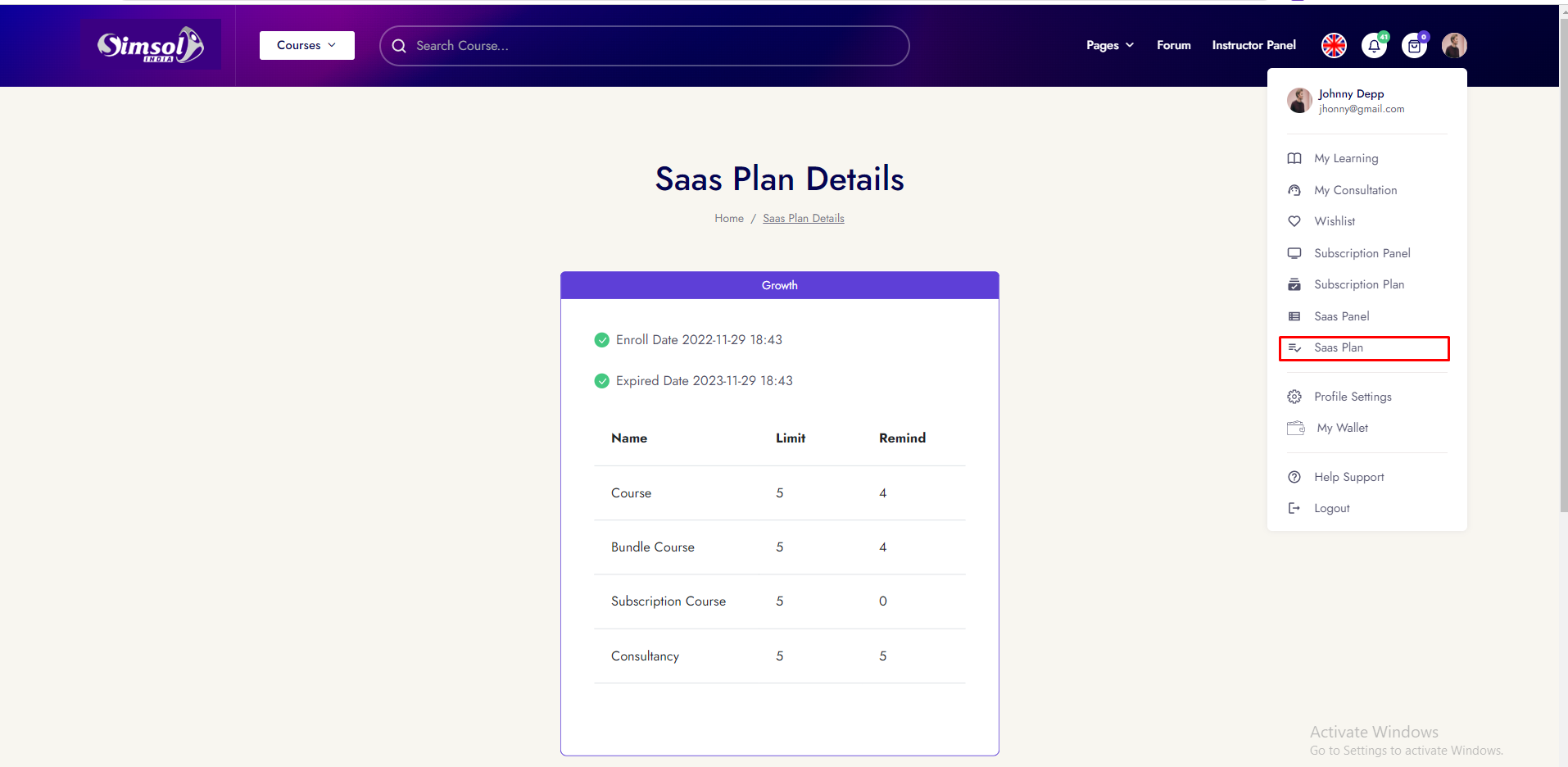
Instructor can purchase Saas plan
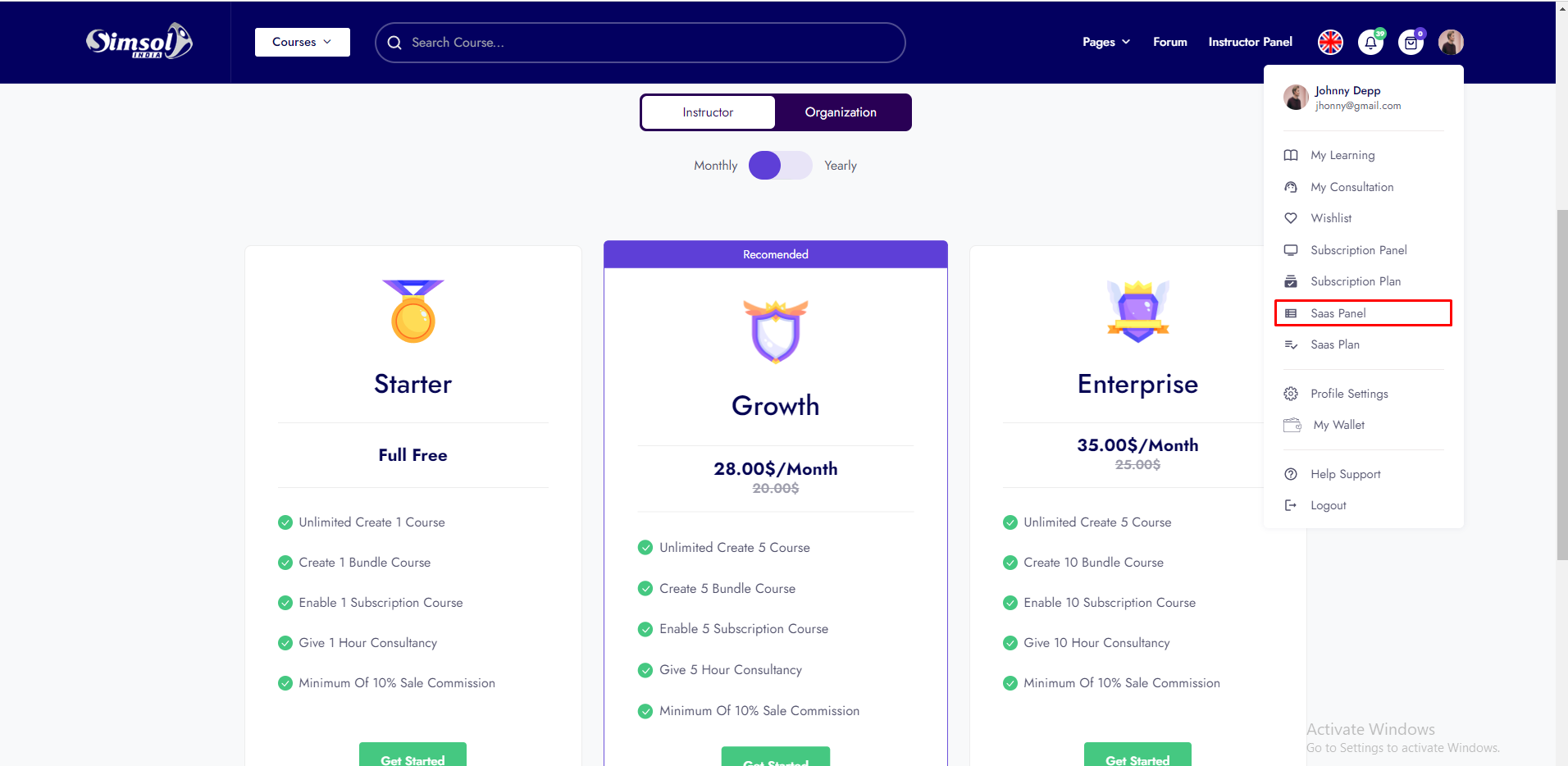
Payment Settings
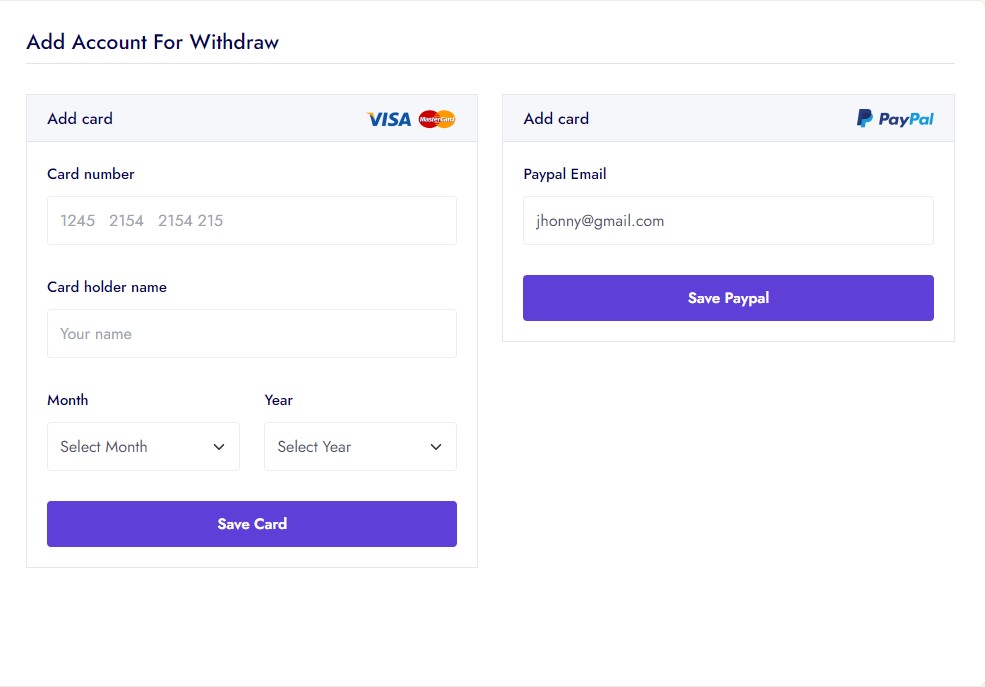
Instructor can withdraw his income by his/her account. His/her account info add, update form here.
Bundle Offer
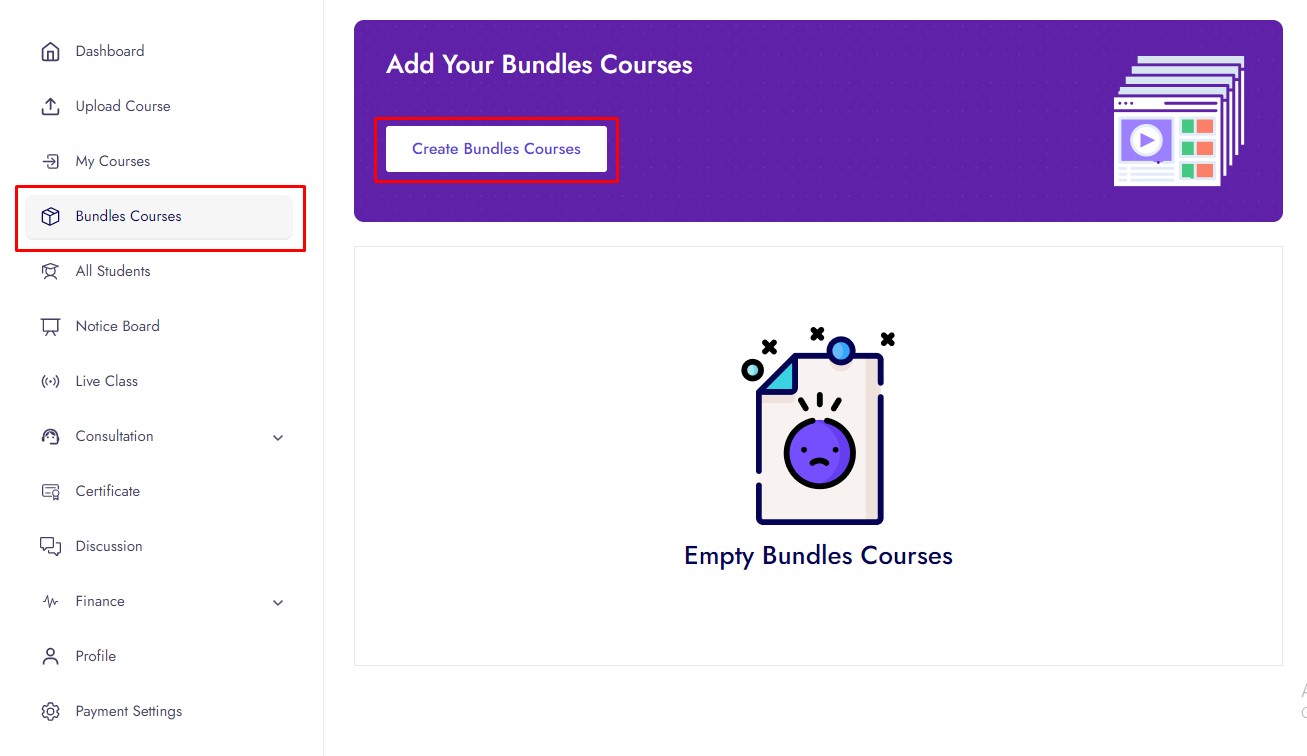
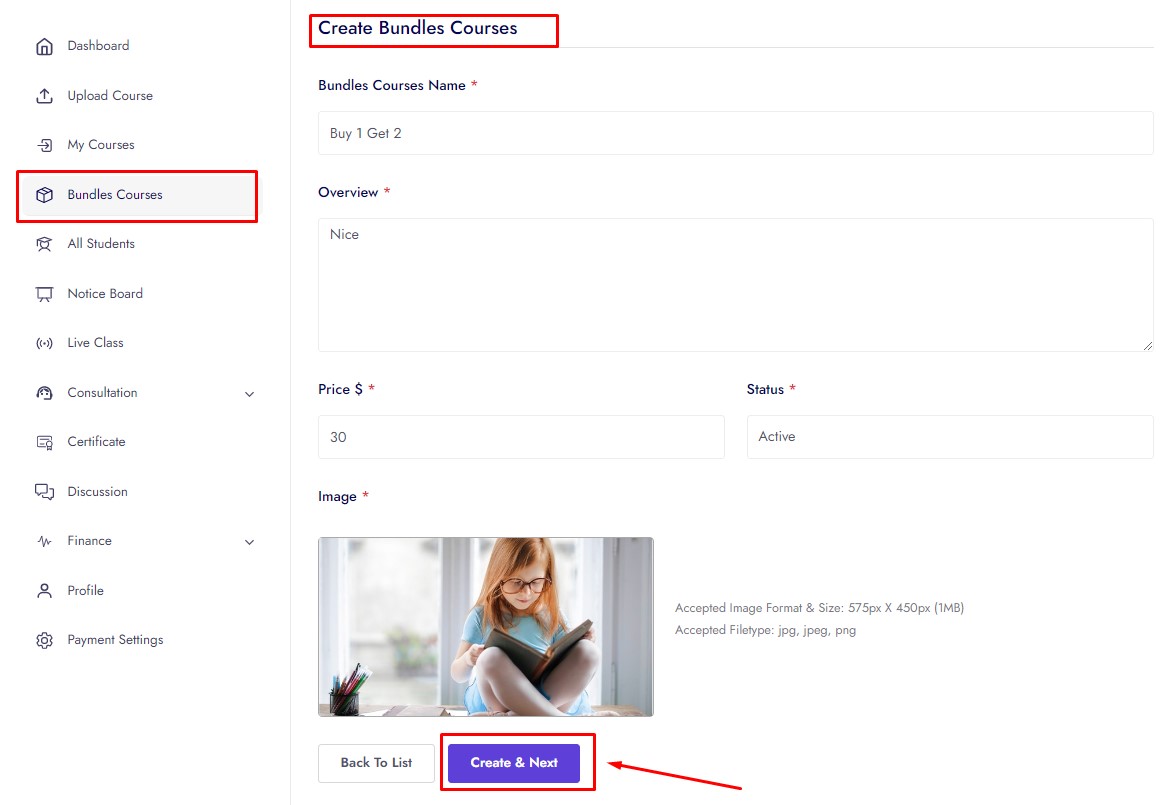
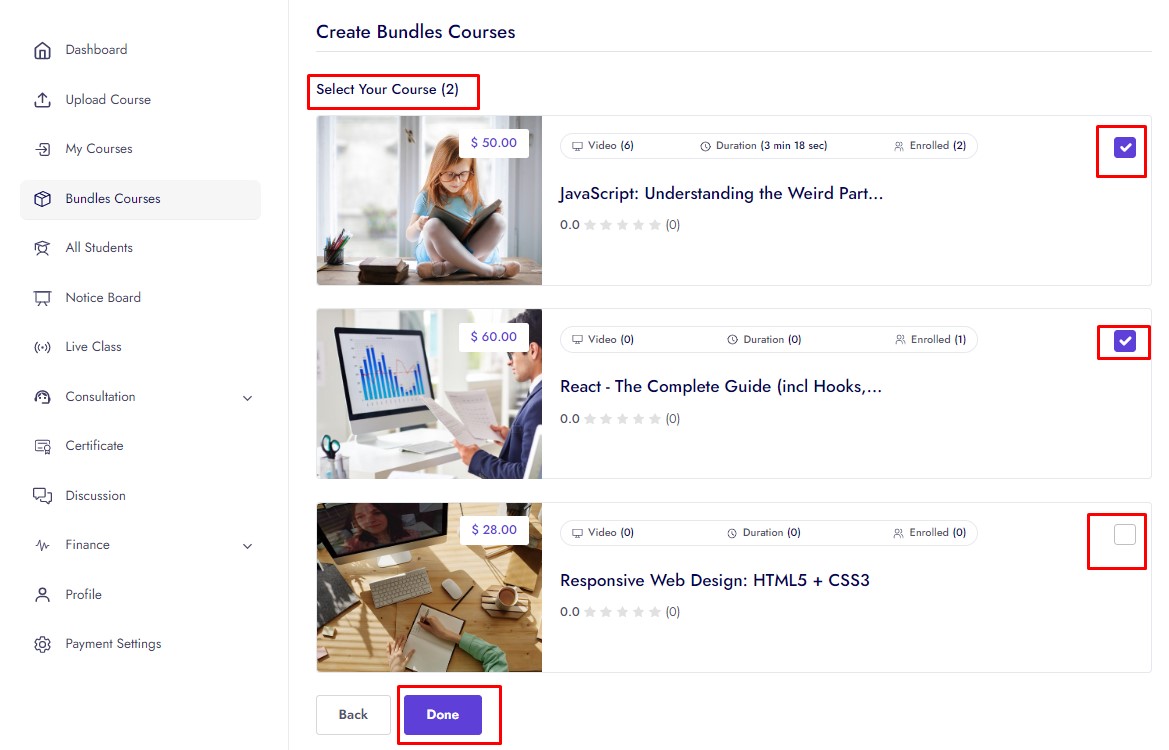
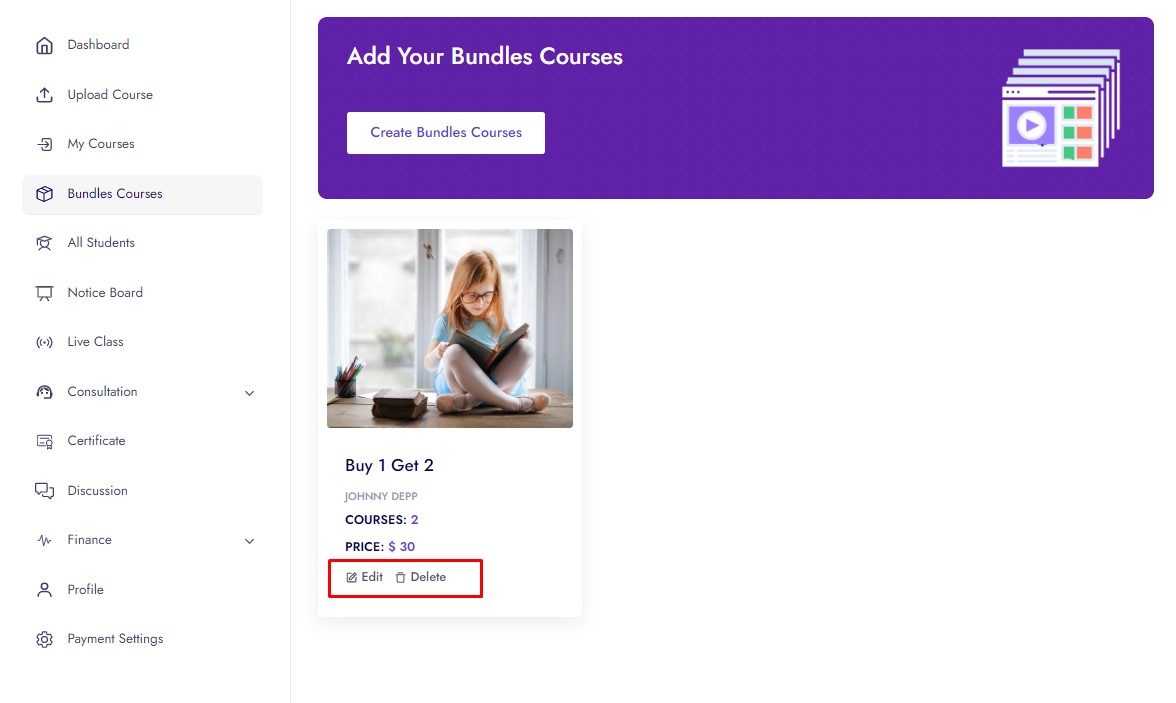
Instructor can create, edit, delete bundle from his/her courses. and your created bundle course you can change active/disable. Some create bundle and course add/remove images given here.
Consultation
In consultation instructor see 3 options. Options are:
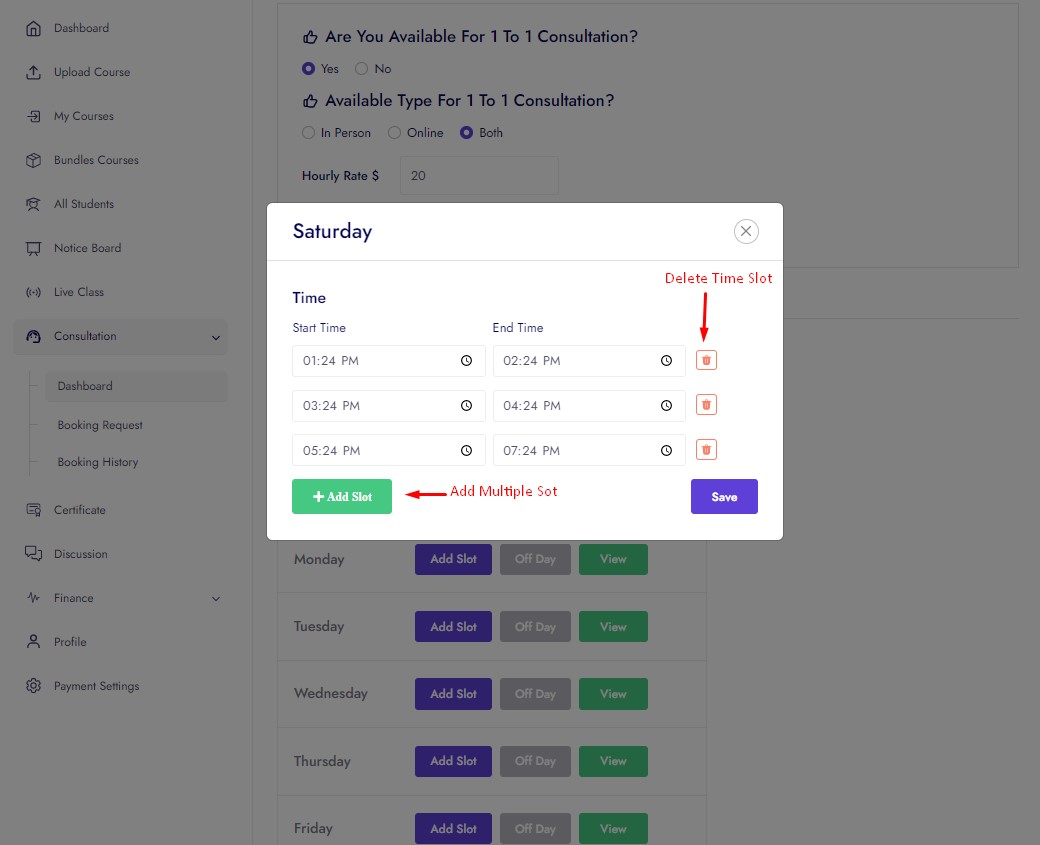
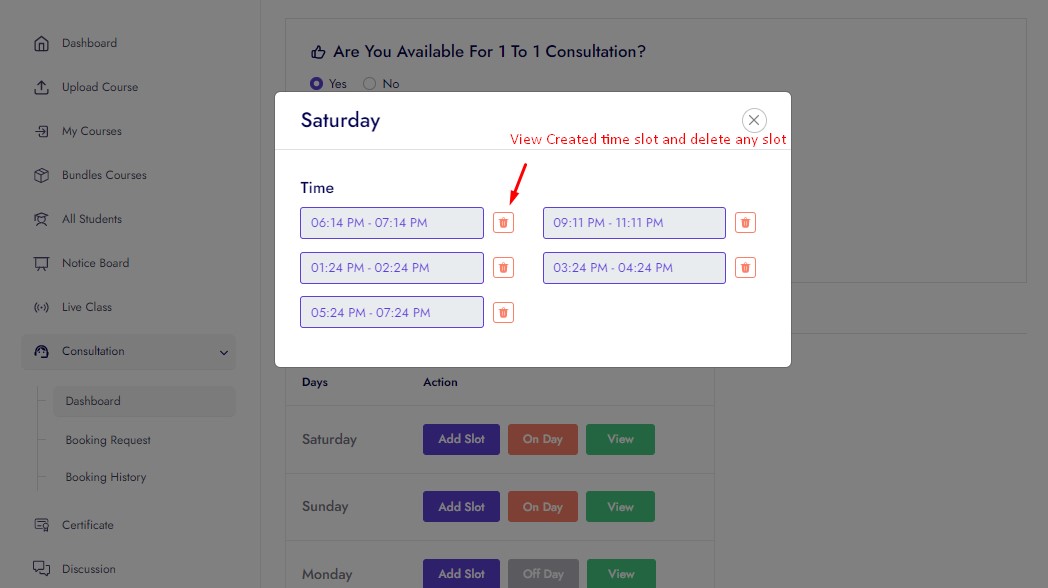
In dashboard instructor set available status for consultation, set available type, set hourly rate, set which day his/her off day/on day, set every day time slot.

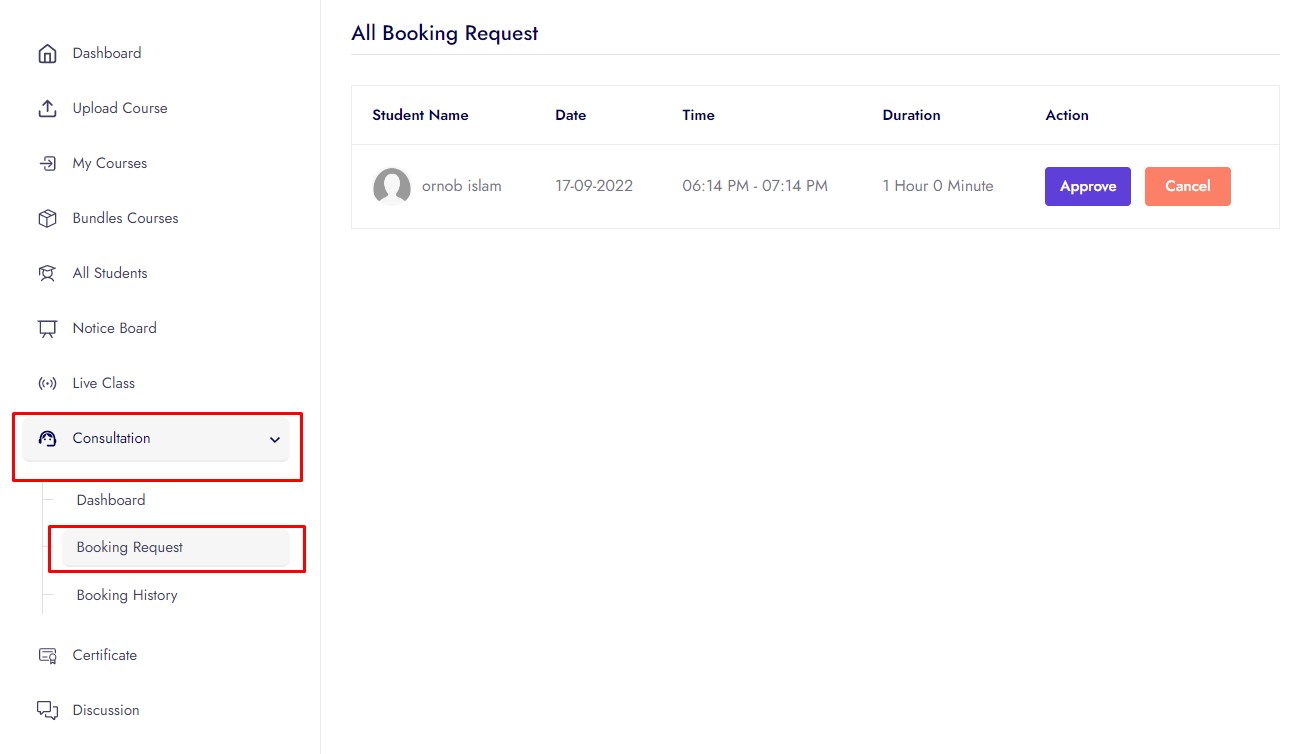
In Booking Request instructor can can approve and cancel consultation request.
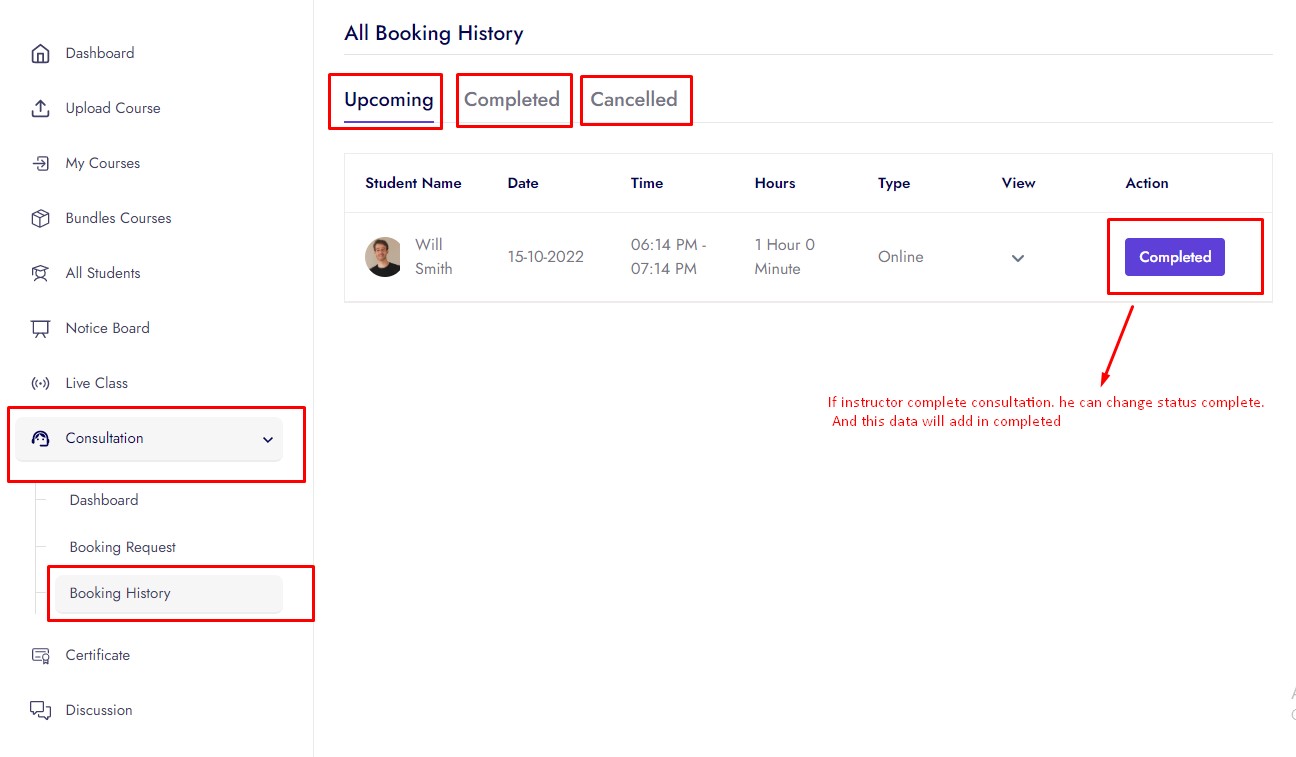
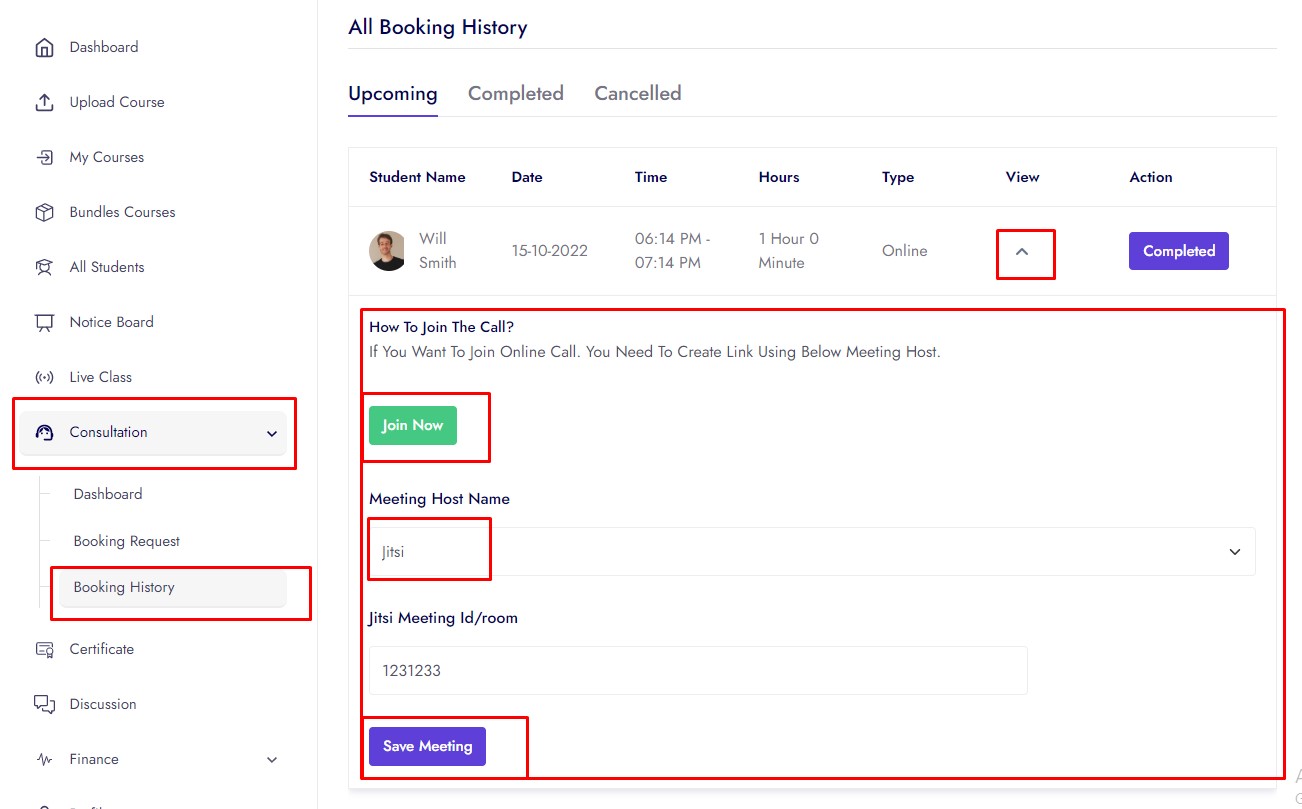
In Booking History instructor can can see consultation approved, completed and cancel request history.
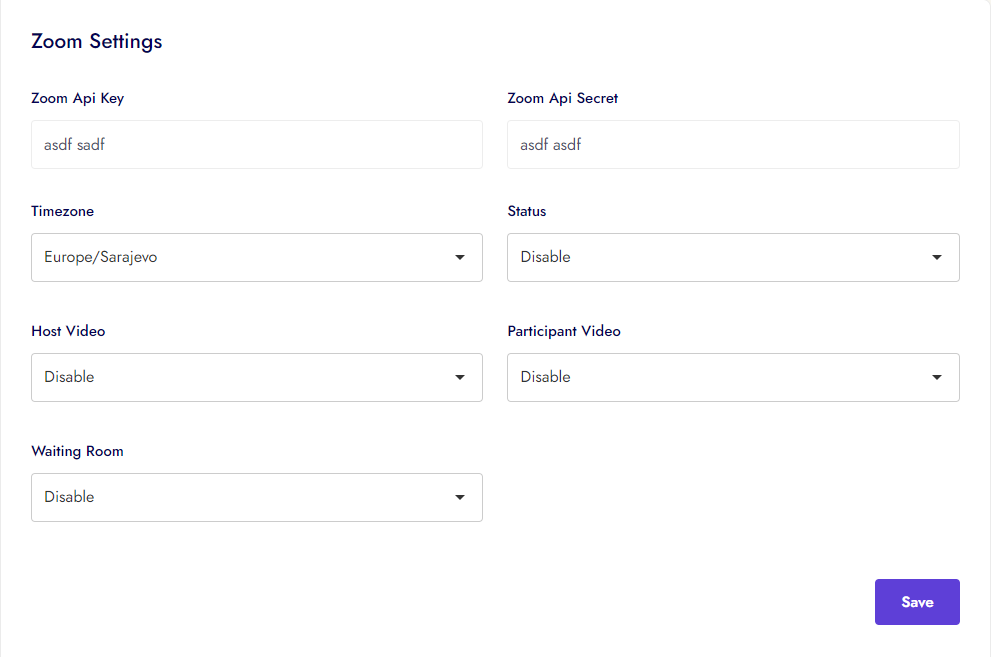
Zoom Setting
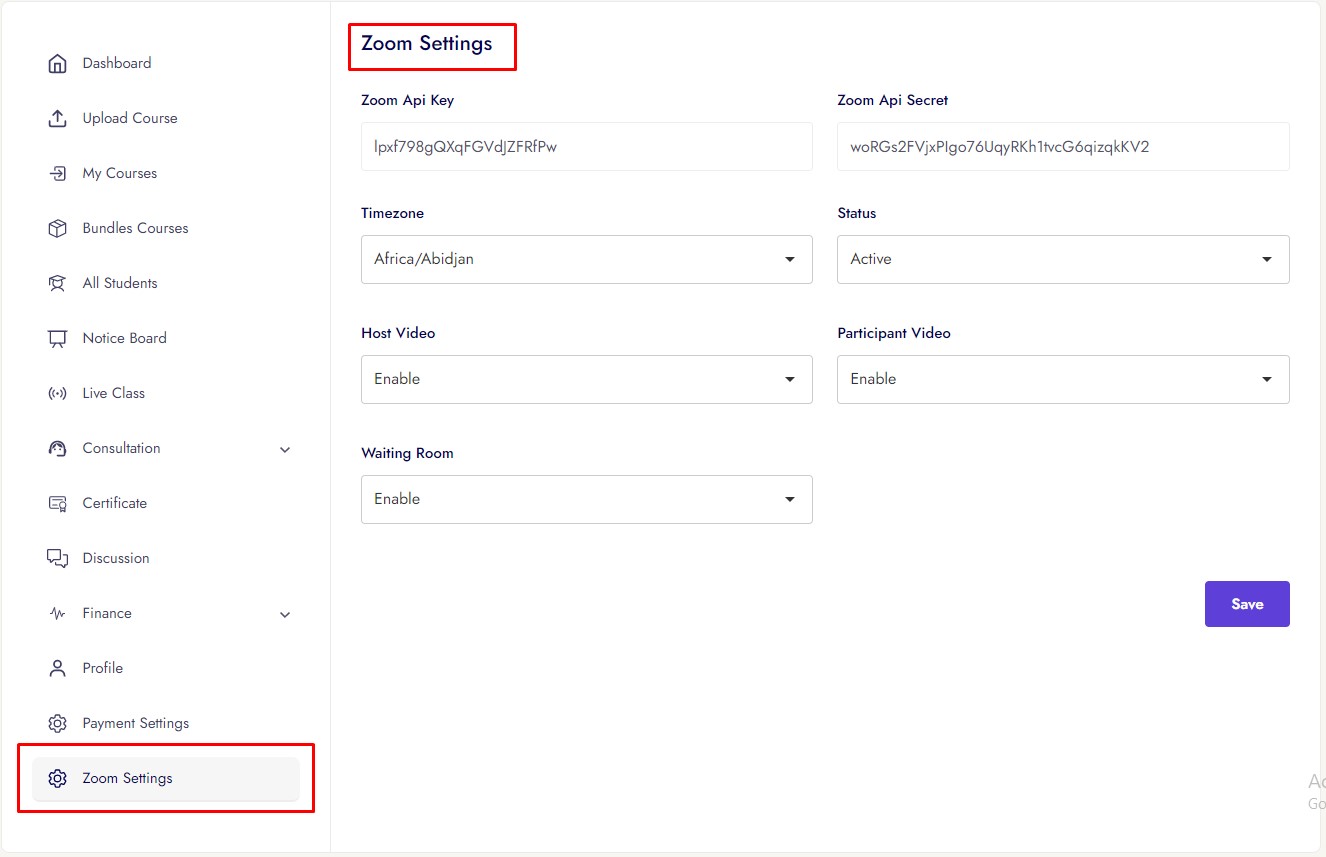
Instructor can manage his Zoom Setting
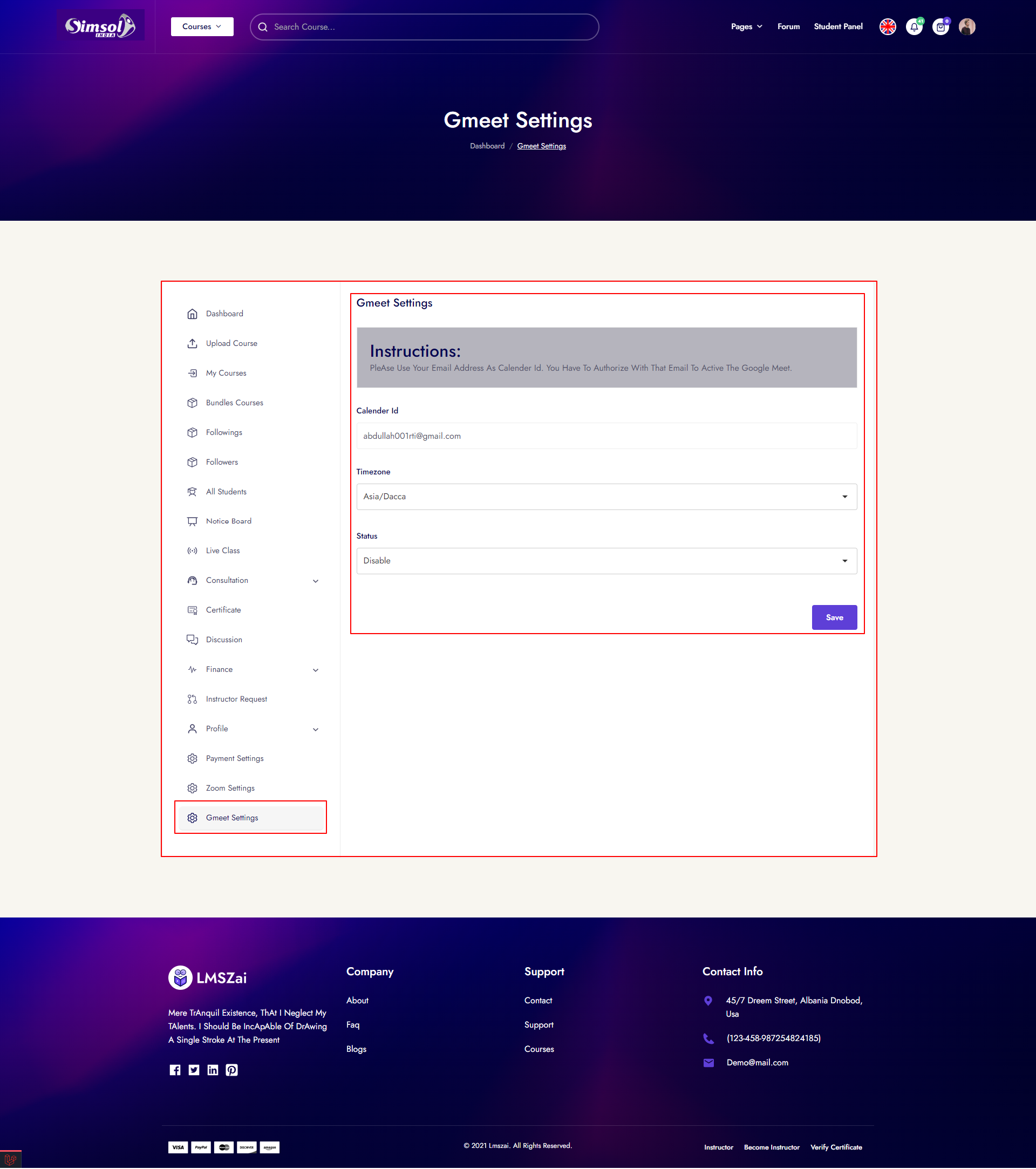
Google Meet
Instructor can manage his Google Meet
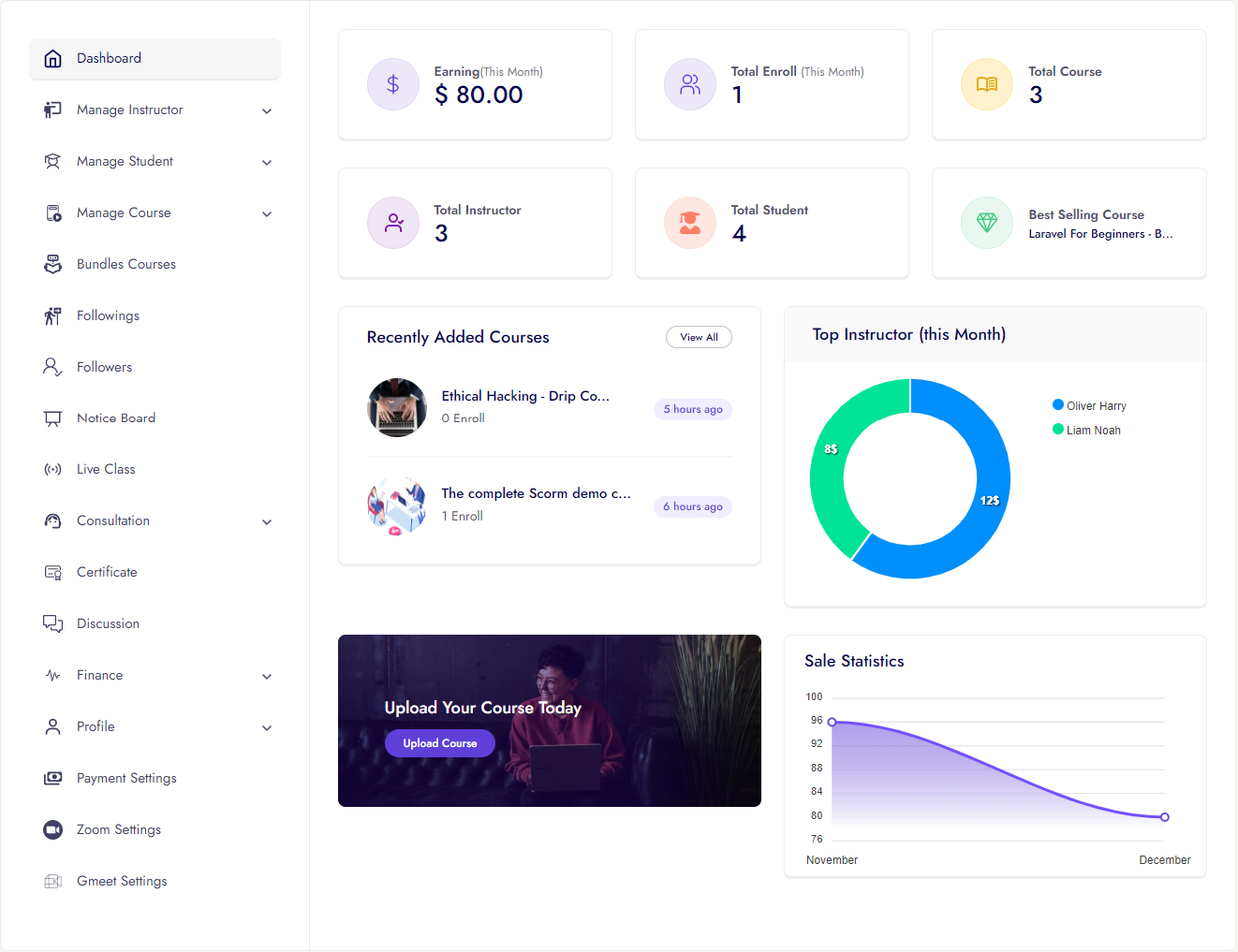
Organization Account Activities
Dashboard
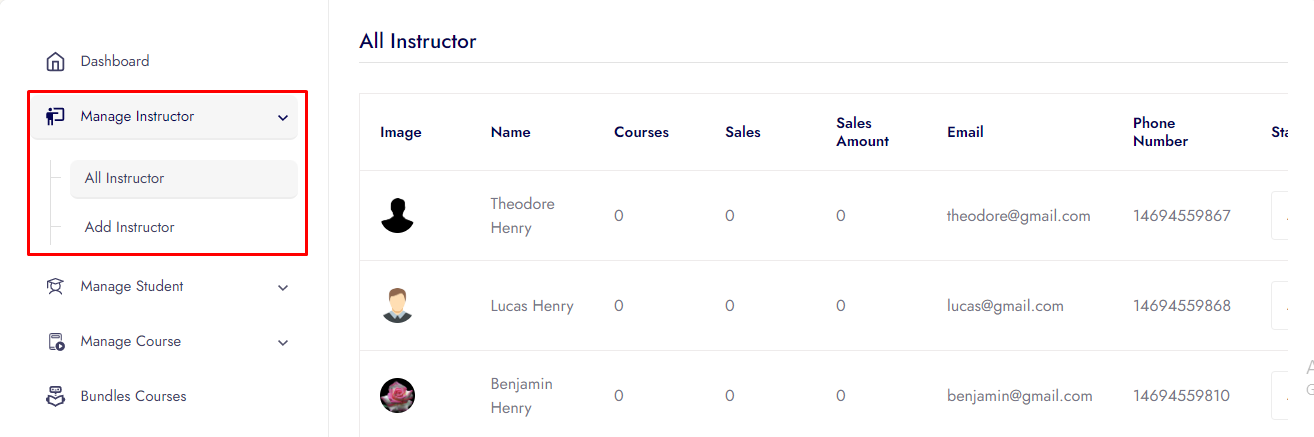
Manage Instructor
Manage Student
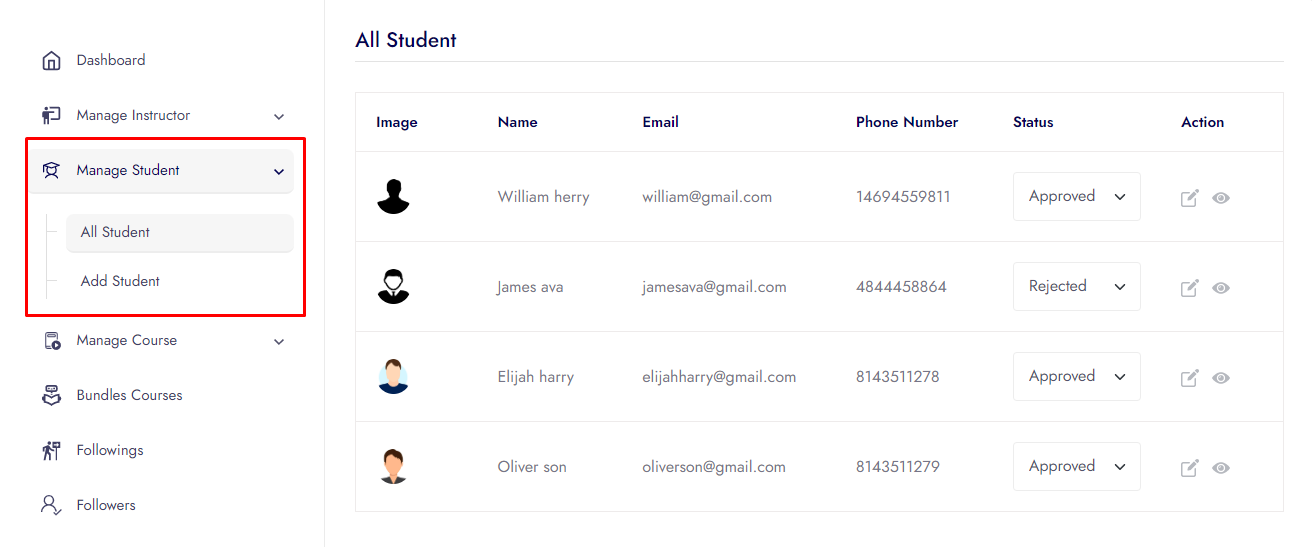
Upload Courses
Course drip content, access period and old price
Note:If organization do not upload any lesson, he/she can't go to next process.
Organization can upload 8 different types lesson.
Organization can iSpring, SCORM all version, xAPI (The Experience API), cmi5 (a companion to xAPI), AICC Course
My Courses
Courses Resources
Courses Quiz
Quiz has 2 types
- 1. Multiple Choice
- 2. True-False
Courses Assignment
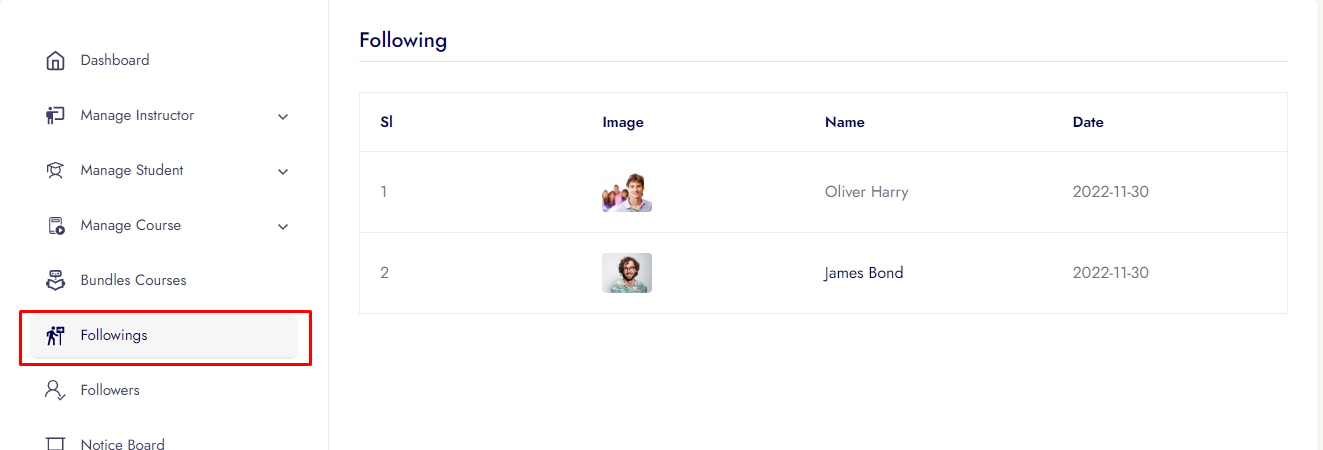
Followings
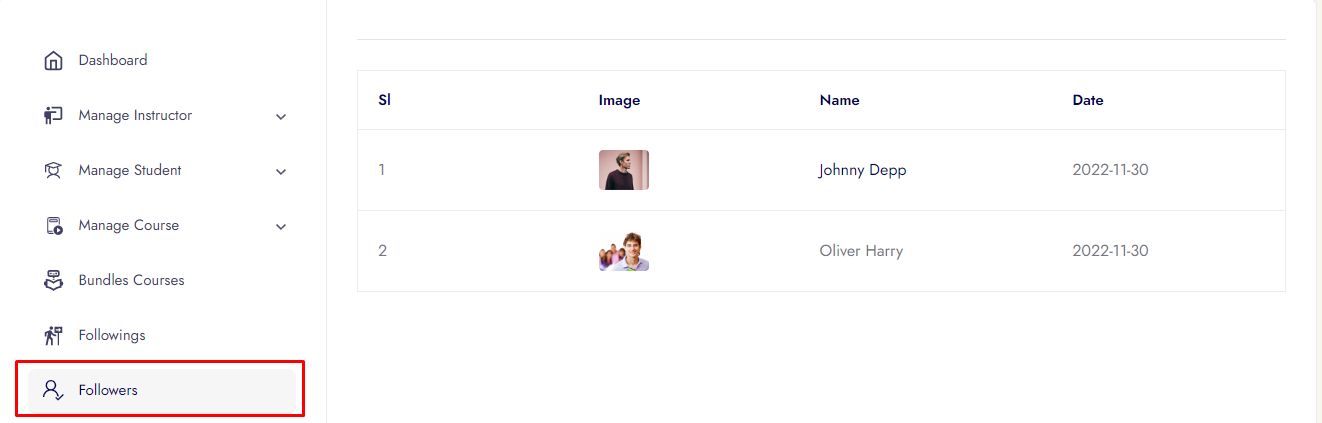
Followers
Notice Board
Live Class
Certificate
Discussion
Finance
Organization can see how mane student enrolled his/her course, total courses, total earning, total available balance, withdraw money, request withdraw amount, can withdraw from here and sales per month sales statistics.
Finance has 2 options
Analysis
Withdraw History
Profile
Organization can update his profile from here
Geolocation Search
Organization can update his geolocation
Saas Module
Organization can purchase Saas plan
Payment Settings
Organization can withdraw his income by his/her account. His/her account info add, update form here.
Bundle Offer
Organization can create, edit, delete bundle from his/her courses. and your created bundle course you can change active/disable. Some create bundle and course add/remove images given here.
Consultation
In consultation organization see 3 options. Options are:
In dashboard organization set available status for consultation, set available type, set hourly rate, set which day his/her off day/on day, set every day time slot.
In Booking Request organization can can approve and cancel consultation request.
In Booking History organization can can see consultation approved, completed and cancel request history.
Zoom Setting
Organization can manage his Google Meet
Google Meet
Organization can manage his Google Meet
Admin Account Activities
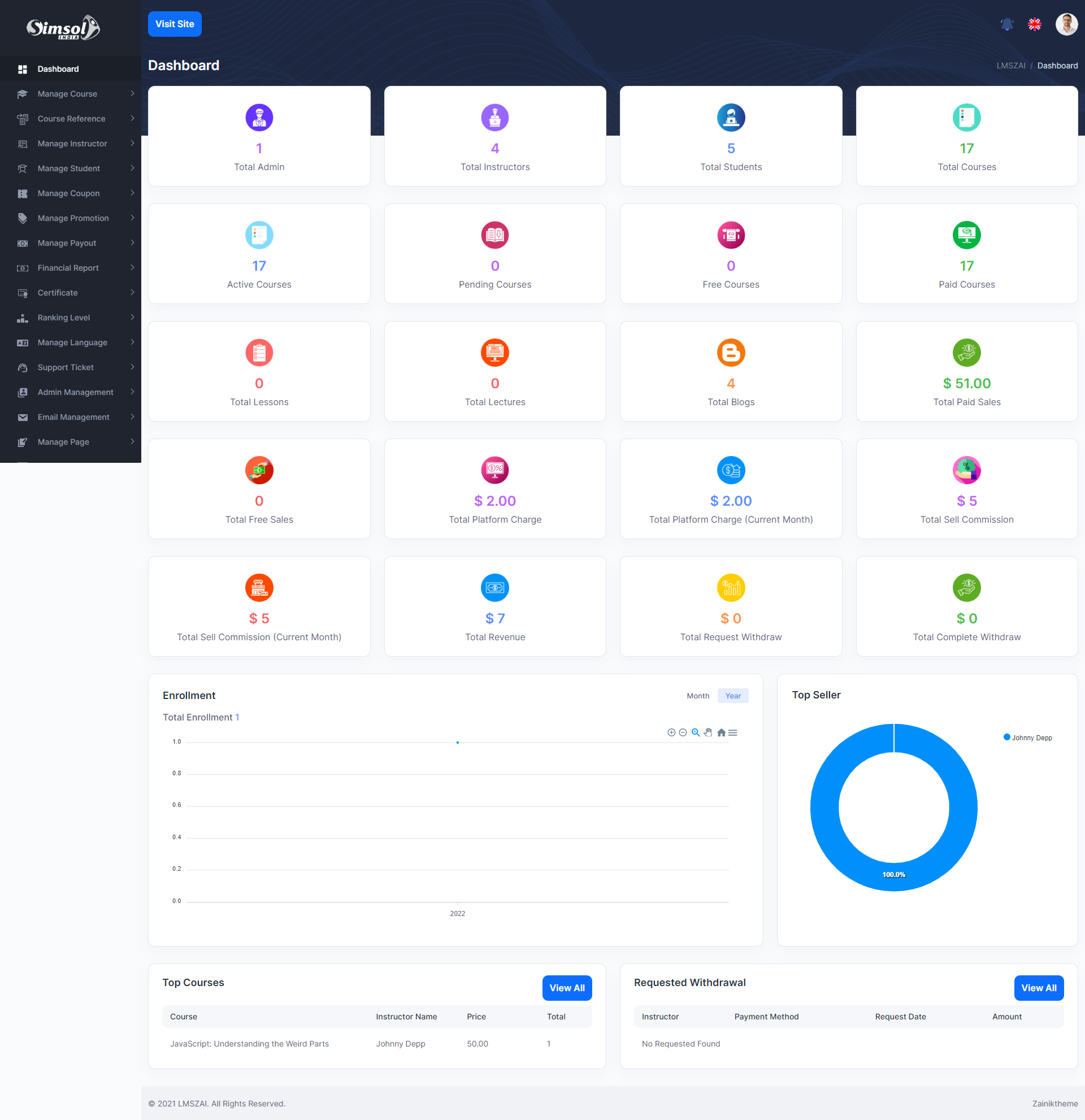
Admin Dashboard
Admin can see all the key points/information from the dashboard. And also from the dashboard admin can see all the graph and chart information.
Manage Course
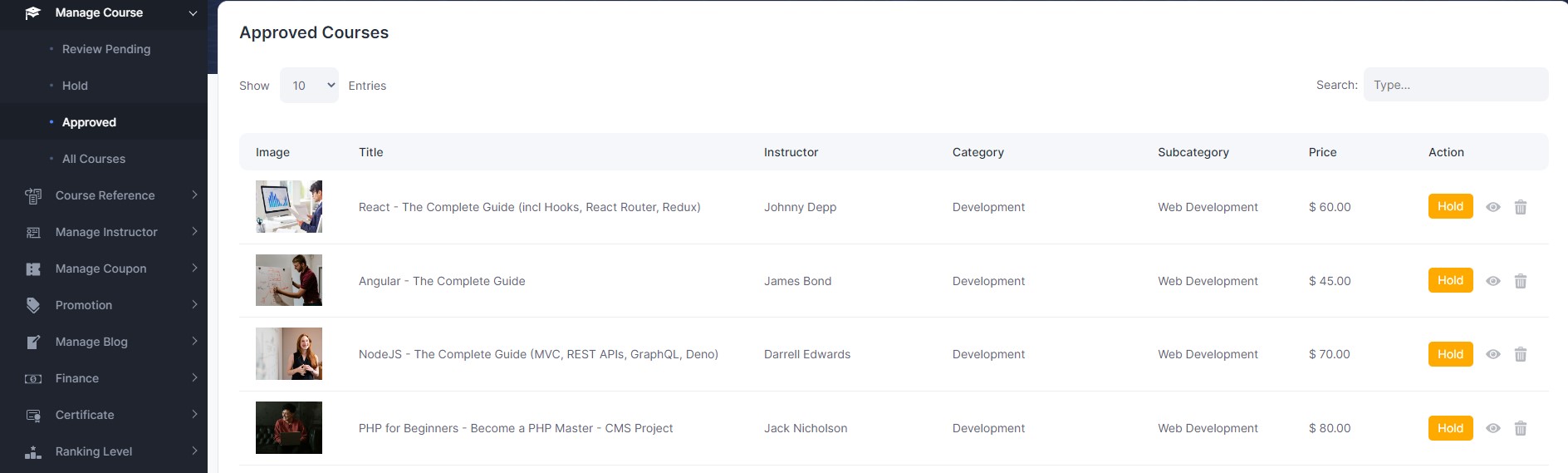
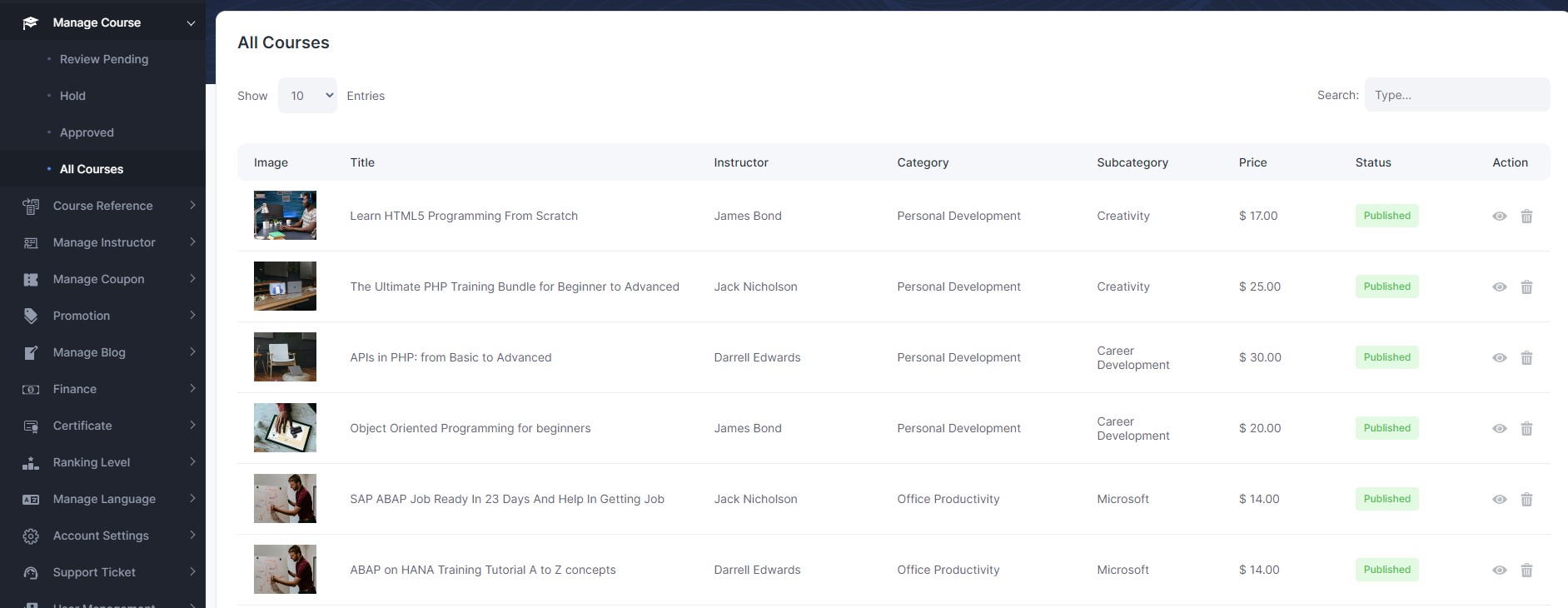
Admin can manage all activity for course management from here.

Course Reference
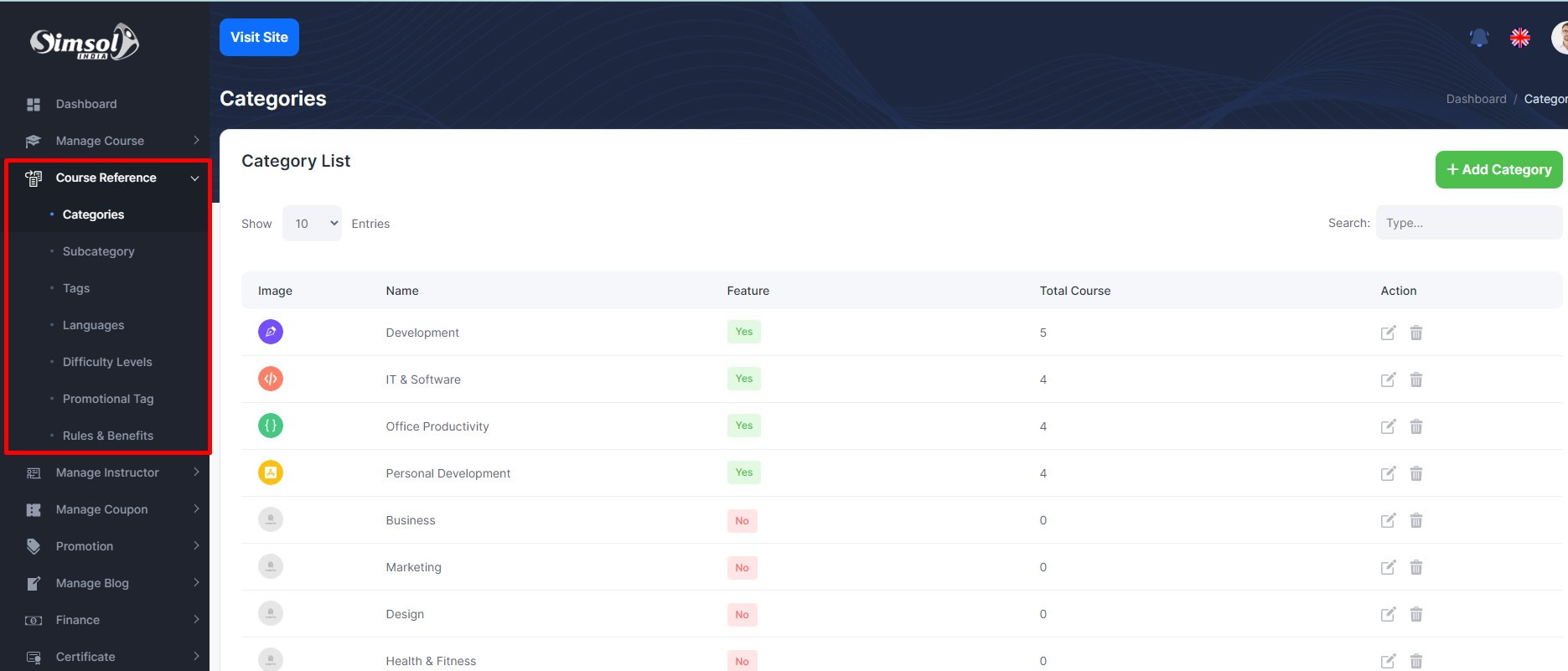
For course upload purpose admin can create all the course related important field from here.
Course reference has many functions. Given here-
Manage Instructor
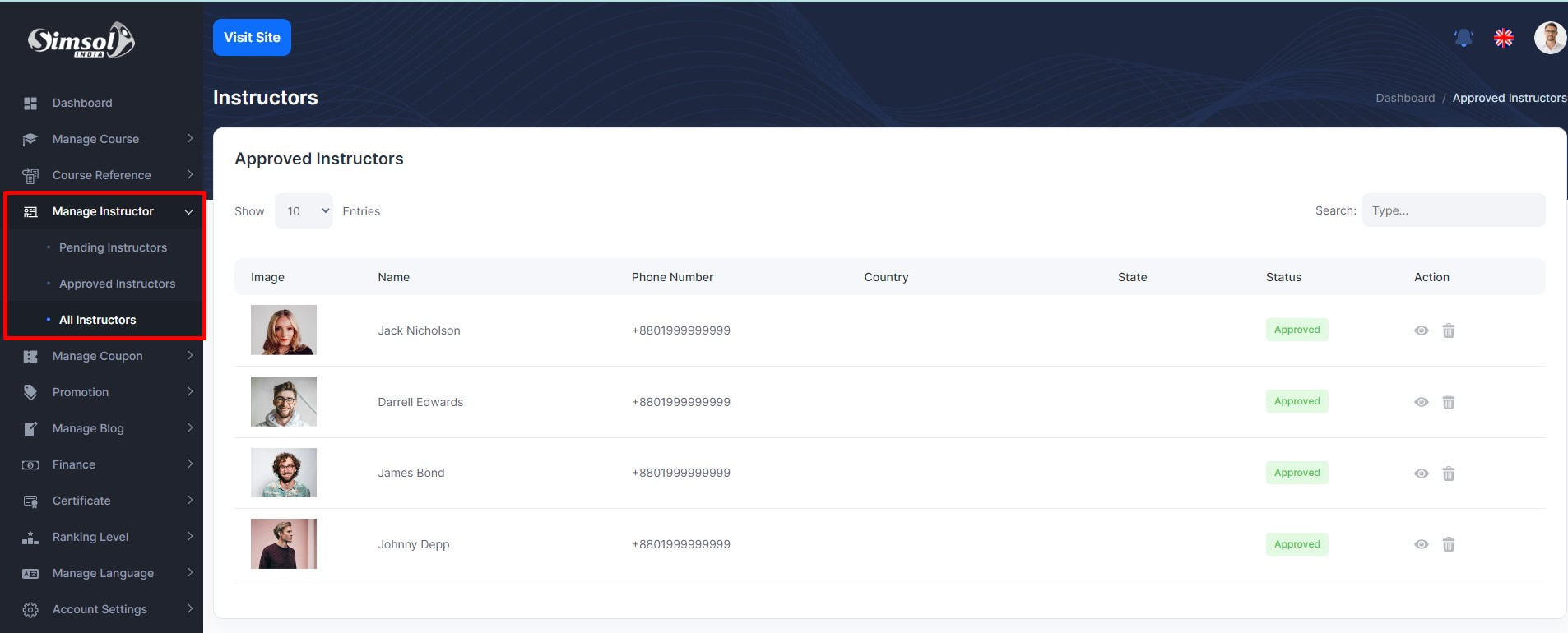
Admin can manage all the instuctors (Pending application to approved, instructor details, delete)
Manage Instrutor has many functions. Given here
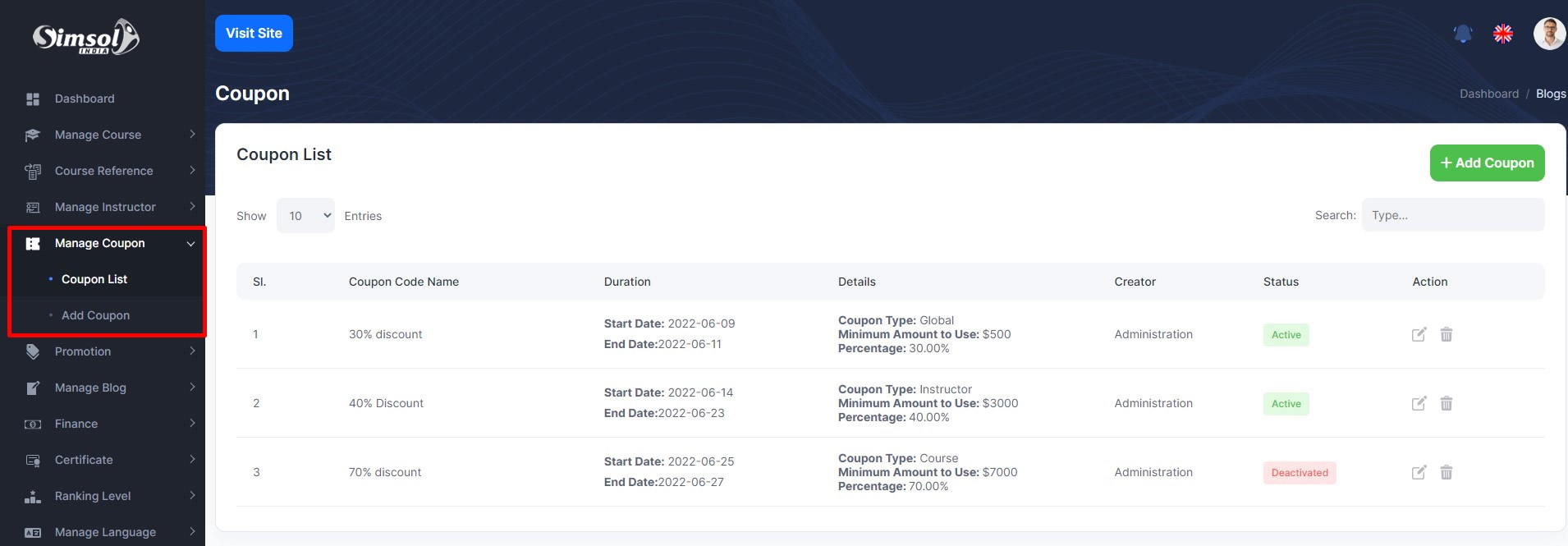
Manage Coupon
Admin can create 3 types coupon
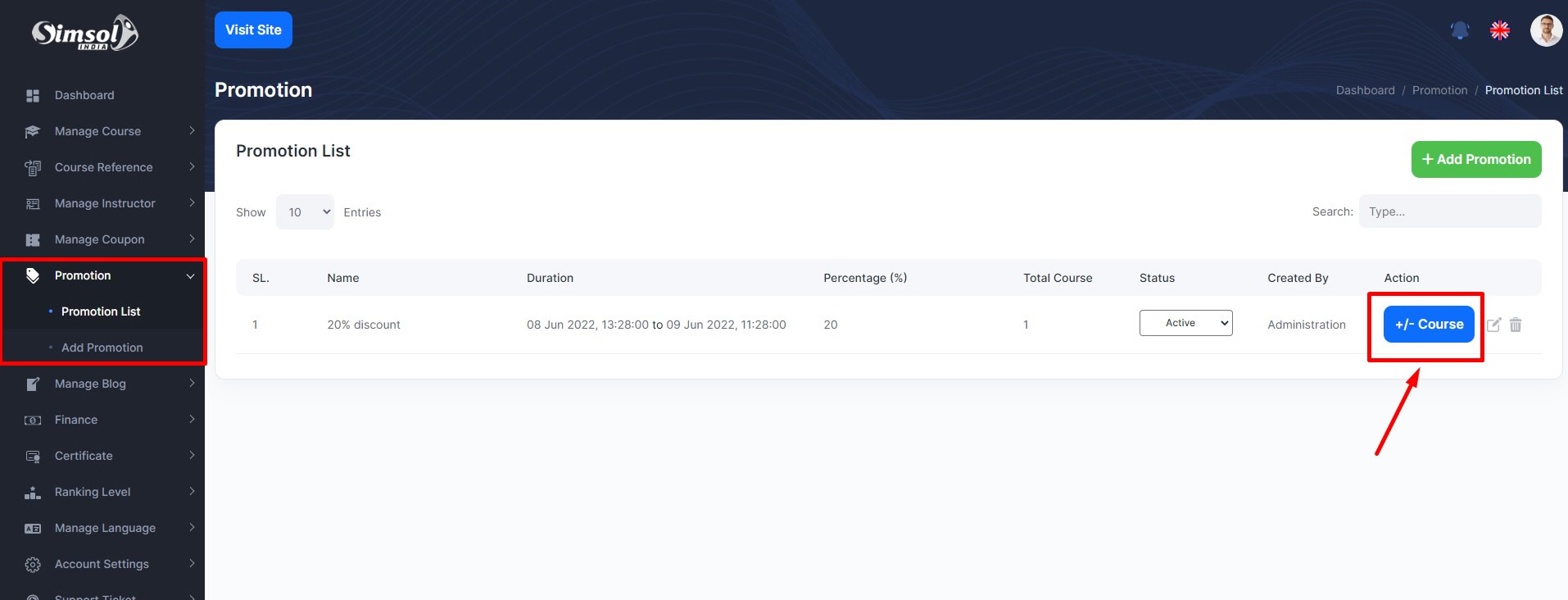
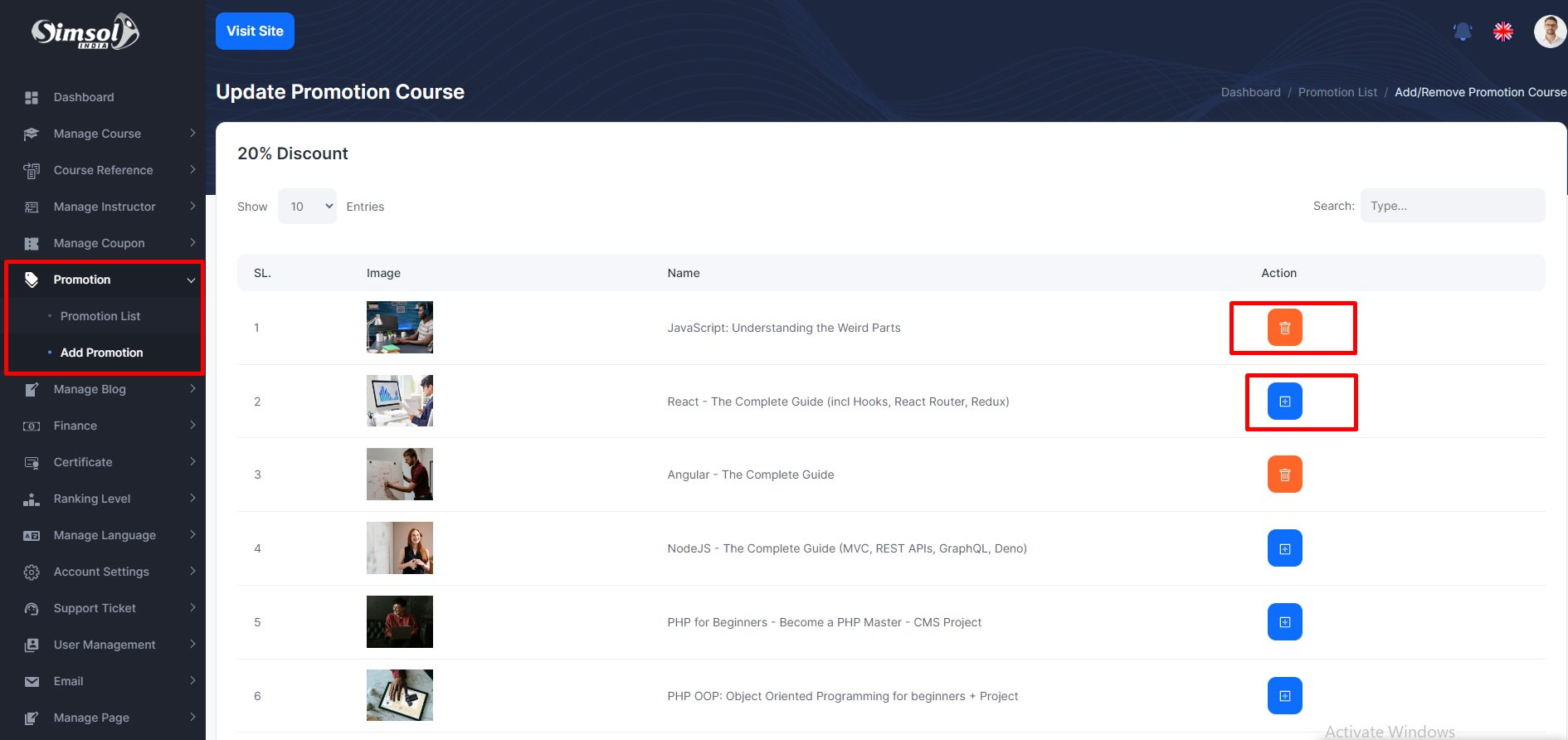
Manage Promotion
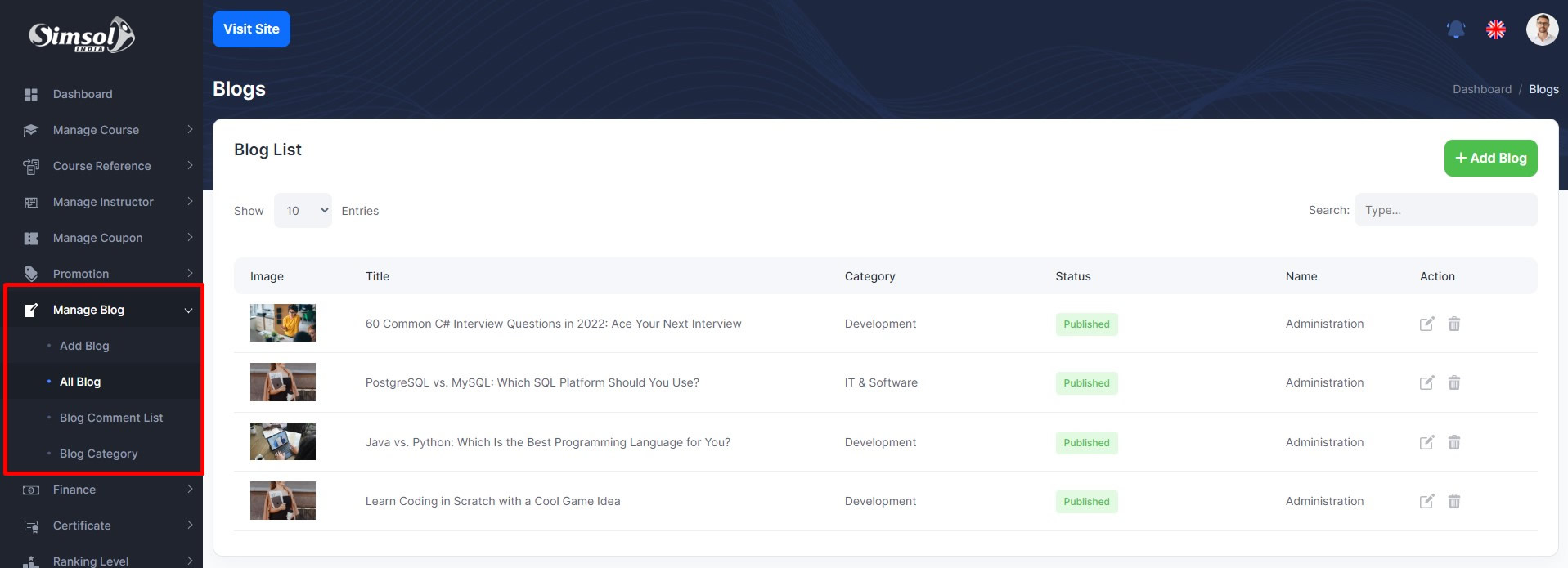
Manage Blog
Blog has many functions. Given here-
Manage Finance
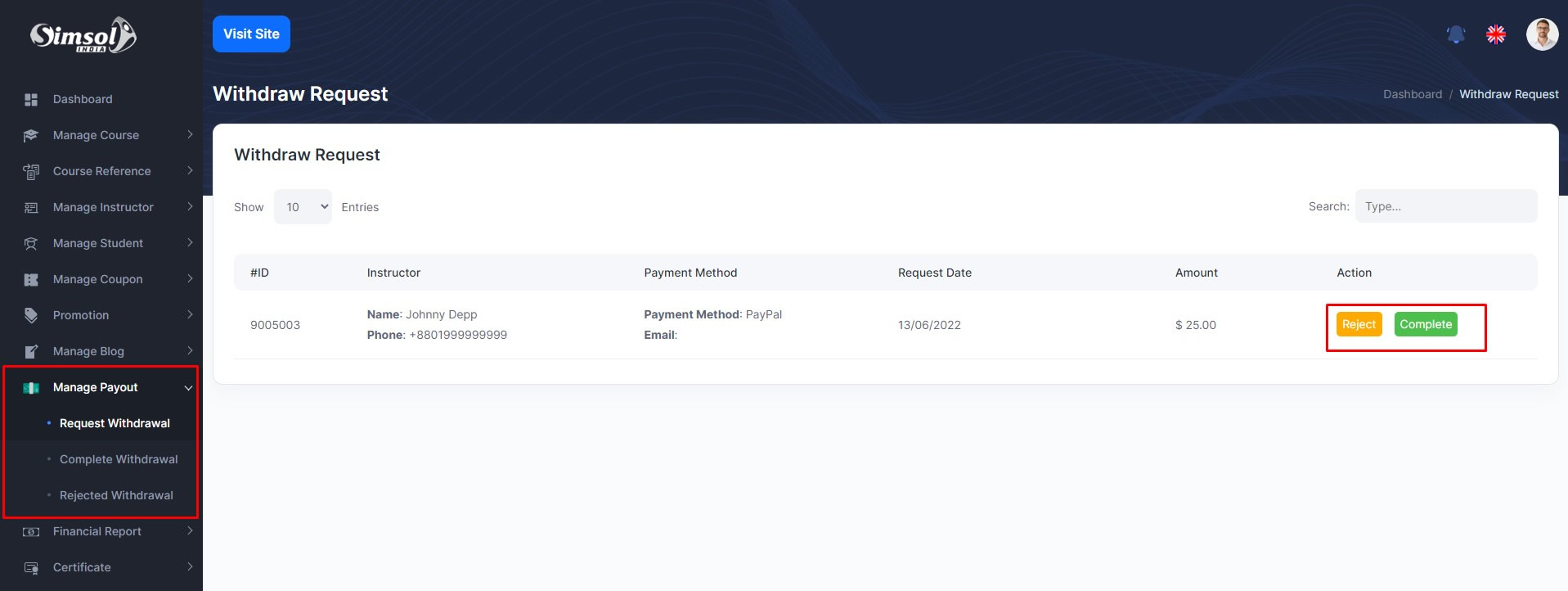
Manage Payout has many functions. Given here-
Financial Report
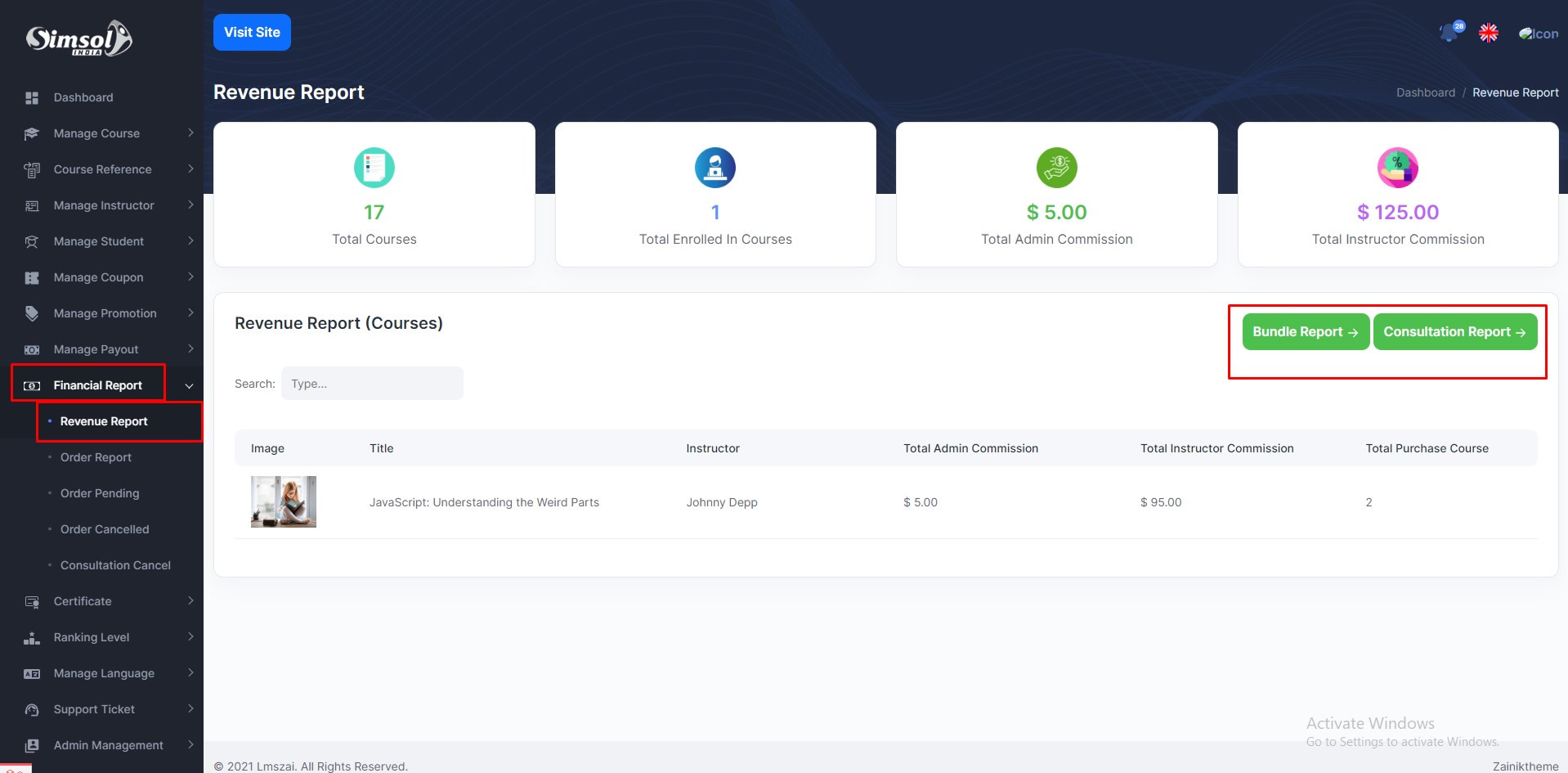
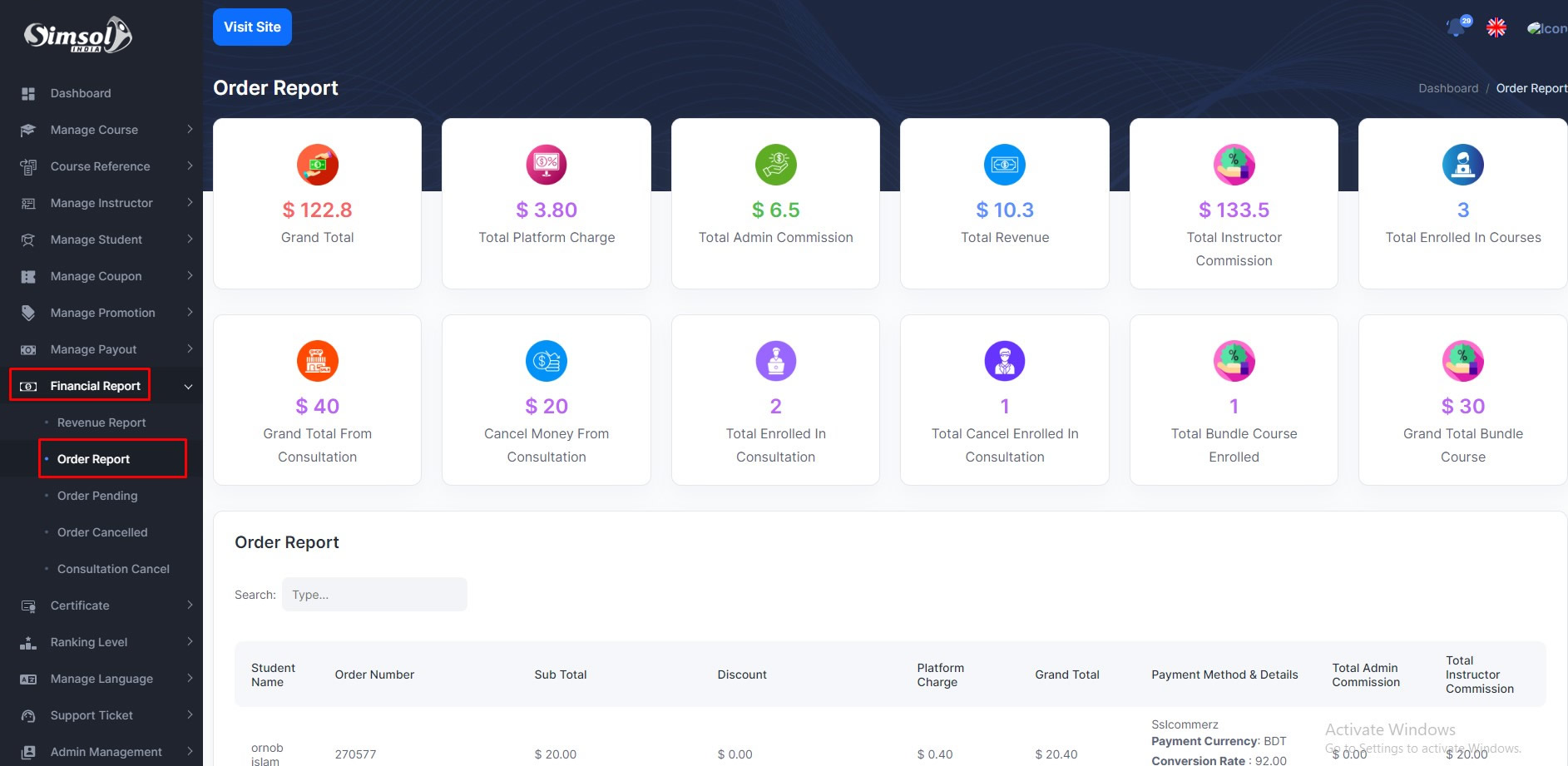
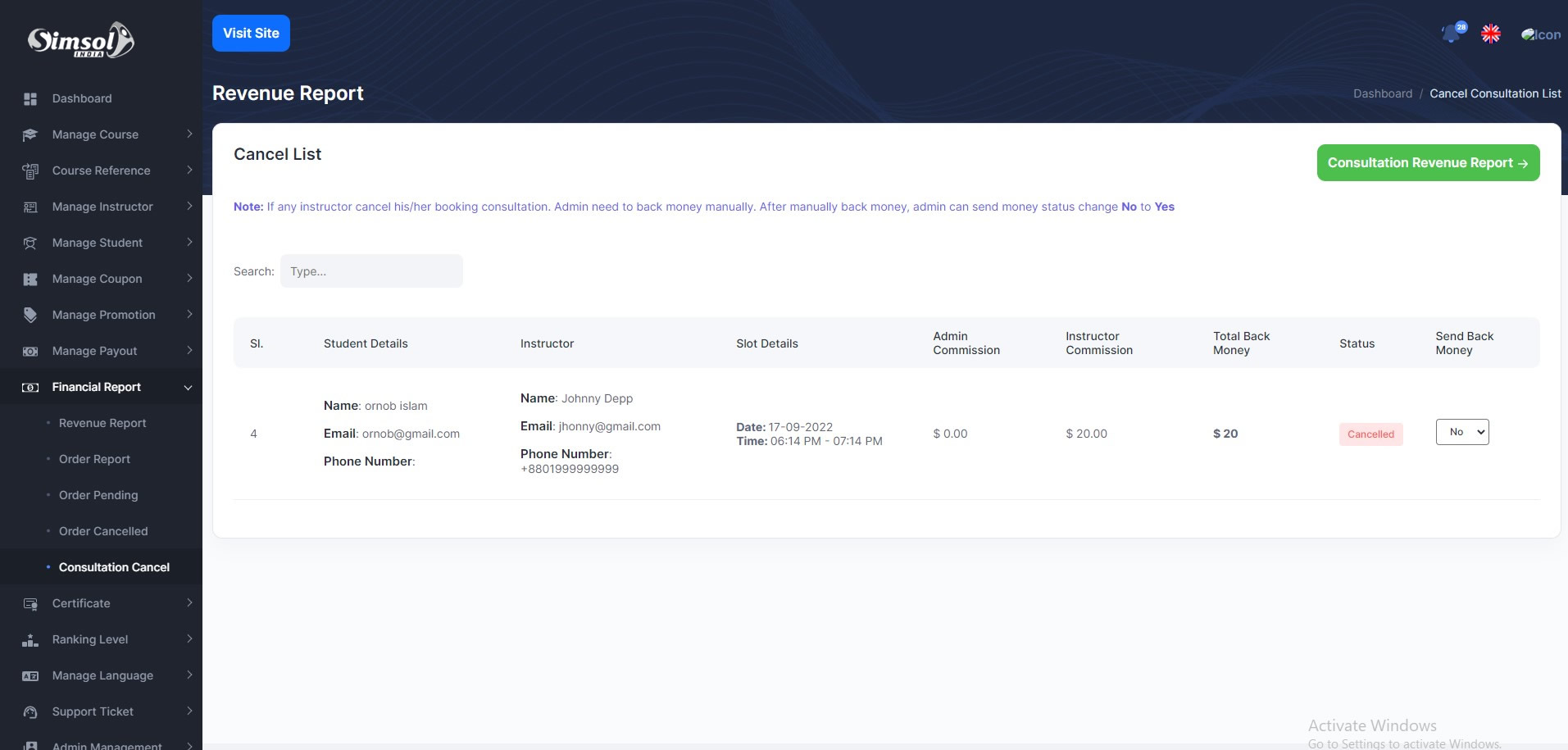
Finance report has 5 functions. Given here-
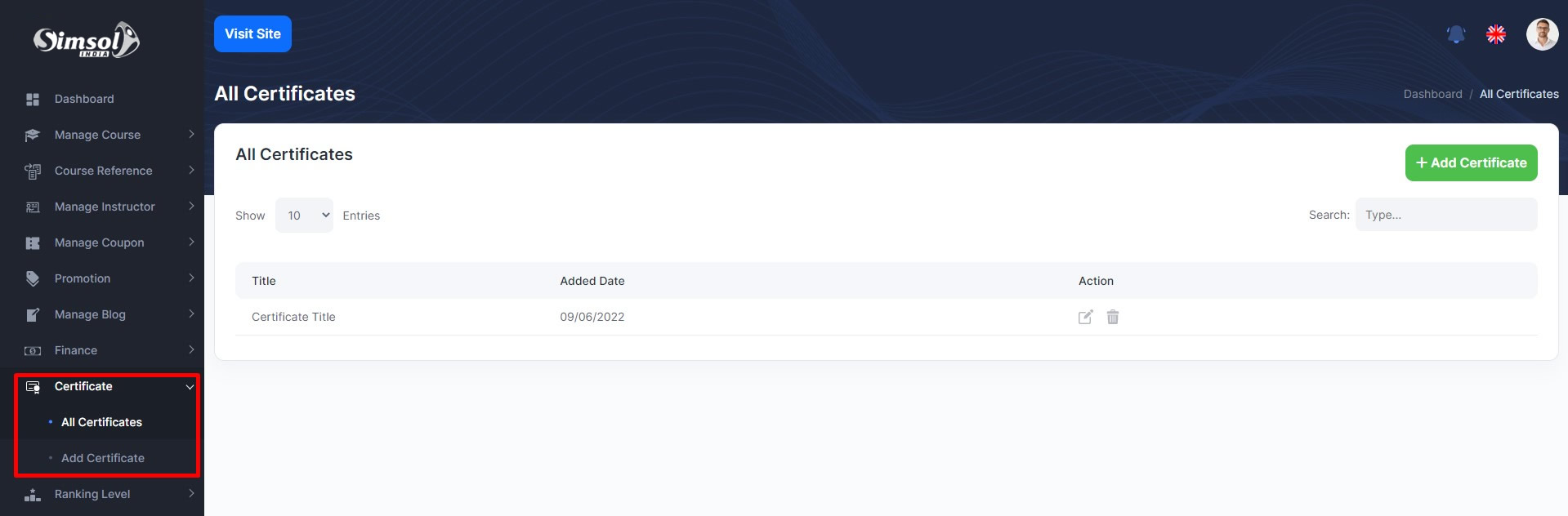
Certificate
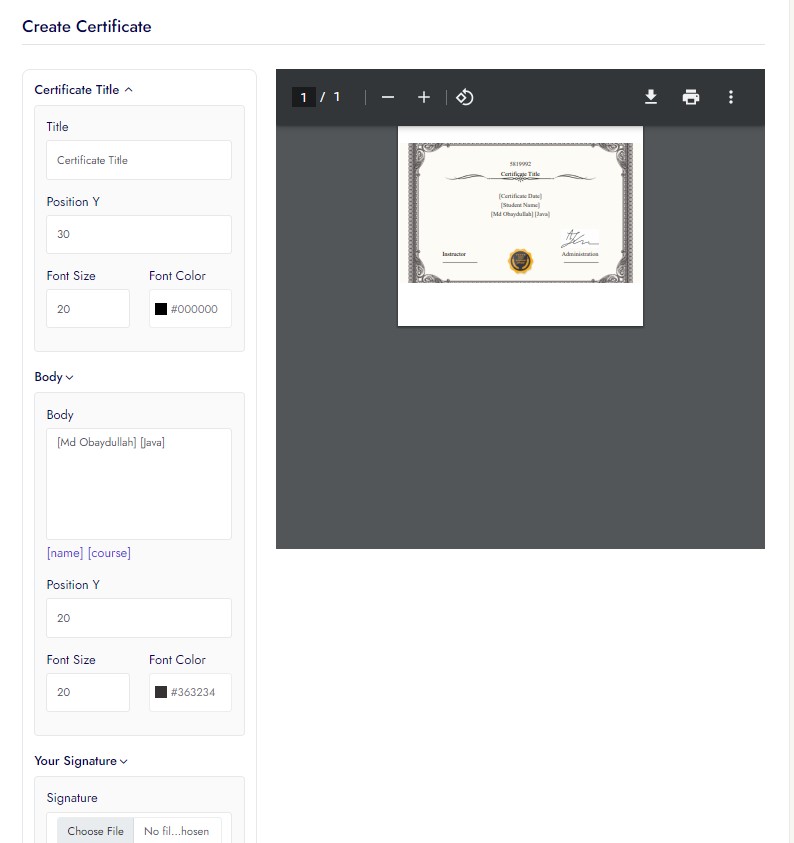
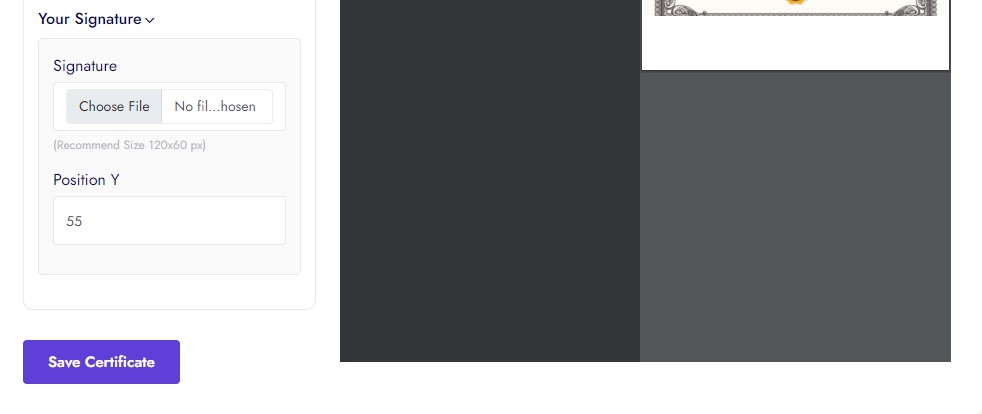
Admin dynamically can create, update delete sample template for course certificate and instructor can add from instructor panel.
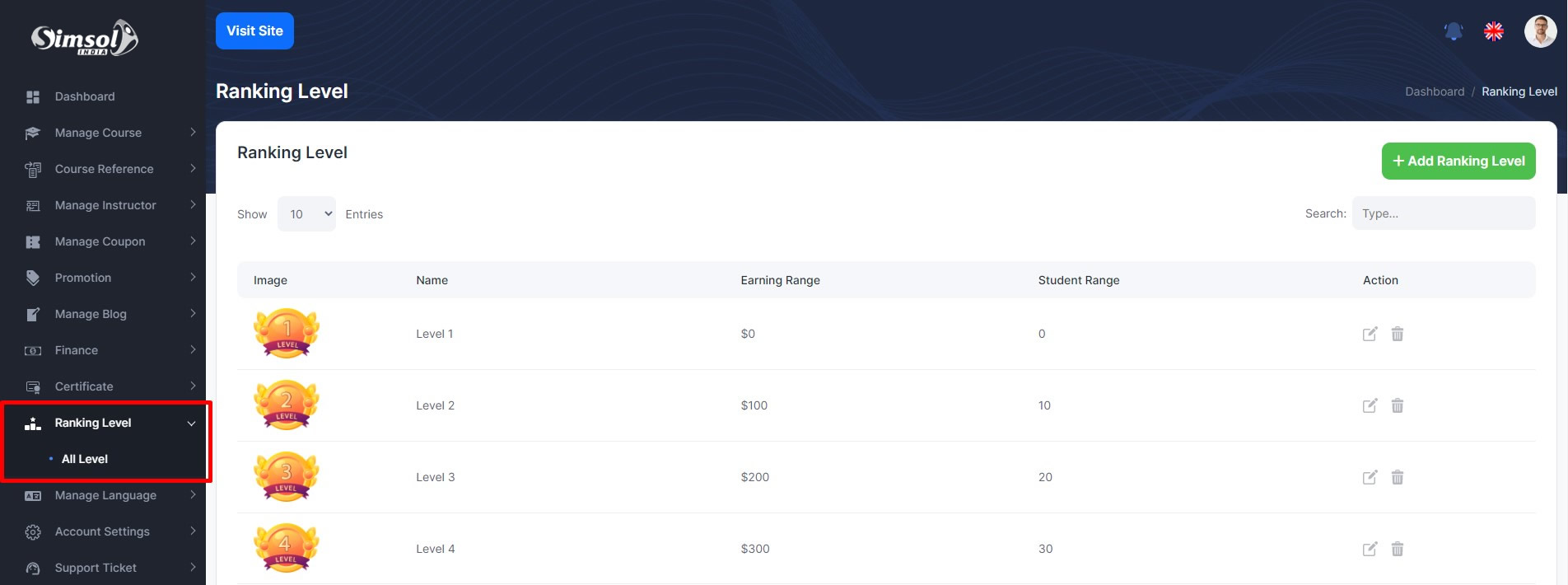
Ranking
Admin can create ranking for instructors and define specific criteria for defining the ranking . For example: Level 1, Level 2, Level 3. If any instructor achieves level 1 and then upgrades to level 2.
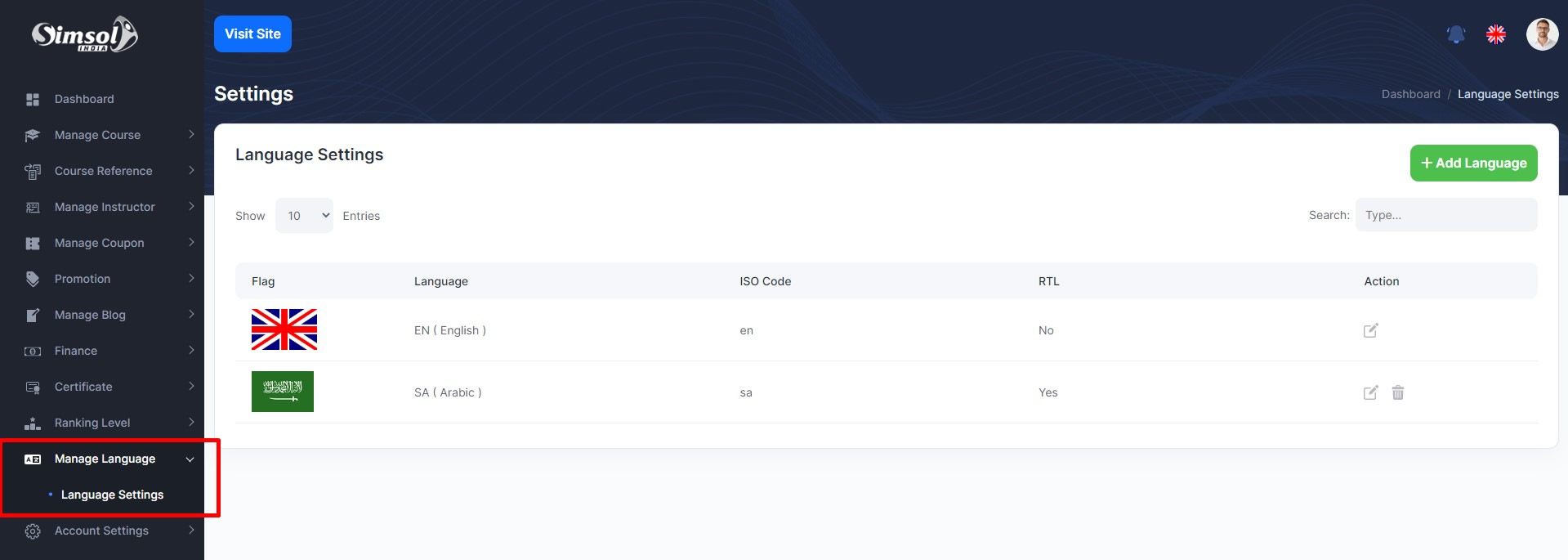
Manage Language
Admin can create, update, delete any language from here
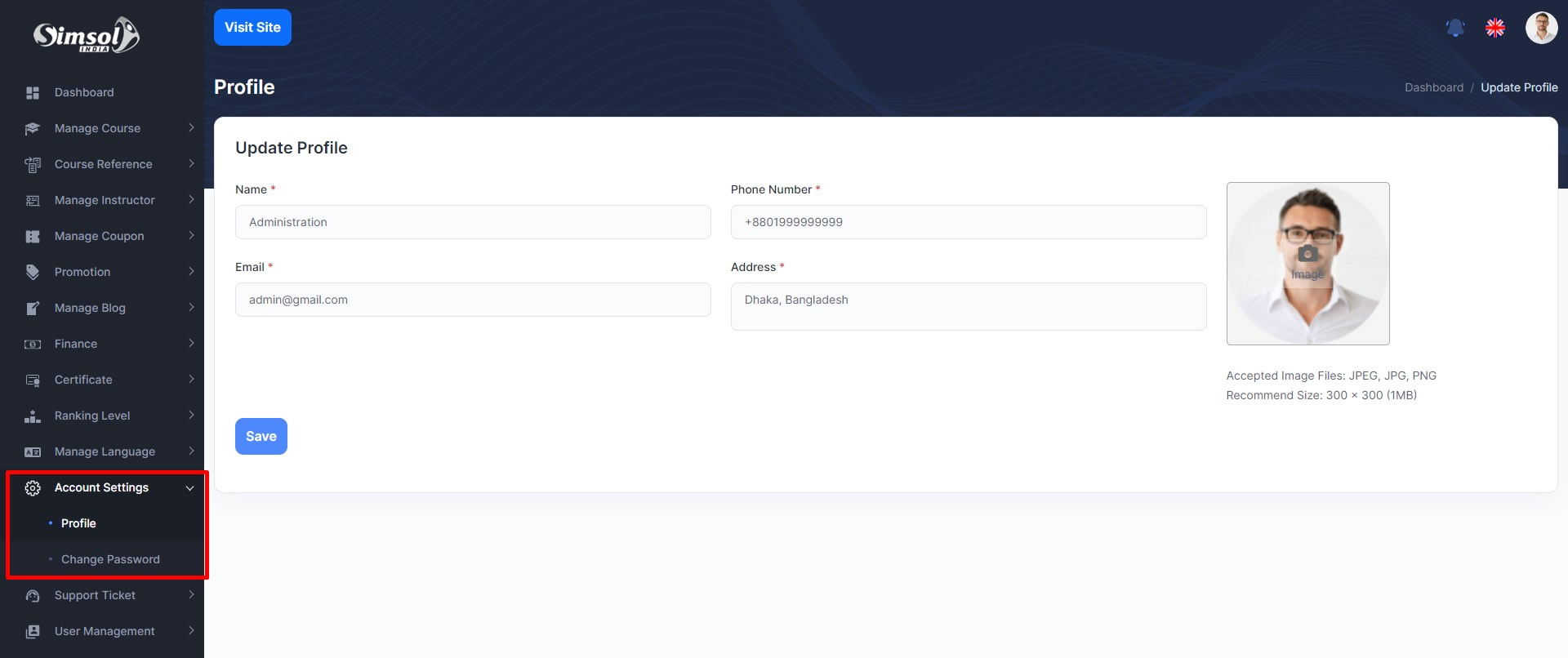
Account Settings
Admin can update his profile, change password
Support Ticket
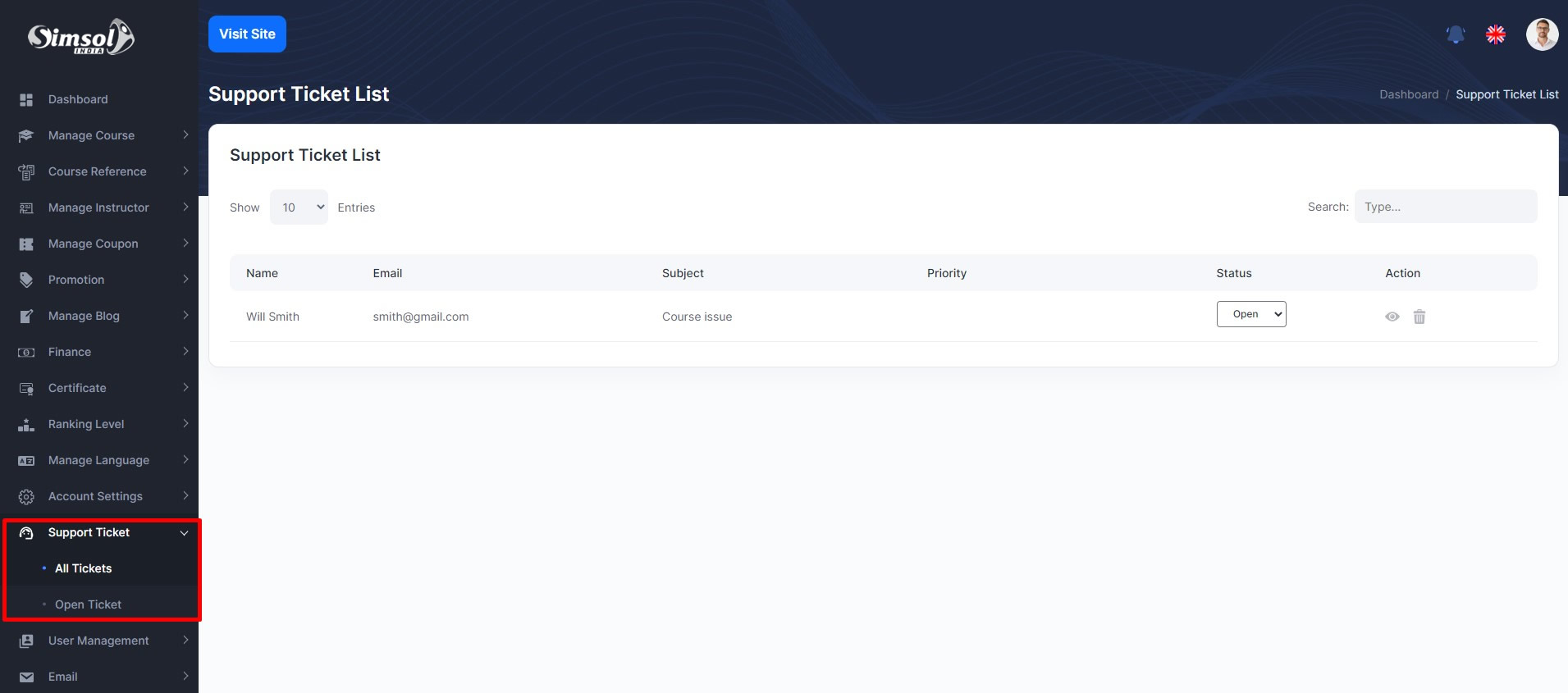
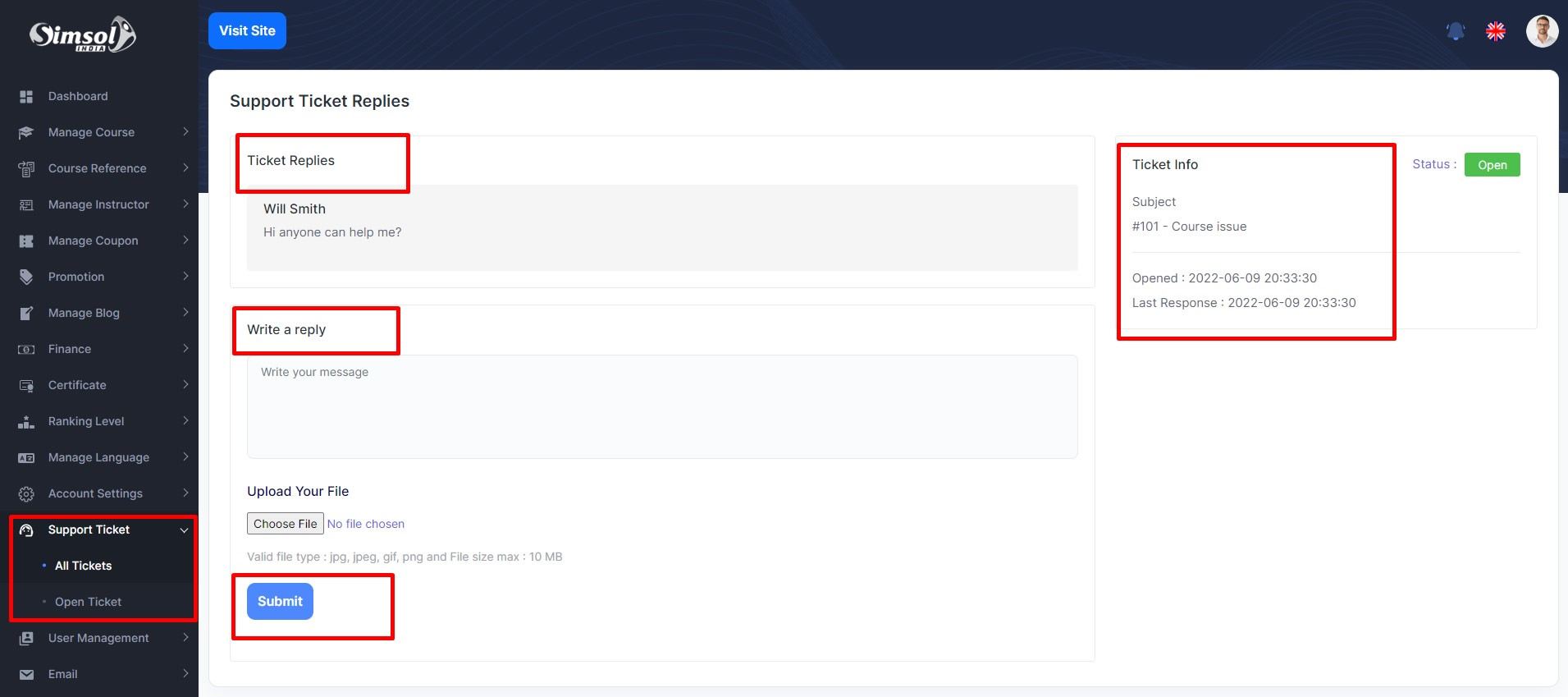
If any user needs any help/support form the admin or administration he can create a ticket from support in the front end. And the admin will get all this ticket here. He will manage, answer, delete it from here.
User Management
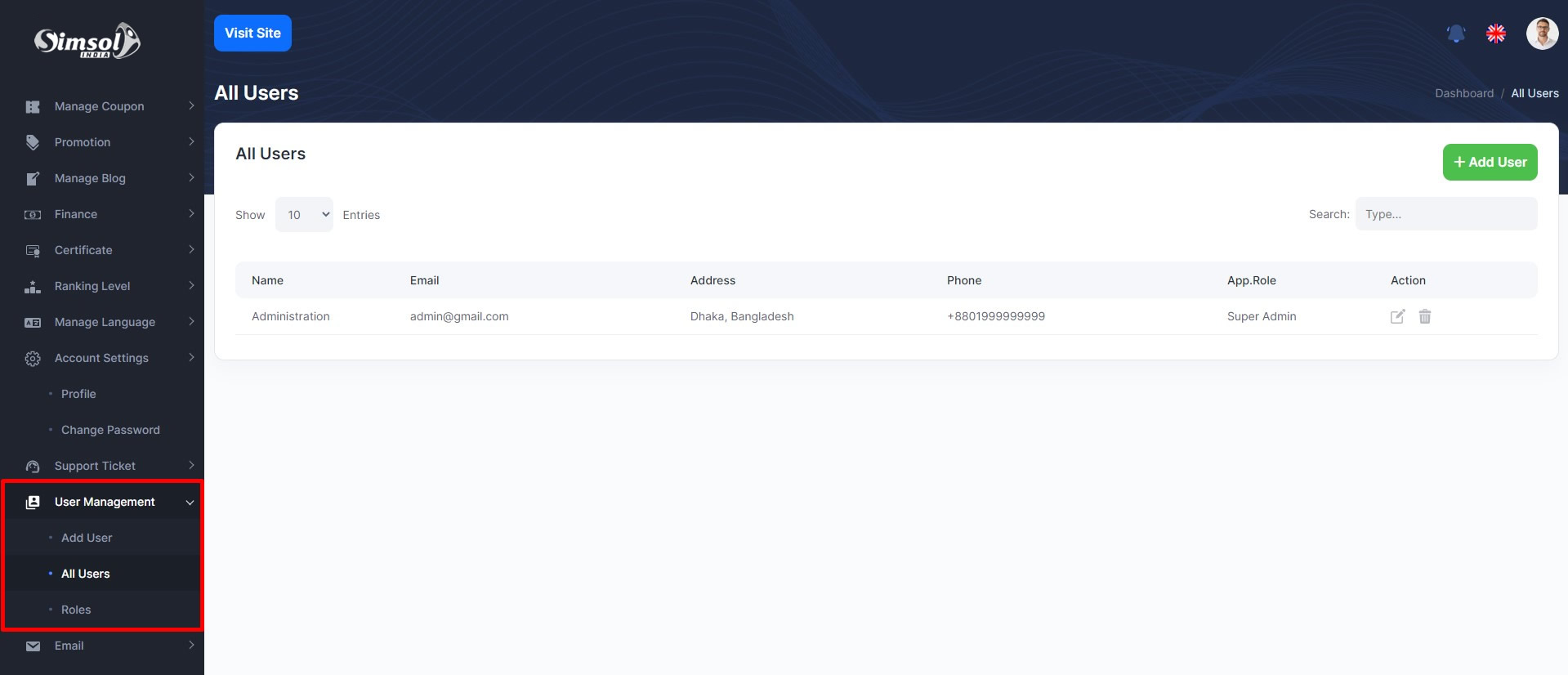
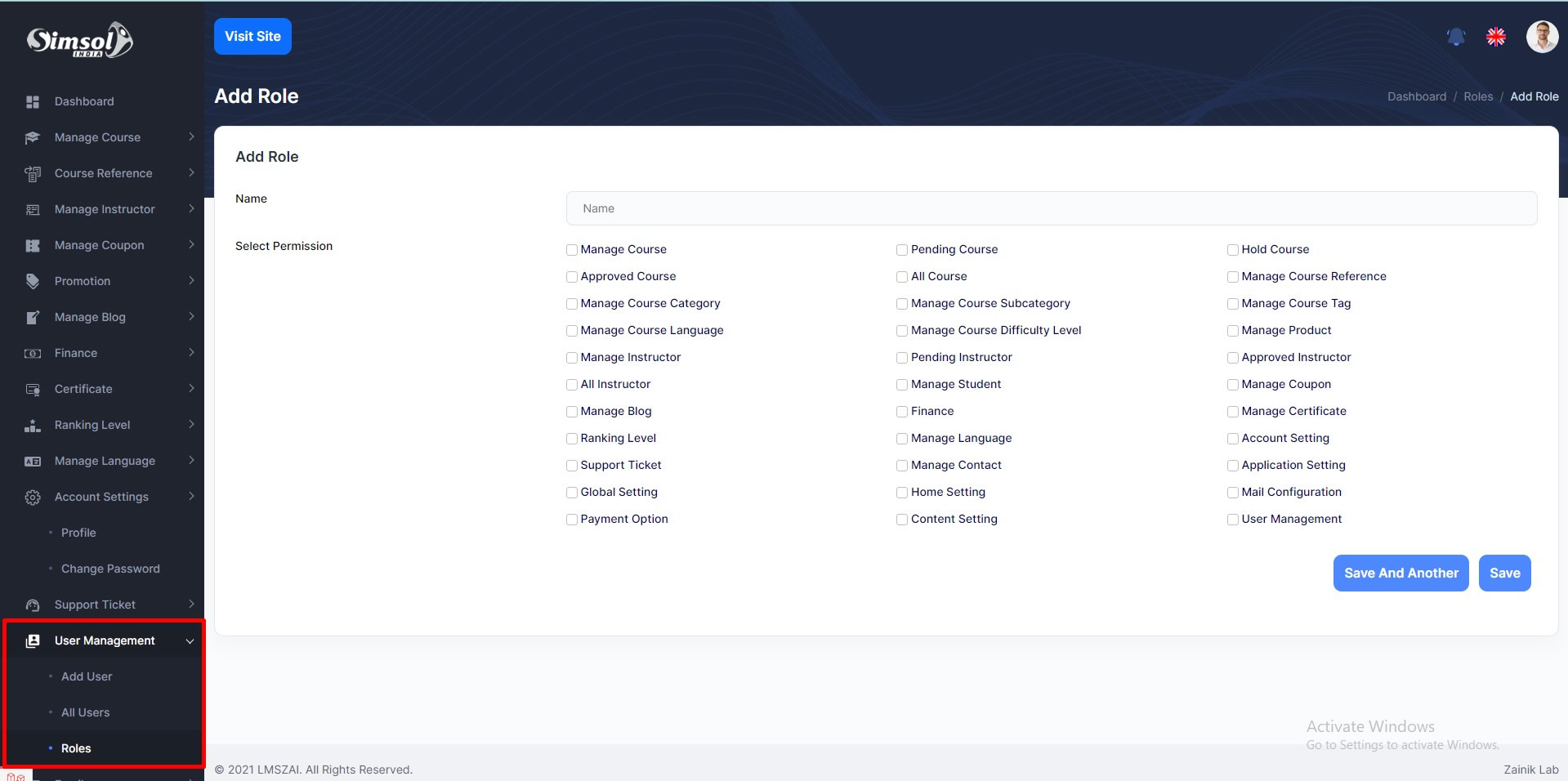
Admin can see admin list
Admin can create email template ad send email instructor and student.
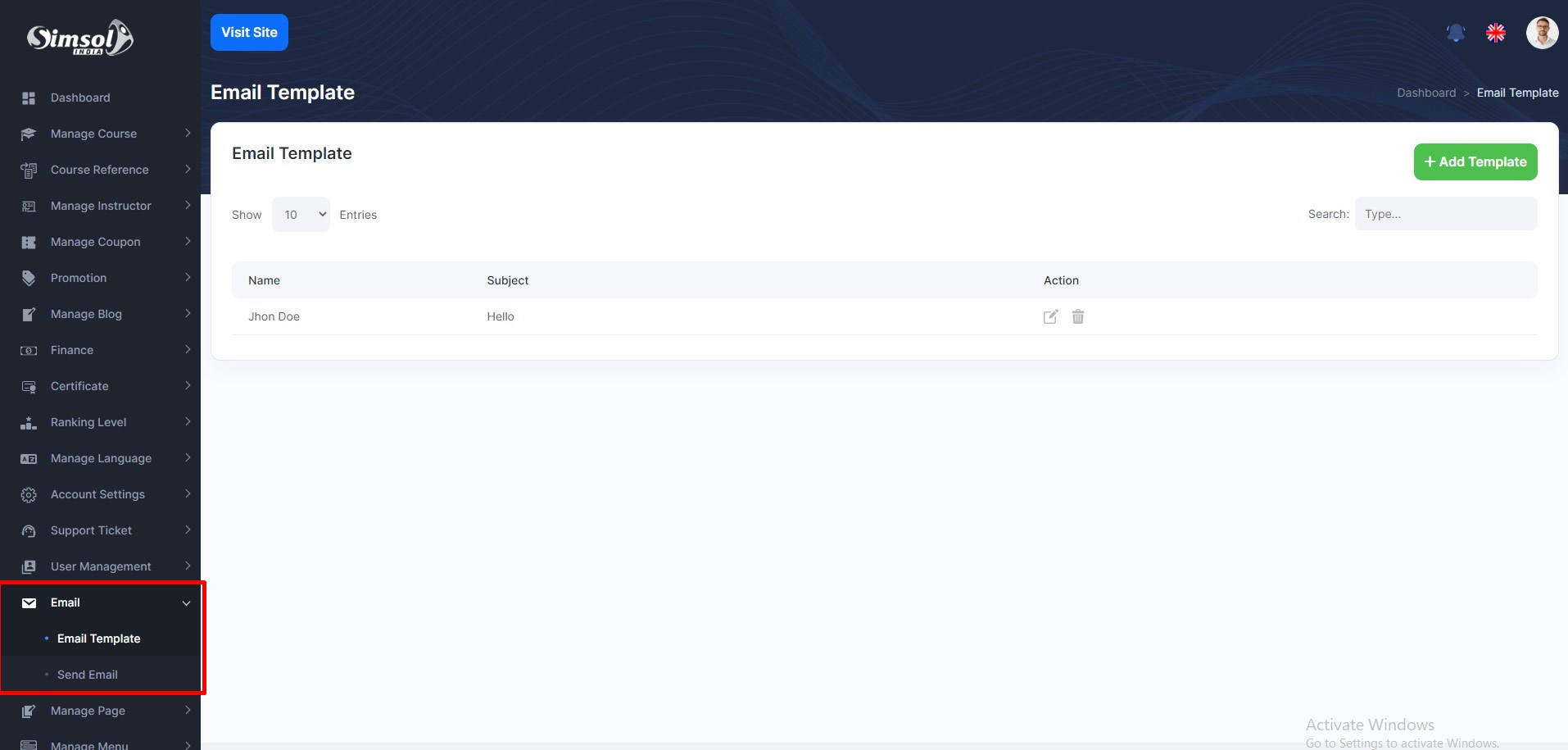
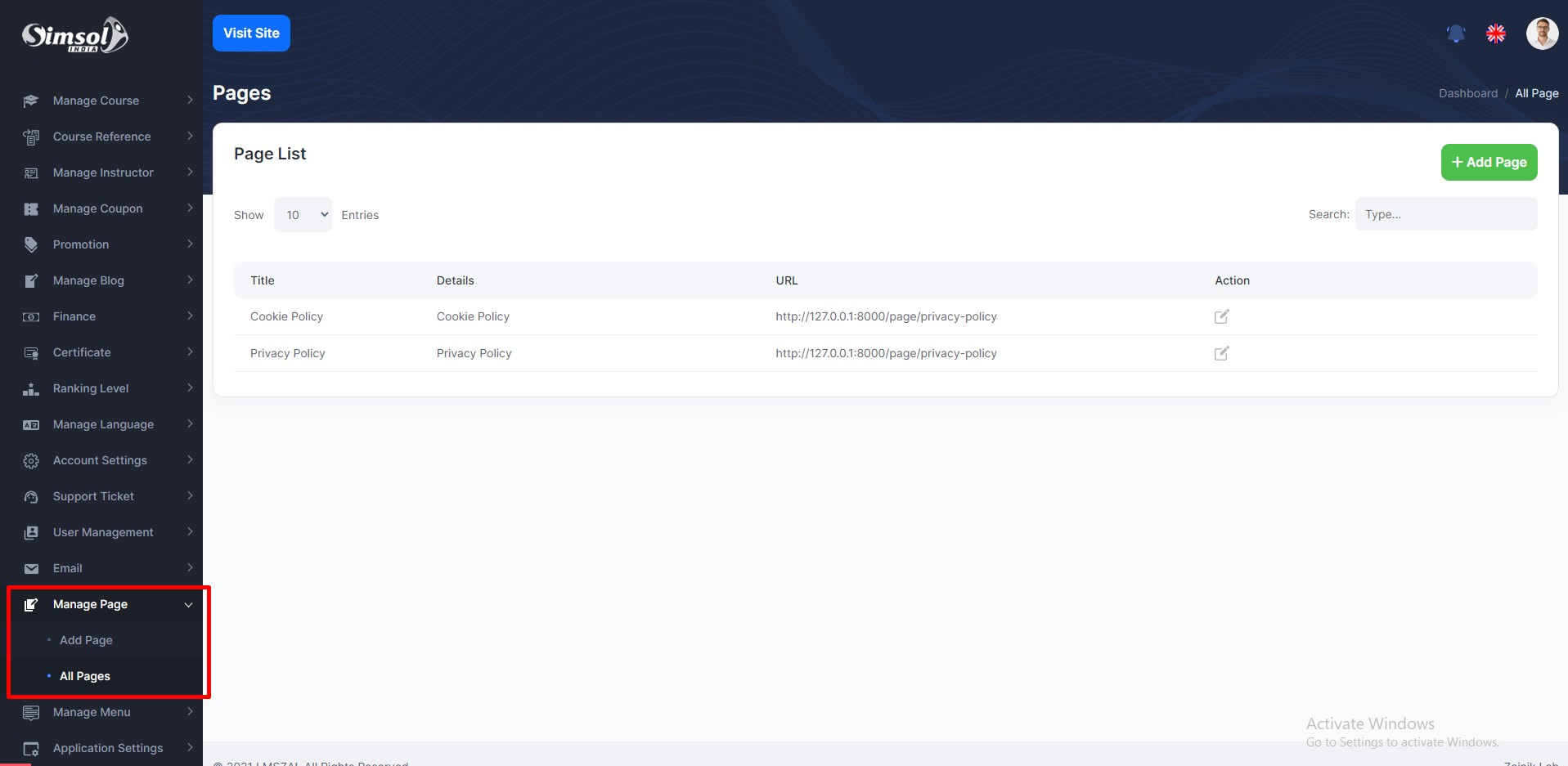
Manage page
Admin can create dynamic pages and show front pages
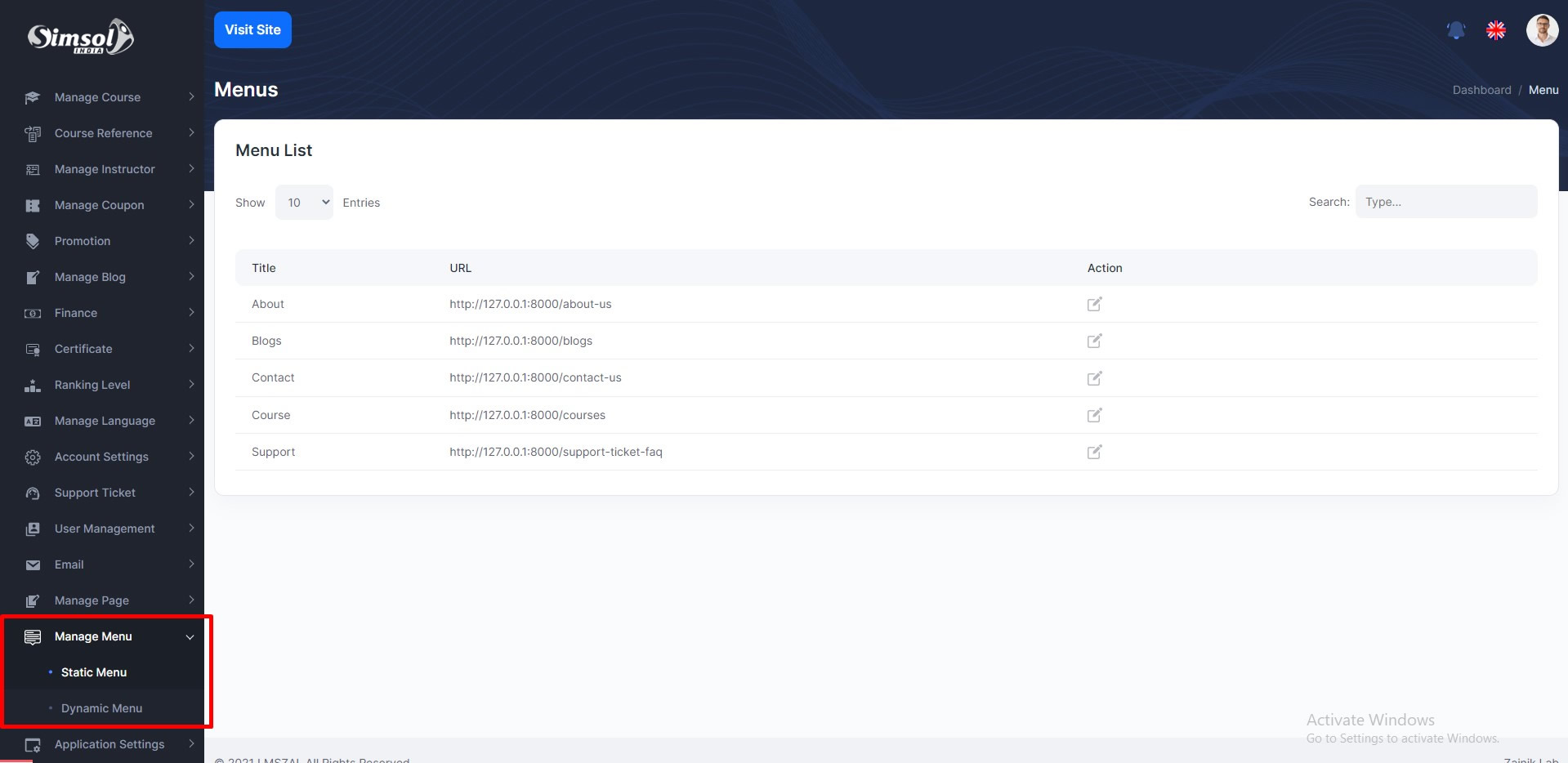
Manage menu
Admin can create, update, delete dynamic menu, static menu rename and show front pages
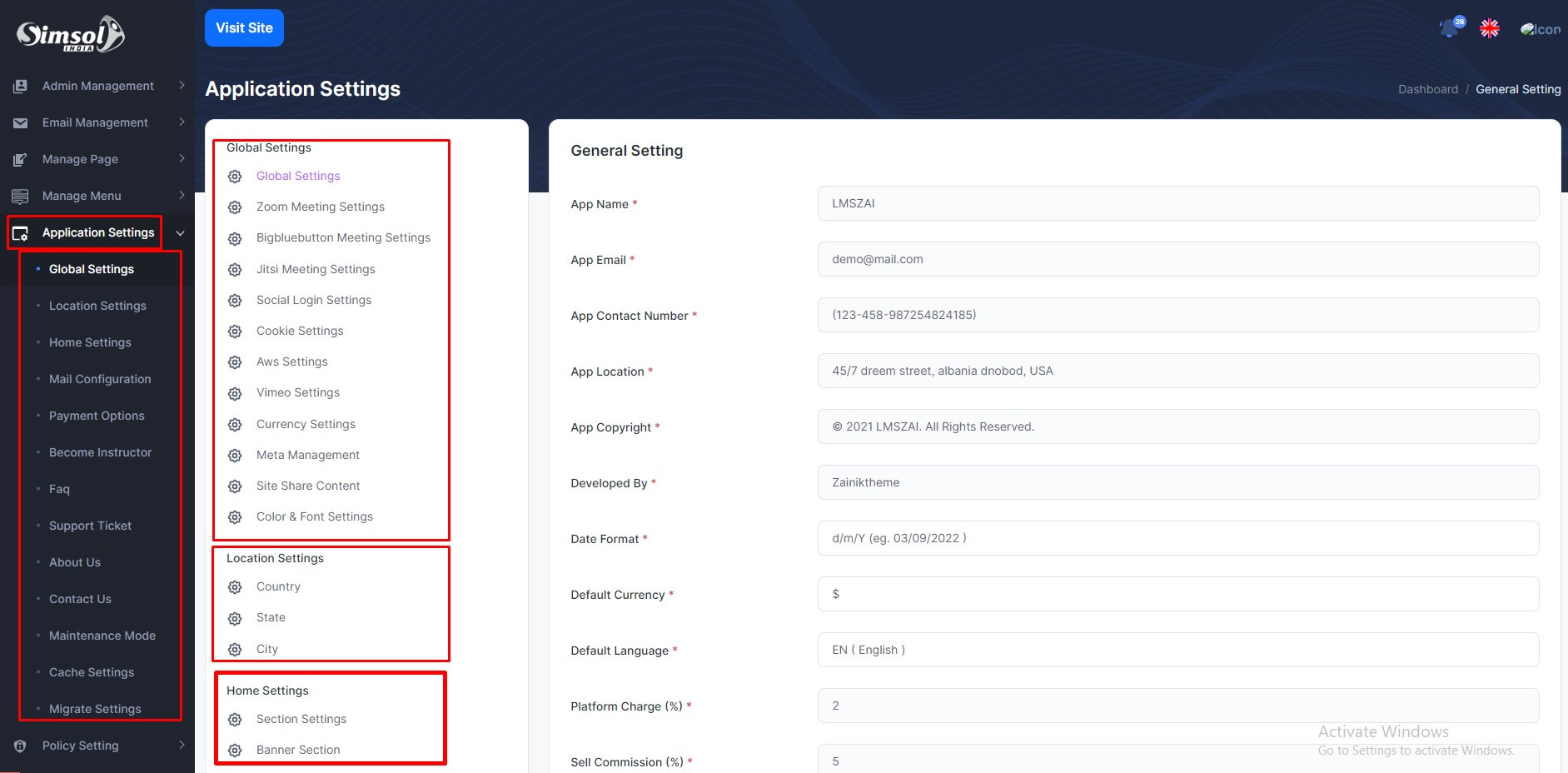
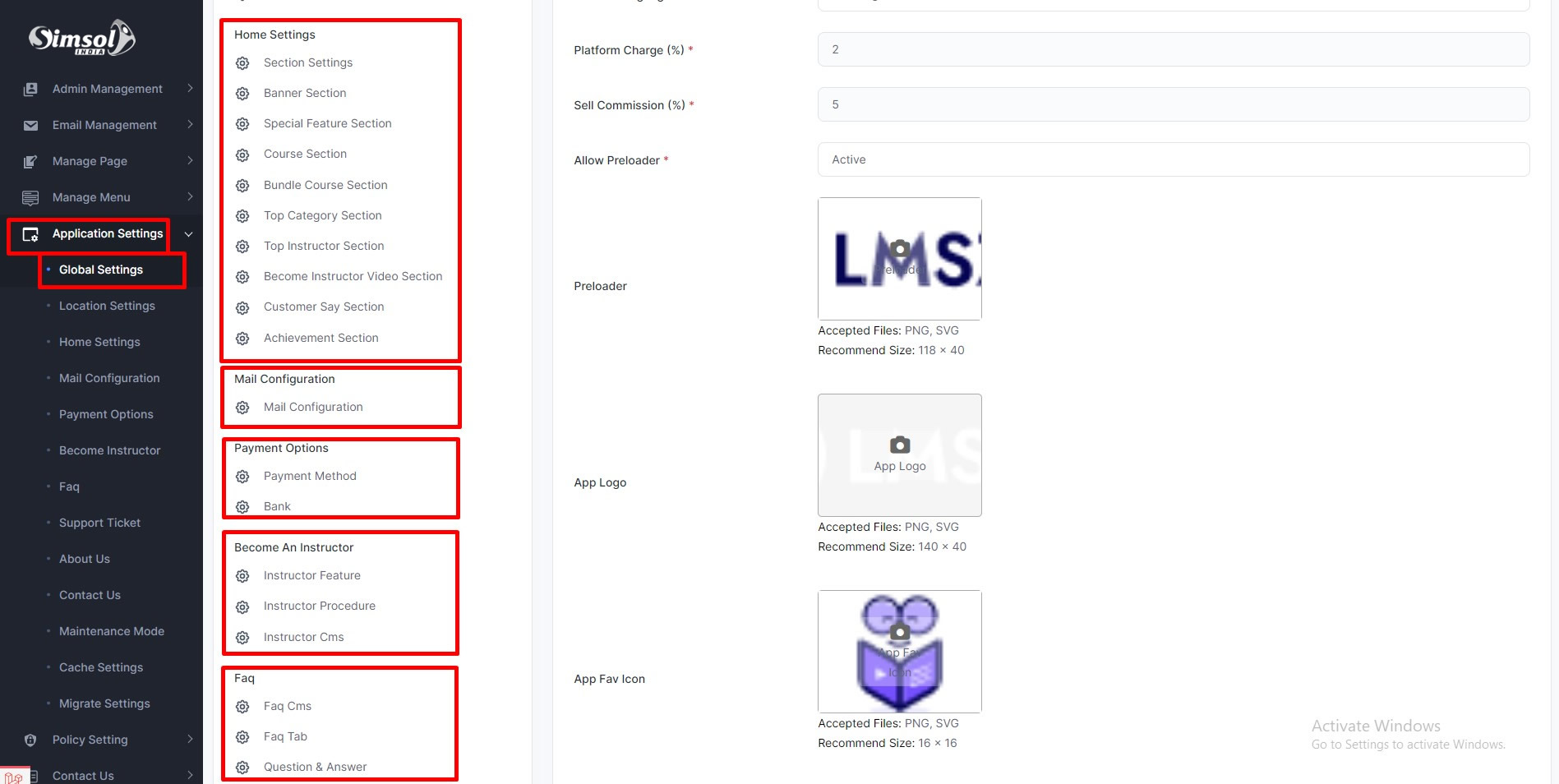
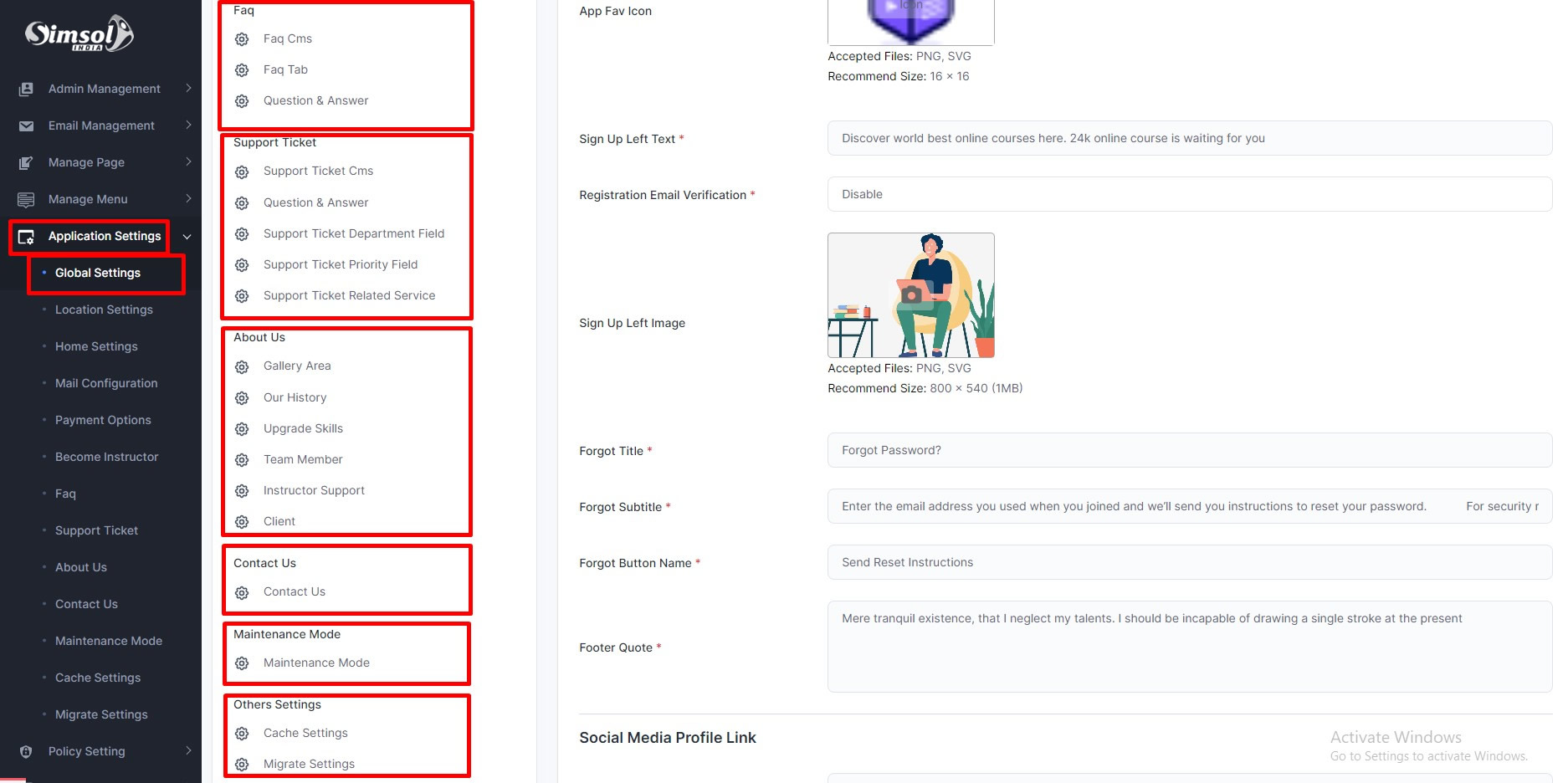
Application Settings
Admin can manage Simsol platform form here. You can see all the changes
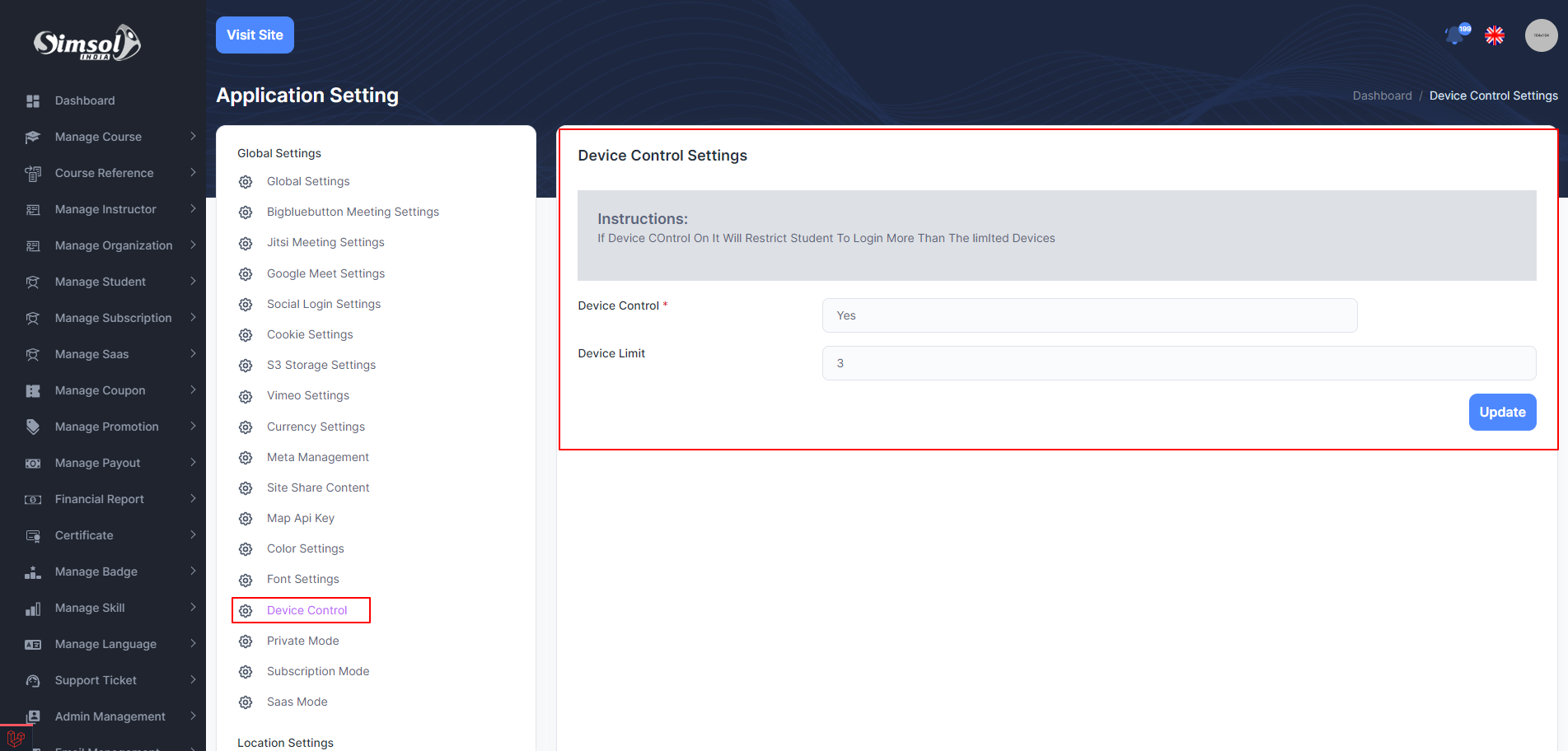
Device Control
Admin can control student login device
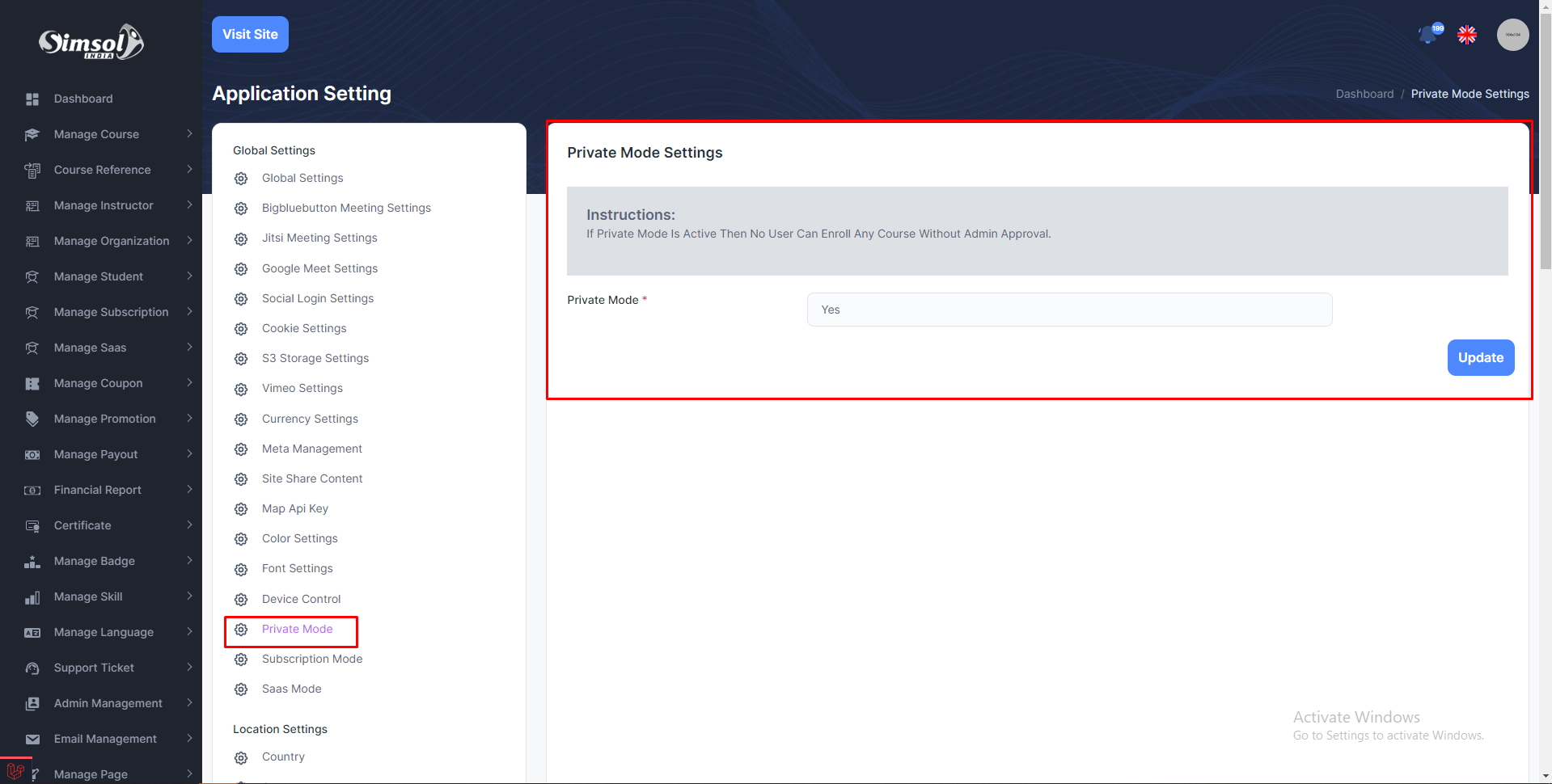
Private Mode
Admin can manage website mode
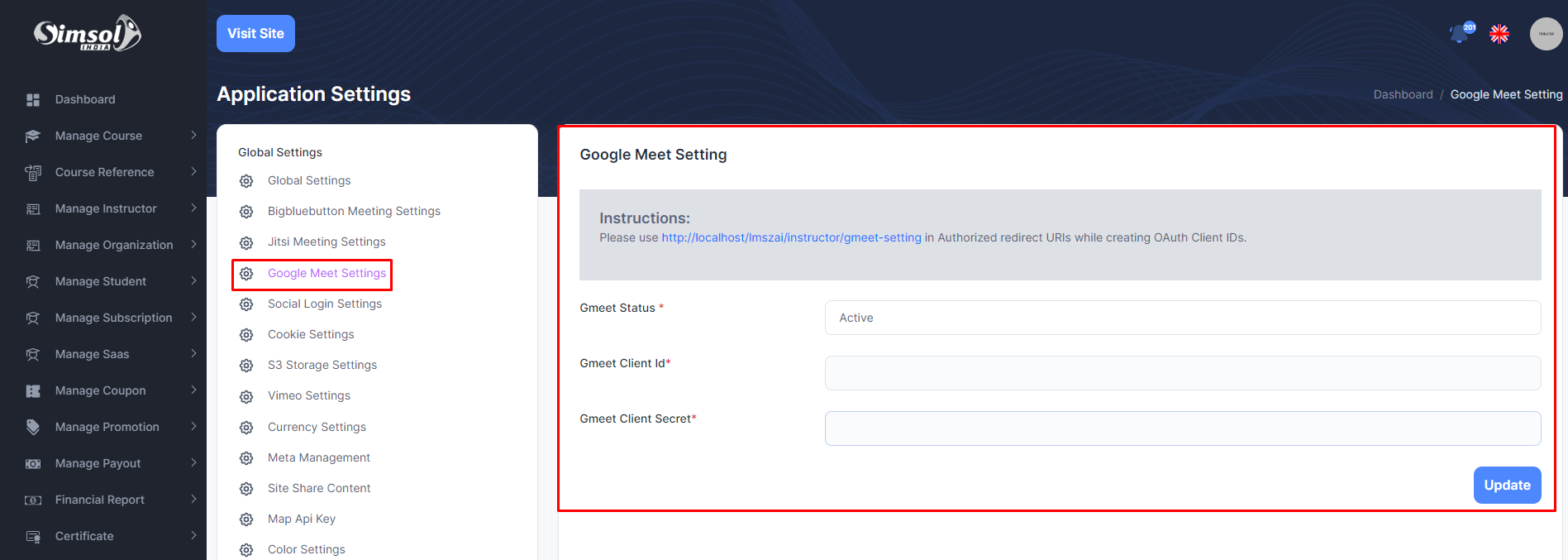
Google Meet
Admin can manage google meet. You need to give the google oAuth Credentials here. To generate the key you can follow the link Link
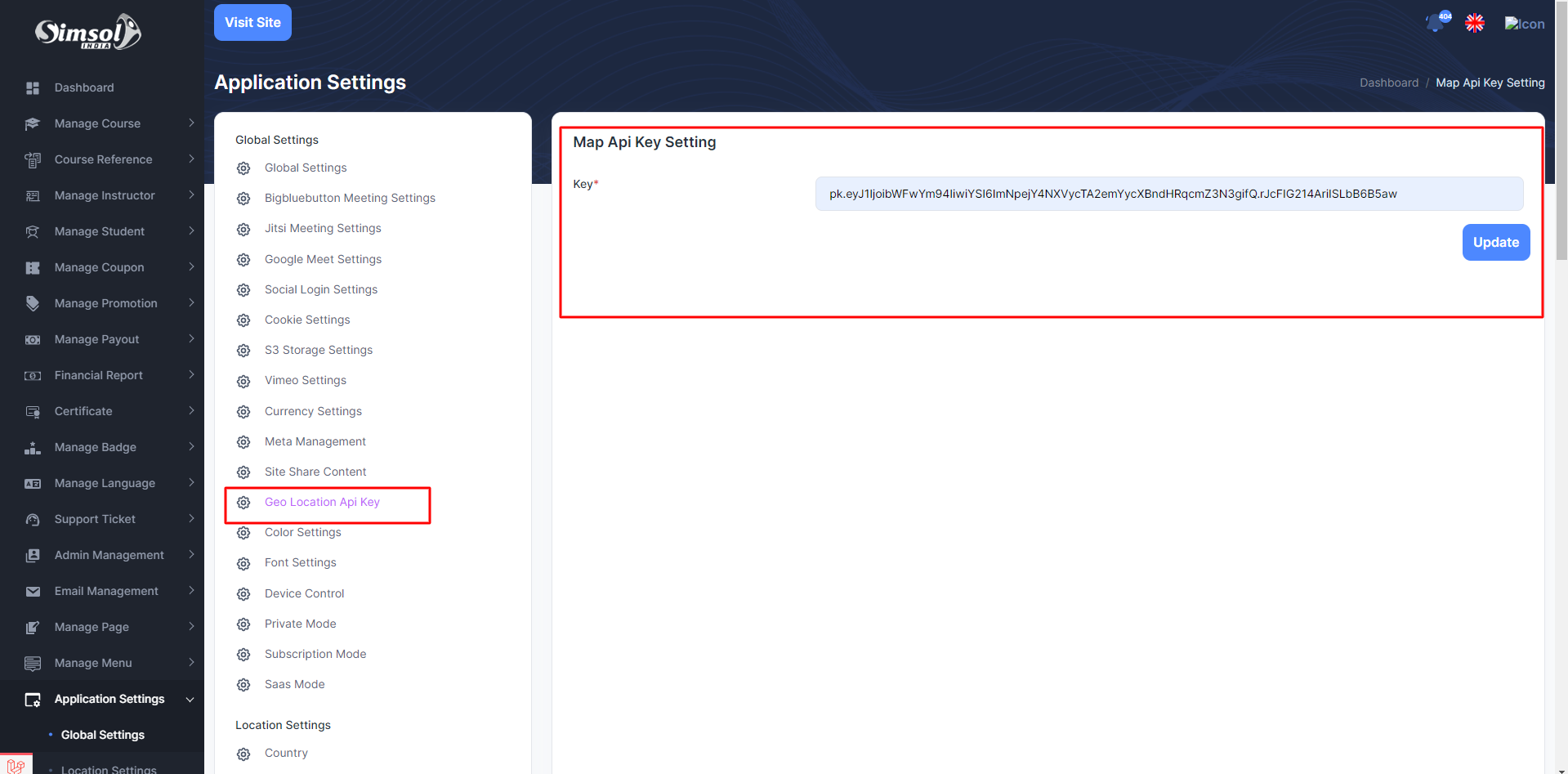
Geo-Location
Admin can manage geo-location map. Admin need to setup the credentials here. You can collect the credentials from the link or official website of Link
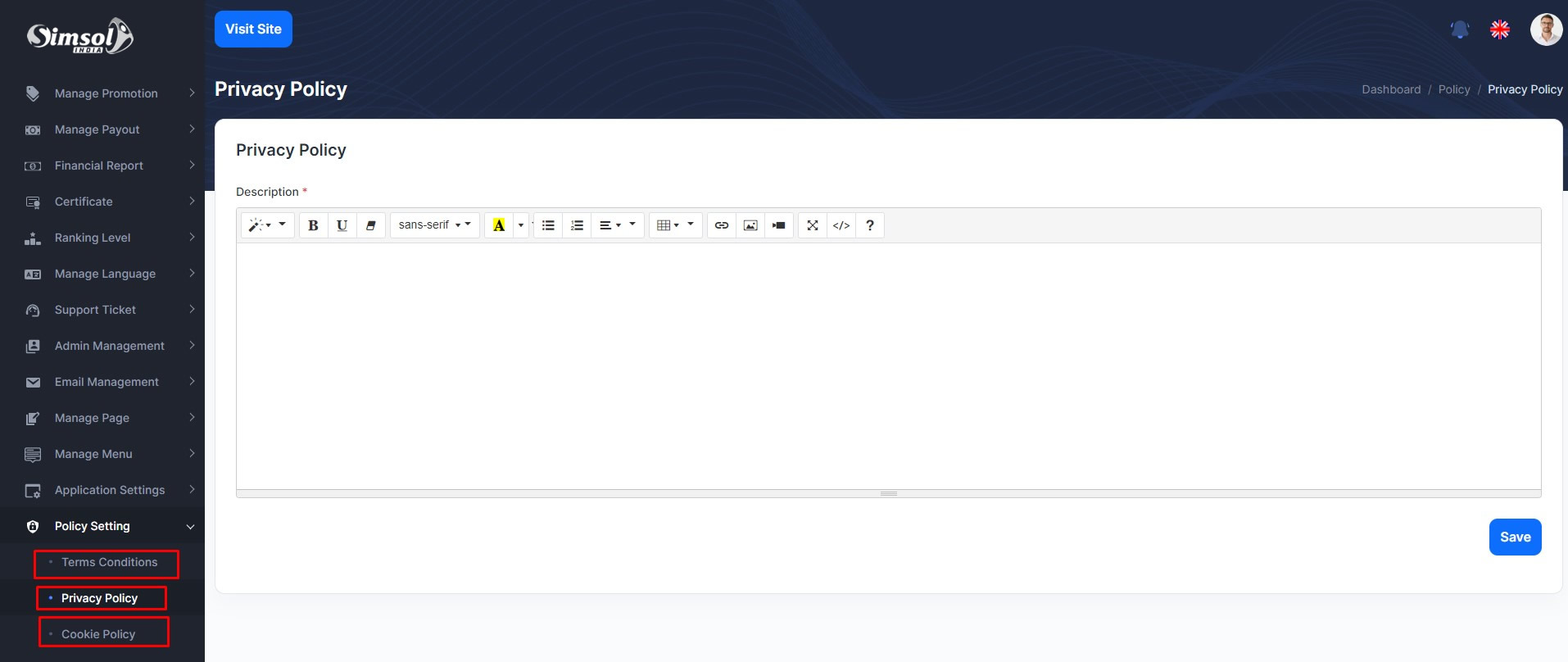
Policy Settings
Admin can manage privacy policy and cookie policy
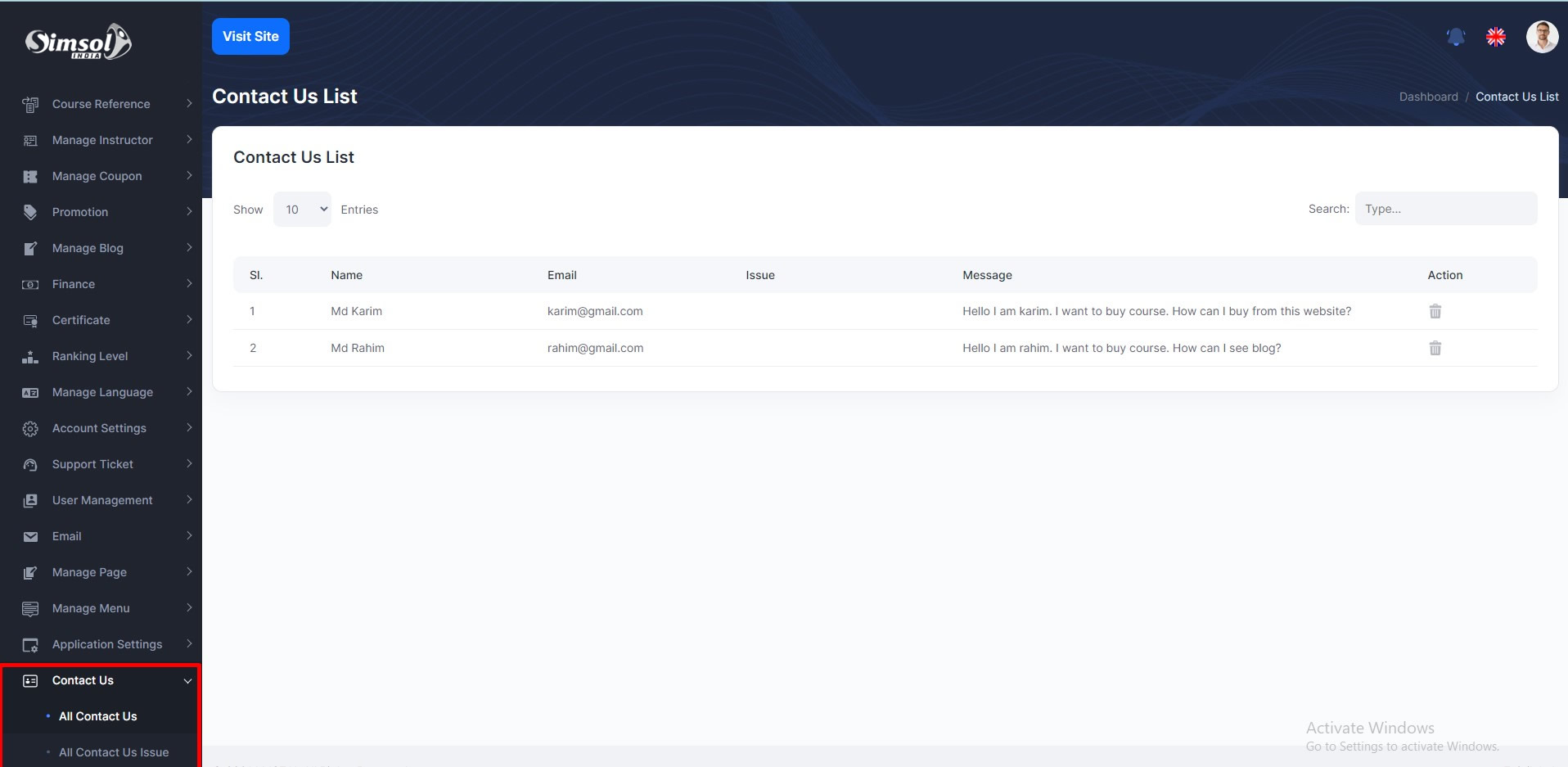
Contact Us
If any user wants to contact with admin. User send email from frontend contact us page. admin can see from here
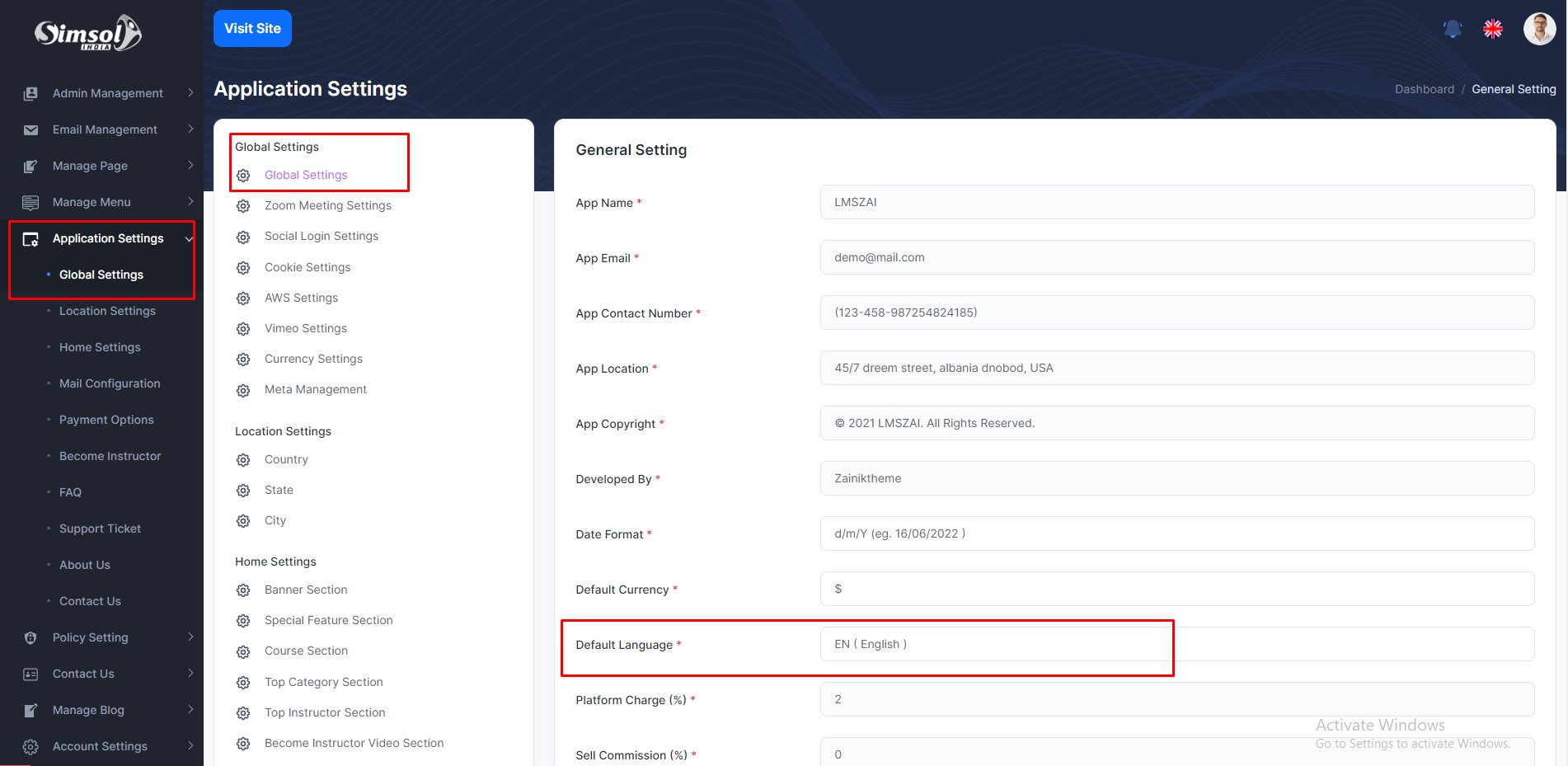
How to change language?
If admin wants to change application default language. Admin can change from here.
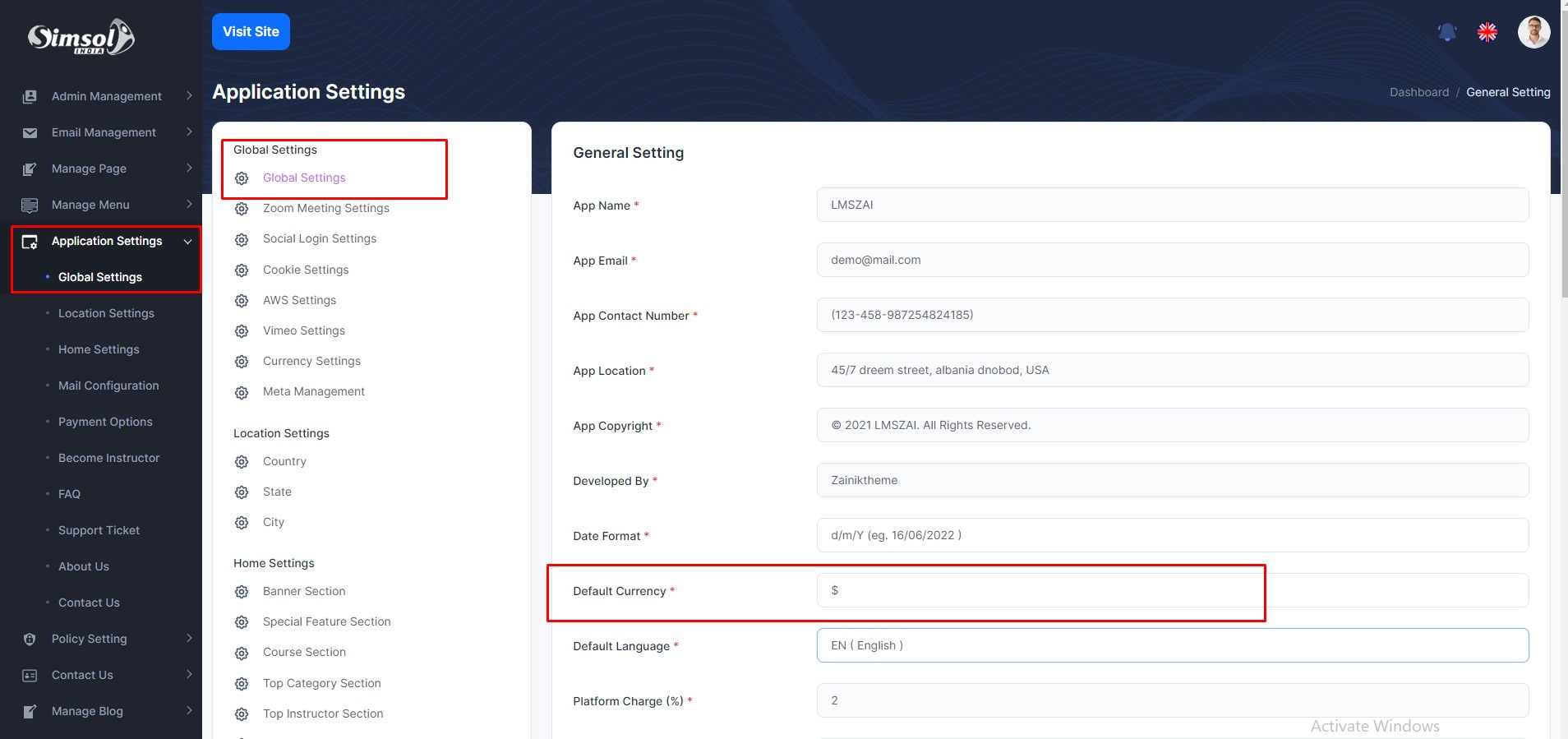
How to change currency?
If admin wants to change application default currency. Admin can change from here.
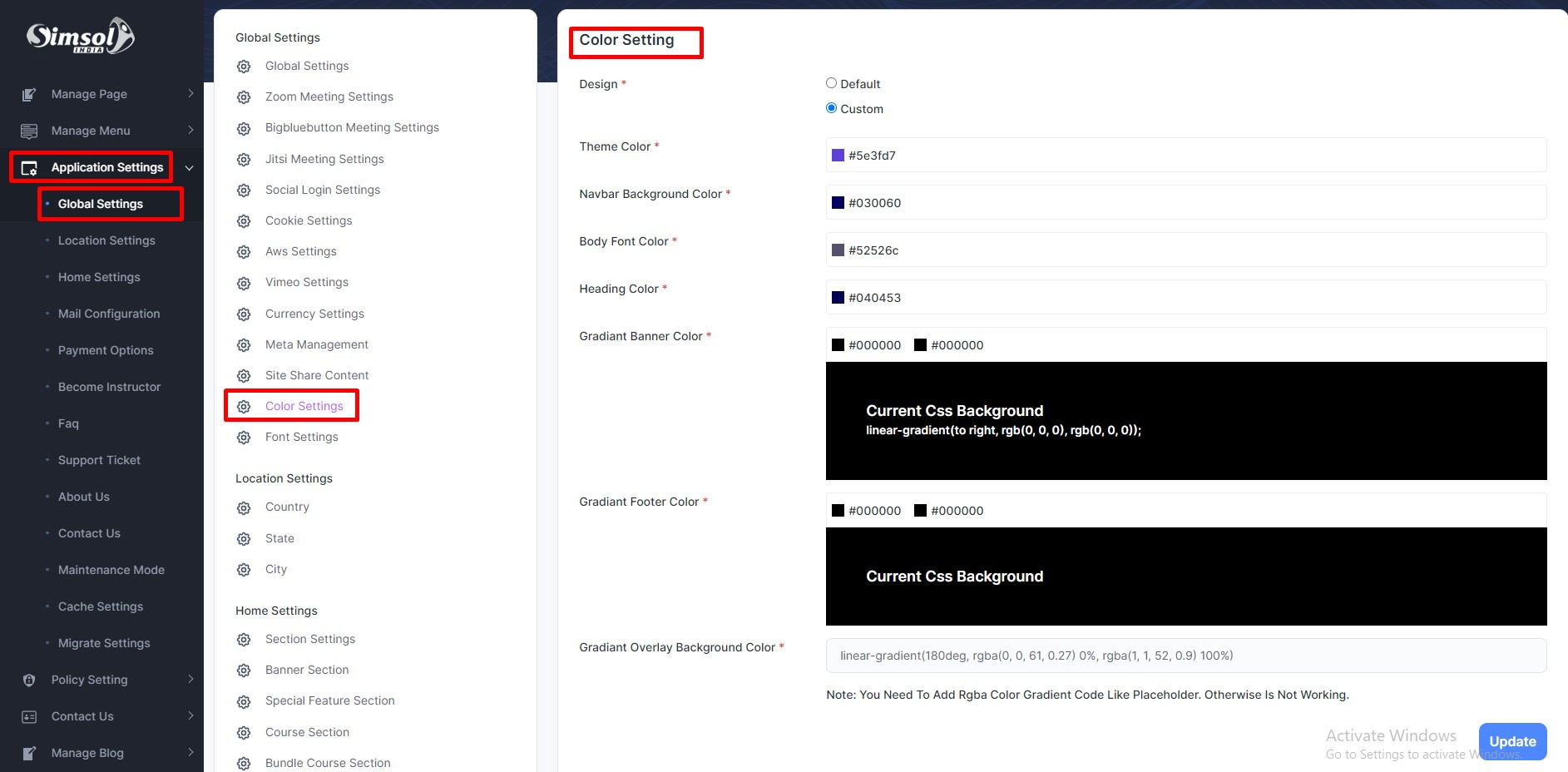
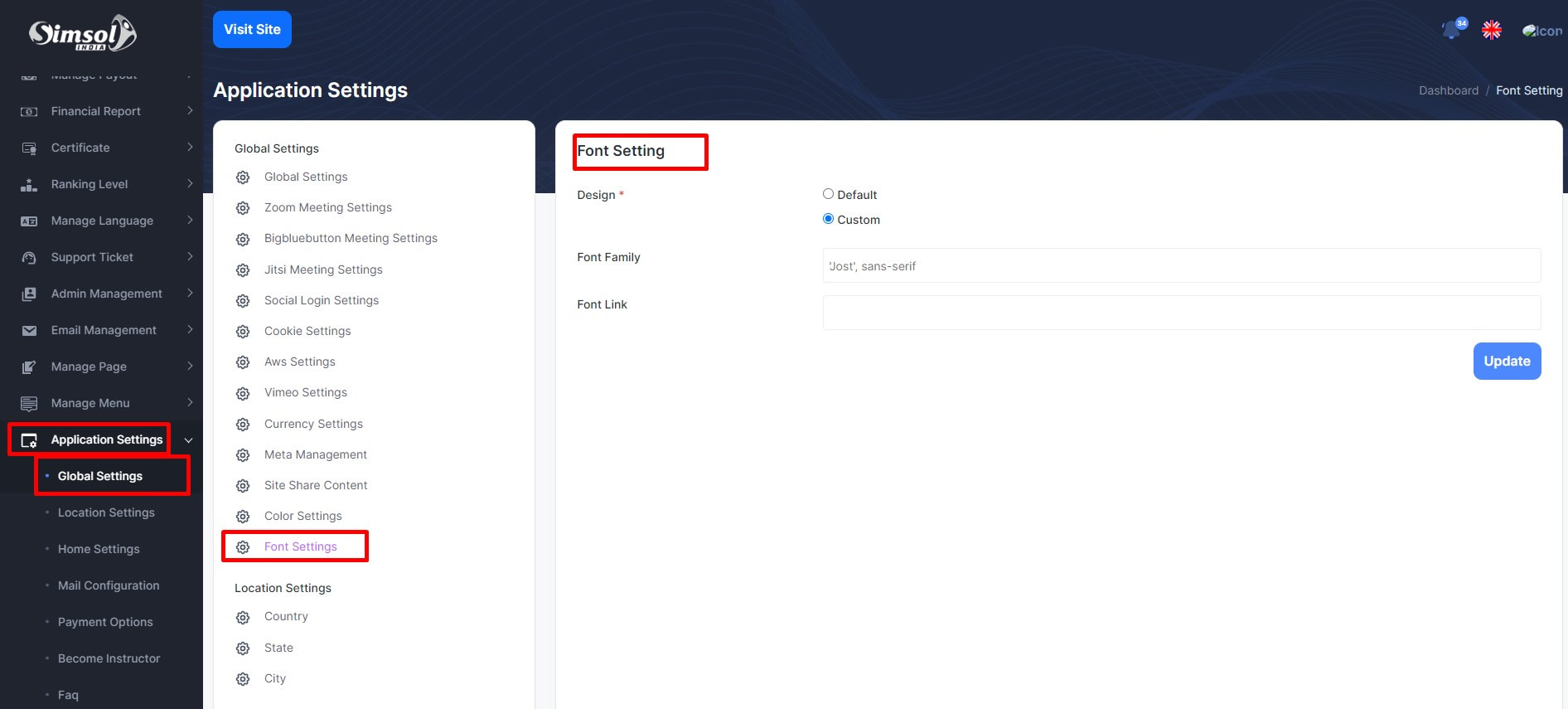
How to change color and font?
If admin wants to change application default color and font. Admin can change from here.
Manage Affiliate
Admin Panel Affiliate
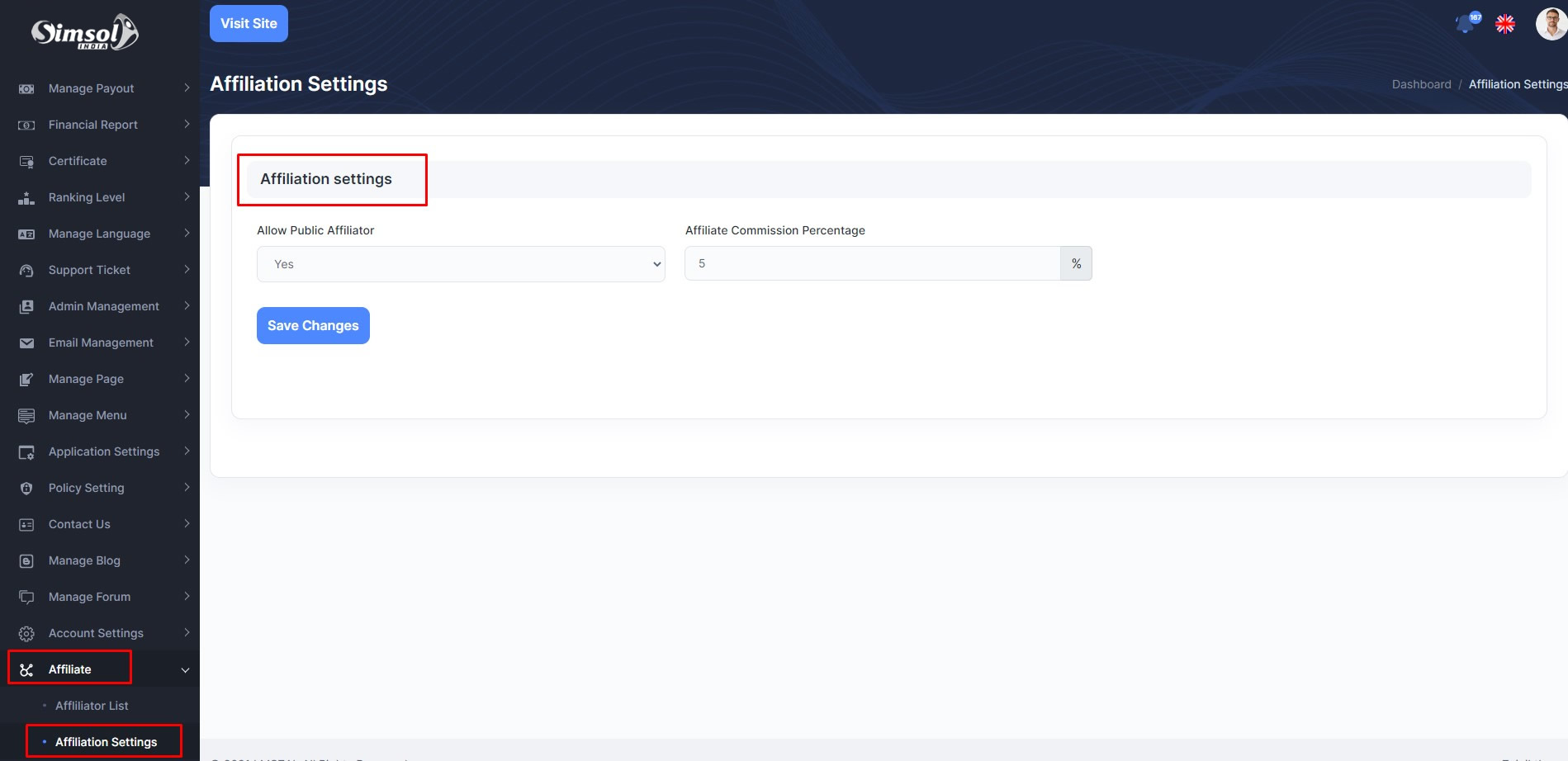
Admin can start affiliate. If Admin allow affiliate, admin can set affiliator percentage any user can affiliate courses and user get percentage. Admin can set up from admin panel. Location given here.
Admin can see the all affiliator list & when any user applies to become an affilator, admin can see all the list. And admin can change apply request status pending, suspend and approved . Location given here.
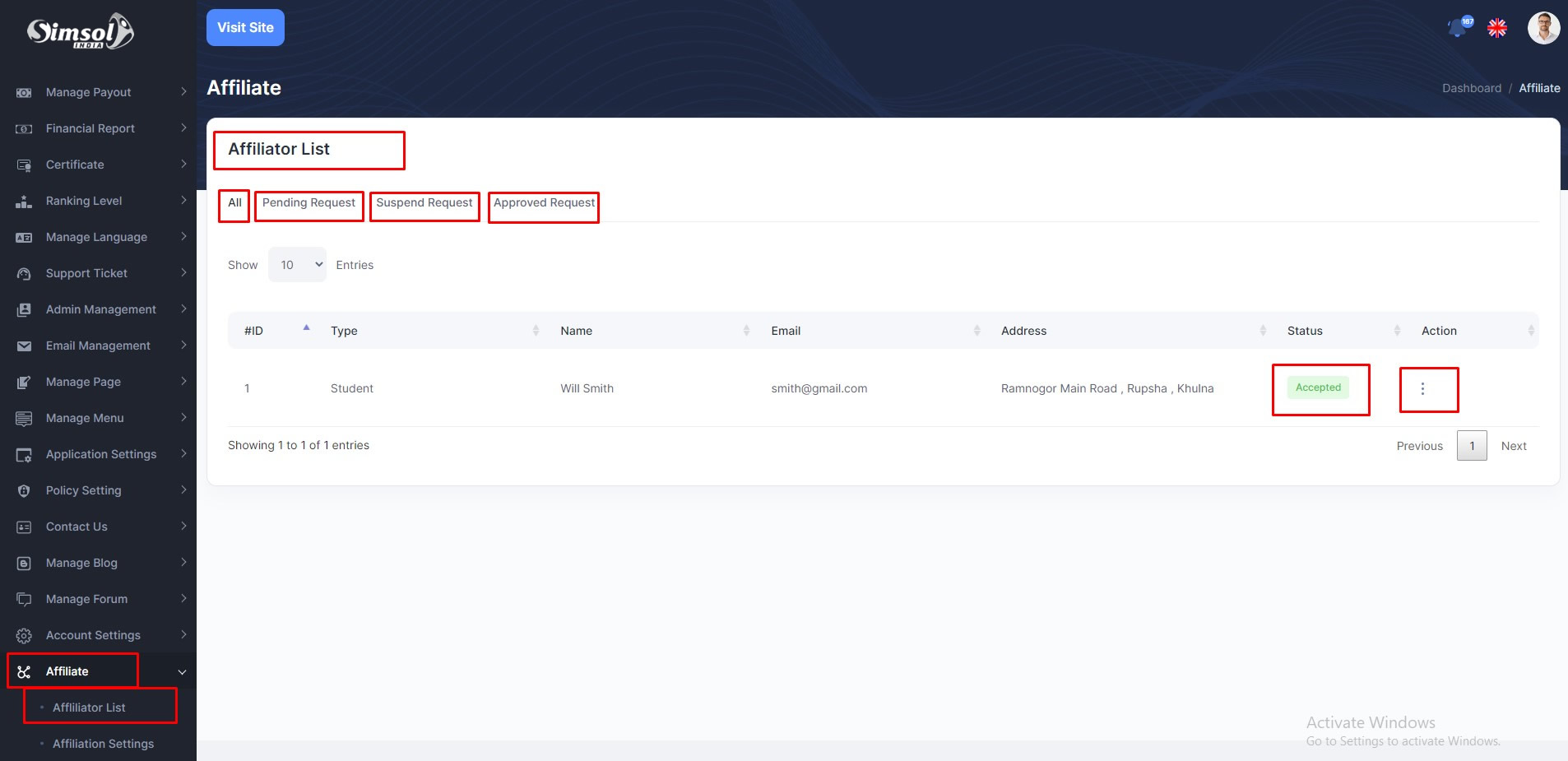
Manage Affiliate
User Panel Affiliate
At first any user need apply to become an affiliator. After affilaitor request approve. then an affiliator earn from any course using referral URL. Location given here.
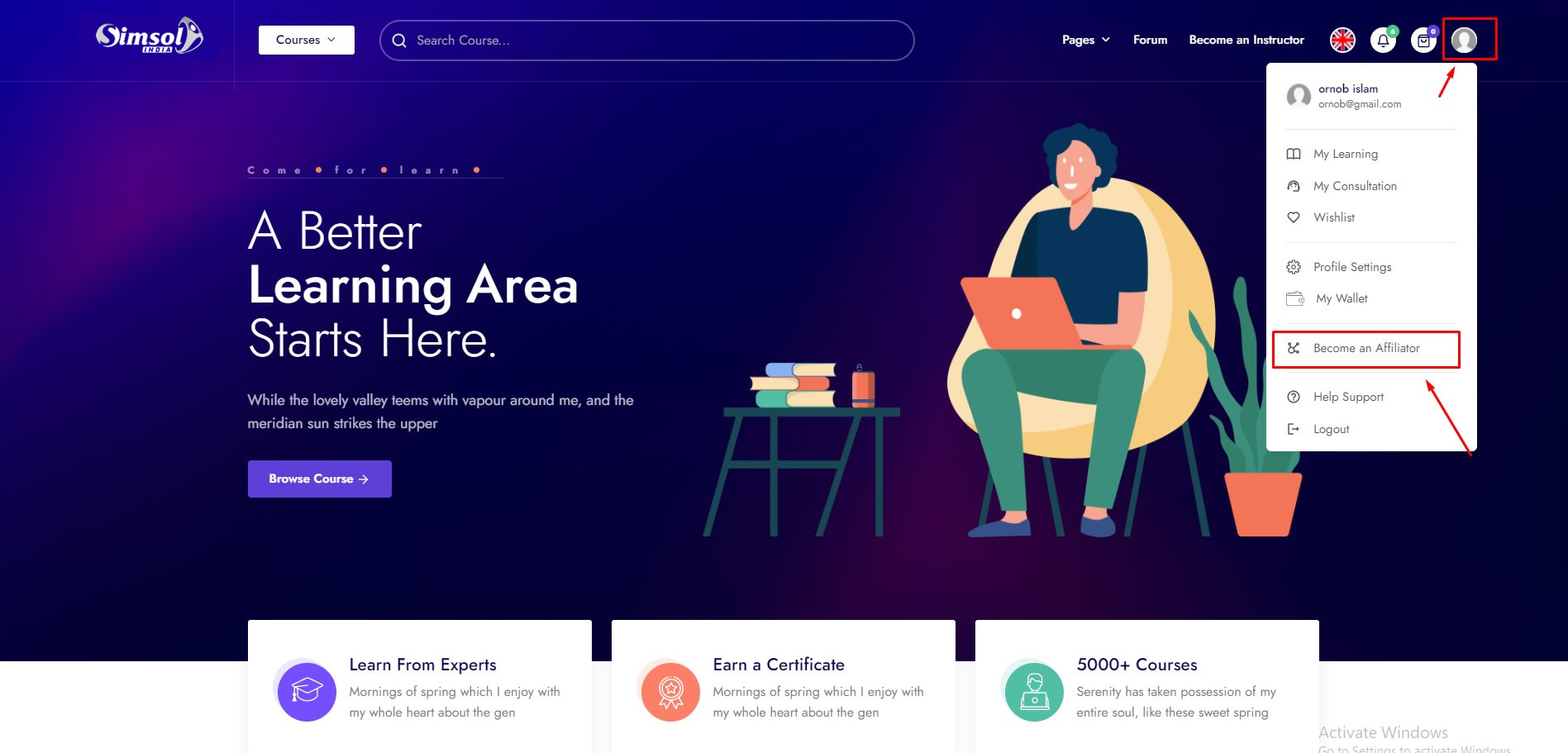
When user click Become an Affiliator . Then user can see this form. and fill up the form and apply button. Picture given here
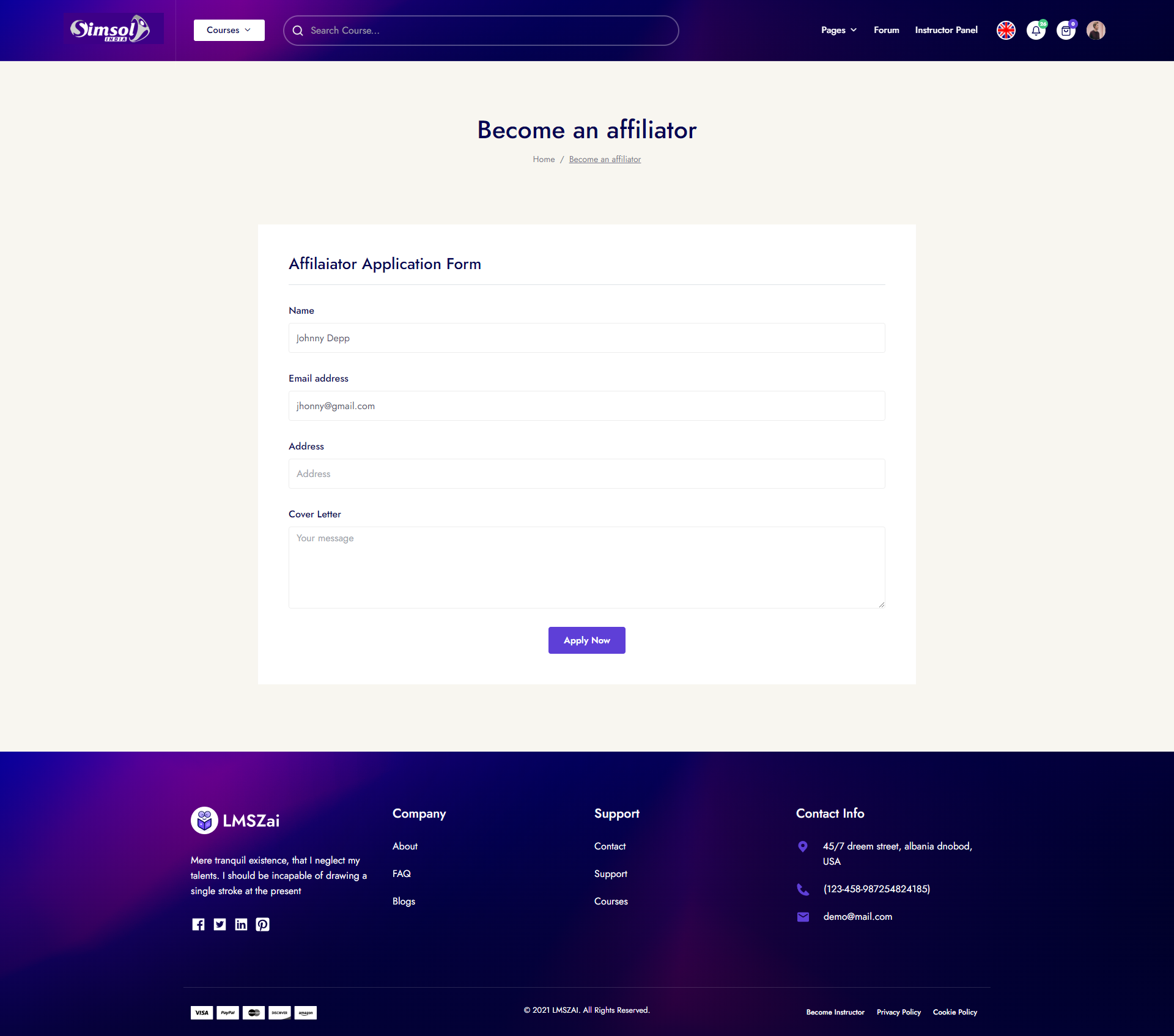
After applying, then admin can see in admin panel pending affiliator list. After admin approve user affiliator request. User can see affilator panel for any affiliator
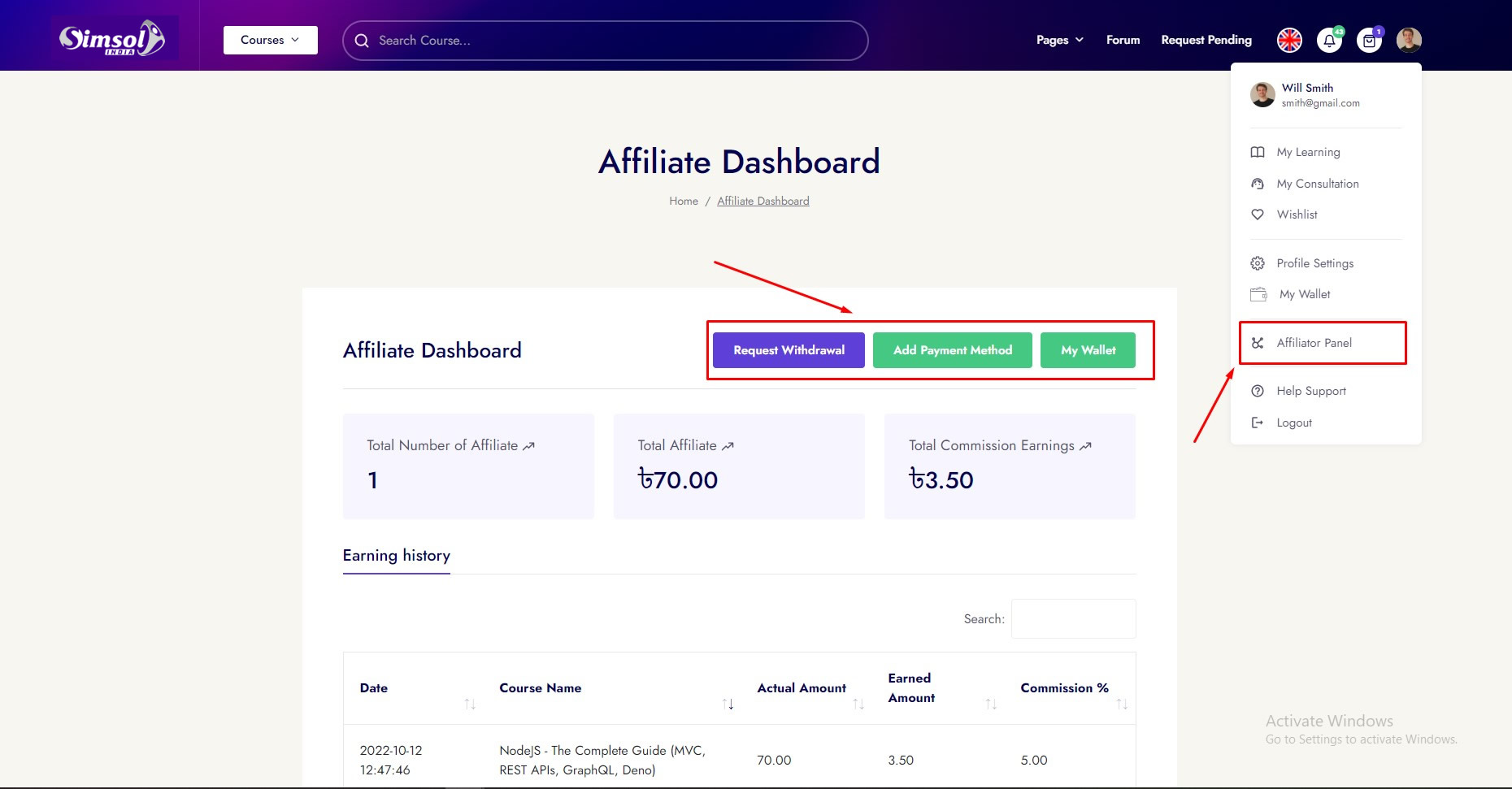
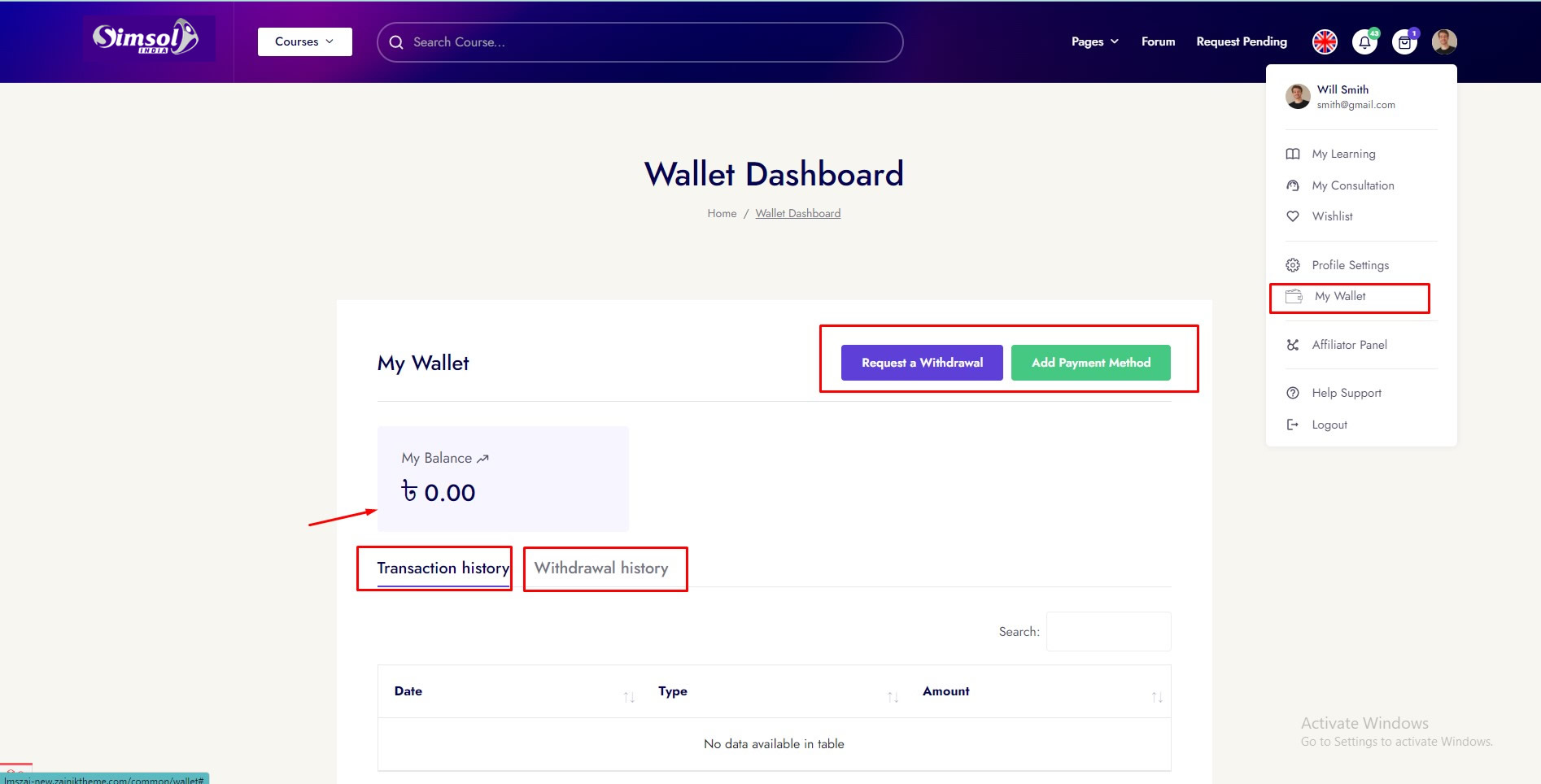
User can withdraw his/her balance using 2 payment method and see the withdrawal request and history my wallet dashboard
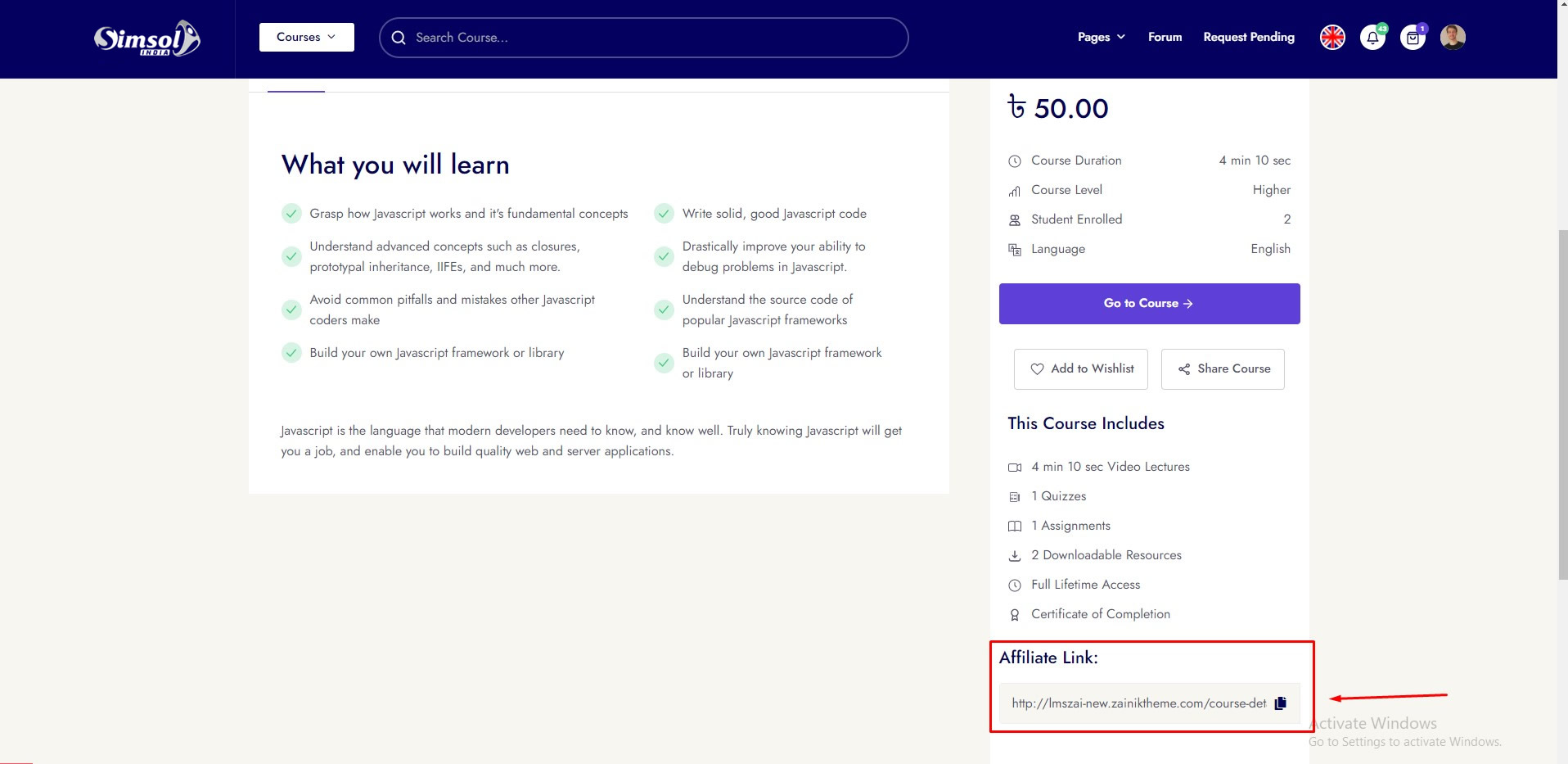
Affiliator can share his/her course affiliator url from course details. Every course has different affiliator url. Location image given here. After browse this url, who is purchase this course. Automatically add money in affiliator wallet.
Installable
Instructor Panel & Organization Panel
Zoom Live Class
In Simsol, you can add Zoom Live Class to enhance different features after configuring this, the Instructors/Organizations can take live video classes on the zoom live-streaming service.
Every Instructor/Organization need to add different zoom credentials.
To enhance this feature, you have to set many field on your application. Now, you have to follow the easy steps to set up zoom:
Installable
Admin Panel
Google Meet
In Simsol, you can add Google Meet to enhance different features after configuring this, the Instructors/Organizations can take live video classes on the google Meet live-streaming service.
Admin need to add the google calender oAuth credentials
To enhance this feature, you have to set many field on your application. Now, you have to follow the easy steps to set up google Meet:
Installable
Instructor Panel & Organization Panel
Google Meet
In Simsol, you can add Google Meet to enhance different features after configuring this, the Instructors/Organizations can take live video classes on the google Meet live-streaming service.
Every Instructor/Organization need to add different google Meet credentials.
To enhance this feature, you have to set many field on your application. Now, you have to follow the easy steps to set up google Meet:
Installable
Admin Panel
BigBlueButton Live Class
In Simsol, you can add BigBlueButton Live Class to enhance different features after configuring this, the Instructors can take live video classes on the BigBlueButton live-streaming service.
To enhance this feature, you have to set BBB Status, BBB SECURITY SALT, BBB SERVER BASE URL on your application. Now, you have to follow the easy steps to setup BigBlueButton:
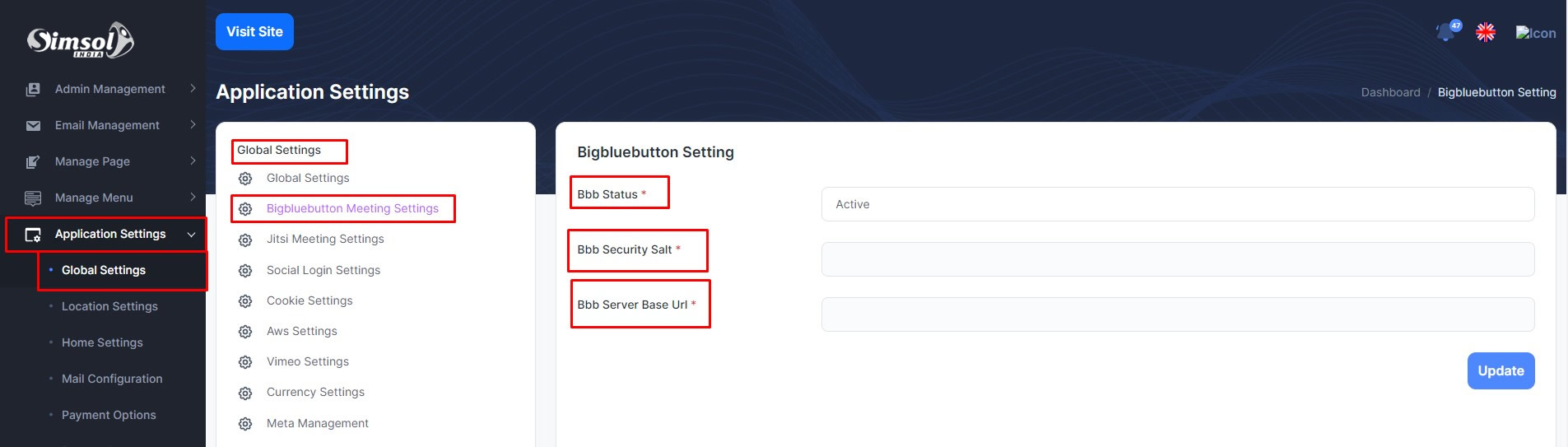
Installable
Admin Panel
Geo-location
In Simsol, you can add Geo-location in every user to filter the data in instructors page.
To enhance this feature, you have to set the geolocalize mapbox api from admin
Jitsi Live Class
In Simsol, you can add Jitsi Live Class to enhance different features after configuring this, the Instructors can take live video classes on the Jitsi live-streaming service.
To enhance this feature, you have to set Jitsi Status, Jitsi Server Base URL on your application. Now, you have to follow the easy steps to setup Jitsi:
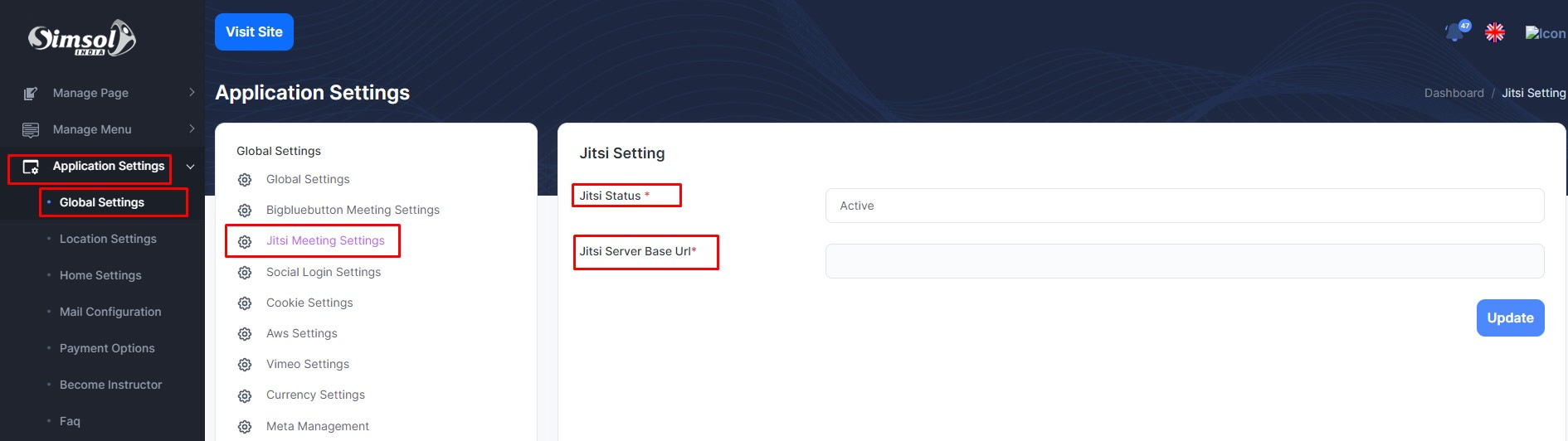
Social Login
In Simsol, you can add social login (google, facebook, twitter) to enhance different features after configuring this, Any user can login with social login.
To enhance this feature, you have to set some credentials on your application. Admin can active/deactivated option for social login. Now, you have to follow the easy steps to setup social login:
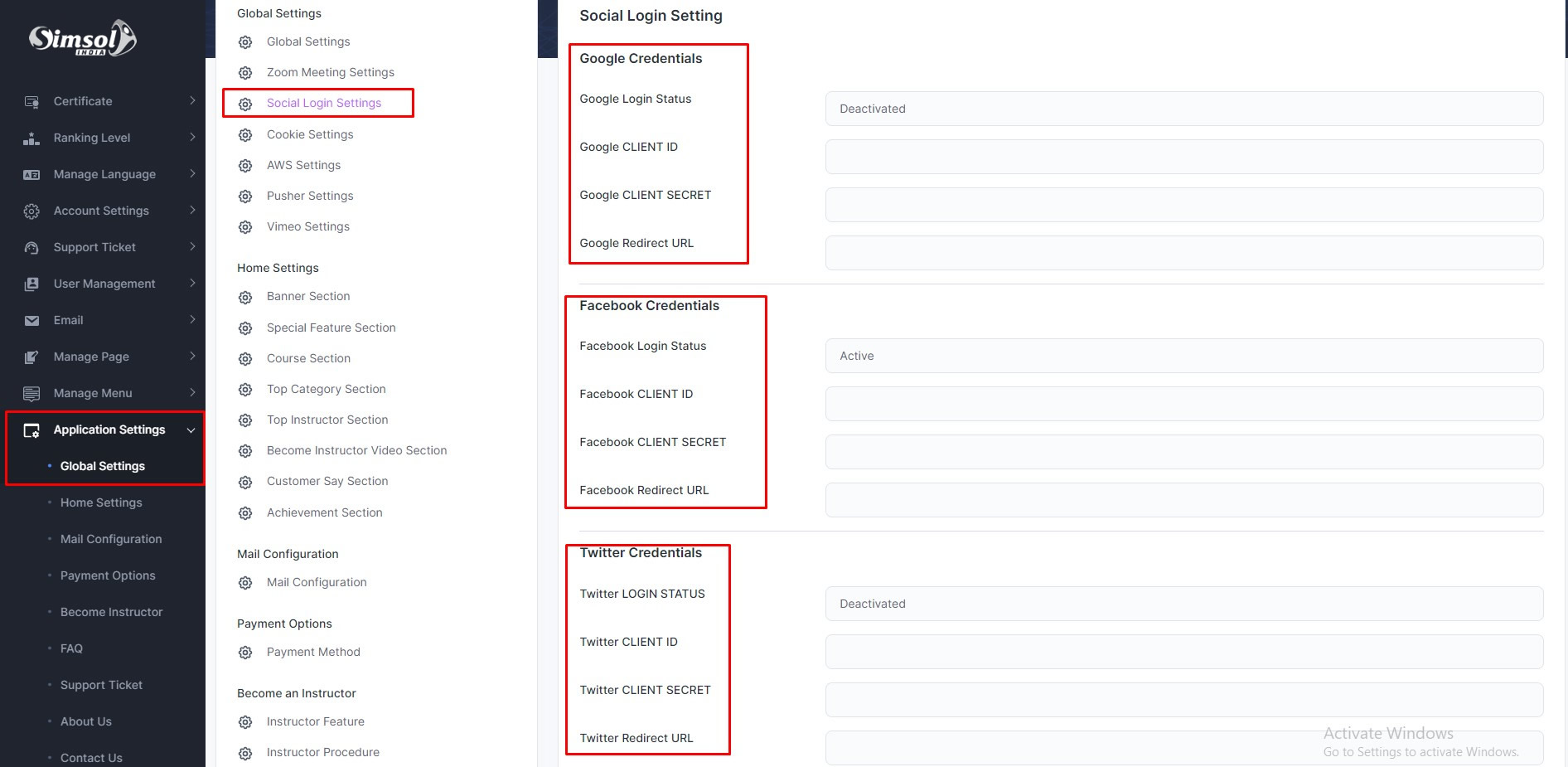
S3 Storage Setting (AWS, Wasabi, Vultr)
In Simsol, you can add s3 server to enhance different features after configuring this. This only work for video and file upload. If you want to video and file upload in s3 server. You need to add credentials
To enhance this feature, you have to set some credentials on your application. Admin can activate/deactivated option for AWS S3/Wasabi S3/Vultr S3. If you deactivate, please select Video Storage Driver = public. Now, you have to follow the easy steps to set up :
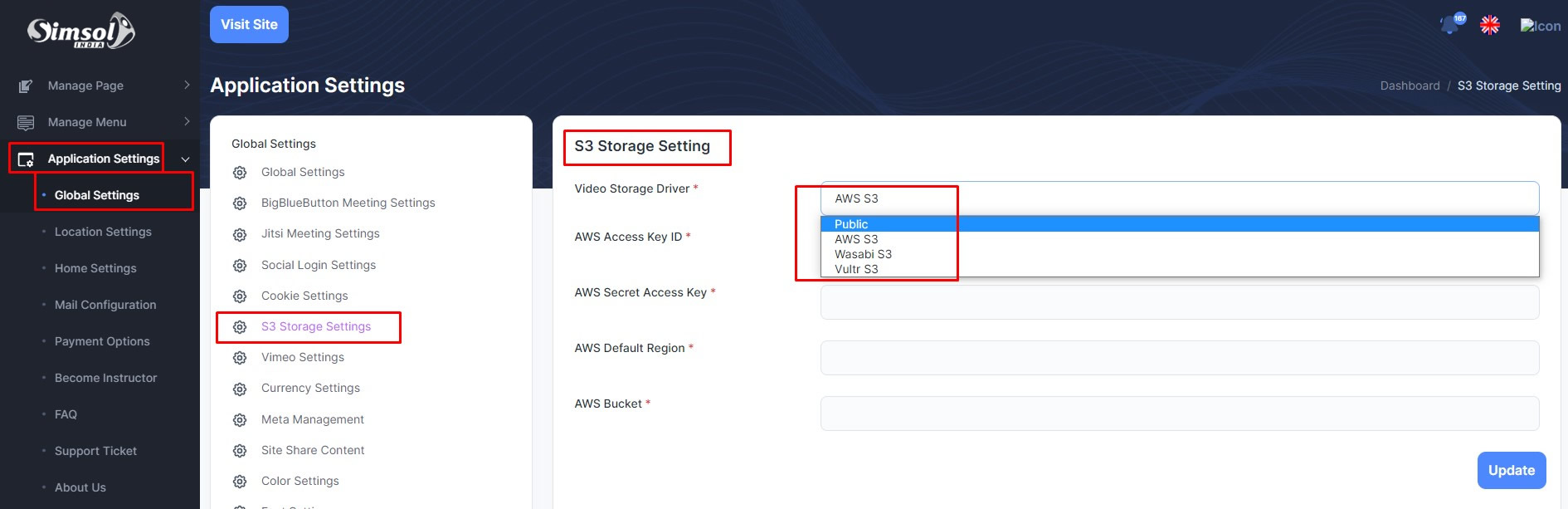
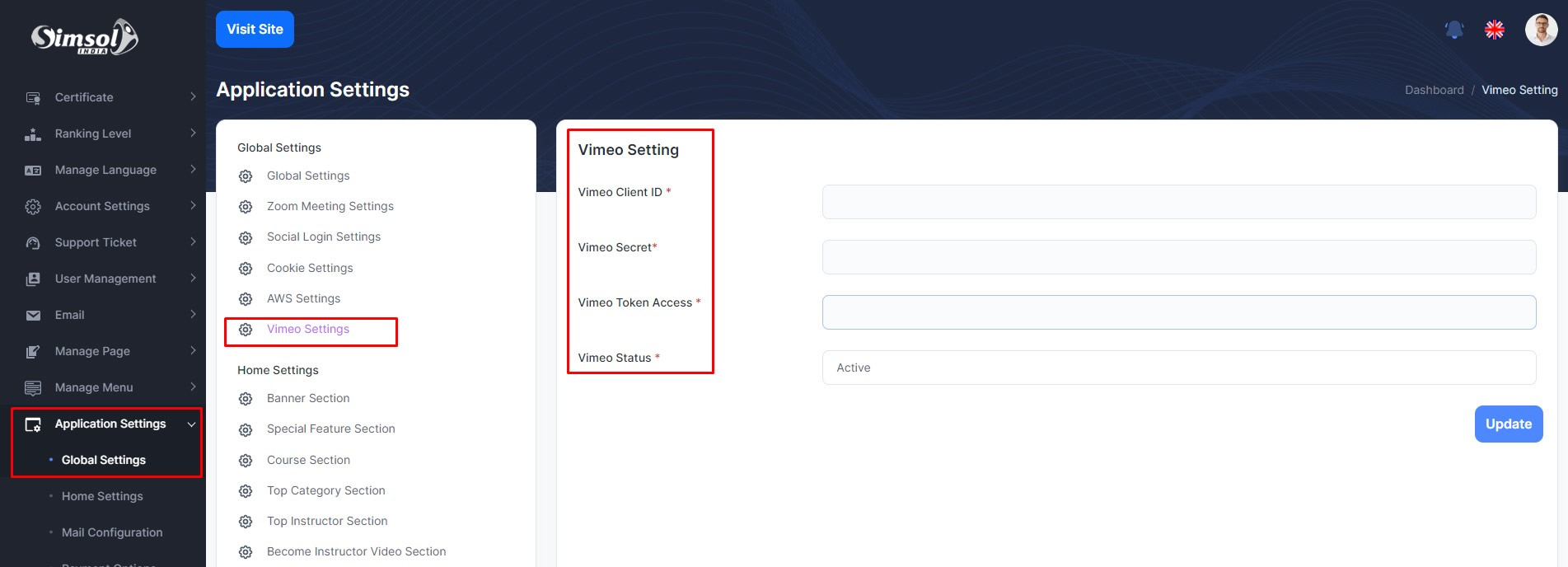
Vimeo Settings
In Simsol, you can add vimeo server to enhance different features after configuring this. This only work for video. If you want to video upload in vimeo server. You need to add credentials
To enhance this feature, you have to set some credentials on your application. Admin can activate/deactivated option for vimeo. if you deactivate, please select Vimeo Status = Deactivated Now, you have to follow the easy steps to set up :
Payment Gateway
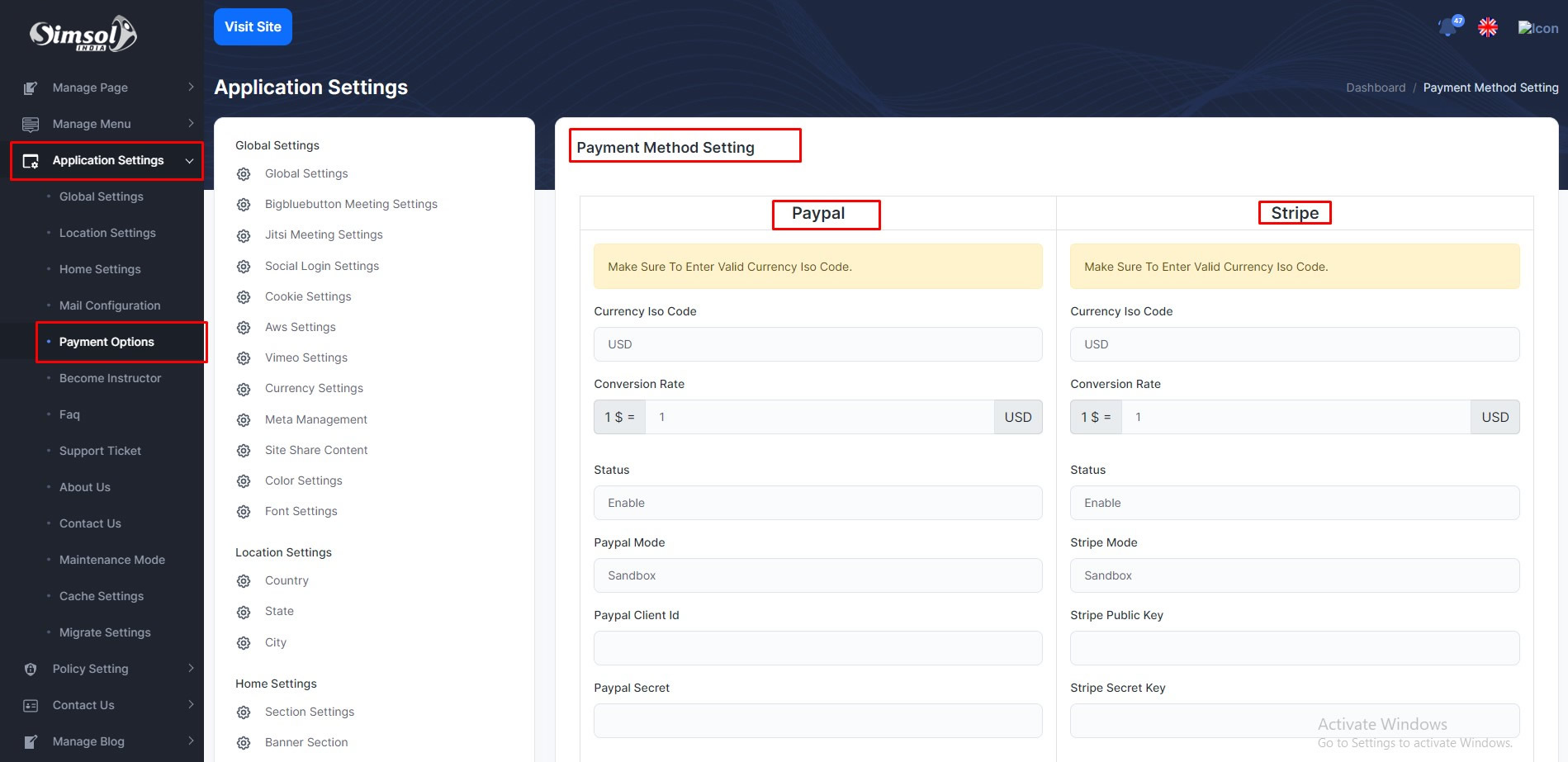
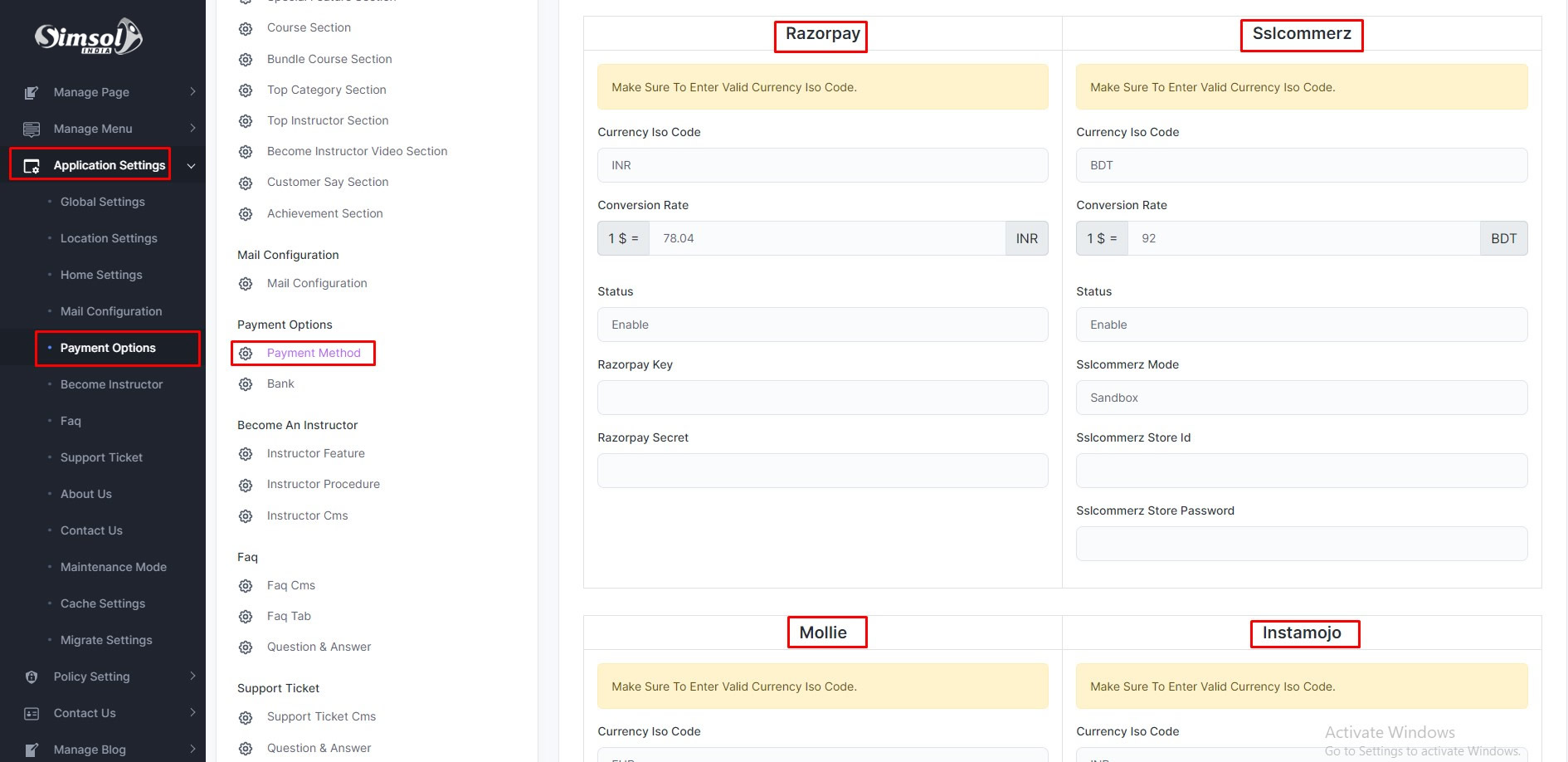
In Simsol, you can add payment gateway to enhance different features after configuring this. After purchase any course , student need to payment for paid courses. You need to add credentials for different payment gateway, like Paypal, Stripe, Razorpay, SSLCOMMERZ, Mollie, Instamojo, Paystack
To enhance this feature, you have to set some credentials on your application. Admin can activate/deactivated option for any type of payment gateway. Now, you have to follow the easy steps to set up :
Bank Payment Gateway
In Simsol, you can add payment gateway to enhance different features after configuring this. After purchase any course , student need to payment for paid courses. You need to add credentials for different payment gateway, like Paypal, Stripe, Razorpay, SSLCOMMERZ, Instamojo, Mollie, Paystack
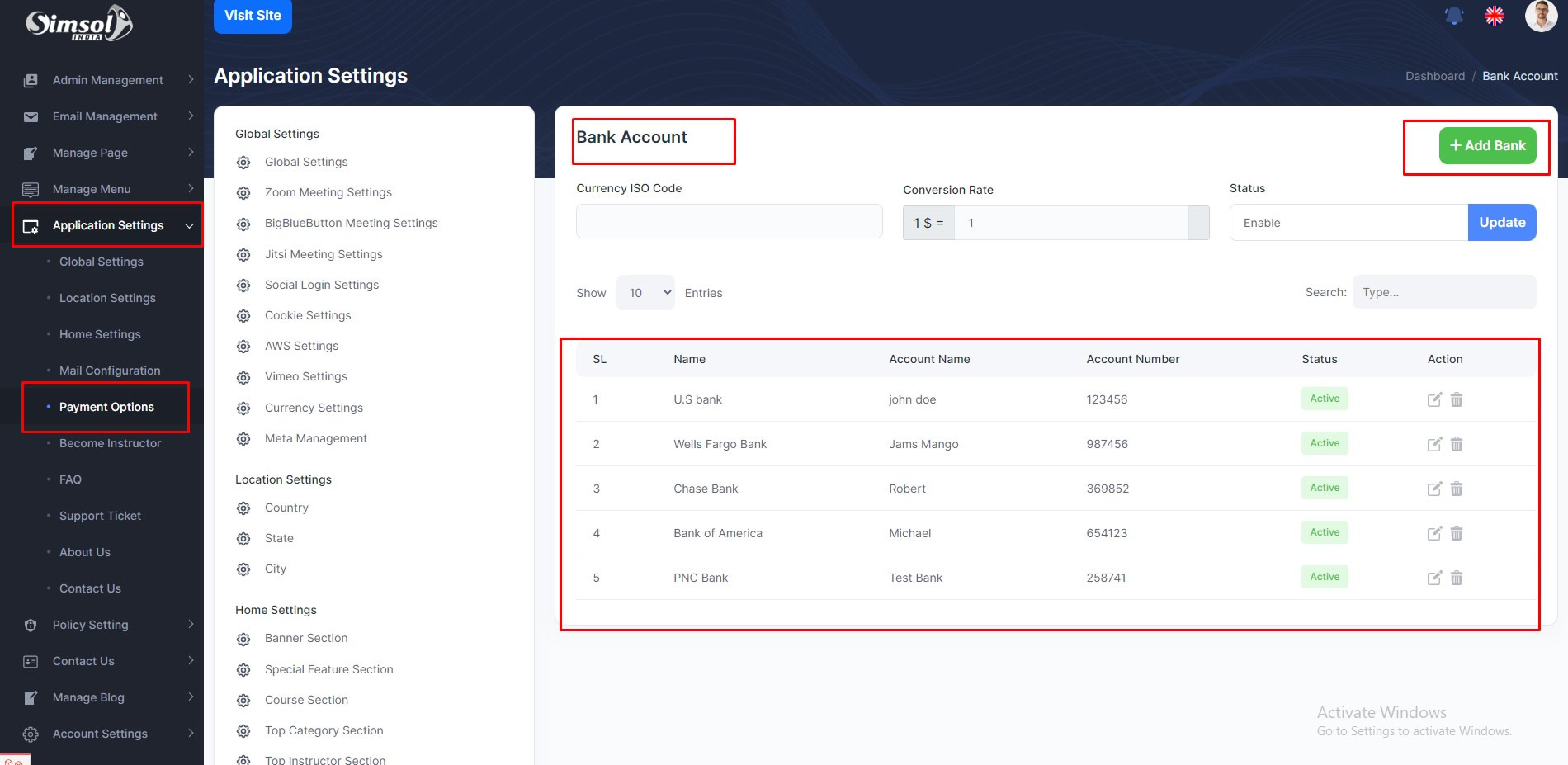
We also add bank payment method. Admin can add multiple bank information and user can purchase through those added banks.
To enhance this feature, you have to set some credentials on your application. Admin can activate/deactivated option for any type of payment gateway. Now, you have to follow the easy steps to set up :
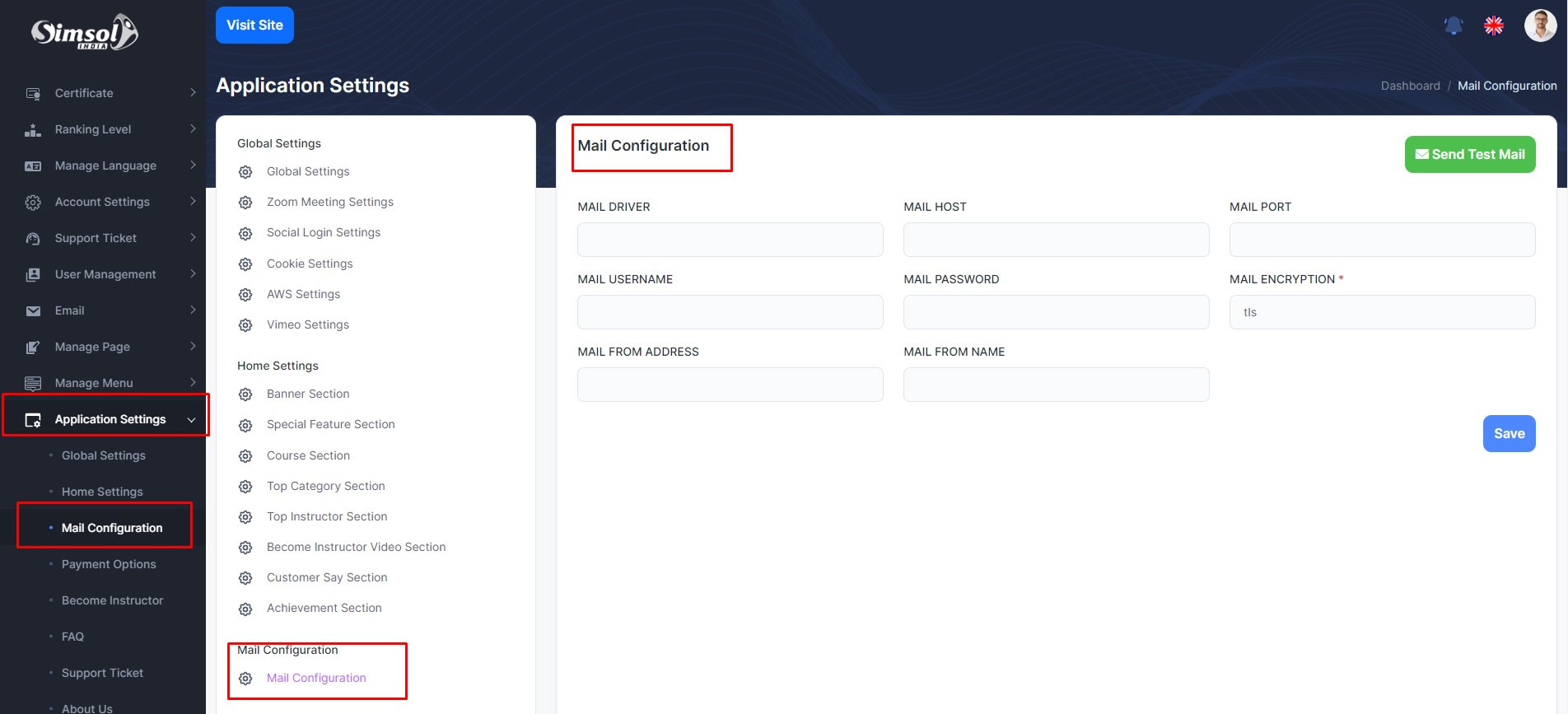
Mail Configuration
In Simsol, you can add mail configuration to enhance different features after configuring this. Many times need to mail student or instructor.
To enhance this feature, you have to set some credentials on your application. Now, you have to follow the easy steps to set up :
FAQ
FAQ
For the Simsol development we used HTML, CSS, Bootstrap, Jquery for the front end & back end developed in Laravel (PHP), And for the database we use Mysql.
Yes, its completely ready to use. Just instal it to your server and start to use it.
Yes sure, if you are developer or if you have developer you can customize our code and any kinds of feature.
Yes, we offer paid installation support.
Yes, 100%. If you face any bug or error (Mistake from our side) we will fix this update this without any cost.
Yes, 100%. You will get lifetime free update.
Unfortunately! No. You don't offer any free support.
Yes, there are no limitations with shared hosting plans.
Yes. You can use them as free and safe video storage.
Yes, the product supports the RTL direction perfectly in the front end.
Others
Developer Guideline
If any developer wants to run the project his/her development platform. They can follow the instructions
At first, create your database. Then open .env from project folder, and write database name, database host name, database password. After then open your project terminal and run the below command
- composer install
- php artisan key:generate
- php artisan serve
Now open your browser and browse (http://localhost:8000)
After then you can see the installation page. Complete the installation wizard as directed. After successfully install process, then you can see project home page.
Change Log (version 1.1)
- Mollie
- Instamojo
- Paystack
- Bank Payment
- BligBlueButton
- Jitsi
Change Log (version 1.2)
Change Log (version 1.3)
Change Log (version 1.4)
Change Log (version 1.5)
Issues
Change Log (version 2.0)
Change Log (version 2.1)
Change Log (version 2.2)
Change Log (version 2.3)
Change Log (version 2.3.1)
Change Log (version 3.0)
Change Log (version 3.1)
Change Log (version 3.1.1)
Change Log (version 3.2)
Change Log (version 3.2.1)
Change Log (version 3.2.2)
Change Log (version 3.2.3)
Change Log (version 3.3)
Change Log (version 3.3.1)
Change Log (version 3.3.2)
Release Log
Update Guideline
Simsol is the best Learning Management System(LMS) application right now. Day by day we update Simsol and add new features. Any customer update our application from any lowest version to upper version. We provide all the necessary documentation required for you. It is fully documented and simple to modify.
If you have old version, and you want to update it new version. You follow some necessary steps.
Warning
If you change anything in the script files, you will lose all change after update the script.
Simsol Learning Management System update v1.0 to 1.3
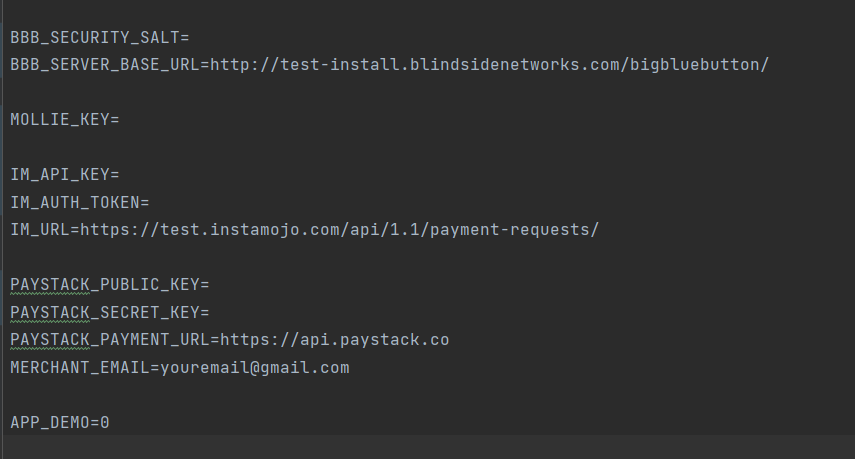
Simsol Learning Management System update v1.1/v1.2 to 1.3
Steps:
At first, login to your control panel (cpanel, or anywhere you upload Simsol script). Download some folder that is connected to your database.
Backup Plan
I hope your updating will be done successfully. Download your database and present script to avoid any errors. (Safety first)
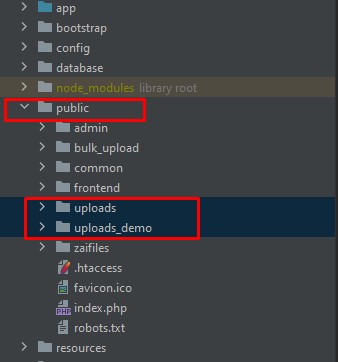
Now go to your folder location public You see 2 folders(uploads and uploads_demo). Zip 2 folders and download in your computer. This zip folder need in Step 8.
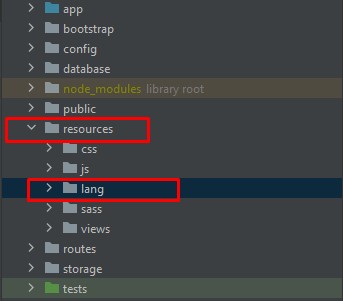
Then back in main file location and go to your folder location resourcesYou see 1 folder lang. Now, Zip the folder and download in your computer. This zip folder need in Step 9.
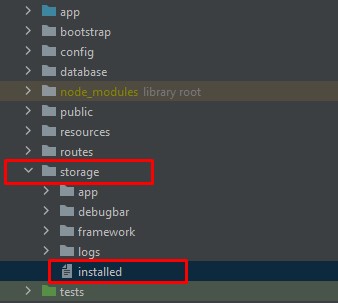
Then back in main file and go to your folder location storageYou see 1 file installed. Now download the file in your computer. This file need in Step 10.
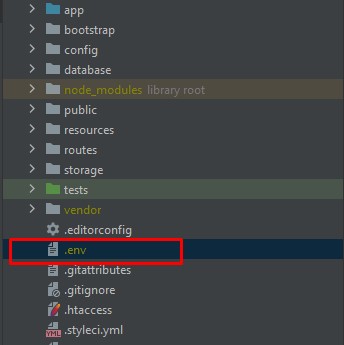
Then back in main file and go to your main file location .env You see the file (.env). Now download the file in your computer. This file need in Step 11.
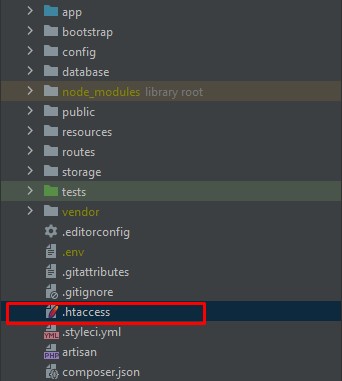
Now if you changed by yourself .htaccess file for your hosting need to host this project. You download the file .htaccess in your computer. This file need in Step 12.
Now Delete all the file your control panel and upload our new Main Files (Script) this current location.
Warning
This time you don't need to install again. Strictly Prohibited
After successfully upload new file. You need to give 777 permission this folders(public, resources, route, storage, .env) same as before.
Now go to your folder location public You see 2 folders(uploads and uploads_demo). Delete this 2 folders, and upload your zip folder from your computer and extract in public folder. You already have zip folder which was download in Step 1.
Then back in main file location and go to your folder location resourcesYou see 1 folder lang. Delete this lang folder, and upload your zip folder from your computer and extract in resources folder. You already have zip folder which was download in Step 2.
Then back in main file and go to your folder location storage. Upload installed file in storage folder from your computer. You already have installed file which was download in Step 3.
Then back in main file and go to your main file location .env You see the file (.env). Delete this .env file and Upload .env file in main file from your computer. You already have .env file which was download in Step 4.
If you changed by yourself .htaccess file for your hosting need to host this project. So you already followed Step 5. If you download .htaccess file, you can delete .htaccess file from main file location and upload your download .htaccess file. Otherwise, if you didn't change .htaccess file, you don't need to .htaccess file.
If you successfully complete Step 1 - Step 12, Go to your admin panel location Application Settings Migrate Settings Then click Migrate Click Here
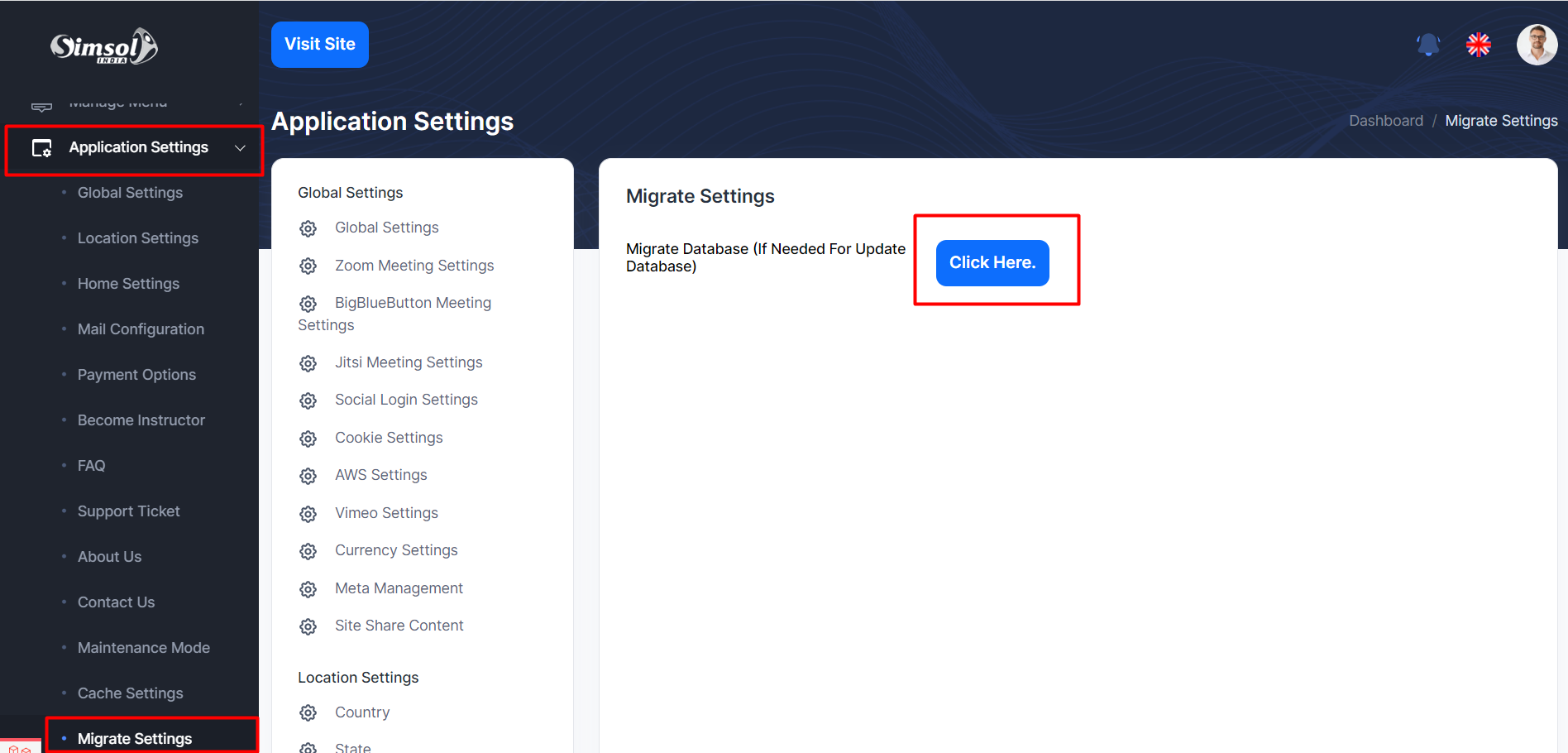
N.B -> If you will not access to get in migrate or cache clear. Then Please Open browser and hit this url (yourDomainName)/migrate. After then, you will access any kind of feature.
If you successfully complete Step 1 - Step 13, Go to your admin panel location Application Settings Cache Settings Then click Application Clear Cache Click Here
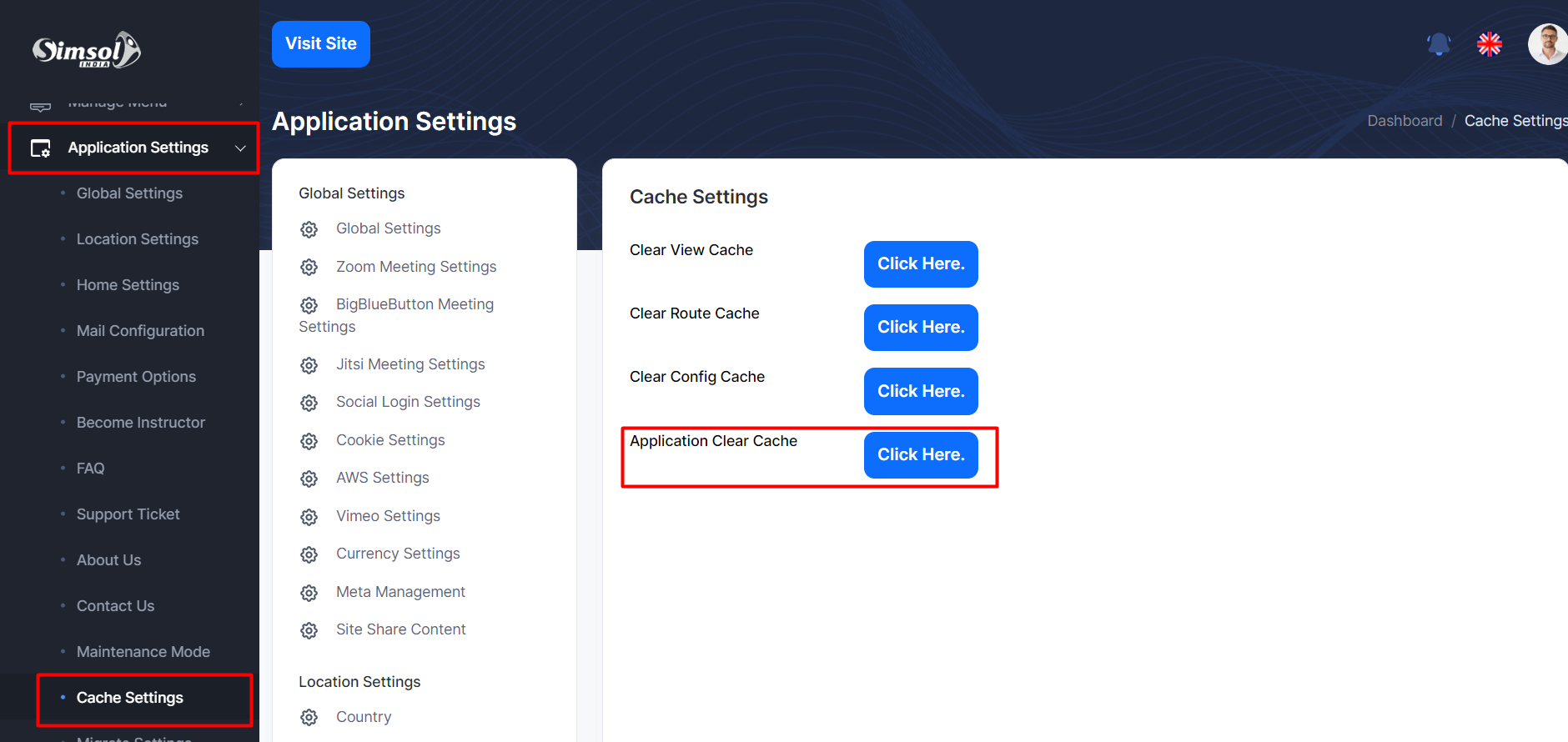
After successfully done step 1 to 14. You see the all new update in your application. Thank you
Simsol Learning Management System update v1.3 to 1.4
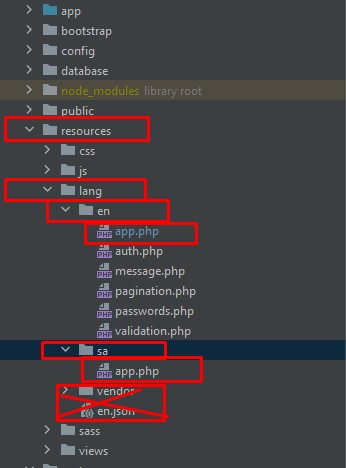
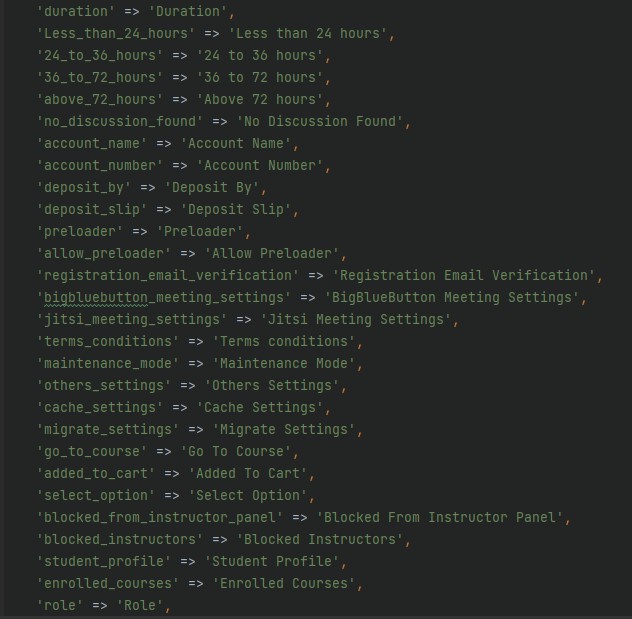
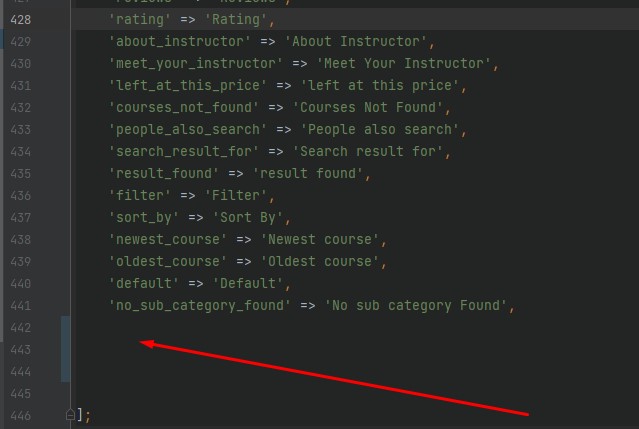
Write here from above image. Make sure, write here which is not in your list. Go to every folder and see app.php file. and go down of the page and write few things from above image, which is not there in your list.
Simsol Learning Management System update v1.3/1.4 to 1.5
Simsol Learning Management System update v1.5 to v2.0
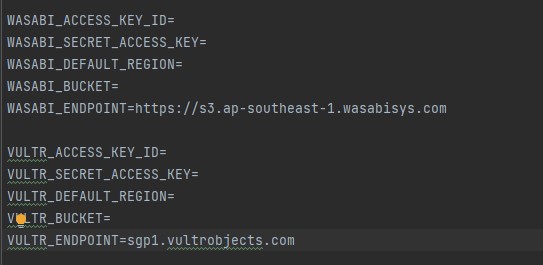

Simsol Learning Management System update v2.0 to v2.1/v2.2
Simsol Learning Management System update older to v3.0 or more latest
At first, login to your control panel (cpanel, or anywhere you upload Simsol script). Download some folder that is connected to your database.
Backup Plan
I hope your updating will be done successfully. Download your database and present script to avoid any errors. (Safety first)
Backup those below file and folders. You can see this in your domain root folder.
public\uploads
public\uploads_demo
resources\lang
storage
.env
.htaccess
public\uploads
public\uploads_demo
resources\lang
storage
.env
.htaccess
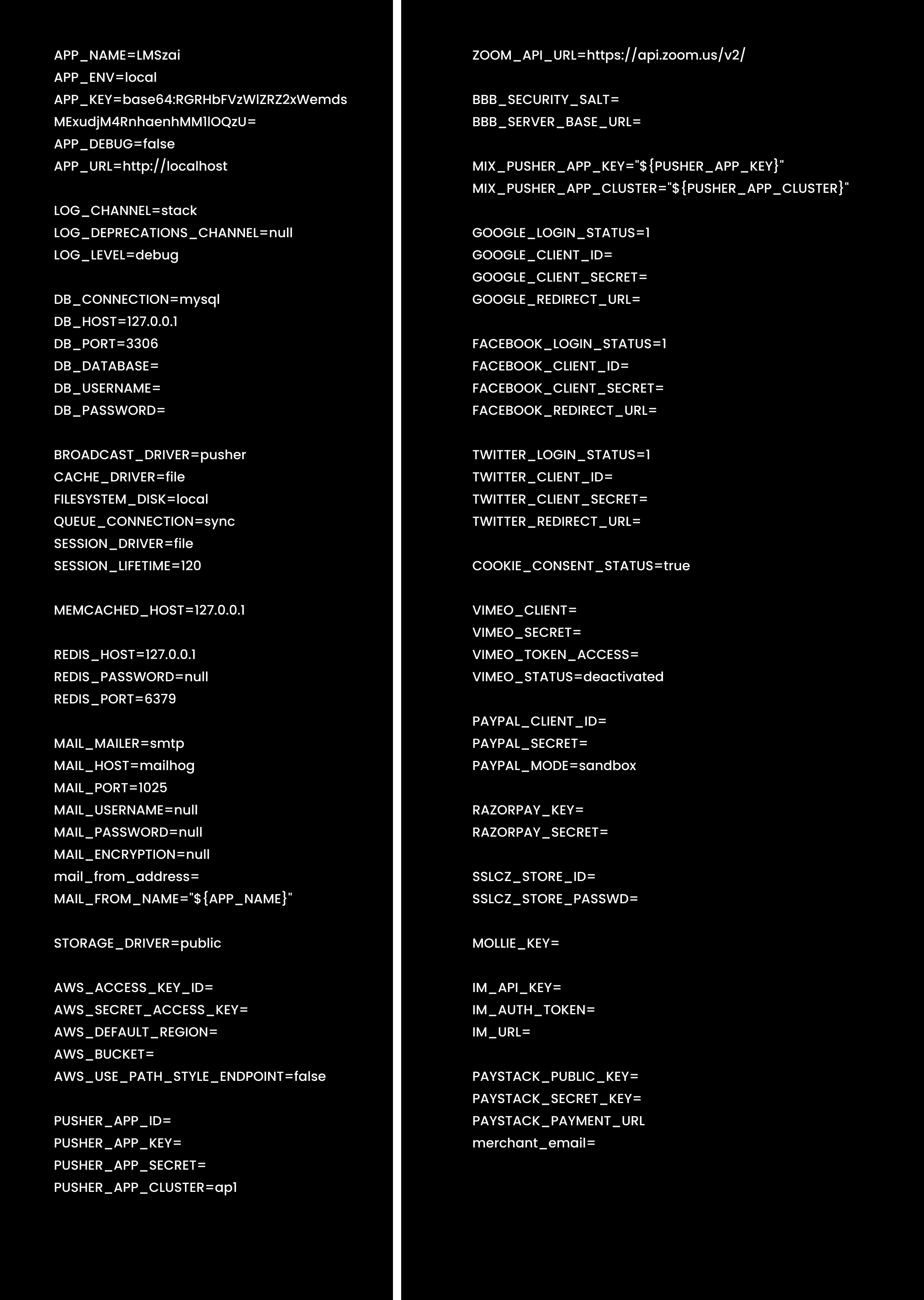
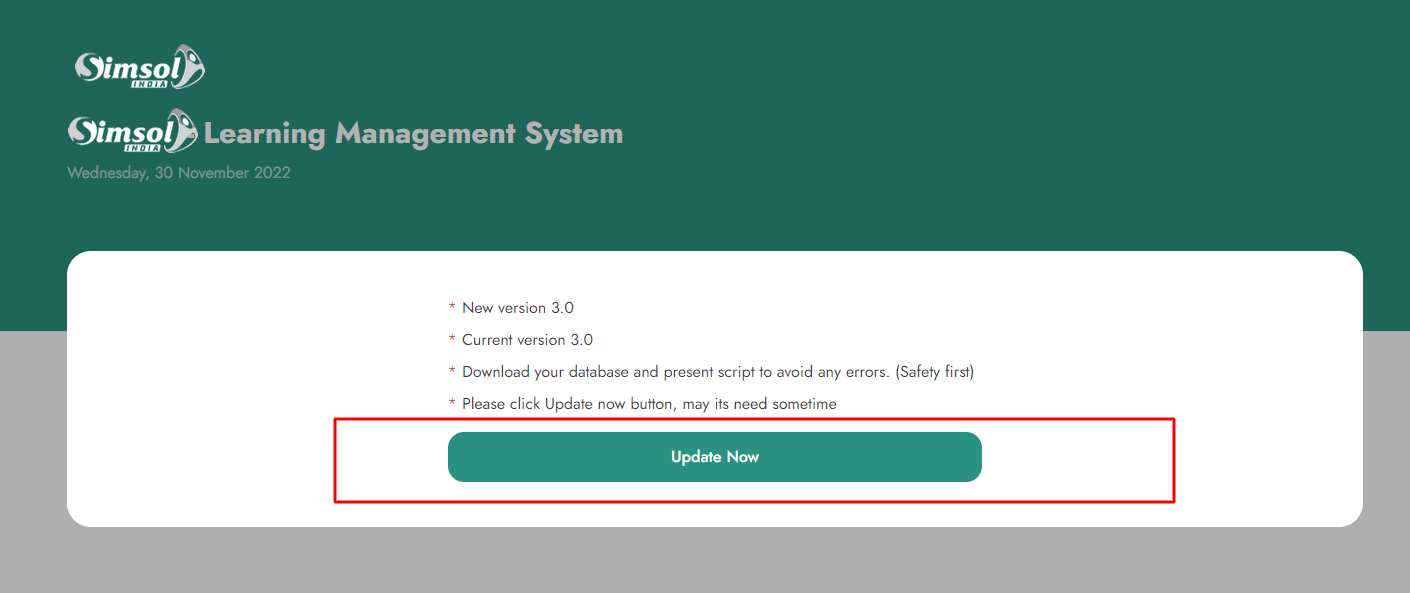
You have finished the version update process. Thank You